Compositions overview
-View Federated Compositions
Federated Audience Composition lets you create compositions, where you can leverage various activities into a visual canvas to create audiences. After creating your composition, the resulting audiences are saved into Adobe Experience Platform and can be leveraged in Experience Platform destinations and Adobe Journey Optimizer to target customers.
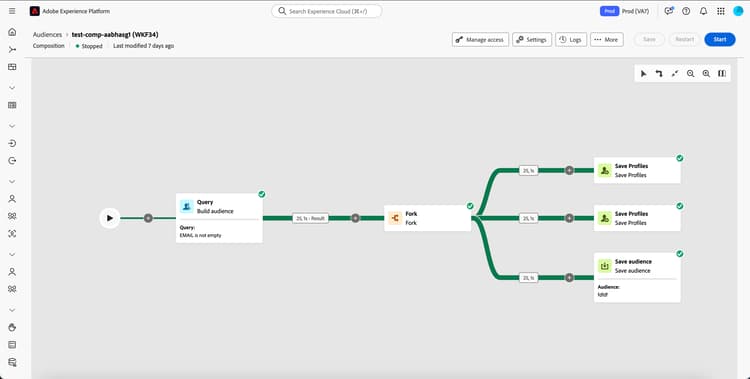
Composition components components
A composition within Federated Audience Composition is made up of the following parts:
- Activities: An activity is a task to be performed, and are represented within the composition by icons.
- Transitions: Transitions link a source activity to a destination activity and define their sequence. The information contained in the transitions is stored within a work table. Each composition uses several worktables. The data conveyed in these tables can be used throughout the composition’s life cycle.
Access and manage compositions access
Compositions are accessible from the Adobe Experience Platform Audiences menu, in the Federated compositions tab within the Customers section.
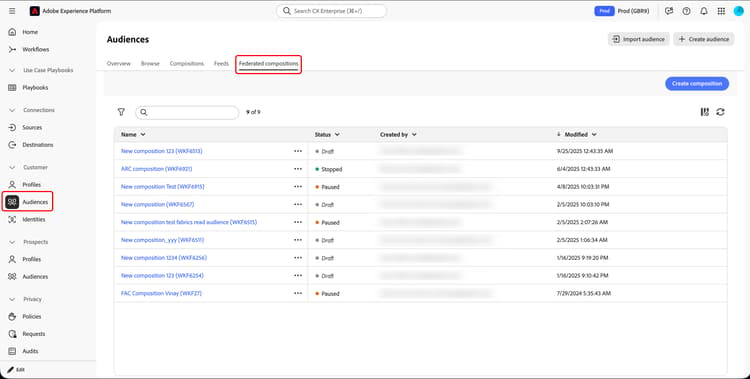
From this screen, you can view information about the compositions and create new compositions.
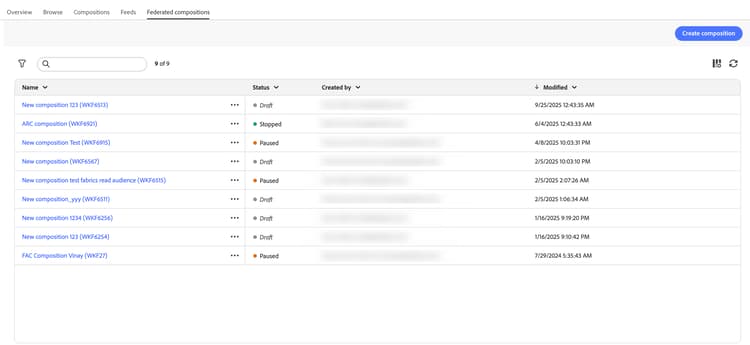
The status of the composition. Possible values include Draft, In progress, Stopped, Paused, and Erroneous.
- Draft: The composition has been created and saved.
- In progress: The composition has been executed and is currently running.
- Stopped: The composition execution is complete and has stopped.
- Paused: The composition execution has been paused.
- Erroneous: The composition execution has encountered an error. To view more information about the error, open the composition and access the logs.
To learn how to start or stop a composition, read the create composition guide.
You can also perform quick actions to the compositions by selecting the

To refine the list and find the composition you are looking for, you can search the list, and filter compositions by their statuses or last processing dates.
You can also customize the list by adding or removing columns. To do this, select the Configure columns button and add or remove the desired output columns.

Apply access labels access-labels
To apply access labels to a specific composition, select the composition, followed by Manage access.
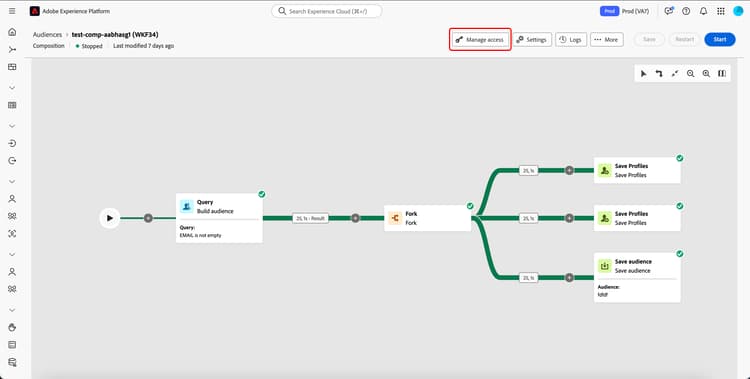
The Manage access popover appears. On this page, you can apply the applicable access and data governance labels to your composition.
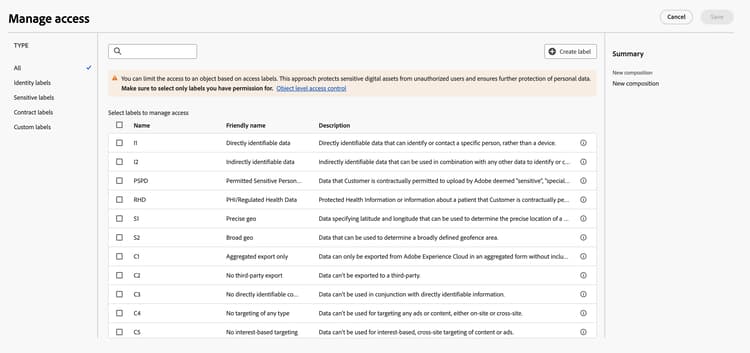
For more information about access and data governance labels, please read the data usage label glossary.
Create create
You can create a composition for Adobe Experience Platform using Audience Composition. For more information, read the create a composition guide.
Next steps
After reading this guide, you’ve learned how to access, manage, and create access labels for your compositions. For more information on working with audiences as a whole, please read the audiences guide.