Activities overview
In Federated Audience Composition, you can add activities and transitions that help define your audience.
Activities activities
Activities let you define the components within the audience.
There are two different types of activities for use within Federated Audience Composition: targeting activities and flow control activities.
Targeting activities targeting
Targeting activities let you define what makes up your audience for the composition.
Build audience
The Build audience activity lets you define your target population for the composition. You can either select an existing audience or use the query modeler to define your own query.
After adding the Build audience activity to the composition canvas, give your audience a name. You can now specify if you want to create an audience or use an existing one.
| tabs | |
|---|---|
| Create new audience |
After selecting Create audience, choose the Schema for your audience. The schema lets you define the population targeted by the operation, such as recipients, contract beneficiaries, operators, or subscribers. By default, the schema is selected from the recipients.
After choosing a schema, select Continue. You can now define your audience’s definition within the Query Modeler. For more information on using the Query Modeler, read the Query Modeler overview. |
| Use existing audience |
After selecting Read audience, choose Continue.
You can now select which audience you want to use for your composition. |
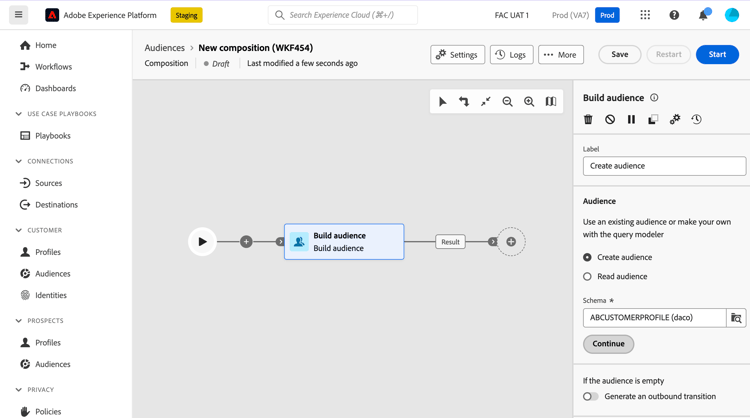
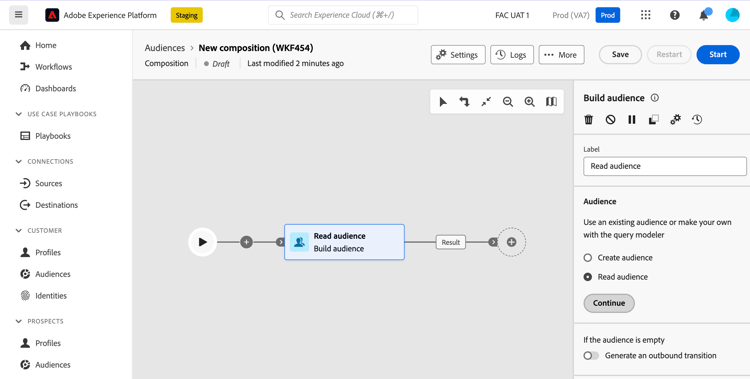
After you’ve selected your options, you can choose to Generate an outbound transition. Selecting this lets you add an outbound transition that will be activated at the end of the execution of the activity if the audience population is empty.
Change data source
The Change data source activity lets you change which data source is being used by your composition.
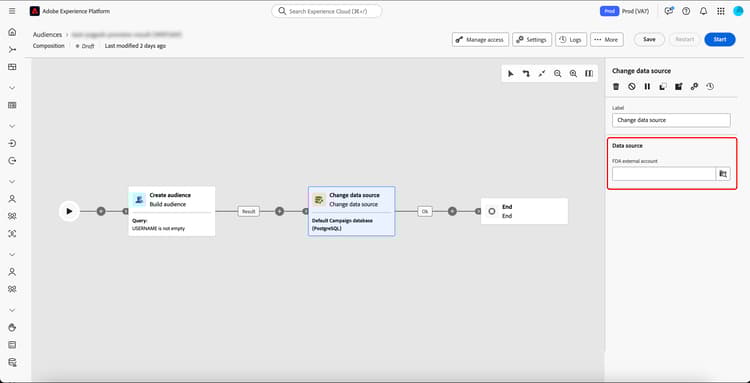
After adding the Change data source activity to your composition canvas, you can define the data source that will be used for the composition.
| table 0-row-2 1-row-2 | |
|---|---|
| Source | Description |
| FDA external account | An external cloud database connected to Federated Audience Composition. |
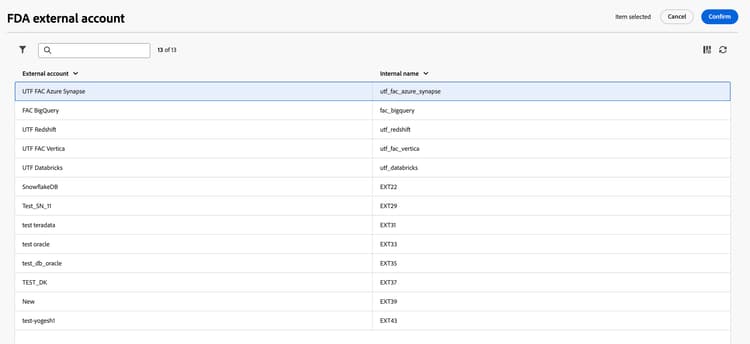
After selecting FDA external account, you can choose which external account you want to connect with.
Change dimension
The Change dimension activity lets you change the schema (also known as the targeting dimension) of your composition.
After adding the Change dimension activity to your composition canvas, you can define a new schema to replace the previous schema. During this schema change, all records will be kept.
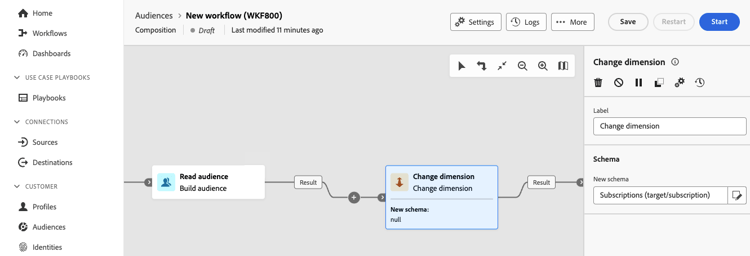
After you execute the composition, your results will be updated.
Combine
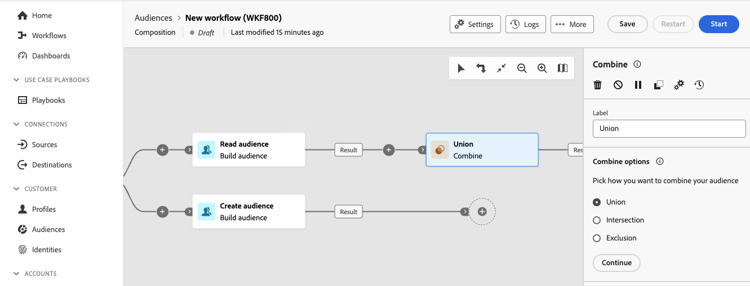
The Combine activity lets you join multiple audiences in various ways - a union, intersection, or exclusion.
- Union: A union combines the different audiences into a single audience. This is equivalent to an OR operation.
- Intersection: An intersection combines the different audiences into a single audience with only the shared content being preserved. This is equivalent to an AND operation.
- Exclusion: An exclusion combines the different audiences into a single audience without the specified exclusion rules. This is equivalent to a XOR operation.
After adding multiple activities to form at least two different branches, add the Combine activity to the end of one of the branches. You can now choose one of the combine options - Union, Intersection, or Exclusion.
| tabs | |
|---|---|
| Simple attributes |
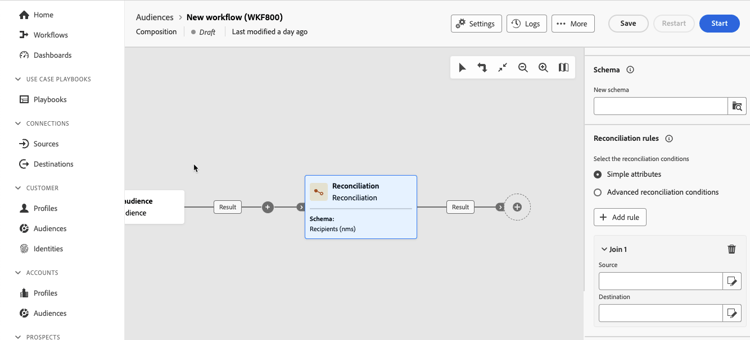
After choosing Simple attributes, select Add rule. You can now set up your reconciliation by adding the Source and Destination fields. The Destination field corresponds to the fields of the selected schema.
Data is reconciled when the source and destination are equal. You can add more reconciliation criteria by selecting Add rule. If multiple join conditions are specified, all of them must be verified so the data can be linked together. |
| Advanced reconciliation conditions |
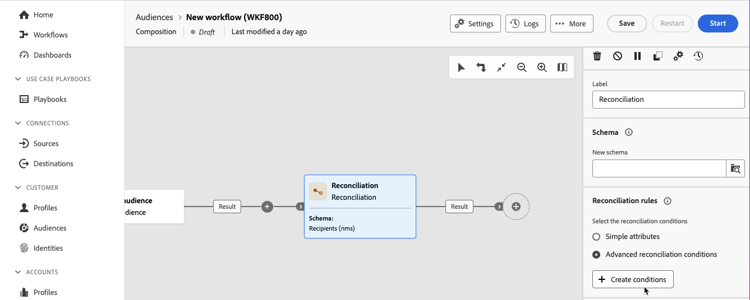
After choosing Advanced reconciliation conditions, select Create conditions. You can now create your own reconciliation condition using the query modeler. For more information on using the Query Modeler, read the Query Modeler overview
|
You can also filter the reconciled data. Select Create filter to create a custom condition using the Query Modeler. For more information on using the Query Modeler, read the Query Modeler overview
Save audience
Halos UPS dataset to your merge policy.The Save audience activity lets you create an audience based off of the composition. Once the audience has been created, you can use them within Audience Portal in Adobe Experience Platform. For more information on using audiences with Federated Audience Composition, read the audiences overview. For more information on audiences in Experience Platform, read the Audience Portal overview.
| note important |
|---|
| IMPORTANT |
| The audience’s name must be unique within the current sandbox and cannot have the same name as any existing audience. |
After adding the Save audience activity to your composition, you can specify the name of your newly created audience.
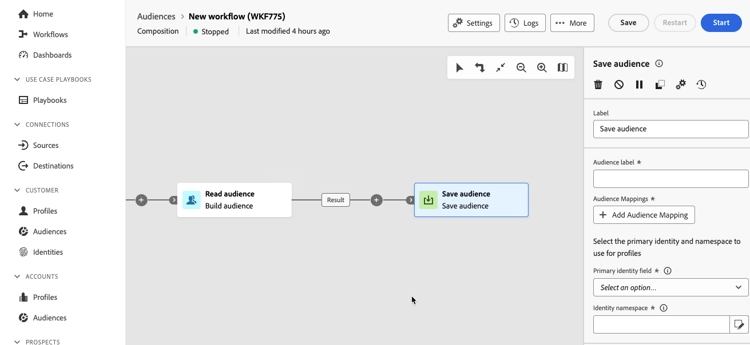
Now, you can specify your mappings to select which fields you want to transfer to the newly created audience. Select Add Audience Mapping and choose the source and target audience fields, repeating as many times as necessary.
After adding your mappings, you can select the primary identity and namespace to identify the targeted profiles in the database. The primary identity field is used to identify the profiles while the identity namespace acts as a key to identify the identity.
Split
The Split activity separates the incoming population into multiple parts, depending on the given criteria.
| note important |
|---|
| IMPORTANT |
| When the Split activity is executed, the population is separated across the different subsets in the order they are added. For example, if the first subset splits 70% of the initial population, the next subset will apply its selection criteria to the remaining 30%. |
| Before executing your composition, make sure you have ordered the subsets in the order you want the splits to be run. |
After adding the Split activity to your composition, you can now determine how to subset your audience. Select Add segment to create your different branching paths.
You can now provide details for each of these sub-paths. You can give the sub-path a name as well as the filter conditions. To create a filtering condition, select Create filter and configure the filtering rule using the Query Modeler. For more information on using the Query Modeler, read the Query Modeler overview.
Once you’ve created your filtering condition, you can apply the following additional rules:
- Enable limit: Limits the number of profiles that are allowed to be split off into the subset. You can set this as either a number or a percentage of the population.
- If you enable a limit, you can also rank the selected profiles based on a specific profile attribute. Turn on Enable sorting, and you can sort the attributes in ascending or descending order.
- Skip empty transition: Disables the transition if the incoming population is empty.
Now that the subsets have been configured, there are a few more additional options you can set.
| table 0-row-2 1-row-2 2-row-2 3-row-2 | |
|---|---|
| Options | Description |
| Generate complement | Creates an outbound transition that contains the remaining population. |
| Enable overlapping of output populations | If enabled, the recipient cannot be present in multiple outbound transitions and will only be present in the first outbound transition. If disabled, the recipient can appear in multiple outbound transitions. |
| Generate all subsets in the same table | Groups all the subsets into a single outbound transition. |
Flow control activities flow-control
Flow control activities let you define the organization and coordination of your composition.
And join
The AND-join activity lets you combine multiple branches of a composition together. This activity is only triggered once all the inbound transitions are activated.
After you’ve added multiple activities to form at least two different branches, you can add the AND-join activity to the end of any of the branches.
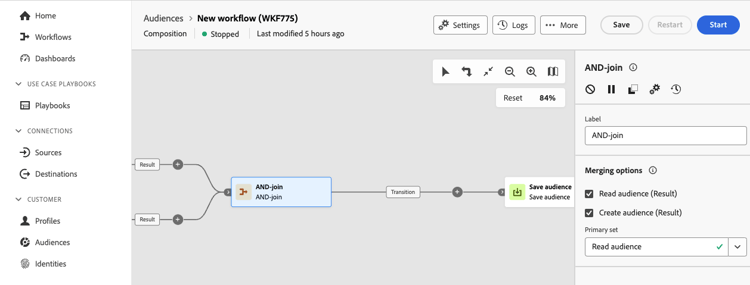
Within the Merging options section, you can select all the activities you want to synchronize. Additionally, you can choose which inbound transition to keep within the Primary set dropdown.
End
The End activity graphically marks the end of the composition and has no functional impact.
Fork
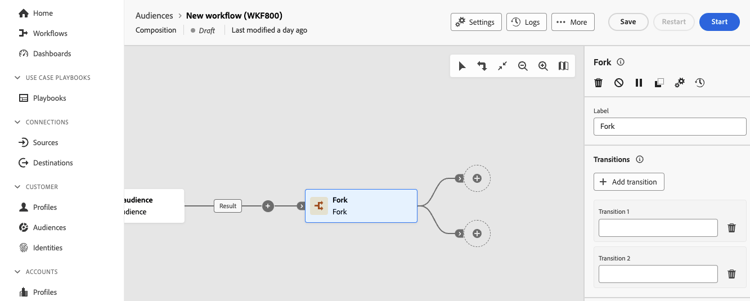
The Fork activity lets you create multiple outbound transitions that simultaneously starts multiple activities.
Once you’ve added the Fork activity to your composition, two outbound transitions are automatically generated. You can give these outbound transitions a name. Additionally, you can select Add transition to add another outbound transition.
Scheduler
The Scheduler activity lets you schedule when to start the composition’s execution. You must use this as the first activity of the composition.
After adding the Scheduler activity to your composition, you can set the Execution frequency for the composition. Options include Once, Daily, Several times a day, Weekly, and Monthly.
| tabs | |||||||||||||
|---|---|---|---|---|---|---|---|---|---|---|---|---|---|
| Once |
If you select Once, the composition is only executed once. You can select the date and time the composition is run. |
||||||||||||
| Daily |
If you select Daily, the composition is executed once a day. However, you can which day of the month the composition is executed under the Day of the month section. Possible values include Every day, On week days, Through a selected period, and Selected days of the week.
After choosing what day of the month the schedule will run, you can select Preview launch times to check the schedule of the next ten executions of your composition. |
||||||||||||
| Several times a day |
If you select Several times a day, the composition is executed multiple times per day. You can choose whether the composition is executed at specific times per day or periodically at set times. If you select Selected hours, you can choose the specific times the composition will run. If you select Periodic, you can choose how often the composition will run in either hours or minutes and between what times it will run. All the times are in UTC. After select the hours, you can choose how often the execution is run under the Day of the month section.
After choosing what day of the month the schedule will run, you can select Preview launch times to check the schedule of the next ten executions of your composition. |
||||||||||||
| Weekly |
If you select Weekly, the composition is executed on the weekly frequency that is set. If you set the weekly frequency as a number larger than 1, you can also choose the date the execution starts from. After choosing the evaluation frequency, you can choose how often the execution is run under the Day of the month section.
After choosing what day of the month the schedule will run, you can select Preview launch times to check the schedule of the next ten executions of your composition. |
||||||||||||
| Monthly |
If you select Monthly, the composition is executed on the monthly frequency that is set. You can either set it to be every month or on certain months. After choosing the monthly frequency, you can choose the Day of the month the execution is run.
Once you set the Day of the month, you can choose the start time. All the times are in UTC. |
After selecting the execution frequency, you can choose the Validity period of the schedule.
| table 0-row-2 1-row-2 2-row-2 | |
|---|---|
| Validity period | Description |
| Permanent (never expires) | The composition will never expire. |
| Validity period | The composition will run between the given dates. |
Wait
The Wait activity pauses the composition’s execution for the specified amount of time.
After you add the Wait activity to your composition, you can make it either a Duration or a Fixed time wait.
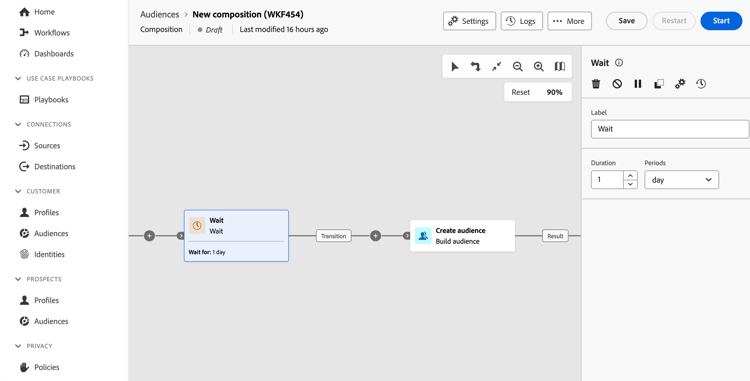
If you select duration, you can set the period of time to wait. This period of time can be in seconds, minutes, hours, or days.
If you select fixed time, you can set the composition to wait until the given date and time. The time is set to your local time zone.
Transitions transitions
In compositions, transitions show how data is transported from one activity to another. The transitions store the data in a temporary work table. If you select the transition, you can view the following information:
- Preview schema: You can select this to view the schema for the work table.
- Preview results: You can select this to visualize the data that’s transported in the selected transition. This option is only available if Keep the result of interim populations between two executions is enabled.

Next steps next-steps
After reading this guide, you’ll have a better understanding of the activities and transitions you can use within a composition. For more information on compositions in general, read the composition overview.