Send media event
The Send media event action sends media event to a datastream, which can then be used by apps and services like Adobe Experience Platform or Adobe Analytics. This action is useful when you track streaming media content on your property.
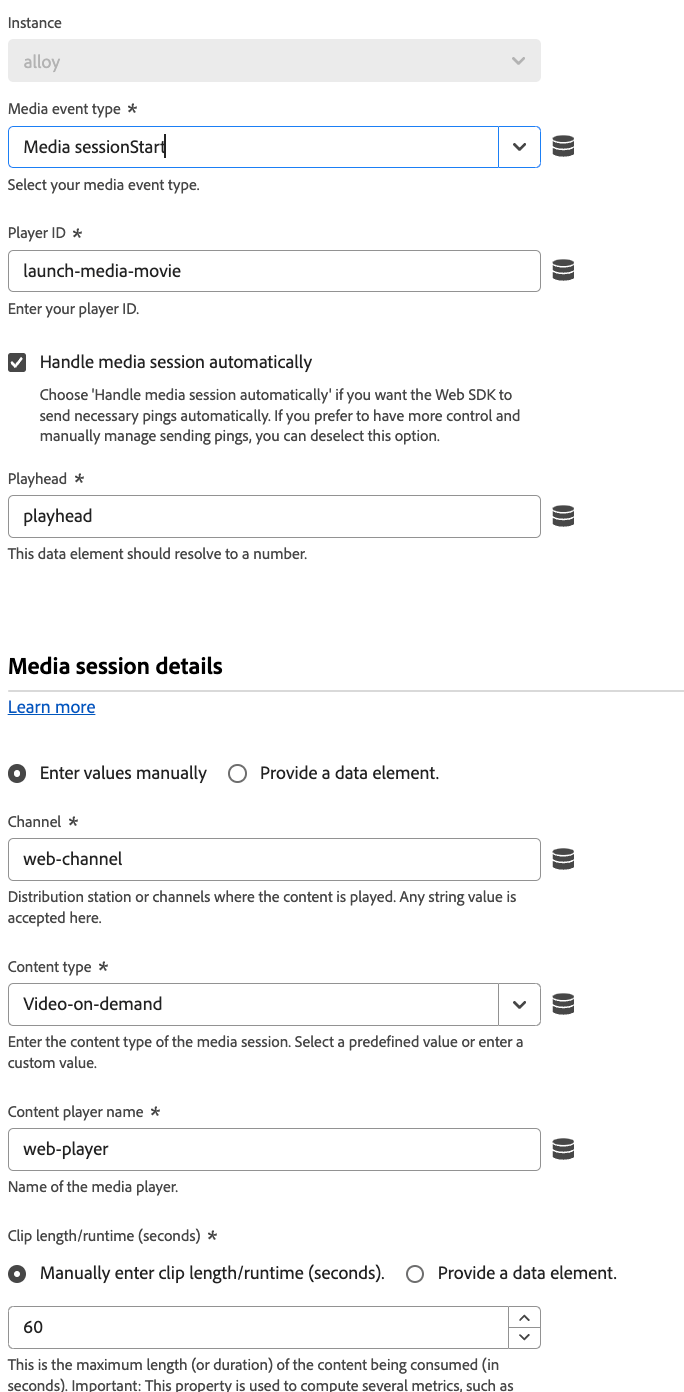
Available options depend on the Media event type that you select. All media event types require a Player ID, which is the Content Player Name.
Some event types offer the ability to configure other fields. If a media event type is not listed here, then the only available field is Player ID. The following media event types include other fields:
Ad break start
Allows you to configure advertising pod details.
- Ad break name: The friendly name of the ad break.
- Ad break offset (seconds): The offset of the ad break inside the content, in seconds.
- Ad break index: The index of the ad break inside the content, starting at 1.
Ad start
Allows you to configure advertising details.
- Ad name: The friendly name of the ad.
- Ad ID: The ID of the ad. Any alpha-numeric value is supported.
- Ad length (seconds): The length of the video ad, in seconds.
- Advertiser: The company or brand whose product is featured in the ad.
- Campaign ID: The ID of the ad campaign.
- Creative ID: The ID of the ad creative.
- Creative URL: The URL of the ad creative.
- Placement ID: The placement ID of the ad.
- Site ID: The ID of the ad site.
- Pod position: The index of the ad inside of the parent ad break, starting at 0.
This event type also supports the ability to provide custom metadata as part of the media event payload.
Bitrate change
- Quality of experience data: A Quality of Experience object that specifies the bitrate, dropped frames, frames per second, and time to start.
Chapter start
Allows you to configure chapter details.
- Chapter name: The name of the chapter or segment.
- Chapter length: The length of the chapter, in seconds.
- Chapter index: The position of the chapter inside of the content.
- Chapter offset: The offset of the chapter from the start of the content, in seconds.
This event type also supports the ability to provide custom metadata as part of the media event payload.
Error
Allows you to configure error details.
- Error name: The error name.
- Source: The source of the error.
Session start
Allows you to configure media session details.
-
Handle media session automatically: A checkbox that allows the Web SDK to send necessary pings automatically. You can uncheck this box if you want to manually send pings yourself.
-
Playhead: The playback playhead, in seconds.
-
Content type: The content type. Any string value is supported; Adobe also offers the following presets:
- Audiobook
- Downloaded video-on-demand
- Linear playback of the media asset
- Live streaming
- Podcast
- Radio show
- Song
- User-generated content
- Video-on-demand
-
Clip length/runtime (seconds): The maximum duration of the content being consumed, in seconds. For live media with an unknown duration, the value of
86400is the default. -
Content ID: The content ID of the content.
-
Ad load type: The type of ad loaded. The following two values are supported:
- Ads same as TV
- Other (custom/dynamic ads)
-
Album: The album that the song belongs to.
-
Artist: The song’s artist.
-
Asset ID: The unique identifier for the content of the media asset. These IDs are typically derived from metadata authorities like EIDR, TMS/Gracenote, or Rovi. These identifiers can also be from other proprietary or in-house systems.
-
Author: The name of the author of the audiobook.
-
Authorized: A flag that determines if the user is logged in through Adobe authentication.
-
Day part: The time of the day when the content was broadcast or played. Any string value is supported.
-
Episode: The episode number.
-
Feed type: The type of feed.
-
First air date: The date when the content first aired on television. Any string value is supported; however, Adobe recommends using the format
YYYY-MM-DD. -
First digital date: The date when the content first aired on any digital channel or platform. Any string value is supported; however, Adobe recommends using the format
YYYY-MM-DD. -
Content name: The friendly name of the content.
-
Genre: The type or grouping of content defined by the content producer. This field supports multiple values, delimited by a comma.
-
Label: The name of the record label.
-
Rating: The rating as defined by TV Parental Guidelines.
-
MVPD: The MVPD as provided by Adobe authentication.
-
Network: The network or channel name.
-
Originator: The creator of the content.
-
Publisher: The audio content publisher.
-
Season: If the show is part of a series, the season number of the show.
-
Show: If the show is part of a series, the series name.
-
Show type: The show type. Any string value is supported; Adobe also offers the following presets:
- Clip
- Full episode
- Other
- Preview/trailer
-
Stream type: The stream type.
-
Stream format: The format of the stream, such as HD or SD.
-
Station: The name or ID of the radio station.
This event type also supports the ability to provide custom metadata as part of the media event payload. It also allows datastream configuration overrides, giving you control over which apps and services receive this data. When you set a datastream configuration override in both an individual command and within the tag extension configuration settings, the individual command takes precedence. See Datastream configuration overrides for more information.
States update
Allows you to configure state update details. You can start or end the following states:
- Closed captioning
- Full screen
- In focus
- Mute
- Picture in picture
The following fields are available:
- States started: A drop-down menu that lets you indicate that a state started. Selecting the Add another state that started button allows you to start multiple states in the same action.
- States ended: A drop-down menu that lets you indicate that a state ended. Selecting the Add another state that ended button allows you to end multiple states in the same action.