Create a source connection and dataflow to stream LAVA data using the Flow Service API
Getting started
This guide requires a working understanding of the following components of Experience Platform:
- Sources: Use Sources in Experience Platform to easily bring in data from a variety of systems. Sources help you gather, organize, and prepare your data so you can make the most of Experience Platform’s capabilities.
- Sandboxes: Sandboxes let you safely build, test, and experiment in Experience Platform without affecting your production data. They create separate environments so you can try things out, develop new features, or collaborate with your team risk-free.
Load the LAVA package
LAVA provides a package that includes our recommended field groups, schemas, identity namespace and datasets for using LAVA in Experience Platform. Use of these packages is recommended, but not required.
Read this section to learn how to import this into your sandbox and get the IDs required for later steps.
API format
POST /transfer/pullRequest
Request
The following request loads the package for LAVA:
curl -X POST \
  'https://platform.adobe.io/data/foundation/exim/transfer/pullRequest' \
  -H 'Authorization: Bearer {ACCESS_TOKEN}' \
  -H 'x-api-key: {API_KEY}' \
  -H 'x-gw-ims-org-id: {ORG_ID}' \
  -H 'x-sandbox-name: {SANDBOX_NAME}' \
  -H 'Content-Type: application/json' \
  -d '{
    "imsOrgId": "1EF71E43679AAD1E0A495C77@AdobeOrg",
    "packageId": "416a0c2a32794092aa1a957cbe9a6698"
  }'
imsOrgId1EF71E43679AAD1E0A495C77@AdobeOrg.packageId416a0c2a32794092aa1a957cbe9a6698.Response
A successful response returns details on the imported public package.
{
    "id": "{ID}",
    "version": 0,
    "createdDate": 1729658890425,
    "modifiedDate": 1729658890425,
    "createdBy": "{CREATED_BY}",
    "modifiedBy": "{MODIFIED_BY}",
    "sourceIMSOrgId": "{ORG_ID}",
    "targetIMSOrgId": "{TARGET_ID}",
    "packageId": "{PACKAGE_ID}",
    "status": "PENDING",
    "initiatedBy": "{INITIATED_BY}",
    "pipelineMessageId": "{MESSAGE_ID}",
    "requestType": "PUBLIC"
}
Retrieve your schemas
After importing the package, retrieve the LAVA Events and LAVA Profile schemas:
Request
curl -X GET \
  'https://platform.adobe.io/data/foundation/schemaregistry/tenant/schemas?name=LAVA*' \
  -H 'Authorization: Bearer {{ACCESS_TOKEN}}' \
  -H 'x-api-key: {{API_KEY}}' \
  -H 'x-gw-ims-org-id: {{ORG_ID}}' \
  -H 'x-sandbox-name: {{SANDBOX_NAME}}' \
  -H 'Accept: application/vnd.adobe.xed-id+json'
Response
A successful response returns a list of schemas. Use these IDs as target XDM schemas in a later step.
{
  "results": [
    ...
    {
      "$id": "https://ns.adobe.com/{TENANT_ID}/schemas/7ff102f217d394e8beff48dcc2c27baae14e28e210d36492",
      "meta:altId": "_{TENANT_ID}.schemas.7ff102f217d394e8beff48dcc2c27baae14e28e210d36492",
      "version": "1.4",
      "title": "LAVA Events"
    },
    {
      "$id": "https://ns.adobe.com/{TENANT_ID}/schemas/991bed7f1d94ccf47bd392bc345ee51e7e0bd19b1de3dbff",
      "meta:altId": "_{TENANT_ID}.schemas.991bed7f1d94ccf47bd392bc345ee51e7e0bd19b1de3dbff",
      "version": "1.2",
      "title": "LAVA Profile"
    },
    //...
  ]
}
Retrieve your datasets
Next, use the following calls to retrieve your dataset IDs.
Request
curl -X GET \
  'https://platform.adobe.io/data/foundation/catalog/dataSets?name=LAVA*' \
  -H 'Authorization: Bearer {{ACCESS_TOKEN}}' \
  -H 'x-api-key: {{API_KEY}}' \
  -H 'x-gw-ims-org-id: {{ORG_ID}}' \
  -H 'x-sandbox-name: {{SANDBOX_NAME}}' \
  -H 'Accept: application/json'
Response
{
  "6920eb494131bfcc10305302": {
    "id": "6920eb494131bfcc10305302",
    "name": "LAVA Member Profiles",
    //...
  },
  "6920eb7565bd3ed93a35cd0e": {
    "id": "6920eb7565bd3ed93a35cd0e",
    "name": "LAVA Member Rewards",
    //...
  },
  "6924aecd8d9c85e2d56261e3": {
    "id": "6924aecd8d9c85e2d56261e3",
    "name": "LAVA Events",
    "schemaRef": {
      "id": "https://ns.adobe.com/{TENANT_ID}/schemas/7ff102f217d394e8beff48dcc2c27baae14e28e210d36492",
      "contentType": "application/vnd.adobe.xed-full+json;version=1"
    },
    //...
  }
}
Connect LAVA to Experience Platform using the Flow Service API
The following tutorial walks you through the steps to create a LAVA source connection and create a dataflow to bring LAVA data to Experience Platform using the Flow Service API.
Create a source connection source-connection
Create a source connection by making a POST request to the Flow Service API, while providing the connection spec ID of your source, details like name and description, and the format of your data.
API format
POST /sourceConnections
Request
The following request creates a source connection for LAVA:
curl -X POST \
  'https://platform.adobe.io/data/foundation/flowservice/sourceConnections' \
  -H 'Authorization: Bearer {ACCESS_TOKEN}' \
  -H 'x-api-key: {API_KEY}' \
  -H 'x-gw-ims-org-id: {ORG_ID}' \
  -H 'x-sandbox-name: {SANDBOX_NAME}' \
  -H 'Content-Type: application/json' \
  -d '{
      "name": "Streaming Source Connection for a Streaming SDK source",
      "description": "Streaming Source Connection for a Streaming SDK source",
      "connectionSpec": {
          "id": "232dfabe-27aa-41c0-a7cf-9961661dc68b",
          "version": "1.0"
      },
      "data": {
          "format": "json"
      }
    }'
namedescriptionconnectionSpec.id232dfabe-27aa-41c0-a7cf-9961661dc68b for LAVA.data.formatjson.Response
A successful response returns the unique identifier (id) of the newly created source connection. This ID is required in a later step to create a dataflow.
{
     "id": "246d052c-da4a-494a-937f-a0d17b1c6cf5",
     "etag": "\"712a8c08-fda7-41c2-984b-187f823293d8\""
}
Create a target XDM schema target-schema
In order for the source data to be used in Experience Platform, a target schema must be created to structure the source data according to your needs. The target schema is then used to create an Experience Platform dataset in which the source data is contained. If you are using multiple LAVA sets of data, for example both member balances and ticket scan events, you may want or need more than one target XDM schema.
A target XDM schema can be created by performing a POST request to the Schema Registry API.
For detailed steps on how to create a target XDM schema, see the tutorial on creating a schema using the API.
Create a target dataset target-dataset
A target dataset can be created by performing a POST request to the Catalog Service API, providing the ID of the target schema within the payload.
For detailed steps on how to create a target dataset, see the tutorial on creating a dataset using the API.
Create a target connection target-connection
A target connection represents the connection to the destination where the ingested data is to be stored. To create a target connection, you must provide the fixed connection specification ID that corresponds to the data lake. This ID is: c604ff05-7f1a-43c0-8e18-33bf874cb11c.
You now have the unique identifiers for a target schema, a target dataset, and the connection spec ID for the data lake. Using these identifiers, you can create a target connection using the Flow Service API to specify the dataset that will contain the inbound source data.
API format
POST /targetConnections
Request
The following request creates a target connection for LAVA:
curl -X POST \
  'https://platform.adobe.io/data/foundation/flowservice/targetConnections' \
  -H 'Authorization: Bearer {ACCESS_TOKEN}' \
  -H 'x-api-key: {API_KEY}' \
  -H 'x-gw-ims-org-id: {ORG_ID}' \
  -H 'x-sandbox-name: {SANDBOX_NAME}' \
  -H 'Content-Type: application/json' \
  -d '{
      "name": "Streaming Target Connection for a Streaming SDK source",
      "description": "Streaming Target Connection for a Streaming SDK source",
      "connectionSpec": {
          "id": "c604ff05-7f1a-43c0-8e18-33bf874cb11c",
          "version": "1.0"
      },
      "data": {
          "format": "json",
          "schema": {
              "id": "{TARGET_XDM_SCHEMA}",
              "version": "application/vnd.adobe.xed-full+json;version=1"
          }
      },
      "params": {
          "dataSetId": "{TARGET_DATASET}"
      }
  }'
namedescriptionconnectionSpec.idc604ff05-7f1a-43c0-8e18-33bf874cb11c.data.formatparams.dataSetIdResponse
A successful response returns the new target connection’s unique identifier (id). This ID is required in later steps.
{
     "id": "7c96c827-3ffd-460c-a573-e9558f72f263",
     "etag": "\"a196f685-f5e8-4c4c-bfbd-136141bb0c6d\""
}
Create a mapping mapping
In order for the source data to be ingested into a target dataset, it must first be mapped to the target schema that the target dataset adheres to. This is achieved by performing a POST request to Data Prep API with data mappings defined within the request payload.
When utilizing the schema provided by LAVA, the following mapping is recommended:
| code language-json |
|---|
|
| code language-json |
|---|
|
| code language-json |
|---|
|
| code language-json |
|---|
|
| code language-json |
|---|
|
| code language-json |
|---|
|
API format
POST /conversion/mappingSets
Request
curl -X POST \
  'https://platform.adobe.io/data/foundation/mappingSets' \
  -H 'Authorization: Bearer {ACCESS_TOKEN}' \
  -H 'x-api-key: {API_KEY}' \
  -H 'x-gw-ims-org-id: {ORG_ID}' \
  -H 'x-sandbox-name: {SANDBOX_NAME}' \
  -H 'Content-Type: application/json' \
  -d '{
      "version": 0,
      "xdmSchema": "{TARGET_XDM_SCHEMA}",
      "xdmVersion": "1.0",
      "mappings": [
          {
              "destinationXdmPath": "_{TENANT_ID}.lavaId",
              "sourceAttribute": "lavaId",
              "identity": false,
              "version": 0
          },
          {
              "destinationXdmPath": "_{TENANT_ID}.balances",
              "sourceAttribute": "balances",
              "identity": false,
              "version": 0
          }
      ]
  }'
xdmSchemamappings.destinationXdmPathmappings.sourceAttributemappings.identityResponse
A successful response returns details of the newly created mapping including its unique identifier (id). This value is required in a later step to create a dataflow.
{
    "id": "bf5286a9c1ad4266baca76ba3adc9366",
    "version": 0,
    "createdDate": 1597784069368,
    "modifiedDate": 1597784069368,
    "createdBy": "{CREATED_BY}",
    "modifiedBy": "{MODIFIED_BY}"
}
Create a flow flow
The last step towards bringing data from LAVA to Experience Platform is to create a dataflow. By now, you have the following required values prepared:
A dataflow is responsible for scheduling and collecting data from a source. You can create a dataflow by performing a POST request while providing the previously mentioned values within the payload.
API format
POST /flows
Request
curl -X POST \
  'https://platform.adobe.io/data/foundation/flowservice/flows' \
  -H 'x-api-key: {API_KEY}' \
  -H 'x-gw-ims-org-id: {ORG_ID}' \
  -H 'x-sandbox-name: {SANDBOX_NAME}' \
  -H 'Content-Type: application/json' \
  -d '{
      "name": "Streaming Dataflow for a Streaming SDK source",
      "description": "Streaming Dataflow for a Streaming SDK source",
      "flowSpec": {
          "id": "e77fde5a-22a8-11ed-861d-0242ac120002",
          "version": "1.0"
      },
      "sourceConnectionIds": [
          "246d052c-da4a-494a-937f-a0d17b1c6cf5"
      ],
      "targetConnectionIds": [
          "7c96c827-3ffd-460c-a573-e9558f72f263"
      ],
      "transformations": [
      {
        "name": "Mapping",
        "params": {
          "mappingId": "bf5286a9c1ad4266baca76ba3adc9366",
          "mappingVersion": 0
        }
      }
    ]
  }'
namedescriptionflowSpec.ide77fde5a-22a8-11ed-861d-0242ac120002.flowSpec.version1.0.sourceConnectionIdstargetConnectionIdstransformationstransformations.nametransformations.params.mappingIdtransformations.params.mappingVersion0.Response
A successful response returns the ID (id) of the newly created dataflow. You can use this ID to monitor, update, or delete your dataflow.
{
     "id": "993f908f-3342-4d9c-9f3c-5aa9a189ca1a",
     "etag": "\"510bb1d4-8453-4034-b991-ab942e11dd8a\""
}
Get your streaming endpoint URL
With your dataflow created, you can now retrieve your streaming endpoint URL. You will use this endpoint URL to subscribe your source to a webhook, allowing your source to communicate with Experience Platform.
To retrieve your streaming endpoint URL, make a GET request to the /flows endpoint and provide the ID of your dataflow.
API format
GET /flows/{FLOW_ID}
Request
curl -X GET \
  'https://platform.adobe.io/data/foundation/flowservice/flows/993f908f-3342-4d9c-9f3c-5aa9a189ca1a' \
  -H 'Authorization: Bearer {ACCESS_TOKEN}' \
  -H 'x-api-key: {API_KEY}' \
  -H 'x-gw-ims-org-id: {ORG_ID}' \
  -H 'x-sandbox-name: {SANDBOX_NAME}'
Response
A successful response returns information on your dataflow, including your endpoint URL, marked as inletUrl.
{
  "items": [
    {
      "id": "993f908f-3342-4d9c-9f3c-5aa9a189ca1a",
      "createdAt": 1669238699119,
      "updatedAt": 1669238699119,
      "createdBy": "acme@AdobeID",
      "updatedBy": "acme@AdobeID",
      "createdClient": "{CREATED_CLIENT}",
      "updatedClient": "{UPDATED_CLIENT}",
      "sandboxId": "{SANDBOX_ID}",
      "sandboxName": "{SANDBOX_NAME}",
      "imsOrgId": "{ORG_ID}",
      "name": "Streaming Dataflow for a Streaming SDK source",
      "description": "Streaming Dataflow for a Streaming SDK source",
      "flowSpec": {
        "id": "e77fde5a-22a8-11ed-861d-0242ac120002",
        "version": "1.0"
      },
      "state": "enabled",
      "version": "\"a1011225-0000-0200-0000-63c78ae60000\"",
      "etag": "\"a1011225-0000-0200-0000-63c78ae60000\"",
      "sourceConnectionIds": [
        "246d052c-da4a-494a-937f-a0d17b1c6cf5"
      ],
      "targetConnectionIds": [
        "7c96c827-3ffd-460c-a573-e9558f72f263"
      ],
      "inheritedAttributes": {
        "properties": {
          "isSourceFlow": true
        },
        "sourceConnections": [
          {
            "id": "246d052c-da4a-494a-937f-a0d17b1c6cf5",
            "connectionSpec": {
              "id": "bdb5b792-451b-42de-acf8-15f3195821de",
              "version": "1.0"
            }
          }
        ],
        "targetConnections": [
          {
            "id": "7c96c827-3ffd-460c-a573-e9558f72f263",
            "connectionSpec": {
              "id": "c604ff05-7f1a-43c0-8e18-33bf874cb11c",
              "version": "1.0"
            }
          }
        ]
      },
      "options": {
        "errorDiagnosticsEnabled": true,
        "inletUrl": "https://dcs-int.adobedc.net/collection/ab65636c31778fb0455c439ffb48a5433a34d443f4c83c4b5beda9c5688797c5"
      },
      "transformations": [
        {
          "name": "Mapping",
          "params": {
            "mappingVersion": 0,
            "mappingId": "bf5286a9c1ad4266baca76ba3adc9366"
          }
        }
      ],
      "runs": "/runs?property=flowId==e1514b79-f031-43b4-aab5-381a42f86ad4",
      "providerRefId": "c9809ab5-71e0-4c7f-887b-61c95e4e20b5",
      "lastOperation": {
        "started": 0,
        "updated": 0,
        "operation": "enable"
      }
    }
  ]
}
Integrate LAVA with your webhook
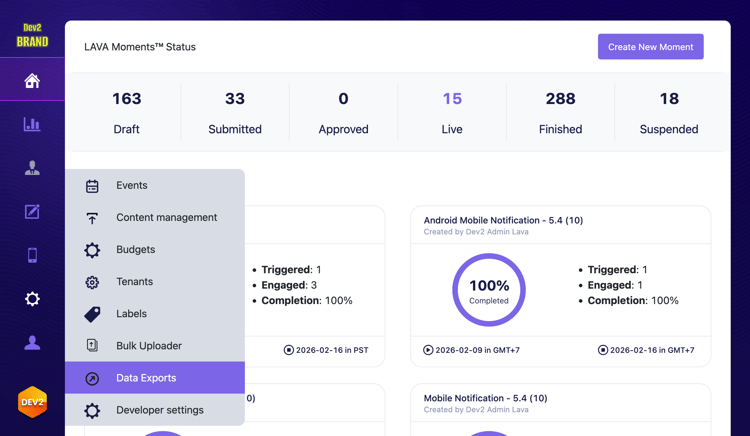
In the LAVA Console, navigate to Resources > Data Export.
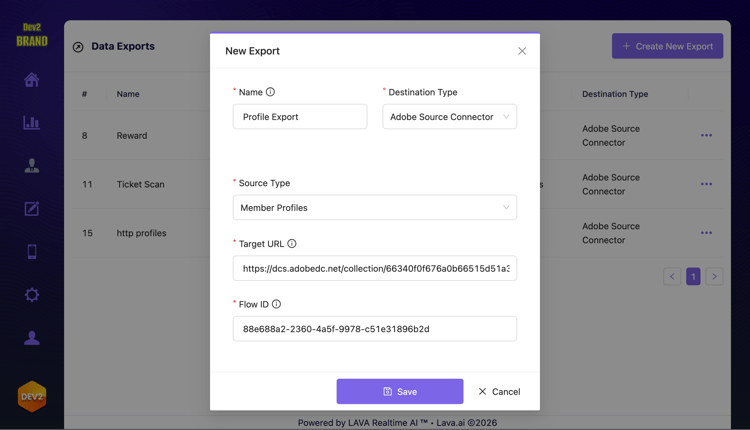
Select Create New Export. Select Adobe Source Connector as the destination type, and the desired source data to send. Use the streaming endpoint URL and dataflow ID.
Appendix
The following section provides information on the steps you can take to monitor, update, and delete your dataflow.
Monitor your dataflow
Once your dataflow has been created, you can monitor the data that is being ingested through it to see information on flow runs, completion status, and errors. For complete API examples, read the guide on monitoring your sources dataflows using the API.
Update your dataflow
Update the details of your dataflow, such as its name and description, as well as its run schedule and associated mapping sets by making a PATCH request to the /flows endpoint of the Flow Service API, while providing the ID of your dataflow. When making a PATCH request, you must provide your dataflow’s unique etag in the If-Match header. For complete API examples, read the guide on updating sources dataflows using the API.
Update your account
Update the name, description, and credentials of your source account by performing a PATCH request to the Flow Service API while providing your base connection ID as a query parameter. When making a PATCH request, you must provide your source account’s unique etag in the If-Match header. For complete API examples, read the guide on updating your source account using the API.
Delete your dataflow
Delete your dataflow by performing a DELETE request to the Flow Service API while providing the ID of the dataflow you want to delete as part of the query parameter. For complete API examples, read the guide on deleting your dataflows using the API.
Delete your account
Delete your account by performing a DELETE request to the Flow Service API while providing the base connection ID of the account you want to delete. For complete API examples, read the guide on deleting your source account using the API.