Data Distiller accelerators data-distiller-accelerators
Data Distiller accelerators are Adobe-authored, parameterized SQL templates designed for common analytical scenarios. Use accelerators to run common analyses without writing SQL from scratch. Accelerators are read-only and maintained by Adobe, ensuring consistency across your organization. If you need to modify one, you can clone it as a custom template.
Read this guide to learn how to run, schedule, and clone accelerators in the Queries workspace.
Prerequisites prerequisites
Before you begin, ensure you meet the following requirements:
- You have access to the Queries workspace in Experience Platform.
- You understand how to use the Query Editor and run queries.
- You are familiar with parameterized queries (placeholders in SQL replaced at runtime).
When to use accelerators when-to-use
Use accelerators when you need pre-built SQL for common analytical patterns such as funnel analysis, moving averages, or audience overlap. If no accelerator fits your use case, write a custom query in the Query Editor or request a new accelerator (see Request a new accelerator).
A small set of accelerators open as dashboards for immediate analysis, while others open in the Query Editor where you can run, schedule, or adapt the logic. See the Dashboard-linked accelerators section to find out how these pre-configured visualizations provide insights on your audience data.
To begin using accelerators, navigate to the Queries workspace and open the Accelerators tab or the Overview tab.
Accelerator discovery paths discovery-paths
You can access accelerators from the Queries workspace in two ways, depending on whether you want the full catalog or recommended templates.
Use the Accelerators tab
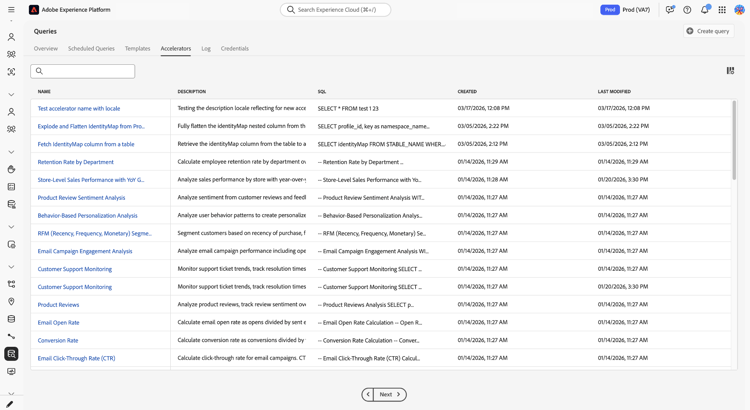
Use this path when you want to browse all available accelerators. To open the full accelerator catalog, select Queries in the left navigation, then select the Accelerators tab.
The workspace displays a table of accelerators with names, SQL previews, and timestamps. Select an accelerator name to open it in the Query Editor.
Use the Overview tab
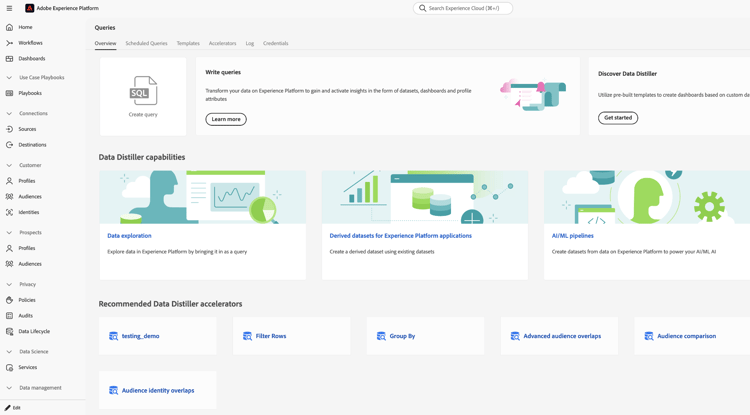
Use this path when you want quick access to highly recommended accelerators. Navigate to Queries, then select the Overview tab. Next, select a card from the Recommended Data Distiller accelerators section.
Most accelerators open in the Query Editor. A small set of accelerators open as dashboards with prebuilt visualizations. If the card opens a dashboard instead of the Query Editor, see Dashboard-linked accelerators.
Open an accelerator in the Query Editor open-accelerator
This section explains what happens when you open an accelerator in the Query Editor and the actions you can take next, including running the accelerator, scheduling it, or creating a custom template.
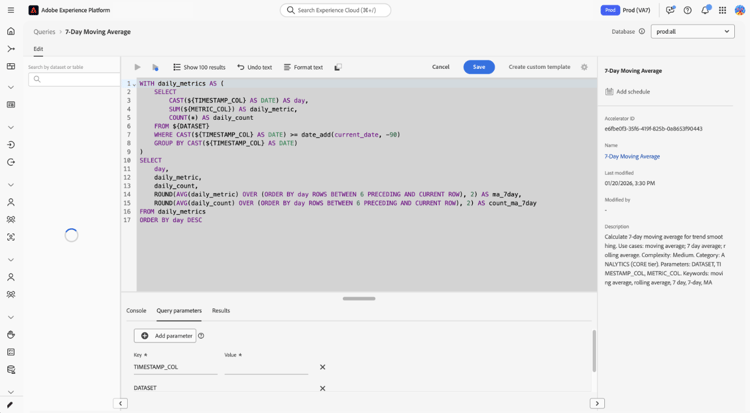
After opening an accelerator, you can run the accelerator to view results, schedule the accelerator to run automatically, or create a custom template to modify the SQL.
The right-hand panel displays metadata such as Accelerator ID, Name, and modification details, and provides access to scheduling through Add schedule.
Provide parameters and run an accelerator provide-parameters-execute
To run the accelerator, you must first provide values for all required parameters. Parameters use the ${PARAMETER_NAME} syntax and appear in the Query parameters tab below the editor. For example, ${START_DATE} requires a date value in YYYY-MM-DD format (for example, 2024-01-01), and ${AUDIENCE_ID} requires a specific audience identifier.
To run an accelerator:
- Select Query parameters and enter a value for each parameter.
- Select the play icon (

The accelerator runs and displays results in the Results tab. These results are not persisted to a dataset unless you use Run as CTAS or schedule the accelerator.
For more information on parameterized queries, see Parameterized queries in Query Editor.
Persist results from an accelerator persist-results
After you run an accelerator and confirm the results, you can persist the output to a dataset.
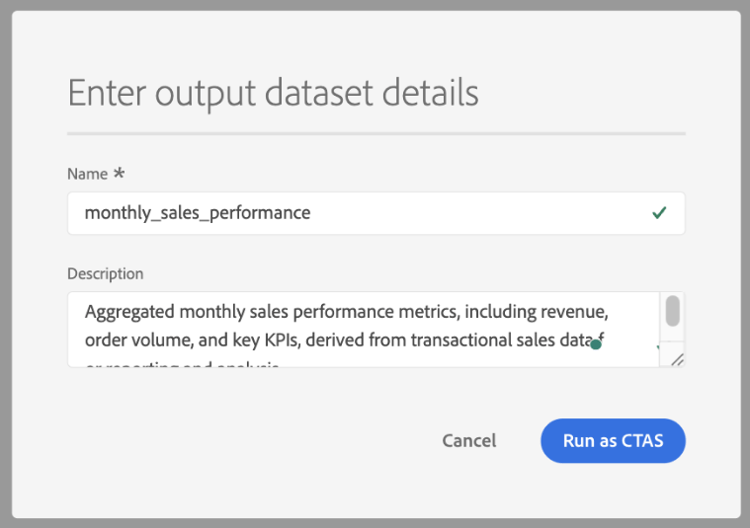
To create a dataset from the results, select Save to save the accelerator as a template, then select Run as CTAS. The Enter output dataset details dialog appears. Enter a dataset name and optional description, then confirm to create the dataset. This action creates a new dataset and writes the results to it.
Schedule an accelerator schedule-accelerator
To schedule an accelerator to run automatically with fixed parameter values, select Add schedule in the right-hand panel.
The schedule configuration dialog appears.
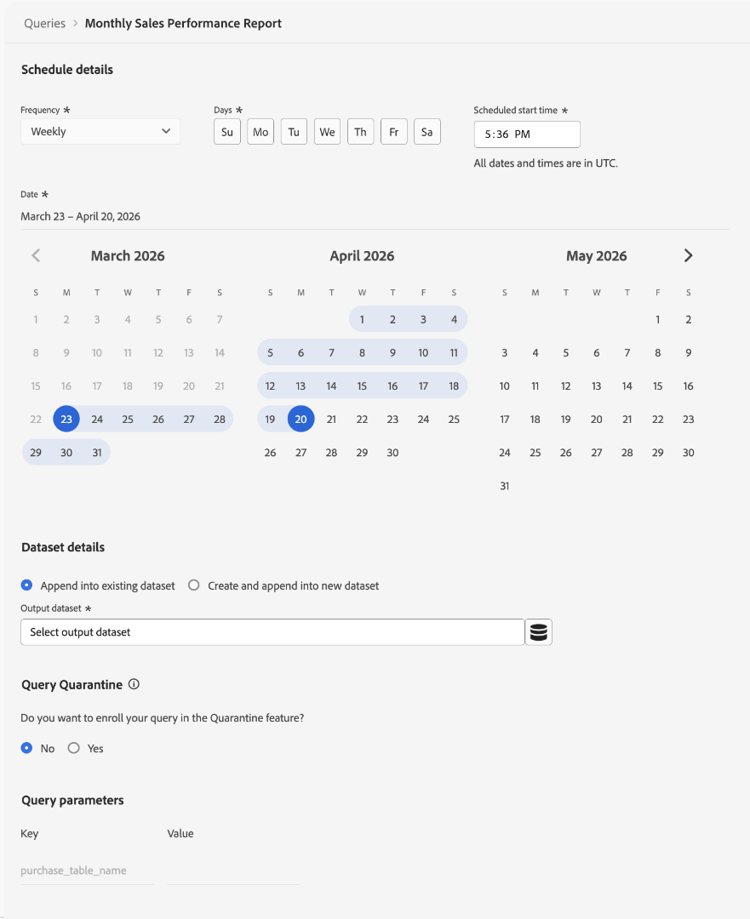
In the schedule configuration dialog, you must provide a frequency, timeframe, output dataset and parameter values again. Parameter values entered in the Query Editor are not carried into the schedule configuration. In the Dataset details section, you can choose to Append into existing dataset or Create and append into new dataset. After you configure the schedule, the accelerator runs automatically based on your settings and writes results to the selected dataset.
For complete step-by-step instructions, see the Create a query schedule guide.
Create a custom template from an accelerator create-custom-template
If you need to modify the SQL or reuse the logic under your own configuration, you can create a custom template from an accelerator. First, open an accelerator in the Query Editor, then select Create custom template. Modify the SQL and details as needed, and select Save or Save and close to store the template.
Once saved, the template is editable and can be run, scheduled, or used with CTAS. The template is saved to the Templates tab, where you can manage it like any other template. For more information, see Query templates.
What changes when you create a custom template custom-template-differences
The cloned template differs from the original accelerator because the SQL is editable, you can save changes, delete the template, and schedule it. The Modified by field shows your name. The template is found in the Templates tab instead of Accelerators.
Dashboard-linked accelerators dashboard-accelerators
Some accelerators on the Overview tab open as dashboards instead of SQL queries. These accelerators provide prebuilt visualizations for analyzing audience data and do not require parameter input or manual execution.
The following accelerators open in the Dashboards workspace:
Advanced Audience Overlaps analyzes intersections between selected audiences or across your full audience set to identify overlap patterns. Use these insights to refine segmentation and reduce redundant targeting.
Audience Comparison compares key metrics between two audiences side by side, including size, identity composition, and changes over time. Use this view to evaluate performance differences and inform targeting decisions.
Audience Trends tracks how audience metrics change over time, including audience size and identity counts. Use these trends to monitor growth and evaluate the impact of segmentation strategies.
Audience Identity Overlaps examines how identity types overlap within selected audiences to understand identity relationships. Use this analysis to improve identity stitching and segmentation accuracy.
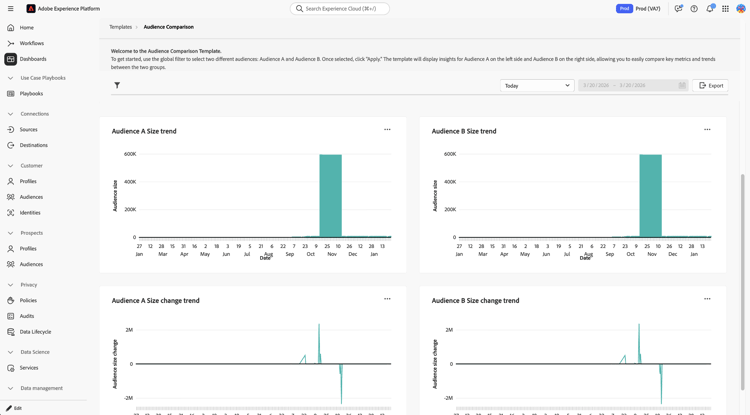
After the dashboard opens, use available controls and filters to explore and compare audience data. For more details, see dashboard templates.
Request a new accelerator request-accelerator
If you have a recurring use case that is not covered by existing accelerators, submit a request through your Adobe support channel. Adobe evaluates requests based on common usage patterns and industry applicability.
Next steps next-steps
You can now use accelerators to run and automate common analytical queries.
To extend your workflows, create and browse query templates, author parameterized queries, schedule queries, or explore Query Service workflows.