Data Landing Zone destination
Export data files from Adobe CX Enterprise applications to your Data Landing Zone cloud storage location.
Supported Adobe CX Enterprise applications supported-applications
This destination is available in the following Adobe CX Enterprise applications:
How Data Landing Zone works overview
Data Landing Zone is a cloud storage interface provisioned by Adobe Experience Platform. Use it to export files out of Experience Platform to a secure, cloud-based file storage location. Experience Platform and its applications, such as Customer Journey Analytics, Journey Orchestration, Intelligent Services, and Real-Time Customer Data Platform, provision one Data Landing Zone container per sandbox. The total data volume across all containers is limited to the total data provided with your Experience Platform Products and Services license.
Experience Platform automatically deletes all files in a Data Landing Zone container after seven days. You can also delete exported files manually before the seven days pass.
The Data Landing Zone destination connector is available for Experience Platform running on Azure or Amazon Web Services (AWS). The authentication mechanism depends on the cloud in which the destination is provisioned. Everything else about the destination and its use cases is the same. Read more about the two authentication mechanisms in the sections Authenticate to the Data Landing Zone provisioned in Azure Blob and Authenticate to the AWS-provisioned Data Landing Zone.

Connect to your Data Landing Zone storage through API or UI connect-api-or-ui
- To connect to your Data Landing Zone storage location using the Experience Platform user interface, read the sections Connect to the destination and Activate audiences to this destination below.
- To connect to your Data Landing Zone storage location programmatically, read the Activate audiences to file-based destinations by using the Flow Service API tutorial.
Supported audiences supported-audiences
This section describes which types of audiences you can export to this destination. The supported audiences differ depending on the Adobe CX Enterprise application from which you activate them to this destination.
Real-Time CDP supported-audiences-rtcdp
The following audiences are supported when you activate from Real-Time CDP:
This category includes all audience origins outside of audiences generated through the Segmentation Service. Read about the various audience origins. Some examples include:
- custom upload audiences imported into Experience Platform from CSV files,
- look-alike audiences,
- federated audiences,
- audiences generated in other Experience Platform apps such as Adobe Journey Optimizer,
- and more.
Supported audiences by audience data type:
Real-Time CDP Collaboration supported-audiences-collaboration
In Real-Time CDP Collaboration, you can source audiences from Adobe Experience Platform or other cloud sources. Audiences in Real-Time CDP Collaboration are made up of match keys. You can use these audiences within a Collaboration for data collaboration or paid media activities.
Export type and frequency export-type-frequency
See the table below for information about the destination export type and frequency.
Export datasets export-datasets
This destination supports dataset exports. For complete information on how to set up dataset exports, read the tutorials:
File format of the exported data file-format
When exporting audience data, Experience Platform creates a .csv, parquet, or .json file in the storage location that you provided. For more information about the files, see the supported file formats for export section in the audience activation tutorial.
When exporting datasets, Experience Platform creates a .parquet or .json file in the storage location that you provided. For more information about the files, see the verify successful dataset export section in the export datasets tutorial.
Authenticate to the Data Landing Zone provisioned in Azure Blob authenticate-dlz-azure
You can read and write files to your container through Azure Storage Explorer or your command-line interface.
Data Landing Zone supports SAS-based authentication. Standard Azure Blob storage security mechanisms protect its data at rest and in transit. SAS stands for shared access signature.
To protect your data over a public internet connection, use SAS-based authentication to securely access your Data Landing Zone container. You do not need to make any network changes to access your Data Landing Zone container. This means you do not need to configure any allowlists or cross-region setups for your network.
Connect your Data Landing Zone container to Azure Storage Explorer connect-container-to-storage-explorer
Use Azure Storage Explorer to manage the contents of your Data Landing Zone container. To start using Data Landing Zone, first retrieve your credentials. Then, enter them in Azure Storage Explorer to connect your Data Landing Zone container.
In Azure Storage Explorer, open the connect dialog. The Select Resource window appears, listing the resources you can connect to. Select Blob container to connect to your Data Landing Zone storage.

Next, select Shared access signature URL (SAS) as your connection method, and then select Next.

After you select your connection method, provide a display name and the Blob container SAS URL that corresponds with your Data Landing Zone container.
Retrieve the credentials for your Data Landing Zone retrieve-dlz-credentials
Use the Experience Platform APIs to retrieve your Data Landing Zone credentials, as described in this section. For information about getting the required values for your headers, see the Getting started with Adobe Experience Platform APIs guide.
API format
GET /data/foundation/connectors/landingzone/credentials?type=dlz_destination
dlz_destinationdlz_destination type allows the API to distinguish a landing zone destination container from the other types of containers that are available to you.Request
The following request example retrieves credentials for an existing landing zone.
curl -X GET \
  'https://platform.adobe.io/data/foundation/connectors/landingzone/credentials?type=dlz_destination' \
  -H 'Authorization: Bearer {ACCESS_TOKEN}' \
  -H 'x-api-key: {API_KEY}' \
  -H 'x-gw-ims-org-id: {ORG_ID}' \
  -H 'x-sandbox-name: {SANDBOX_NAME}' \
  -H 'Content-Type: application/json' \
Response
The following response returns the credential information for your landing zone, including your current SASToken and SASUri, and the storageAccountName that corresponds to your landing zone container.
{
    "containerName": "dlz-destination",
    "SASToken": "sv=2022-09-11&si=dlz-ed86a61d-201f-4b50-b10f-a1bf173066fd&sr=c&sp=racwdlm&sig=4yTba8voU3L0wlcLAv9mZLdZ7NlMahbfYYPTMkQ6ZGU%3D",
    "storageAccountName": "dlblobstore99hh25i3df123",
    "SASUri": "https://dlblobstore99hh25i3dflek.blob.core.windows.net/dlz-destination?sv=2022-09-11&si=dlz-ed86a61d-201f-4b50-b10f-a1bf173066fd&sr=c&sp=racwdlm&sig=4yTba8voU3L0wlcLAv9mZLdZ7NlMahbfYYPTMkQ6ZGU%3D"
}
containerNameSASTokenSASUriUpdate Data Landing Zone credentials update-dlz-credentials
You can refresh your credentials at any time. To update your SASToken, make a POST request to the /credentials endpoint of the Connectors API.
API format
POST /data/foundation/connectors/landingzone/credentials?type=dlz_destination&action=refresh
dlz_destinationdlz_destination type allows the API to distinguish a landing zone destination container from the other types of containers that are available to you.refreshrefresh action resets your landing zone credentials and automatically generates a new SASToken.Request
The following request updates your landing zone credentials.
curl -X POST \
  'https://platform.adobe.io/data/foundation/connectors/landingzone/credentials?type=dlz_destination&action=refresh' \
  -H 'Authorization: Bearer {ACCESS_TOKEN}' \
  -H 'x-api-key: {API_KEY}' \
  -H 'x-gw-ims-org-id: {ORG_ID}' \
  -H 'x-sandbox-name: {SANDBOX_NAME}' \
  -H 'Content-Type: application/json' \
Response
The following response returns updated values for your SASToken and SASUri.
{
    "containerName": "dlz-destination",
    "SASToken": "sv=2020-04-08&si=dlz-9c4d03b8-a6ff-41be-9dcf-20123e717e99&sr=c&sp=racwdlm&sig=JbRMoDmFHQU4OWOpgrKdbZ1d%2BkvslO35%2FXTqBO%2FgbRA%3D",
    "storageAccountName": "dlblobstore99hh25i3dflek",
    "SASUri": "https://dlblobstore99hh25i3dflek.blob.core.windows.net/dlz-destination?sv=2020-04-08&si=dlz-9c4d03b8-a6ff-41be-9dcf-20123e717e99&sr=c&sp=racwdlm&sig=JbRMoDmFHQU4OWOpgrKdbZ1d%2BkvslO35%2FXTqBO%2FgbRA%3D"
}
Provide your display name (containerName) and Data Landing Zone SAS URL, as returned in the API call described above, and then select Next.

The Summary window appears, providing you with an overview of your settings, including information on your Blob endpoint and permissions. When ready, select Connect.

A successful connection updates your Azure Storage Explorer UI with your Data Landing Zone container.

With your Data Landing Zone container connected to Azure Storage Explorer, you can start exporting files from Experience Platform to your Data Landing Zone container. To export files, connect to the Data Landing Zone destination in the Experience Platform UI, as described in Connect to the destination.
Authenticate to the AWS-provisioned Data Landing Zone authenticate-dlz-aws
Follow the steps in this section to get credentials for your Data Landing Zone instance provisioned on AWS. Then, use a client of your choice to connect to your Data Landing Zone instance.
Retrieve the credentials for your Data Landing Zone retrieve-dlz-credentials-aws
Use the Experience Platform APIs to retrieve your Data Landing Zone credentials, as described in this section. For information about getting the required values for your headers, see the Getting started with Adobe Experience Platform APIs guide.
API format
GET /data/foundation/connectors/landingzone/credentials?type=dlz_destination
dlz_destinationdlz_destination query parameter to specify that you want the Data Landing Zone destination type of container credentials to be retrieved. To connect and retrieve credentials for a Data Landing Zone source, view the sources documentation.Request
The following request example retrieves credentials for an existing landing zone.
curl --request GET \
  --url 'https://platform.adobe.io/data/foundation/connectors/landingzone/credentials?type=dlz_destination' \
  --header 'Authorization: Bearer ***' \
  --header 'Content-Type: application/json' \
  --header 'x-api-key: your_api_key' \
  --header 'x-gw-ims-org-id: yourorg@AdobeOrg'
Response
The following response returns the credential information for your landing zone, including your current awsAccessKeyId, awsSecretAccessKey, and other information.
{
    "credentials": {
        "awsAccessKeyId": "ABCDW3MEC6HE2T73ZVKP",
        "awsSecretAccessKey": "A1B2Zdxj6y4xfR0QZGtf/phj/hNMAbOGtzM/JNeE",
        "awsSessionToken": "***"
    },
    "dlzPath": {
        "bucketName": "your-bucket-name",
        "dlzFolder": "dlz-destination"
    },
    "dlzProvider": "Amazon S3",
    "expiryTime": 1734494017
}
credentialsawsAccessKeyId, awsSecretAccessKey, and awsSessionToken that Experience Platform uses to export files to your provisioned Data Landing Zone location.dlzPathdlzProviderexpiryTimecredentials object expire. To refresh the credentials, perform the request again.Connect to the destination connect
To connect to this destination, follow the steps described in the destination configuration tutorial. In the destination configuration workflow, fill in the fields listed in the two sections below.
Authenticate to destination authenticate
If your Data Landing Zone is provisioned in Azure, make sure that you have connected your Data Landing Zone container to Azure Storage Explorer, as described in Connect your Data Landing Zone container to Azure Storage Explorer. Because Data Landing Zone is an Adobe-provisioned storage, you do not need to perform any further steps in the Experience Platform UI to authenticate to the destination.
Fill in destination details destination-details
To configure details for the destination, fill in the required and optional fields below. An asterisk next to a field in the UI indicates that the field is required.
-
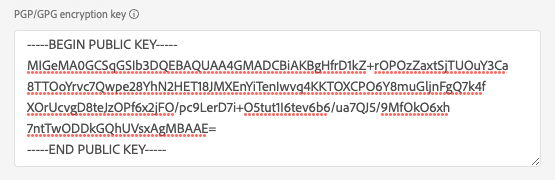
Encryption key: Optionally, you can attach your RSA-formatted public key to add encryption to your exported files. View an example of a correctly formatted encryption key in the image below.
-
Name: Fill in the preferred name for this destination.
-
Description: Optional. For example, you can mention which campaign you are using this destination for.
-
Folder path: Enter the path to the destination folder that will host the exported files.
-
File type: Select the format Experience Platform should use for the exported files. When selecting the CSV option, you can also configure the file formatting options.
-
Compression format: Select the compression type that Experience Platform should use for the exported files.
-
Include manifest file: Turn on this option to include a manifest JSON file in the exports. The manifest file contains information about the export location, export size, and more. The manifest is named using the format
manifest-<<destinationId>>-<<dataflowRunId>>.json. View a sample manifest file. The manifest file includes the following fields:flowRunId: The dataflow run which generated the exported file.scheduledTime: The time in UTC when the file was exported.exportResults.sinkPath: The path in your storage location where the exported file is deposited.exportResults.name: The name of the exported file.size: The size of the exported file, in bytes.
Enable alerts enable-alerts
You can enable alerts to receive notifications on the status of the dataflow to your destination. Select an alert from the list to subscribe to receive notifications on the status of your dataflow. For more information on alerts, see the guide on subscribing to destinations alerts using the UI.
When you are finished providing details for your destination connection, select Next.
Activate audiences to this destination activate
You can activate audiences to this destination from Real-Time CDP or from a Real-Time CDP Collaboration project.
Activate audiences from Real-Time CDP activate-rtcdp
- To activate data, you need the View Destinations, Activate Destinations, View Profiles, and View Segments access control permissions. Read the access control overview or contact your product administrator to obtain the required permissions.
- To export identities, you need the View Identity Graph access control permission.
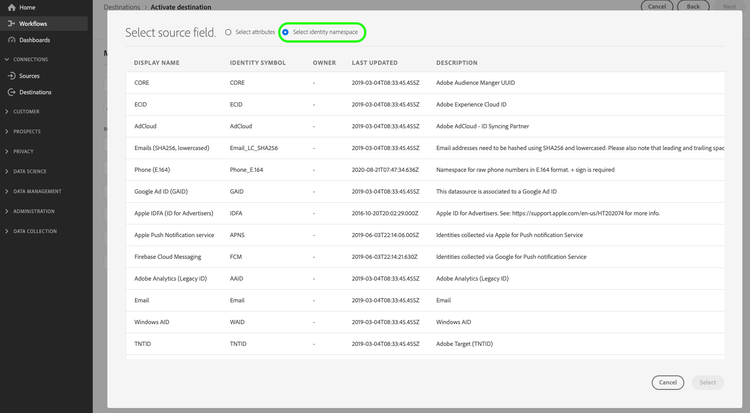
See Activate audience data to batch profile export destinations for instructions on activating audiences to this destination.
Scheduling scheduling
In the Scheduling step, you can set up the export schedule for your Data Landing Zone destination and you can also configure the name of your exported files.
Map attributes and identities map
In the Mapping step, you can select which attribute and identity fields to export for your profiles. You can also select to change the headers in the exported file to any friendly name that you wish. For more information, view the mapping step in the activate batch destinations UI tutorial.
Activate audiences from Real-Time CDP Collaboration activate-collaboration
For instructions on activating audiences to this destination from a Real-Time CDP Collaboration project, see the Real-Time CDP Collaboration destinations overview.
Validate successful data export exported-data
To verify that the export succeeded, check your Data Landing Zone storage and make sure that the exported files contain the expected profile populations.
Delete exported files delete-exported-files
Experience Platform automatically deletes exported files from your Data Landing Zone container after seven days. You can also delete files manually from your container before the seven days pass. Manual deletion is available for Data Landing Zone containers provisioned in both Azure and AWS.