Index Exchange index-exchange
Overview overview
Index is a global advertising supply-side platform that helps media owners maximize the value of their content across every screen. With over 20 years of industry leadership, Index connects the world’s largest brands with premium experience makers to deliver high-quality consumer experiences.
Use this destination connector to export audiences from Adobe Experience Platform directly to Index Exchange’s programmatic advertising platform.
Once exported, these audiences target deals by media owners, marketplace partners, or shared with publishers and curators by marketplace vendors.
Use cases use-cases
To help you better understand how and when you should use the Index Exchange destination, here are sample use cases that Experience Platform customers can solve by using this destination.
Targeting users on mobile, web, and CTV platforms targeting-users
Media owners, marketplace partners, or marketplace vendors who want to send audiences from Experience Platform to Index to target users on mobile, web, and CTV platforms, using a large range of identifiers.
Targeting specific content on mobile, web, and CTV platforms targeting-content
Media owners, marketplace partners, or marketplace vendors who want to send audiences from Experience Platform to Index to target users looking at specific content across mobile, web, and CTV platforms using specific URLs, App Bundles or content IDs.
Prerequisites prerequisites
Audiences must be registered with Index using an additional process when using this destination before they will appear in your account. Reach out to your Index Exchange account representative for assistance with this process.
Supported identities supported-identities
Index supports the activation of identities described in the table below. Learn more about identities.
To upload multiple identity types, create separate instances of the Index Exchange destination for each identity type.
Supported audiences supported-audiences
This section explains which audience types you can export to this destination.
This category includes all audience origins outside of audiences generated through the Segmentation Service. Read about the various audience origins. Some examples include:
- custom upload audiences imported into Experience Platform from CSV files,
- look-alike audiences,
- federated audiences,
- audiences generated in other Experience Platform apps such as Adobe Journey Optimizer,
- and more.
Supported audiences by audience data type:
Export type and frequency export-type-frequency
Refer to the table below for information about the destination export type and frequency.
Connect to the destination connect
To connect to this destination, follow the steps described in the destination configuration tutorial. In the configure destination workflow, fill in the fields listed in the two sections below.
Fill in destination details destination-details
To configure details for the destination, fill in the fields below. An asterisk next to a field in the UI indicates that the field is required.
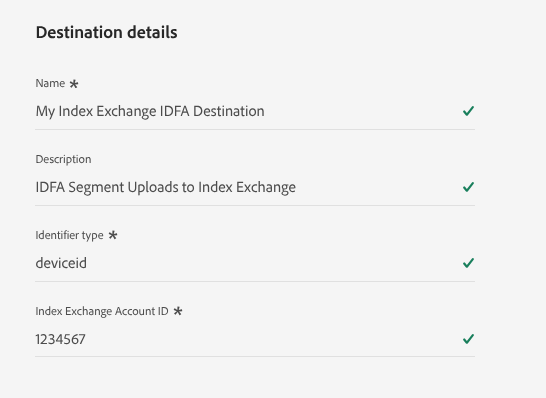
- Name: Enter a name to help you recognize this destination later.
- Description: Enter a description to help you identify this destination later.
- Identifier Type: Select the Index–provided identifier type that matches the identifier you are sending to Index. See the table of supported identifier types below. If you are unsure which identifier type to use, contact your Index Representative. To send multiple identifier types, create separate instances of this destination.
- Account ID: Enter your Index account ID. This is not the same as your publisher ID. If you are unsure about which ID to use, contact your Index Representative.
Supported Identifier Types supported-identifier-types
Enable alerts enable-alerts
You can enable alerts to receive notifications about the status of your dataflow to this destination. Select one or more alerts from the list to subscribe to status notifications for your dataflow. For more information, see the guide on subscribing to destinations alerts using the UI.
When you are finished providing details for your destination connection, select Next.
Activate audiences to this destination activate
- To activate data, you need the View Destinations, Activate Destinations, View Profiles, and View Segments access control permissions. Read the access control overview or contact your product administrator to obtain the required permissions.
- To export identities, you need the View Identity Graph access control permission.
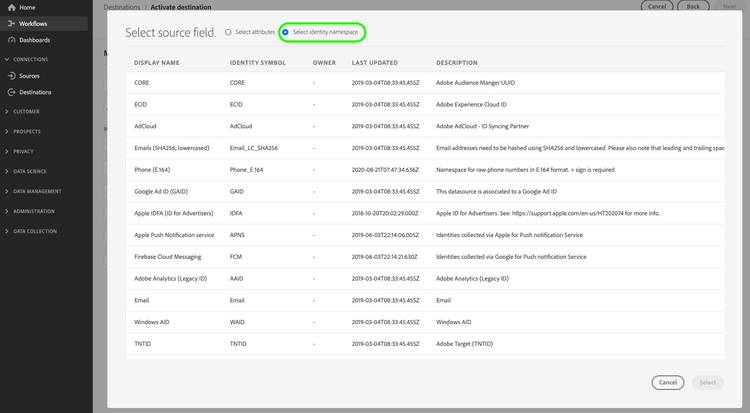
Read Activate audience data to batch profile export destinations for instructions on activating audiences to this destination.
Map attributes and identities map
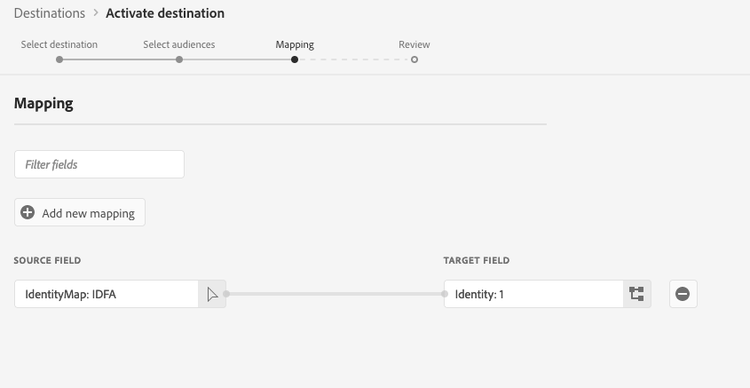
Selecting source fields:
- Select an identifier (usually namespaces like IDFA or a custom ID namespace). This must correspond to the Identifier Type selected when configuring the destination. For example when using IDFA identifier as a source field, the destination must have been set up with the “deviceid” Identifier Type.
Selecting target fields:
- Names of target fields are ignored and are not important. The destination only cares about the type of identifier being sent, which is determined by the Identifier Type selected when configuring the destination.
Register audiences with Index register-segments
Before or after activating data to the destination, contact your Index Representative to register the audiences you plan to activate. Your representative will provide instructions on how to register additional audience details, including names, IDs, descriptions, and pricing, if applicable.
Exported data / Validate data export exported-data
Once registration is complete, the audiences will be available for targeting in your Index account. To confirm that data is being received correctly, contact your Index Representative, who can provide details on the volume of audience data received.
Data usage and governance data-usage-governance
All Experience Platform destinations are compliant with data usage policies when handling your data. For detailed information on how Experience Platform enforces data governance, read the Data Governance overview.