Amazon Ads connection amazon-ads-v2
Overview overview
Amazon Ads enables advertisers to efficiently ingest, manage, activate, and reuse audience data across Amazon Ads products.
The Amazon Ads integration with Adobe Experience Platform provides a direct connection for ingesting audience members into Amazon Ads. The uploaded audiences are available in the Ads Data Manager (ADM) console within Amazon Ads. You can use the Ads Data Manager console to share data across different Amazon Ads products.
To learn more about Ads Data Manager, see:
amc-support@amazon.com.Use cases use-cases
To help you better understand how and when you should use the Amazon Ads destination, here are sample use cases that Adobe Experience Platform customers can solve by using this destination.
Audience ingestion and activation activation-and-targeting
An athletic apparel brand wants to reach its existing customers with relevant ads across Amazon Ads. The brand can ingest customer email addresses from its CRM into Adobe Experience Platform, build audiences using its first-party offline data, and activate these audiences to Amazon Ads through the Amazon Ads destination. After activation, you can use these audiences to target ads to those customers across Amazon Ads inventory, helping the brand re-engage known customers and drive repeat purchases. To learn more, see Manage data.
Analytics and measurement analytics-and-measurement
An advertiser wants to understand the aggregate impact of their advertising campaigns across Amazon inventory. Using the Amazon Ads destination, the advertiser can pass audiences from Real-Time CDP to Amazon Marketing Cloud (AMC), join the audience data with Amazon Ads signals, and conduct custom analytics on topics such as media impact, audience overlap, and customer journeys in a privacy-compliant format. For example, the advertiser can upload a list of existing customers to understand aggregate advertising campaign performance, or aggregated statistics of on-Amazon conversion events, such as viewing a product detail page, adding a product to a shopping cart, or purchasing a product.
Advertisers can also use Amazon Marketing Cloud SQL to perform overlap analysis, suppressions, additions, or optimizations to audiences on a recurring basis before creating an activation-ready audience in Amazon DSP for targeting.
For details, see:
Prerequisites prerequisites
To use the Amazon Ads connection with Adobe Experience Platform, you must have access to Amazon Ads Data Manager using a Manager Account. See Get started with Amazon Ads Data Manager for details.
Accept Amazon Ads Data Manager terms and conditions accept-terms
Before configuring the Amazon Ads destination, sign in to your Amazon Ads account and accept the Ads Data Manager terms and conditions. Navigate to the Ads Data Manager console within Amazon Ads and accept the terms when prompted. If you do not accept the terms and conditions, audiences are not created in Amazon Ads.
Supported identities supported-identities
The Amazon Ads destination supports the activation of the following identities. Learn more about identities.
phoneemailfirstnamelastnameaddresscitystatezipcountryCodeexperianIdkantarIdliveRampIdmaIdmerkleIdneustarIdrealIdsambaTvIdSupported audiences supported-audiences
This section describes which types of audiences you can export to this destination.
This category includes all audience origins outside of audiences generated through the Segmentation Service. Read about the various audience origins. Some examples include:
- custom upload audiences imported into Experience Platform from CSV files,
- look-alike audiences,
- federated audiences,
- audiences generated in other Experience Platform apps such as Adobe Journey Optimizer,
- and more.
Supported audiences by audience data type:
Export type and frequency export-type-frequency
The table below describes the destination export type and frequency.
Connect to the destination connect
To connect to this destination, follow the steps described in the destination configuration tutorial. In the destination configuration workflow, fill in the fields listed in the two sections below.
Authenticate to destination authenticate
To authenticate to the destination, fill in the required fields and select Connect to destination.
- Account name: Enter a name that helps you identify this destination account. This is especially useful if you have multiple connections to the same destination.
- Description (optional): Add details that help you or your team distinguish between accounts, such as the purpose of the connection or relevant business context.
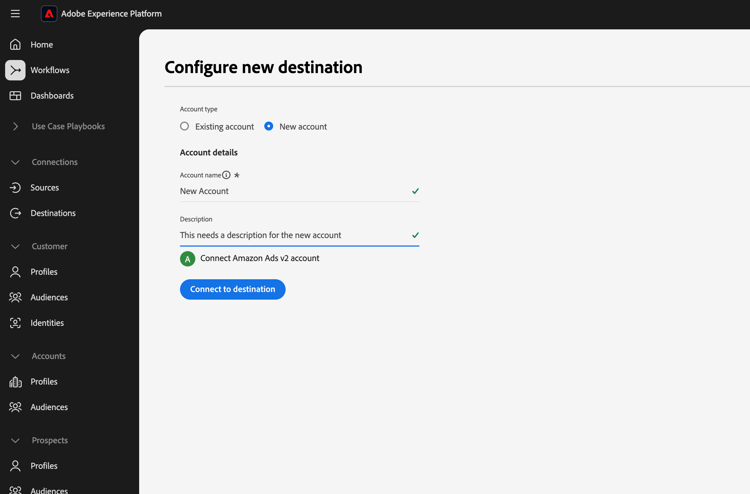
You are redirected to the Amazon Ads interface. Select Allow to sign in to your Amazon Account.
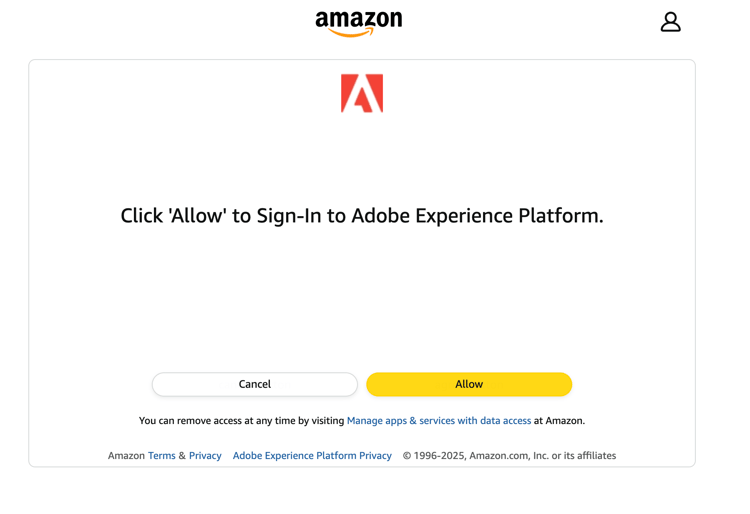
After authentication, you are redirected back to Adobe Experience Platform with your new connection.
Fill in destination details destination-details
To configure details for the destination, fill in the required and optional fields below. An asterisk next to a field in the UI indicates that the field is required.

- Name: A name by which you recognize this destination.
- Description: A description that helps you identify this destination.
- Manager Account: The target manager account ID from the dropdown.
- All audience members sent to Amazon are consented for use for Advertising: Specify consent for data usage (
GRANTEDorDENIED). - Ads data manager Terms & Conditions: Accept the Amazon Ads Data Manager terms and conditions. Read the accept terms section for details.
Enable alerts enable-alerts
You can enable alerts to receive notifications on the status of the dataflow to your destination. Select an alert from the list to subscribe to receive notifications on the status of your dataflow. For more information on alerts, read the guide on subscribing to destinations alerts using the UI.
When you are finished providing details for your destination connection, select Next.
Activate audiences to this destination activate
- To activate data, you need the View Destinations, Activate Destinations, View Profiles and View Segments access control permissions. Read the access control overview or contact your product administrator to obtain the required permissions.
- To export identities, you need the View Identity Graph access control permission.
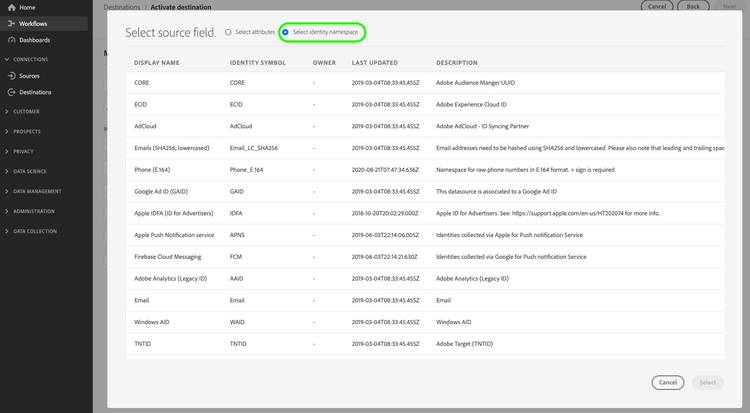
Read Activate profiles and audiences to streaming audience export destinations for instructions on activating audiences to this destination.
Mandatory mappings map
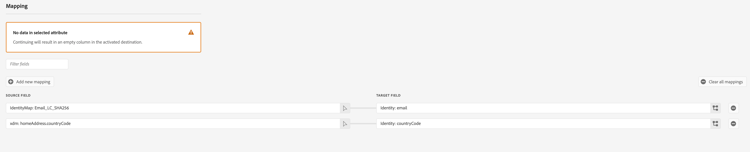
The Amazon Ads destination requires you to configure the following mappings for successful data activation.
IdentityMap: Email_LC_SHA256 or IdentityMap: EmailIdentity: emailxdm: homeAddress.countryCodeIdentity: countryCode
Mapping best practices mapping-best-practices
Combine first-party identifiers (such as phone number and address) with partner-provided identifiers. This allows Amazon Ads to use multiple identity signals during audience matching, leading to better match rates.
Use partner-provided identifiers only when they are populated in your source data. If a mapped partner identifier field is empty or not present for a given profile, it is ignored during audience matching and does not contribute to match rates.
Examples examples
- Use
kantarIdwhen activating audiences built or enriched using Kantar identity data. - Use
merkleIdwhen your audience data originates from Merkle-managed identity solutions. - Use
neustarIdwhen your data is linked through Neustar identity resolution. - Use
experianIdfor audiences enriched using Experian identity data. - Use
liveRampIdwhen activating audiences that rely on LiveRamp identity resolution. - Use
sambaTvIdwhen working with Samba TV-provided audience data.
These identifiers are typically provided by the respective partners as plain text identifiers and do not require hashing.
Validate data export exported-data
After activation, validate your audience ingestion in the Ads Data Manager Console.
Navigate to Audiences → Uploaded Sources. Check your audience ingestion status, size, and any error logs. The Manage Data and Destinations pages in the Amazon Ads documentation provide further validation guidance.
Data usage and governance data-usage-governance
All Adobe Experience Platform destinations are compliant with data usage policies when handling your data. For detailed information on how Adobe Experience Platform enforces data governance, read the Data Governance overview.
Additional resources additional-resources
For more information about Amazon Ads Data Manager, see the following resource: