Live Activities view
The Live Activities view in Adobe Experience Platform Assurance helps you validate and debug iOS Live Activities during an Assurance session. Use it to verify that the device, profile, and Live Activities channel configuration are set up correctly, and to remotely start, update, and end Live Activities without interacting with the device.
Live Activities rely on a valid push notification setup. Before debugging Live Activities, use the push debug view to validate the device’s push configuration and troubleshoot any push-related issues.
For implementation guidance, see the Adobe Journey Optimizer Live Activities implementation tutorial, which describes how to register and manage Live Activities using the Adobe Journey Optimizer extension.
Prerequisites
Before you use the Live Activities view, confirm the following:
Key concepts
The following terms apply across the Live Activities view:
- Unitary activity - A Live Activity tied to a single device.
- Broadcast activity - A Live Activity identified by a Broadcast Channel ID that can reach multiple devices at once. Your backend or APNs assigns this ID. Reuse the same ID when you start the activity and when you send later updates to it.
- Local start - Starting a Live Activity from code running on the device.
- Remote start - Starting a Live Activity from Assurance instead of the device. Remote start becomes available once the client meets the iOS 17.2+ and setup requirements listed under Prerequisites.
Clients
The Client dropdown at the top of the view lists the unique clients connected to the current Assurance session. A client represents a unique device or app installation. For example, an iOS device and an Android device are treated as two separate clients.
If you reinstall the app on a device and reconnect it to the Assurance session, it appears as a new client.
The Live Activities view displays information for one client at a time. When you select a different client from the Client dropdown, Assurance updates the Client Info, Messages on Device, and Events tabs for that client.

Client Info tab
The Client Info tab validates that the app is correctly set up for Live Activities and that push and profile data are in place. Use this tab to confirm the device, profile, and channel configuration before you start or update an activity.
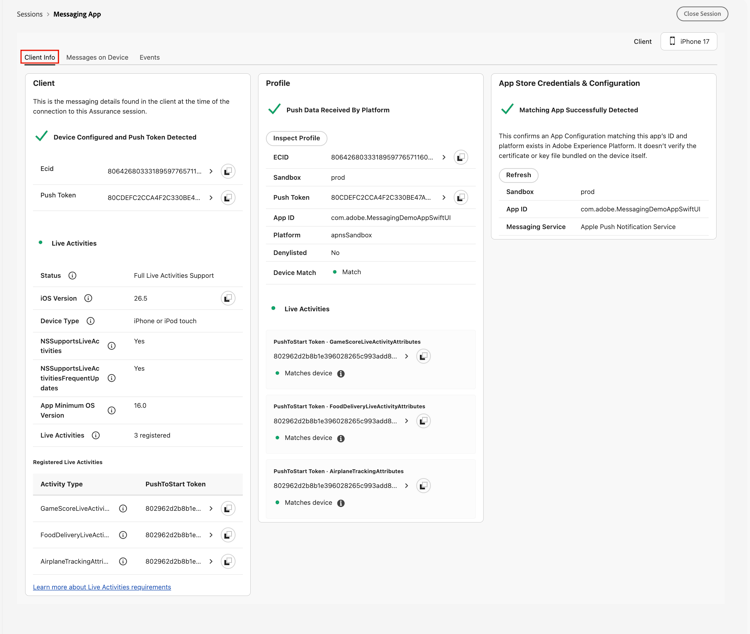
The tab organizes validation into three sections. Each section displays a green check mark when it is correctly configured. If a section fails validation, an alert explains how to fix it.
Client
Use this section to verify that the selected client is configured for Live Activities. It shows whether the required extensions are configured in the Data Collection UI, the extension and its dependencies are initialized in the app, and the client is reporting the expected data.
When available, this section can display:
- ECID - The Experience Cloud ID (ECID) associated with the device.
- Push token - The device’s push notification token.
- iOS version - The device’s iOS version.
- Device type - For example, iPhone or iPad.
- Live Activities support - Whether the app reports support for Live Activities and for frequent updates.
If the selected client is not an iOS device or does not meet the minimum iOS version requirement, this section indicates that Live Activities are unsupported or only partially supported.
Profile
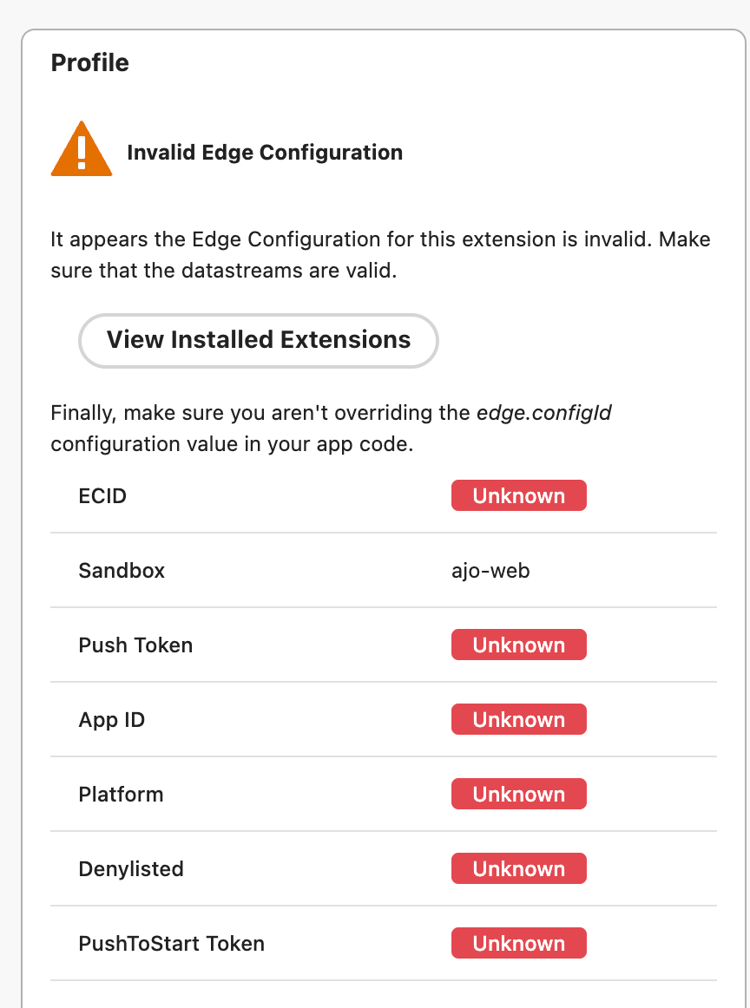
Use this section to verify that the app has registered its push notification and Live Activity push-to-start data through the Experience Platform Messaging SDK, and that the data has been ingested into the user profile. Select Inspect Profile to view the full profile.
liveActivityPushNotificationDetails, are retrieved from the profile rather than directly from the device. If Start Live Activity is unavailable or the tokens do not match, verify that the profile contains the expected push-to-start token.When valid, this section displays:
- ECID - The identity for the profile.
- Sandbox - The sandbox associated with the profile.
- Push Token - The push notification token stored in the profile.
- App ID - The application ID associated with the profile.
- Platform - For example,
apnsorapnsSandbox. - Denylisted - Indicates whether the push token is denylisted, for example, because the user disabled push notifications or uninstalled the app.
- Device Match - Indicates whether the profile’s push token matches the token reported by the device.
- Live Activities - For each registered attribute type, the push-to-start token and whether it Matches device.
App Store credentials and configuration
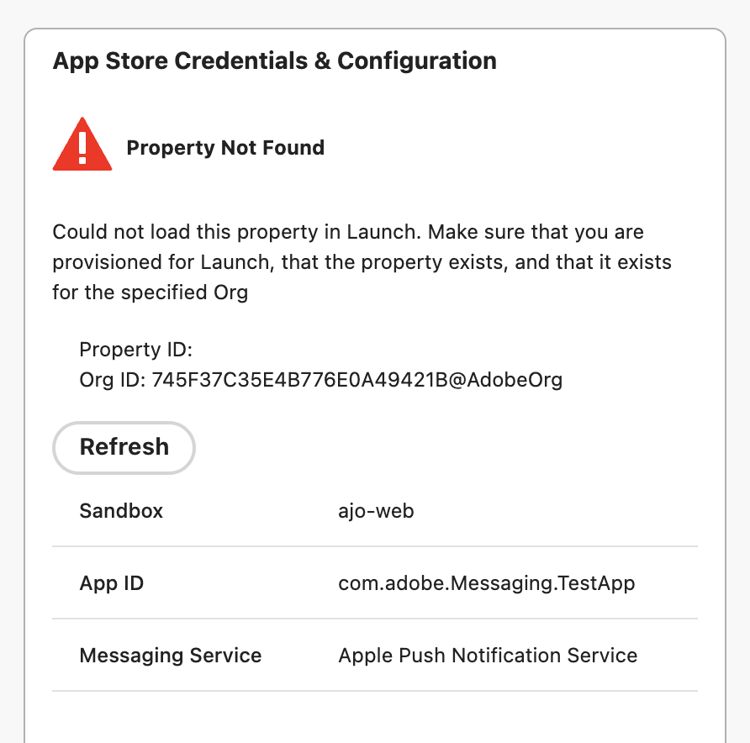
Use this section to verify that the app ID and platform associated with the profile match a channel configuration that has valid push credentials, such as APNs.
When available, this section displays:
- Sandbox
- App ID - The application ID associated with the channel configuration.
- Messaging Service - The messaging service configured for the app, such as Apple Push Notification service.
Messages on Device tab
Use the Messages on Device tab to view Live Activities for the selected client. Depending on the client’s capabilities, you can start a Live Activity remotely or update and end an existing Live Activity.
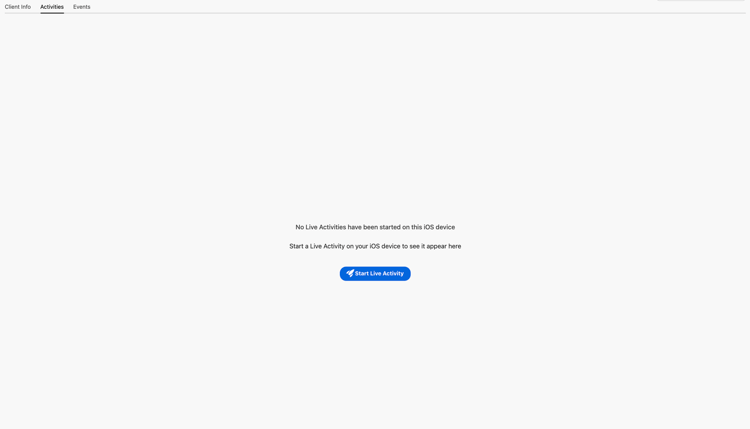
No activities state
If the selected client has no Live Activities, the tab displays an empty state with guidance based on the client’s support level:
- Non-iOS device - Live Activities are supported only on iOS.
- iOS earlier than 16.1 - Live Activities require iOS 16.1 or later.
- iOS 16.1 or later, remote start unavailable - Start a Live Activity on the device to view it in Assurance.
- iOS 17.2 or later, remote start available - Start a Live Activity on the device or use Start Live Activity to start one remotely.
When remote start is available, Start Live Activity appears in the tab so you can start a Live Activity without using the device UI.
Activity list and detail panels
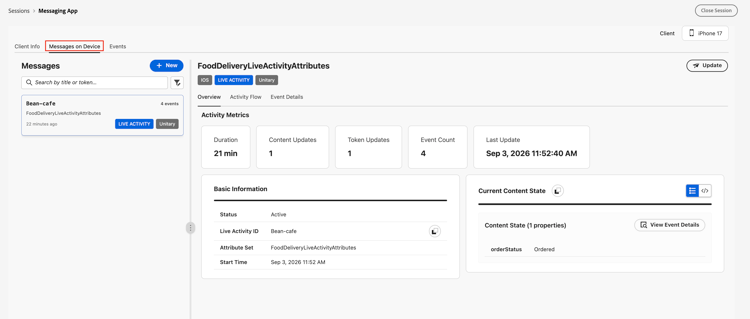
When at least one Live Activity exists, the tab displays a list panel and a detail panel:
-
List panel - Lists the Live Activities for the selected client. Each entry shows:
- The activity’s name (the Live Activity ID or Broadcast Channel ID), attribute set, and how long ago it was last updated.
- The event count.
- Badges for the message type (Live Activity) and the activity type (Unitary or Broadcast).
You can search the list by title or token. To narrow the list further, select the filter icon to open Filter outbound, then filter by:
- Channel - Live Activity or Push.
- Type - Unitary or Broadcast.
Select Clear filters to reset.
-
Detail panel - Displays information about the selected Live Activity in three tabs: Overview, Activity Flow, and Event Details. If no Live Activity is selected, this panel prompts you to choose one from the list.
Start a Live Activity
Use the Start Live Activity dialog to start a new Live Activity remotely. To open it, select Start Live Activity in the empty state, or New in the Messages panel header.
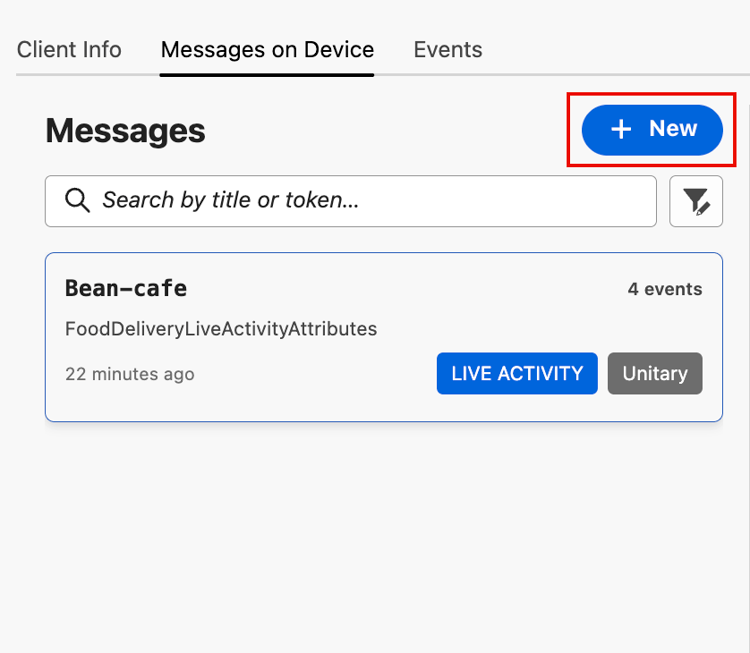
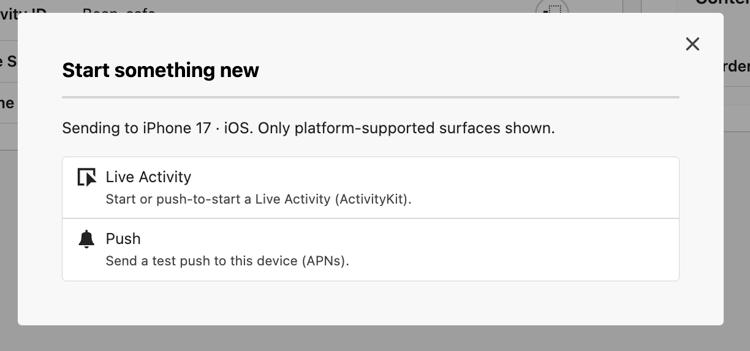
Selecting New opens the Start something new dialog, where you choose Live Activity to continue to the Start Live Activity dialog described below. Select Push to send a standard test push notification to the device through the regular iOS push configuration. This option does not start or update a Live Activity.
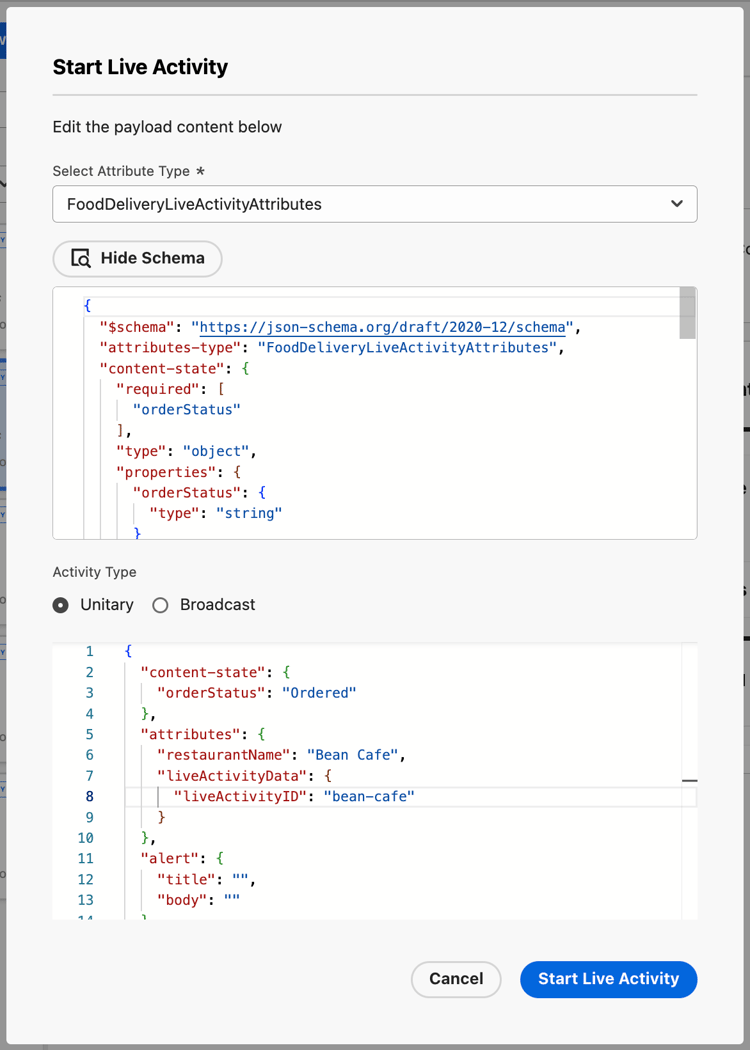
In the dialog, choose a registered Live Activity attribute type that has a push-to-start token from Select Attribute Type, then select View Schema to review the attribute schema. Next, choose an Activity Type of Unitary or Broadcast. You can edit the payload content in the JSON editor, which Assurance prefills from the captured schema. The payload must be valid JSON and must match the activity’s attribute schema, or Assurance rejects the request.
For a Unitary activity, the dialog shows the fields for a single target device.
For Broadcast activity, also enter a Broadcast Channel ID.
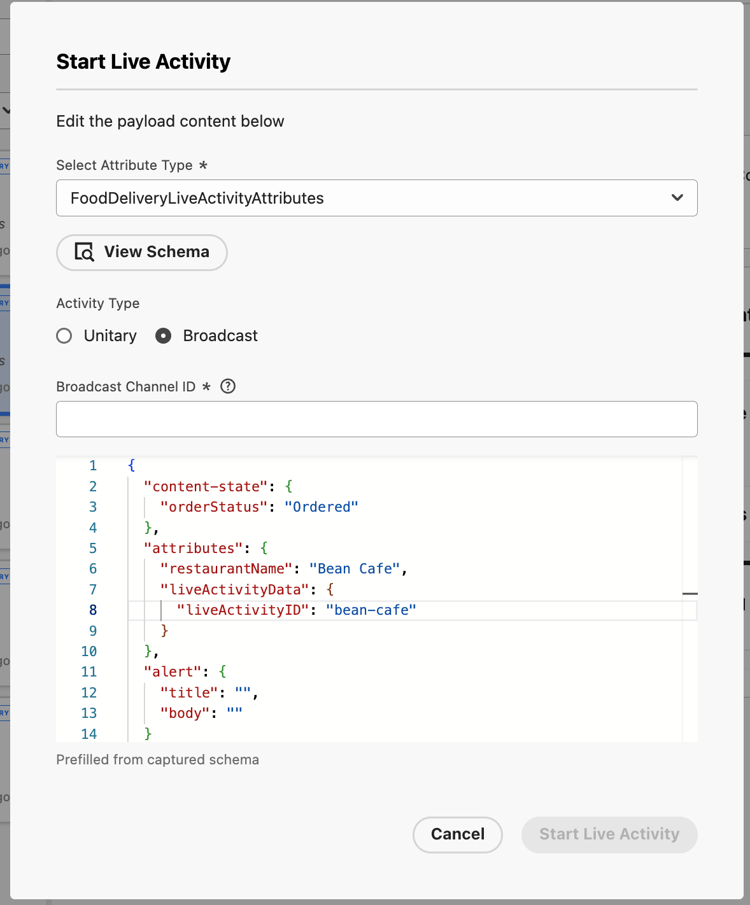
When the activity is configured, select Start Live Activity to send the request. If the setup is invalid, for example, no push-to-start token exists for the selected attribute type, or a Broadcast Channel ID is missing, Assurance disables Start Live Activity in the dialog.
Activity Overview
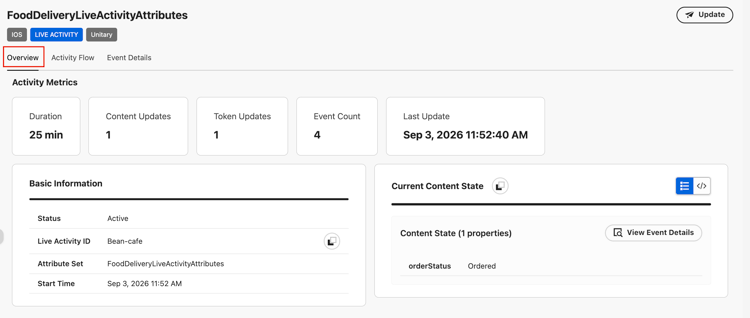
For the selected activity, the Overview sub-tab shows the attribute set name and status (for example, Active or Completed) next to Send Update, which opens the update or end dialog.
- Activity Metrics - The duration, content update count, token update count, event count, and the time of the last update.
- Basic Information - The Live Activity ID or Broadcast Channel ID, Attribute Set, Start Time, and End Time.
- Current Content State - The properties of the latest content state, and when Assurance last updated it. Select View Event Details to see the event that produced this state.
Send an update or end a Live Activity
-
From the Overview sub-tab, select Send Update. The Update Live Activity dialog opens for the selected activity.
-
Under Event Type, select one of the following options:
- Update: Send new content to the activity.
- End: End the activity.
-
Review the Activity Type field. It indicates whether the activity is:
- Unitary
- Broadcast
The activity type is set when the activity starts and cannot be changed in this dialog.
-
Use the appropriate update token:
- For Unitary activities, Assurance uses the activity’s update token.
- For Broadcast activities, Assurance does not use a token.
-
Edit the payload in the JSON editor. Assurance prepopulates the editor with the activity’s current content state and attributes.
The payload must:
- Be valid JSON.
- Match the activity’s attribute schema.
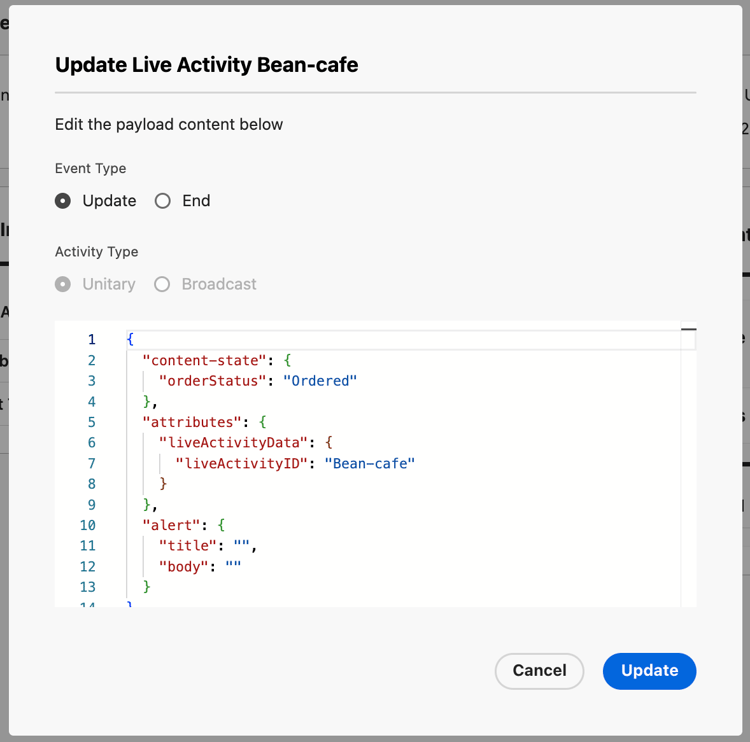
Select Update to send the request. Assurance shows the success or failure of the request. If the request fails, see the Live Activity issues troubleshooting guide.
Activity Flow
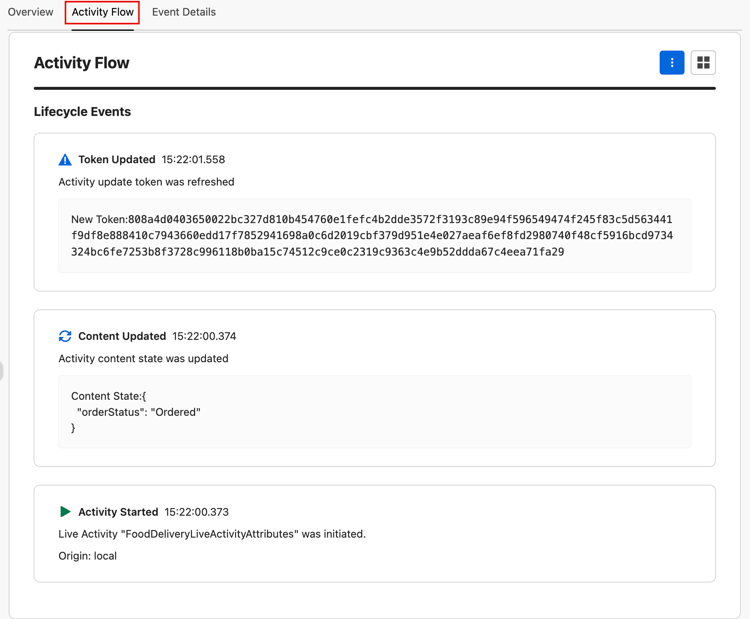
The Activity Flow sub-tab shows the lifecycle of the selected activity as a timeline or as cards. Events include:
- Start - The Live Activity started, either locally or through remote start.
- Content update - The activity content changed.
- Token update - The update token refreshed.
- Ended - The activity ended.
- Dismissed - The user dismissed the activity from the device.
Each entry shows the event type, timestamp, and, optionally, a short description or payload summary. You can switch between timeline and card layout when both are available.
Event Details
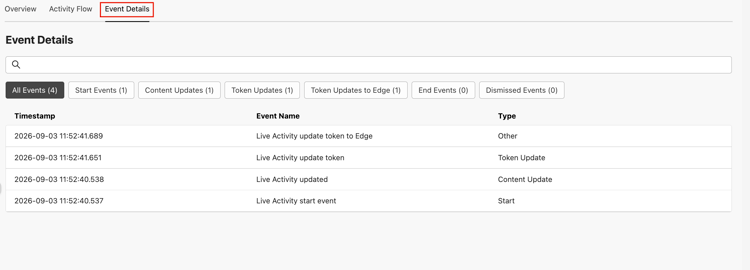
The Event Details sub-tab lists captured Assurance events associated with the selected Live Activity. The table includes Timestamp, Vendor, Event Name, and Type columns. You can search the events, or filter them by All Events, Start Events, Content Updates, Token Updates, Token Updates to Edge, End Events, or Dismissed Events.
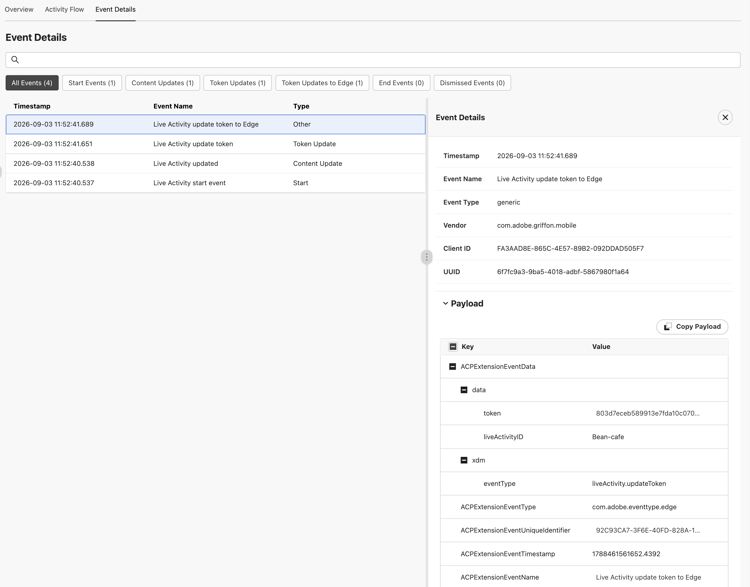
Select an event to open its details in a side panel. The panel displays information such as the timestamp, event name, event type, vendor, client ID, and UUID, along with the event payload. Select Copy Payload to copy the payload for troubleshooting or further analysis.
For events generated by the Start Live Activity and Send Update actions, Assurance sends the payload you provide directly to the service. As a result, the payload displayed in the event details reflects the payload received by the service.
Events tab
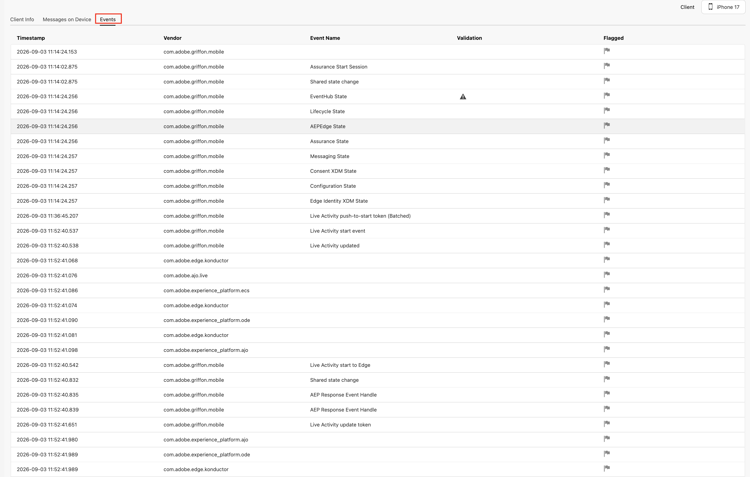
The Events tab shows the stream of Assurance events for the selected client, with Timestamp, Vendor, Event Name, Validation, and Flagged columns. The table includes events from all extensions installed on the client, not only Live Activities events. Use the Event Name column or inspect an event payload to identify Live Activities-specific events, such as Live Activity start, Live Activity updated, and Live Activity dismissed events.
Troubleshooting
Use the following tables when a validation fails or an action does not behave as expected. For issues specific to the Live Activities channel in Adobe Journey Optimizer, see the troubleshoot the mobile Live Activity channel guide.
Client validation errors
MobileCore.setPushIdentifier with the APNs or FCM token.edge.configId in the app.messaging.eventDataset using the Messaging extension shared state, and don’t override messaging.* in code.App Store credentials validation errors
apns or fcm) with the client detected in the session.For example, a Property not found error looks like this:
Datastream and profile validation errors
messaging.eventDataset in the client configuration. See Messaging not configured under client validation.edge.configId or the datastream in the Edge extension, and republish. Don’t hard-code an override in the app.messaging.eventDataset points to an existing catalog dataset.identityMap and pushNotificationDetails mixins to the profile XDM schema.pushNotificationDetails token matches the device token.For example, an Invalid Edge configuration error looks like this:
Live Activity issues
Next steps
If you’re also debugging push notifications, see the push debug view.