Manage users and add user groups manage-users
Users are the individuals that have access to Adobe Experience Platform. An individual user’s access to an organization’s resources is managed through roles. An organization can also create user groups to give seamless access to multiple user’s at the same time. Users are managed in the Admin Console and users that are associated with the Adobe Experience Platform product card appear as part of the users list in Experience Platform.
Manage users
To view your organization’s users, navigate to Permissions in Adobe Experience Cloud. Select Users in the left panel.
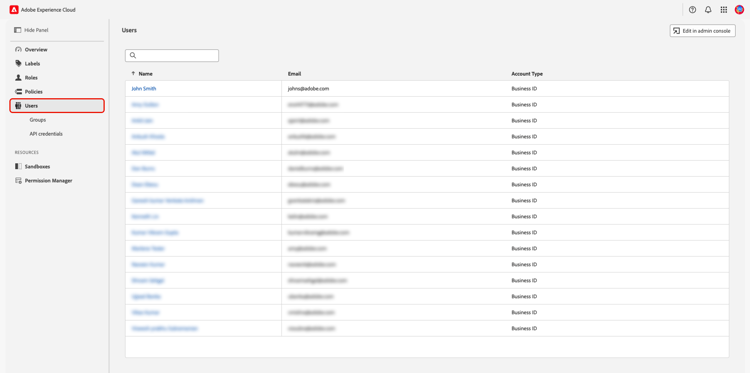
A list of users appears. Select the user you would like to view from the list. Alternatively, use the search bar to search for the user by entering their name or email address.
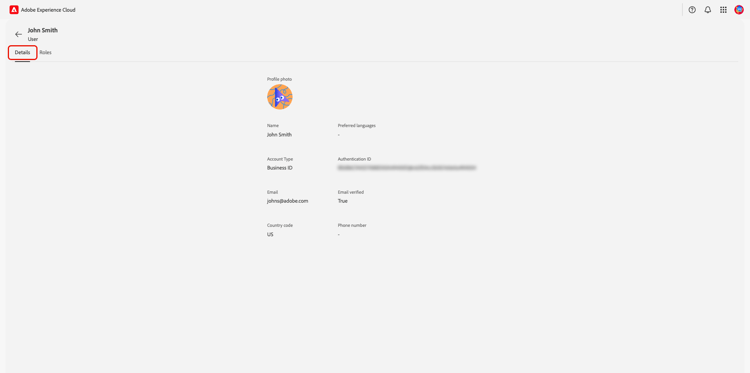
The Details tab provides an overview of the user. The overview displays the user’s Name, Preferred languages, Account Type, Authentication ID, Email, Email verified status, Country code, and Phone number.
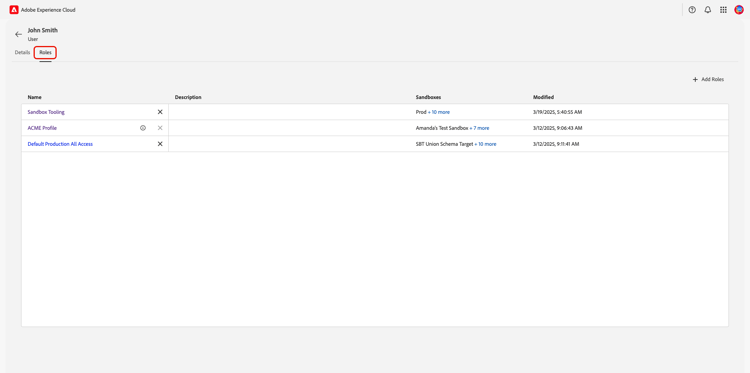
Select the Roles tab to view the roles the user is assigned to.
Add a role to a user add-user-role
To add a role to the user, select Add Roles.
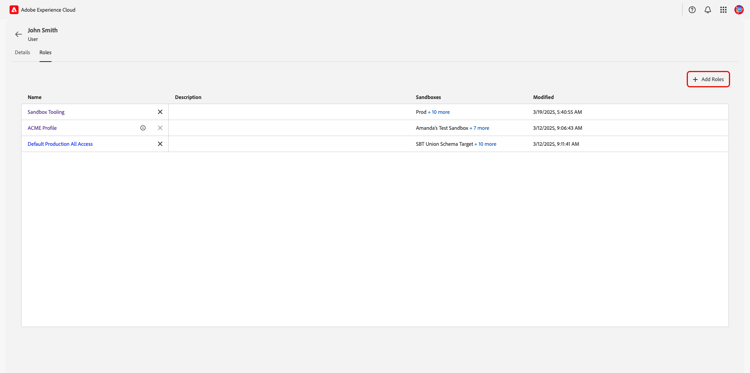
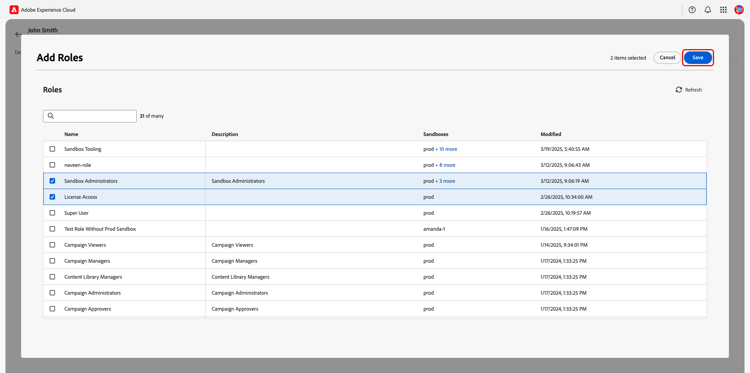
The Add Roles dialog appears. Select the role(s) you wish to add to the user and then select Save.
Remove a role from a user remove-user-role
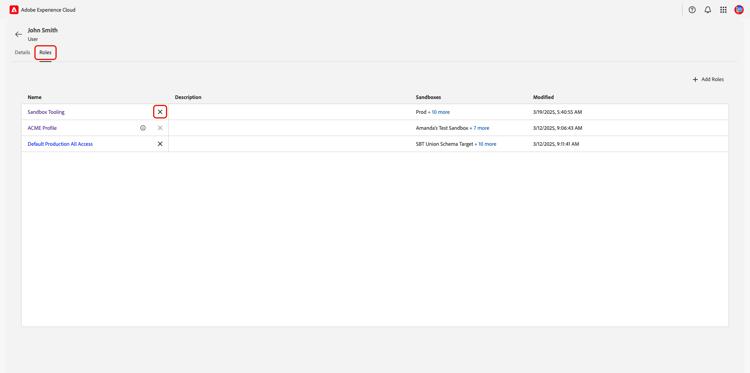
To remove a role from the user, select the X next to the role’s name.
A confirm dialog appears. Select Confirm to finish removing the role.
Manage user groups user-groups
User groups are multiple users that have been grouped together and have the access to execute the same functions.
To view your organization’s users, navigate to Permissions in Adobe Experience Cloud.Select Groups from the Users section in the left panel.
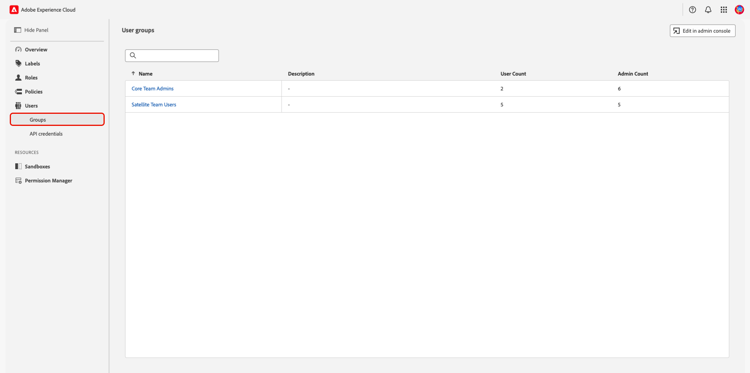
A list of user groups appears. Select the group you would like to view from the list.
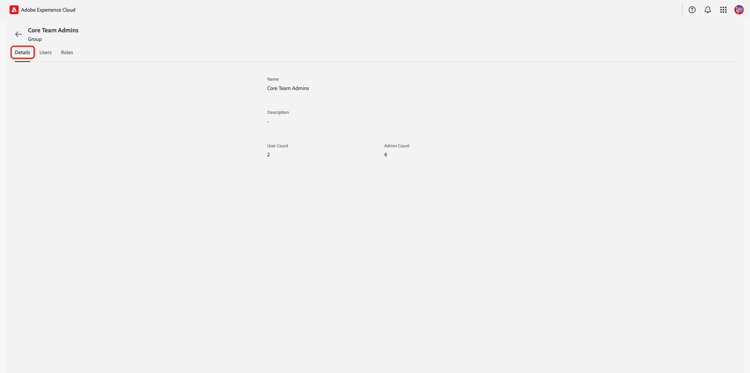
The Details tab provides an overview of the user group. The overview displays the groups’s Name, Description, User Count, and Admin count.
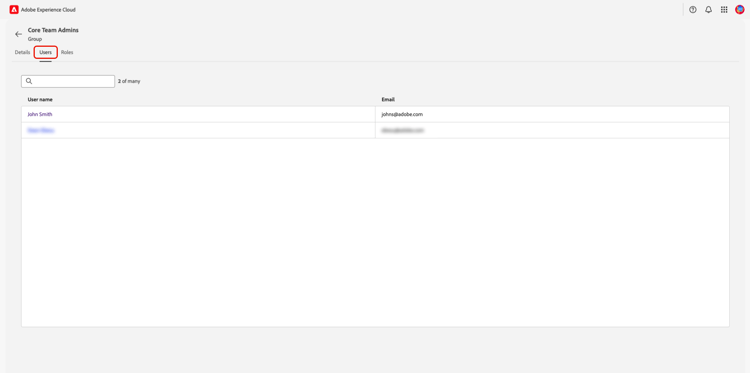
Select the Users tab to view a list of users assigned to the group.
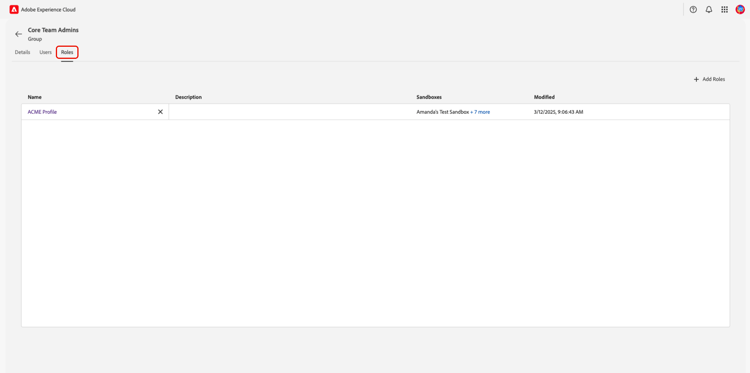
Select the Roles tab to view the list of roles currently assigned to the group.
Add roles to a user group add-user-group-role
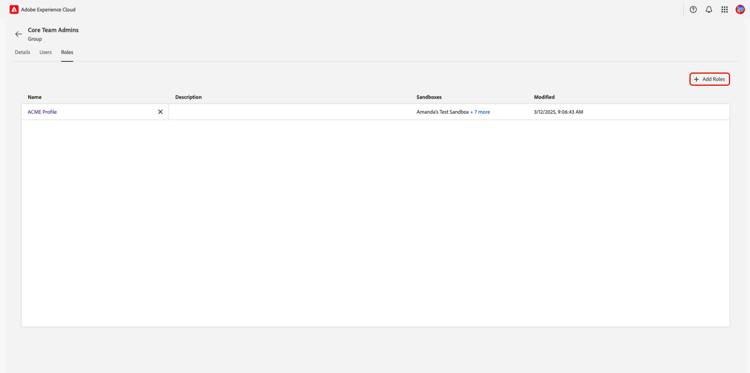
To add a new role to the group, select Add Roles.
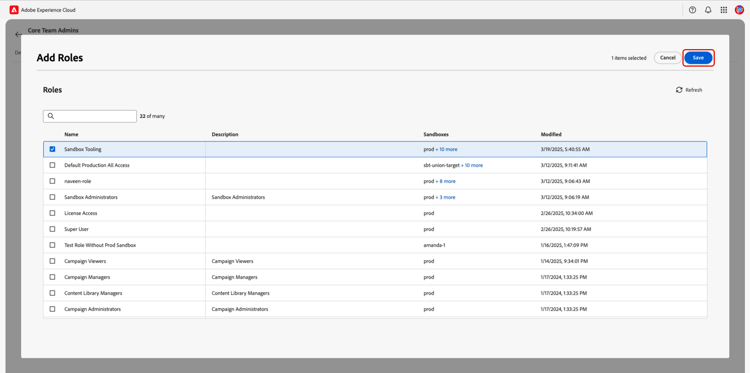
The Add Roles dialog appears. Select the role(s) you wish to add and then select Save. The roles will be added for all users belonging to the user group.
Remove roles from a user group remove-user-group-role
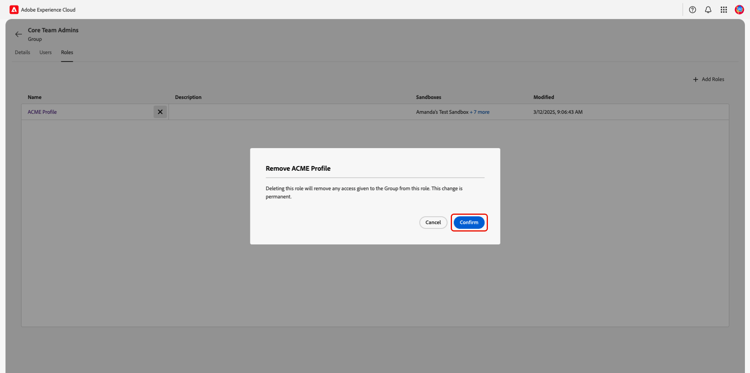
To remove a role from the user group, select the X next to the role’s name.
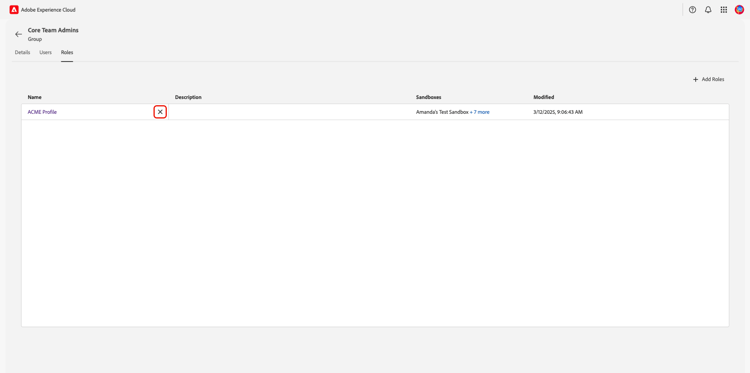
A confirm dialog appears. Select Confirm to finish removing the role.
API Credentials
To use Experience Platform APIs as a user or developer, a system administrator needs to add API credentials in addition to a role’s given set of permissions. Permissions allows you to assign previously created API credentials assigned to the Experience Platform product to roles. For a complete guide on creating and assigning API credentials, as well as the permissions needed, refer to the step-by-step tutorial in authenticate and access Experience Platform APIs.
To view your organizations API credentials associated with Experience Platform, navigate to Permissions in Adobe Experience Cloud. Select API Credentials from the Users section in the left panel.
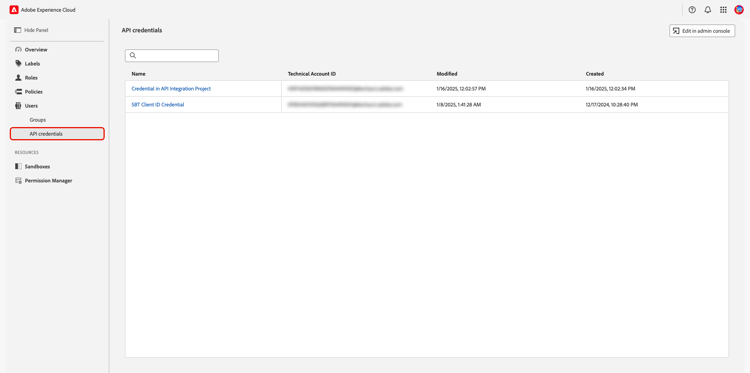
A list of API credentials appears. Select the API credential you would like to view from the list.
The Details tab provides an overview of the API credential. The overview displays the credentials’s Name, Modified date, Modified By attribute, Created date, Created by attribute, API key, Technical ID, and Email.
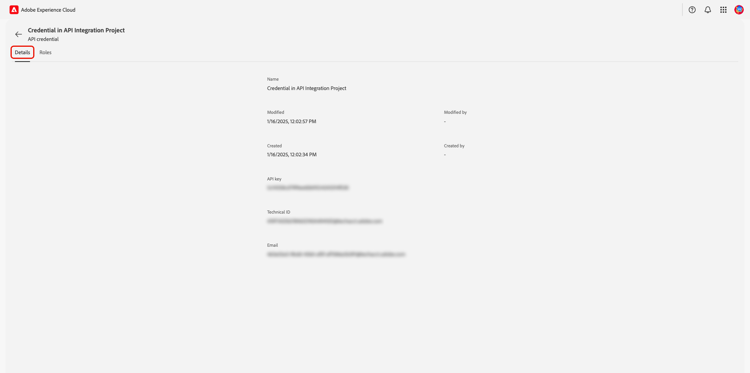
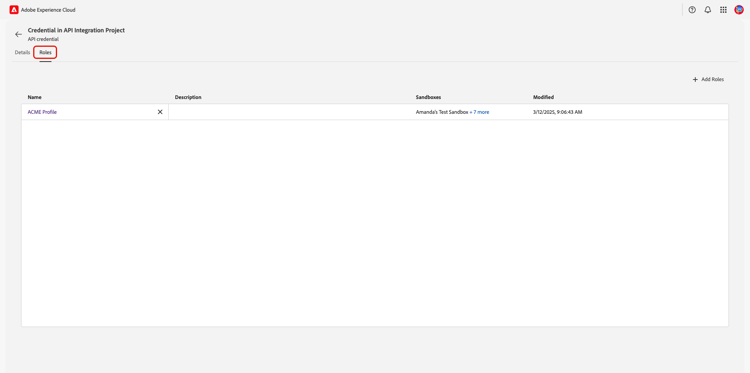
Select the Roles tab. A list of role’s associated with the API credential appears.
Add a role to an API Credential add-api-credential-role
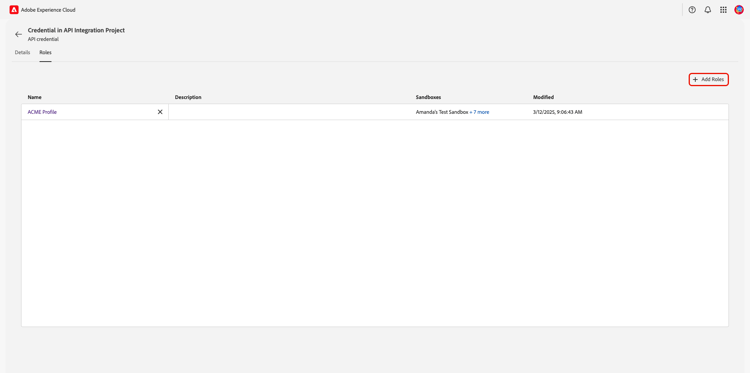
To add a role to the API credential, select Add Roles.
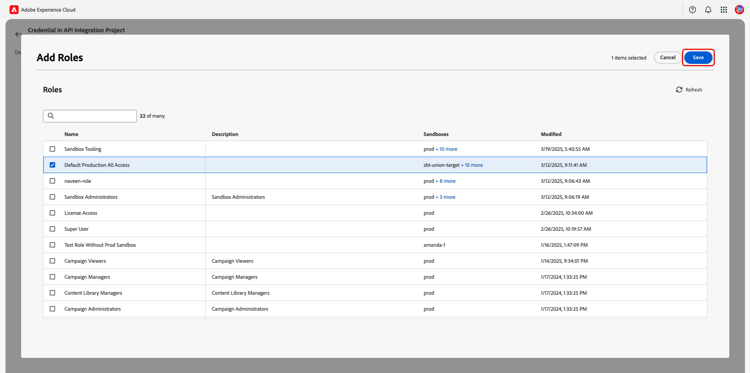
The Add Roles dialog appears. Select the role(s) you wish to add to the user and then select Save.
Remove a role from an API credential remove-api-credential-role
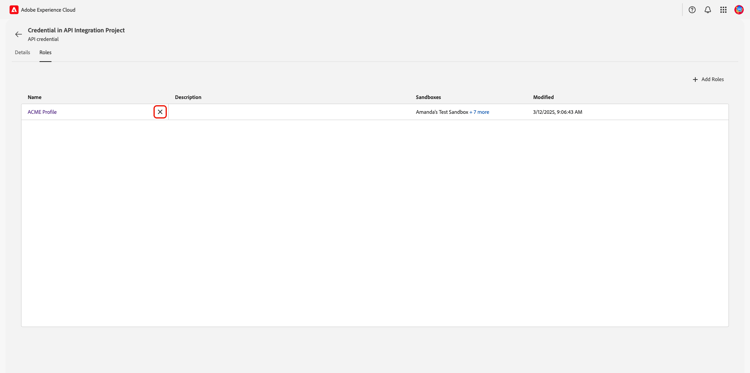
To remove a role from the API credential, select the X next to the API credential’s name.
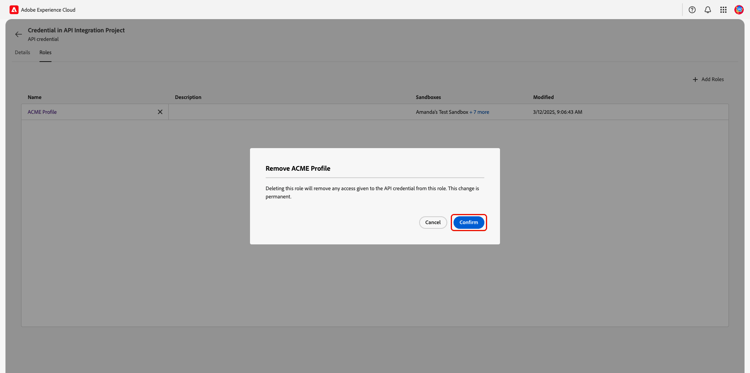
A confirm dialog appears. Select Confirm to finish removing the role.
Next steps
You now know how to view the details and roles for a user, user group, and API credential. To learn more about attribute-based access control, see the attribute-based access control overview.