Manage roles
To begin managing roles, navigate to Permissions in Adobe Experience Cloud and select Roles in the left panel.
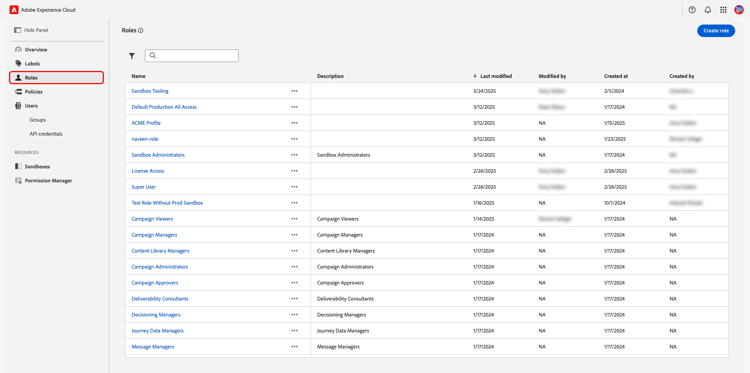
Create a new role create-new-role
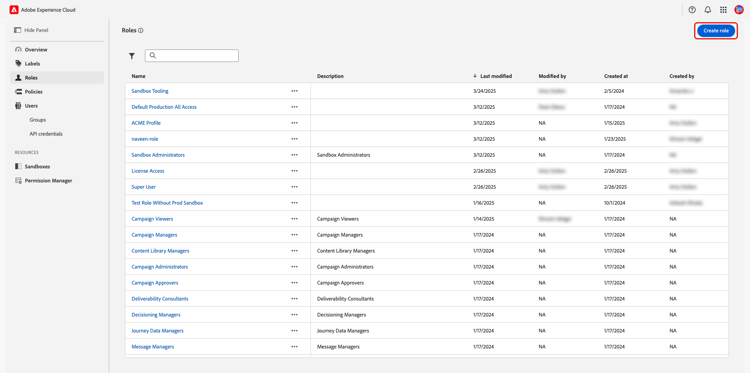
To create a new role, select Create role.
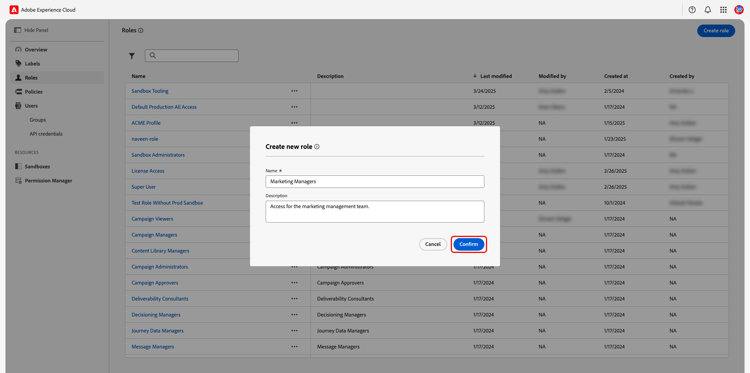
The Create new role dialog appears. Enter a Name for the role, and optionally, a Description, and then select Confirm.
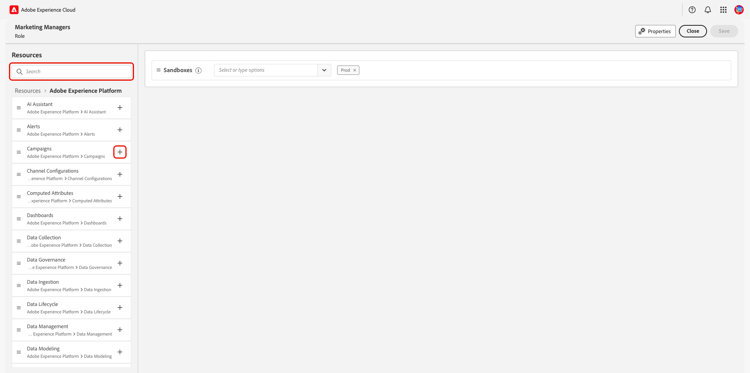
The Resources workspace appears. Locate the resource you need by scrolling, or by entering the resource’s name into the search bar in the left panel. Add resources by selecting the

The resource gets added to the main workspace. Select the dropdown beside the resource’s name, and select the permissions you wish to add to the role. You can choose them individually, select Add all, or locate specific permissions by entering the permission name in the search bar.
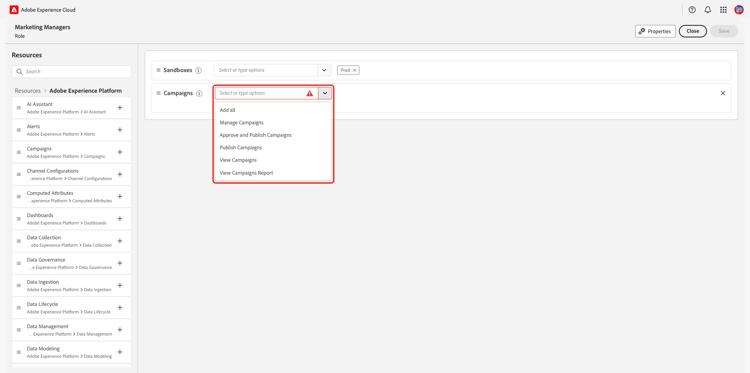
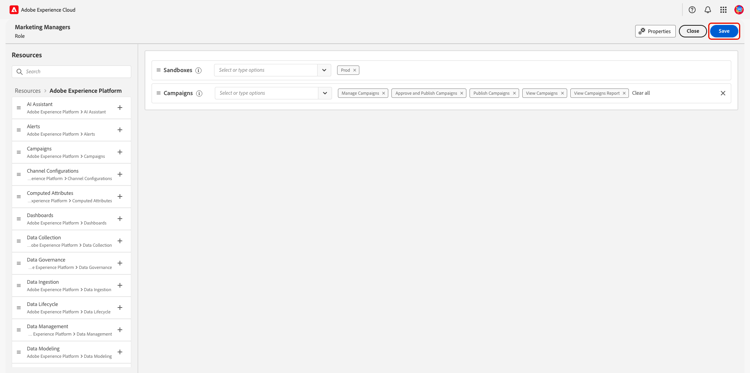
Continue selecting all the resources and the permissions you wish to add to the role. When you’re finished, select Save.
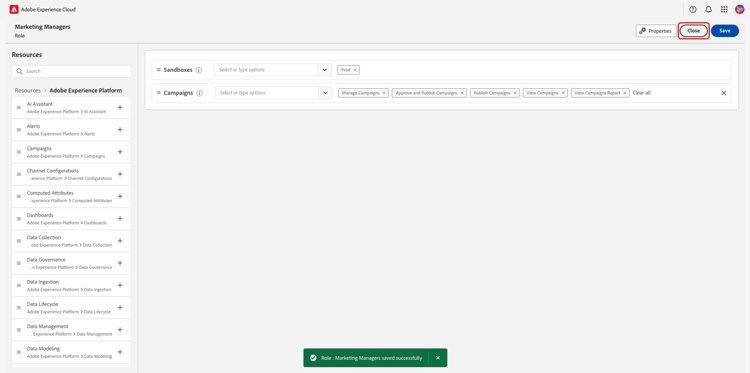
You will receive an alert showing that the role has been saved successfully. Select Close to return to the Roles workspace.
The new role is successfully created, and you are redirected to the Roles page, where you will see the newly created role appear in the list.
Duplicate a role
Duplicating a role will copy over the details, permissions, labels, and sandboxes. Users, user groups, and API credentials are not copied over and will need to be manually added to the role.
To duplicate an existing role, find the role you wish to duplicate within the Roles tab. Select the

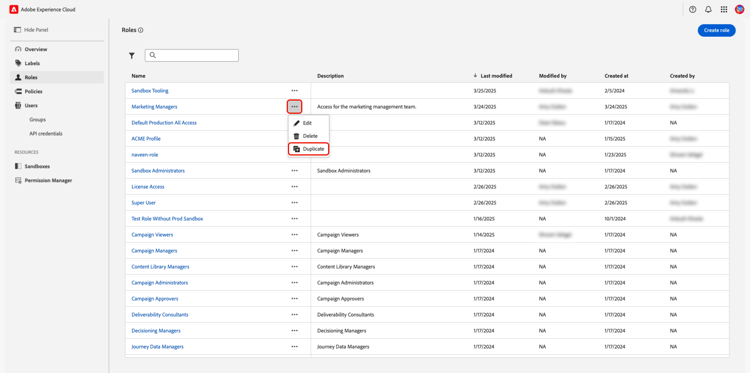
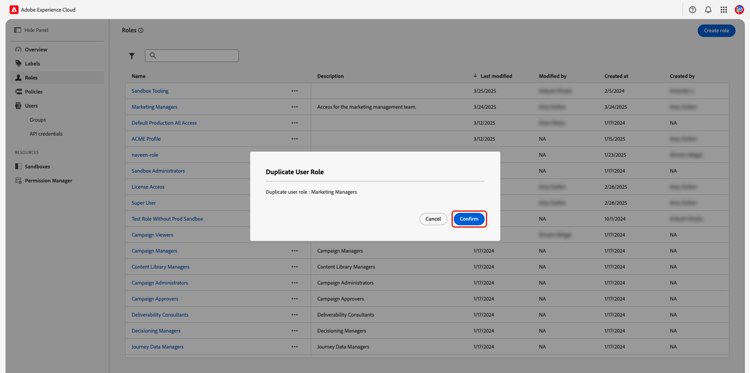
The duplicate confirmation dialog will appear. Select Confirm to finish duplicating the role. The new role will be saved under the same name with _Copy added as a suffix.
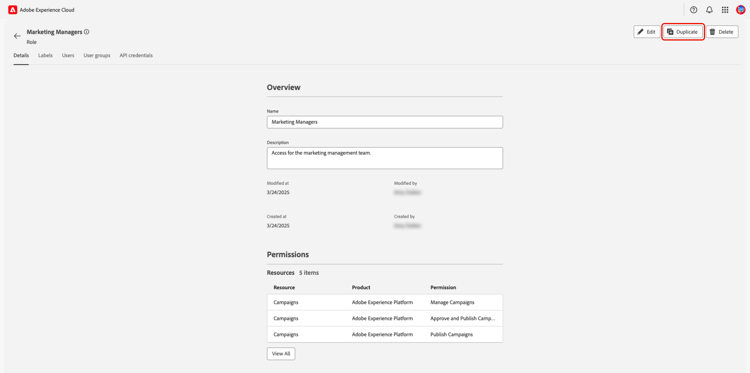
Alternatively, you can duplicate a role from within an individual role’s workspace. Select the role you wish to duplicate from the Roles workspace and then select Duplicate.
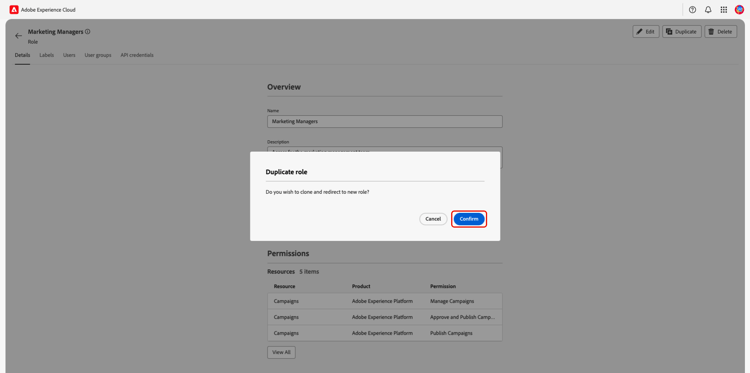
The duplicate confirmation dialog will appear. Select Confirm to finish duplicating the role. You will be redirected to the new role.
Delete a role
To delete a role, find the role you wish to delete within the Roles tab. Select the
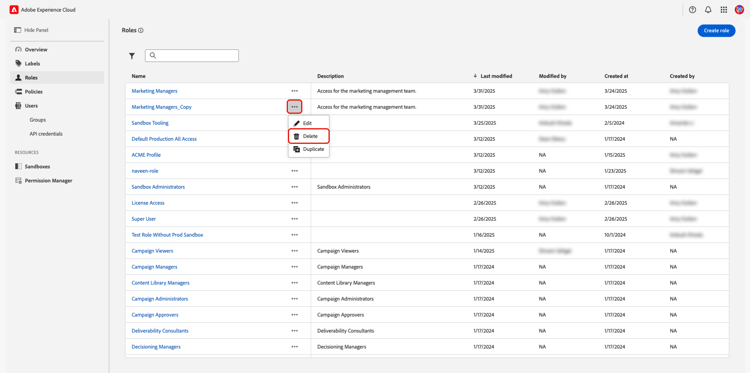
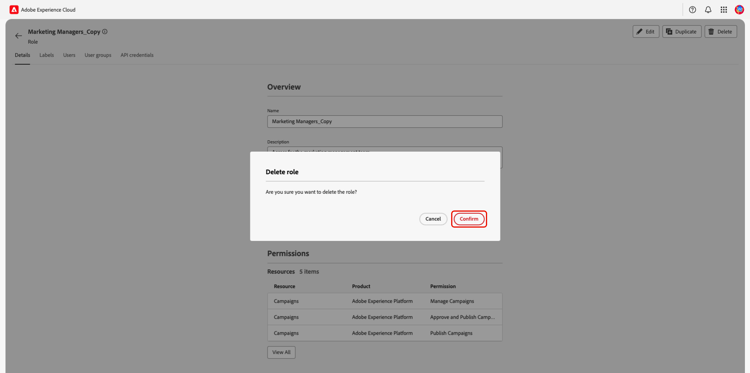
The delete confirmation dialog will appear. Select Confirm to finish deleting the role.
Alternatively, you can delete a role from within an individual role’s workspace. Select the role you wish to delete from the Roles workspace and then select Delete.
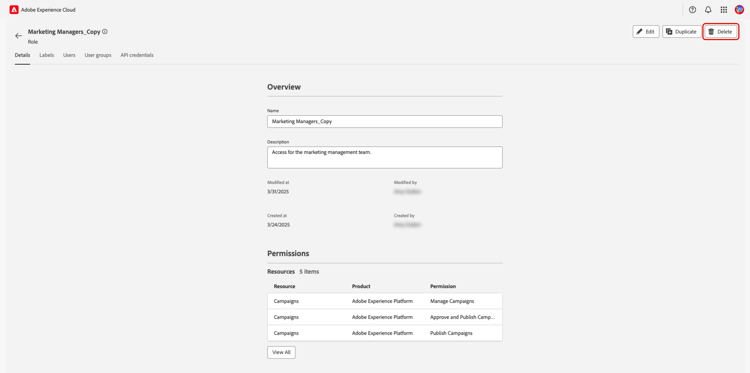
The delete confirmation dialog will appear. Select Confirm to finish deleting the role.
Next steps
With a new role created, you can proceed to the next step to manage permissions for a role.