Search and analyze AEM content with natural language
Use the Content AI MCP Server, a companion to the AEM MCP Server, from Adobe CX Enterprise Coworker to search and analyze Content AI content sources in natural language, no low-level API code or UI navigation.
In this tutorial you discover available content sources, run keyword, semantic, and hybrid searches, and use generative search to get a synthesized answer, all from Coworker against a Content AI content source.
Tools and access
The Content AI MCP Server provides six tools:
list_content_sourcesget_content_source_configfulltext_searchsemantic_searchhybrid_searchgen_searchThe Content AI MCP Server is public-source-only: the X-Api-Key header grants source access. An API key is required; a request without it is rejected.
- Public (anonymous): Search public, read-only content sources using the
X-Api-Keyheader. Use this for openly available, non-sensitive content. See Searching public content sources. - Authenticated: Search entitled or access-controlled content sources using the
x-content-ai-mcp-api-keyheader together with your signed-in Adobe identity (passed through by CX Coworker). Results respect your permissions.
Add the Content AI MCP Server
Connect Adobe CX Enterprise Coworker to the Content AI MCP Server and run the scenario below.
Let’s set up the Content AI MCP Server in Coworker with these steps.
-
Sign in to Coworker.

-
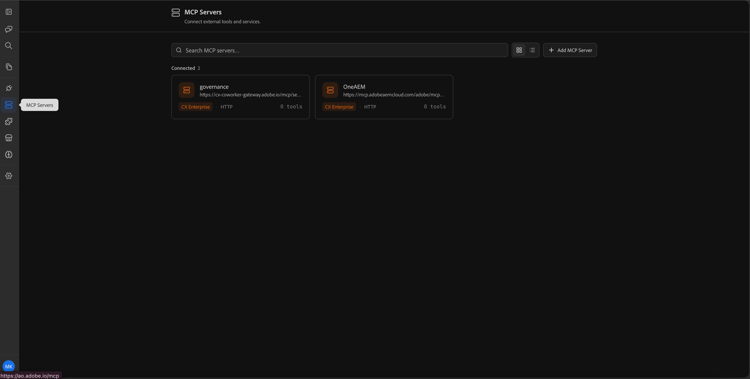
From the side rail, click MCP Servers.
-
Click Add MCP Server.

-
In the Add MCP Server dialog, enter the following details:
table 0-row-2 1-row-2 2-row-2 3-row-2 4-row-2 Field Value Server name content-ai-mcpMCP URL https://mcp.adobeaemcloud.com/adobe/experimental/aemagents-expires-20260331/mcp/content-aiConnection type HTTPAuthentication type Passthrough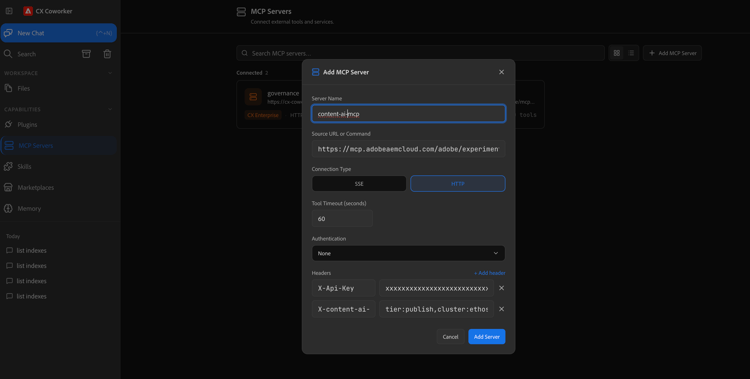
note NOTE Authentication type is set to Passthroughso Coworker forwards your signed-in Adobe identity to the MCP Server. You do not need a separate sign-in or OAuth step. -
Click Add headers and add the headers for the access mode you need:
For public content sources (anonymous):
table 0-row-2 1-row-2 2-row-2 Header Value X-Api-KeyYour public API key. Present this header when you only want to search public content sources. x-content-ai-mcp-routing(Optional) Environment/routing info, for example tier=publish,bucket=p12345-e67890,cluster=ethos21-prod-va7,namespace=ns-team-example.For non-public (entitled) content sources:
table 0-row-2 1-row-2 2-row-2 Header Value X-Api-KeyYour Content AI API key. Required — searches are rejected without it. x-content-ai-mcp-routing(Optional) Environment/routing info, for example tier=publish,bucket=p12345-e67890,cluster=ethos21-prod-va7,namespace=ns-team-example.note important IMPORTANT When the X-Api-Keyheader is present, the server treats the request as anonymous and only searches public content sources. Any signed-in identity is ignored, so there is no accidental escalation to authenticated access. Usex-content-ai-mcp-api-key(notX-Api-Key) when you intend to search entitled content sources.note NOTE If you do not set the x-content-ai-mcp-routingheader, the server asks for your environment (tierandbucket) in chat the first time you run a tool, then retries automatically.natural_language_searchneeds more than the other five tools: it requiresclusterandnamespacein routing, in addition totierandbucket. If either is missing, the tool returns amissing_nls_routingerror — reply with the missing value(s) and the server retries automatically. -
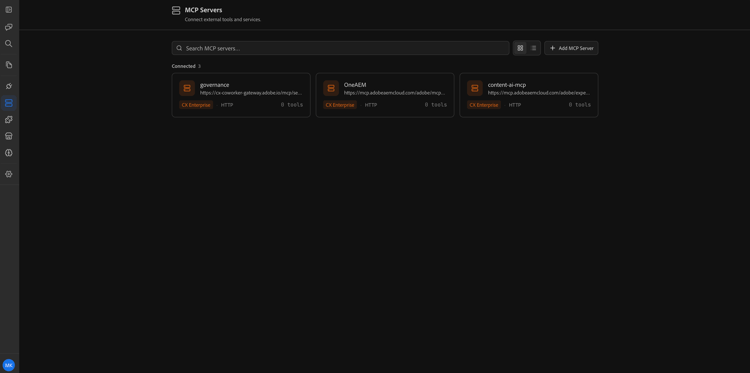
Click Add. The content-ai-mcp server now appears in your list of MCP Servers.
-
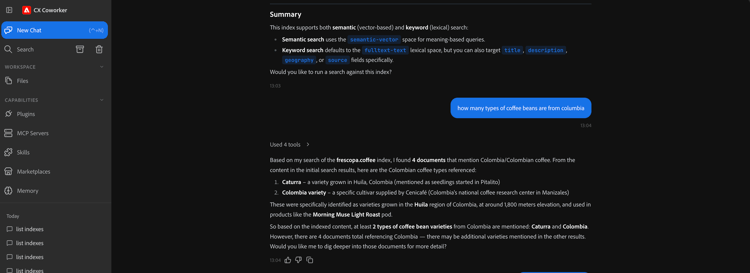
Click New chat to start using the Content AI MCP Server.
Searching public content sources
Some Content AI content sources are marked public and can be searched anonymously, without an entitled identity. Public content sources are read-only and are intended for openly available, non-sensitive content. Anyone with the public API key can search them.
Use this server when:
- You want to search openly available content (for example, public documentation or a demo catalog).
- You do not need per-user, permission-scoped results.
- You want a simple setup that only requires an API key.
To search public content sources, add the Content AI MCP Server in Coworker exactly as described in Add the Content AI MCP Server, but in the Add headers step add only the X-Api-Key header (plus an optional x-content-ai-mcp-routing header for the environment):
X-Api-Keyx-content-ai-mcp-routingtier=publish,bucket=p12345-e67890.X-Api-Key header is present, the server treats the request as anonymous and only searches public content sources. Any signed-in identity is ignored. Do not use X-Api-Key when you intend to search entitled content sources, use x-content-ai-mcp-api-key instead.With the server connected, discover and search public content sources the same way as authenticated content sources.
-
In Coworker, open a new chat and list the public content sources available to your API key:
code language-text List all Content AI content sources available in my environment.The server searches only public content sources for this request and returns matching results.
The server returns the public sources matching your routing/environment.
You set up the Content AI MCP Server in Coworker and used it to search Content AI content sources. You discovered available content sources and searched them in natural language, with keyword, semantic, hybrid, and generative search. You also learned how to search public content sources anonymously with an API key, and how to reduce response size with field selection. You can use the same human-centric flow from Coworker to search and analyze Content AI content sources without switching to a UI or writing low-level search API code.