Using MCP with AEM as a Cloud Service using-mcp-with-aem-as-a-cloud-service
Introduction introduction
Many Adobe Experience Manager (AEM) teams now work in Integrated Development Environments (IDEs) and chat-based applications such as Cursor, OpenAI ChatGPT, Anthropic Claude, and Microsoft Copilot Studio. These applications support the Model Context Protocol (MCP), which allows applications to expose back-end tools to large language models (LLMs) in a standardized way.
With AEM’s MCP integration, different personas can collaborate around the same content:
- Developers can orchestrate content operations and workflows from their IDE or chat application.
- Practitioners and content architects can manage sites and content fragments, and import assets, with AI assistance while staying within AEM’s existing permission model.
This article explains what AEM’s MCP functionality provides, which MCP applications are supported, how to configure it, and how to use it in practice.
Why MCP is Useful for AEM Customers why-mcp-is-useful-for-aem-customers
Modern IDE and chat applications use MCP as a way for an LLM to call tools exposed behind MCP servers. Customers can describe their intent in natural language instead of writing code against low-level API specifications. For example, a prompt like “update the hero banner for this campaign across all pages” lets the LLM invoke the appropriate MCP tools, which then interact with AEM’s APIs.
Key benefits include:
- Natural-language interaction instead of API plumbing - MCP tools describe what operations are available and how to call them. The LLM uses these schemas to decide which tools to invoke and with which parameters.
- Consistent experience across applications - The same AEM MCP tools can be used from multiple MCP-compatible applications, allowing teams to work where they are most productive while calling the same underlying AEM capabilities.
- Security and governance preserved - Requests to AEM MCP tools run under the authenticated user’s identity, and each tool enforces the user’s existing AEM permissions. AI-assisted operations follow the same access rules as manual work in AEM.
AEM MCP Server aem-mcp-server
With the July 2026 AEM release, Adobe offers a unified AEM MCP Server that is recommended instead of the domain-specific MCP servers. Configure a single URL in your chat application or coding agent to get access to a growing set of tools, covering most of what the older, domain-specific MCP servers offer.
Note that the AEM MCP Server does not currently include the capabilities of the Cloud Migration MCP servers. If you need it, add it separately in your MCP client.
The endpoint is https://mcp.adobeaemcloud.com/adobe/mcp/aem
26309). There is also support for asset upload, download, move/copy/delete, and publish/unpublish for assets, along with editing metadata, inspecting references, and identifying unused assets. If you have Dynamic Media with OpenAPI enabled, you can also generate on-the-fly renditions.If you are interested, you must sign up for the agents trial or have a paid license in order to access the Experience Governance MCP.
Note that the AEM MCP Server is used by the AEM Claude Connector and AEM ChatGPT Plugin.
Listing AEM MCP Server capabilities
To see which features your LLM can use, ask your MCP-enabled application to discover the AEM MCP Server’s capabilities with a prompt such as:
List AEM capabilities with the AEM MCP Server
Note that this list of high-level capabilities is different from the raw tool list exposed by the AEM MCP Server.
Domain-Specific MCP Servers mcp-servers-provided-by-aem
AEM also exposes domain-specific MCP servers, but it is recommended to use the AEM MCP Server instead. Note that since it does not currently support the Cloud Migration MCP server, you can configure it separately if needed. The endpoints below are relative to https://mcp.adobeaemcloud.com/adobe/mcp; for example, configure https://mcp.adobeaemcloud.com/adobe/mcp/content for the Content MCP Server.
MCP Servers mcp-servers
/content26309). It is recommended to use the AEM MCP server instead./content-readonly26309). With the AEM Claude Connector and the AEM ChatGPT Plugin, there is also support for asset download, inspecting references, and identifying unused assets. It is recommended to use the AEM MCP server instead./cloudmanager/experience-governanceIf you are interested, you must sign up for the agents trial or have a paid license in order to access the Experience Governance MCP. It is recommended to use the AEM MCP server instead.
/cloud-migrationReference the Content MCP Server Tutorial and Cloud Manager MCP Server Video for more information about their capabilities and how to use them.
Supported MCP Applications supported-mcp-applications
The MCP servers are designed to work with a defined set of MCP-compatible applications. Each application provides its own configuration experience, but the high-level steps are similar.
Chat Applications (Web & Desktop) chat-applications
- Anthropic Claude
- OpenAI ChatGPT
Developer Tools (IDE Extensions, Desktop Apps, CLIs) developer-tools
- Anthropic Claude Code (CLI, JetBrains, VS Code, Cursor)
- Augment Code (CLI, JetBrains, VS Code, Cursor)
- Augment Indent Desktop App
- Cline (JetBrains, VS Code, Cursor)
- Cursor
- GitHub Copilot (JetBrains, VS Code)
- Kiro (Desktop App, CLI)
- OpenAI Codex (Desktop App)
- OpenAI Codex CLI
- Windsurf
Enterprise Platforms enterprise-platforms
- Amazon Quick
- Microsoft Copilot Studio
- Workfront Fusion
Setup Overview setup-overview
Configuring MCP involves two main parts:
- Configure each MCP client application so that the application knows how to connect to AEM’s MCP servers and perform OAuth login.
- Select the MCP Server before starting to prompt, so that the MCP client knows to use it.
Step-by-step guides covering both steps are available for:
AEM Configuration aem-configuration
By default, the permissions that individual users have within AEM govern access to the MCP servers. When a user authenticates through an MCP client application, the MCP tools enforce the same access rules as manual operations in AEM. A user can only perform actions they are already authorized to perform.
Permitted MCP Client Applications permitted-mcp-client-applications
All applications listed under Supported MCP Applications are permitted by default.
Restricting MCP Servers restricting-mcp-servers
For granular control over which MCP capabilities are available, email Adobe support at aemcs-mcp-feedback@adobe.com with your request.
You can request the following restrictions:
- AEM MCP Server - disable it entirely, disable specific categories, or change the default read-write vs. read-only behavior by category (where supported, per the AEM MCP Server table).
- Domain-specific MCP Servers - disable a specific server.
By default, restrictions apply at the organizational level. If you need restrictions scoped more narrowly, choose one of the following levels and provide the desired behaviors for every instance at that level:
- Program ID - list the desired behaviors separately for each program you have.
- Environment ID - list the desired behaviors separately for each environment you have.
- Environment type (RDE, dev, stage, prod) - list the desired behaviors separately for each environment type you use.
Allowing the AEM MCP Server on IP-Restricted Environments allowing-aem-mcp-server-on-ip-restricted-environments
If an environment restricts access by IP address, for example with a Cloud Manager IP allowlist or a traffic filter rule that blocks requests from other IP addresses, AEM MCP Server requests to that environment are blocked by default.
The AEM MCP Server can be identified in CDN traffic filter rules using the clientService request property, which has the value adobe/aemmcp for AEM MCP Server requests. Do not add AEM MCP Server IP addresses to your IP allowlists. Instead, add the following traffic filter rule to your cdn.yaml file and deploy it with a config pipeline:
kind: "CDN"
version: "1"
data:
  trafficFilters:
    rules:
      - name: allow-aemmcp
        when: { reqProperty: clientService, equals: "adobe/aemmcp" }
        action: bypass
The bypass action exempts matching requests from traffic filter block rules and also from the IP restrictions of Cloud Manager IP allowlists. The rule applies to all tiers and paths, so the AEM MCP Server can perform every operation that users are permitted to perform in AEM. The rule only matches requests from the AEM MCP Server, which Adobe identifies with clientService adobe/aemmcp. All other traffic to the environment remains subject to your Cloud Manager IP allowlists and traffic filter rules.
The bypass action is similar to allow, but stronger: it also overrides Cloud Manager IP allowlists. If no Cloud Manager IP restrictions are configured, bypass and allow behave the same.
For general information about the cdn.yaml file, traffic filter rules, and deployment with a config pipeline, see Traffic filter rules including WAF rules.
Managing MCP Client Access managing-mcp-client-access
Administrators can also disable access for specific MCP client applications at the organization level if their organization’s policies require it. If you would like Adobe to enable support for additional MCP client products, send a link to the product website. If you need to allowlist a custom MCP client, reach out as well.
For all MCP server related requests, feel free to contact Adobe at aemcs-mcp-feedback@adobe.com
MCP Client Application Configuration mcp-client-application-configuration
Each user performs this step, or an administrator of the MCP client application can perform it where supported. Configuration details vary slightly between applications. MCP clients are evolving rapidly and support for remote MCP servers is being actively developed. You may need to enable Developer Mode to access the functionality for adding remote servers, but the general process is:
- Add one or more MCP server URLs.
- Configure one or more MCP endpoints. For example:
https://mcp.adobeaemcloud.com/adobe/mcp/aem
- Configure one or more MCP endpoints. For example:
- Trigger the connection.
- Save or activate the configuration so the MCP client application attempts to connect to the MCP server
- Sign in with Adobe ID.
- When prompted, complete the Adobe login flow so the application can obtain OAuth tokens tied to your Adobe ID
- Verify discovered tools.
- Once authenticated, the application discovers MCP tools from the server. You can then start prompting the LLM to perform AEM operations.
Refer to Supported MCP Applications for the full list of supported applications.
Authentication authentication
The Adobe-hosted MCP servers implement OAuth and are integrated with Adobe’s identity system.
- When an MCP client application connects to an MCP server, users see an Adobe login dialog and authenticate with their Adobe ID
- After successful login, the system verifies that the MCP client application is permitted in your organization and that the requested MCP server is allowed. If either check fails, an error message is displayed.
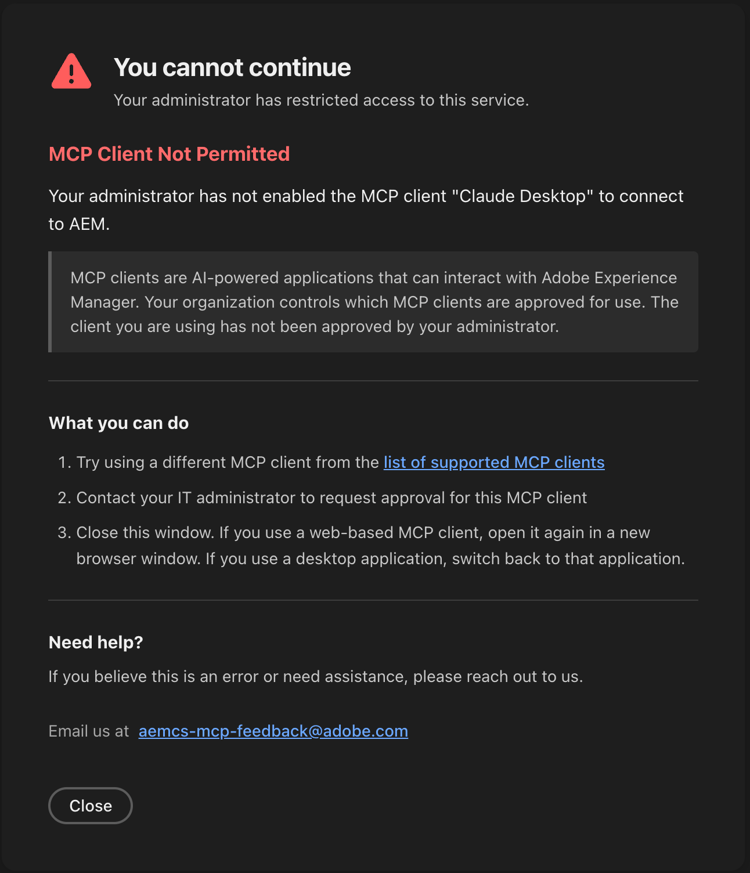
- Once verified, the MCP server issues tokens that the application uses for subsequent tool calls.
- MCP tools respect the user’s AEM permissions. For example, only users who have permission to modify a content fragment in AEM can modify it via MCP.
This approach ensures that AI-assisted operations comply with your existing AEM security and governance model.
Using MCP Servers using-mcp-with-aem
Once your MCP client application is configured, you can prompt the LLM to perform AEM operations. The LLM knows the capabilities of the configured MCP servers, chooses which tools to call, and sequences them as needed to fulfill your request.
Example Use Cases example-use-cases
Some representative scenarios include:
-
Environment discovery
- List environments and licenses to decide where to run a workflow.
-
Sites management
- List sites
- Create, read, update, and delete pages and page content.
-
Content Fragment management
- Search for content fragments
- Create new fragments
- Update existing fragments when campaign messaging changes.
-
Asset importing
- Import assets with status check
-
Asset Search
note NOTE Minimum required AEM release version to access Assets Search via MCP endpoint is 26309. -
Content (image) optimization: Generate web-optimized image URLs with resizing, cropping, Smart Crop, and conversion to WebP, AVIF, PNG, and other formats.
note NOTE You must have Dynamic Media with OpenAPI enabled to generate on-the-fly renditions.
Example Workflows example-workflows
The following examples illustrate how an LLM might chain MCP tools together.
-
Working with a content fragment referenced by a page
- Get page content – Call a tool such as
get-aem-page-contentto retrieve the page and locate thefragmentPathproperty. - Resolve the fragment path – Use
resolve_fragment_pathto convert the path to a UUID. - Fetch fragment data – Call
get_fragmentto retrieve the current fields. - Update the fragment – Call
patch_fragmentto apply changes to the fragment content.
- Get page content – Call a tool such as
-
Creating new content based on a model
- Discover models – Use
list_modelsto see which content fragment models are available. - Inspect a model – Use
get_modelto understand the model’s field schema. - Create content – Use
create_fragmentto create a new fragment with values derived from your prompt.
- Discover models – Use
-
Safely updating existing content
- Read current data – Use
get_fragmentto retrieve the existing data and an ETag. - Apply a JSON Patch – Use
patch_fragmentwith the ETag and a JSON Patch document to update the fragment, supporting optimistic concurrency.
- Read current data – Use
From the user’s perspective, these workflows can be initiated with prompts such as:
"Create a new content fragment for the spring campaign based on our hero banner model and fill in its fields from this brief."
The LLM chooses and coordinates the necessary MCP tools automatically.
Expectation Management expectation-management
When working with LLMs through MCP, keep the following in mind:
- Highly capable but not infallible - LLMs can accomplish complex tasks but are prone to occasional errors. The same prompt may yield slightly different results or presentations without an obvious reason. Always review outputs before applying changes to production content.
- Evolving capabilities - LLM models are continuously improving. Over time, they become smarter at discovering new ways to combine MCP tools to achieve your goals. A task that required multiple prompts today may work seamlessly with a single prompt tomorrow.
- Human oversight is essential - Think of the LLM as a knowledgeable assistant that needs supervision. It has broad knowledge and can devise creative solutions, but it benefits from your guidance and review. Verify results, especially for critical operations, and provide feedback when the output does not match your expectations.
- Be cautious with auto-acknowledging tool executions - Some MCP client applications, such as Claude, offer the option to auto-acknowledge tool executions requested by the LLM. While this option can be convenient for read-only operations like searching or retrieving content, exercise caution with tools that update or delete content. Review each tool execution request before confirming actions that modify your AEM environment.
Limitations limitations
AEM currently supports configuring MCP servers in the applications listed under Supported MCP Applications.
If you would like to use a different MCP client application, feel free to reach out at aemcs-mcp-feedback@adobe.com to request support for additional clients or to allowlist a custom one.