Set up an Adobe Developer Console Project configure-adc-project
To call the AEM Content AI Services API, you need credentials issued by an Adobe Developer Console (ADC) project. This page walks you through creating the project, selecting an authentication method, and generating the credential you include with every API request.
Go to Adobe Developer Console for your organization to begin.
Prerequisites prerequisites
Before you begin, ensure the following:
- You have access to Adobe Developer Console for your organization.
- You are added as a Developer on the AEM Content AI Services product profile in Adobe Admin Console. Without this role, the AEM Content AI Services API card appears disabled and the Server-to-Server authentication option is hidden.
- You know the program and environment numbers for the product profile you want to select (for example,
AEM User - publish - Program 12345 - Environment 67890). - You hold the System Administrator role in Admin Console for the program. This role lets you manage product profiles and assign users to the environment.
Choose an Authentication Method choose-auth
AEM Content AI Services supports two authentication methods. Pick the one that matches your integration:
Server-to-Server Authentication s2s-auth
-
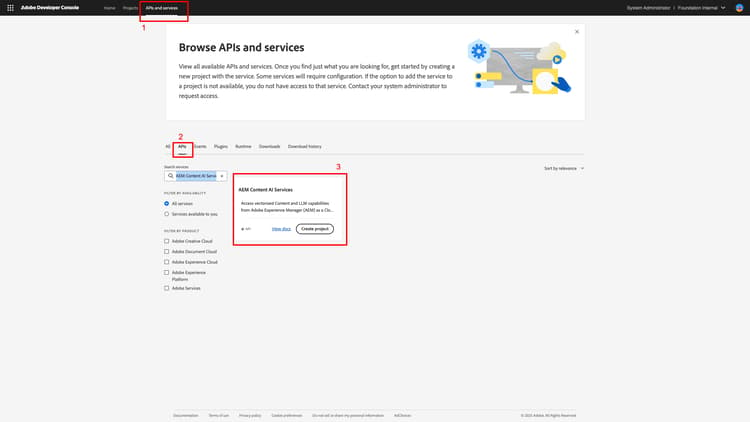
Select APIs and services, then APIs.
-
Filter by AEM Content AI Services, then select Create Project to start a new project, or Add API if you are adding the service to an existing project.
note NOTE If the API card is disabled with a “License required” message, your AEM as a Cloud Service environment may not be modernized. See Modernization of AEM as a Cloud Service environment. -
In the Configure API dialog, select Server-to-Server authentication.
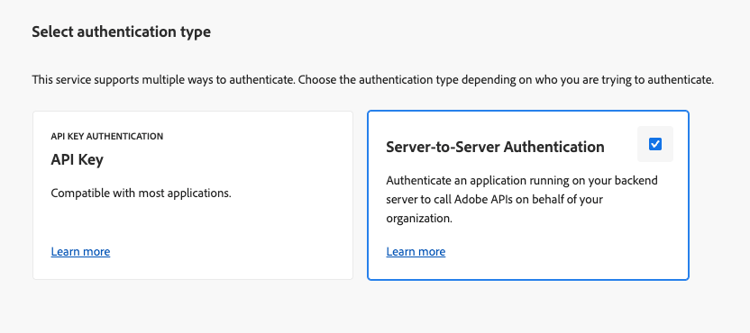
note tip TIP If the Server-to-Server option is not available, the user setting up the integration is not added as a Developer to the Product Profile. See Enable Server-to-Server authentication. -
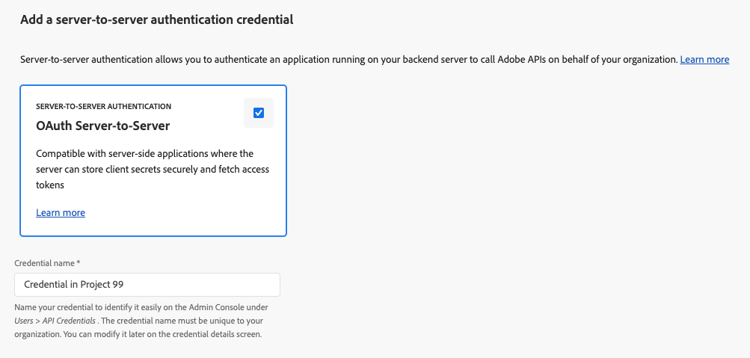
If needed, rename the credential. Select Next.
-
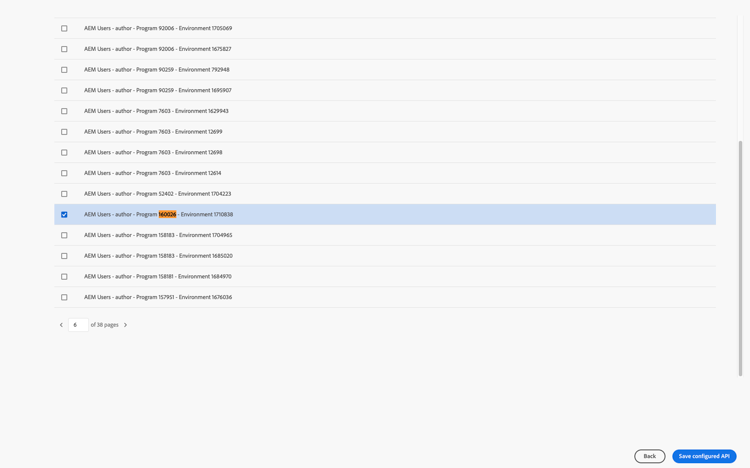
Select the AEM User - publish - Program XXX - Environment XXX and/or AEM User - author - Program XXX - Environment XXX Product Profile, then select Save.
-
Review the API and authentication configuration.
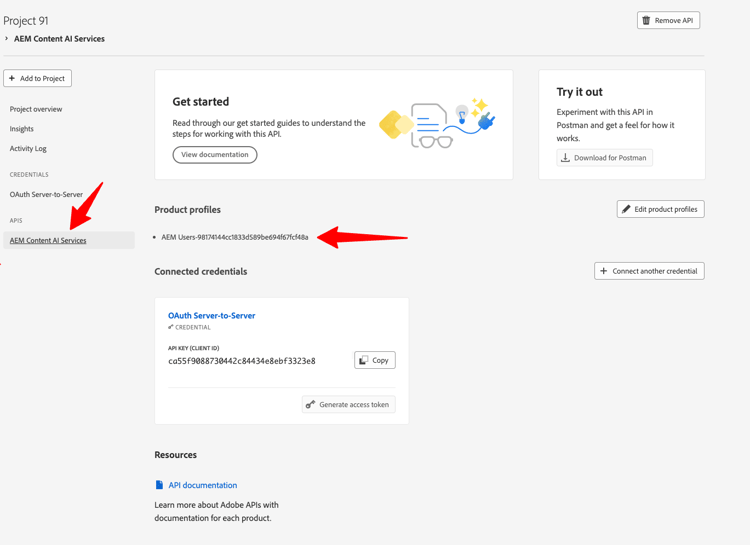
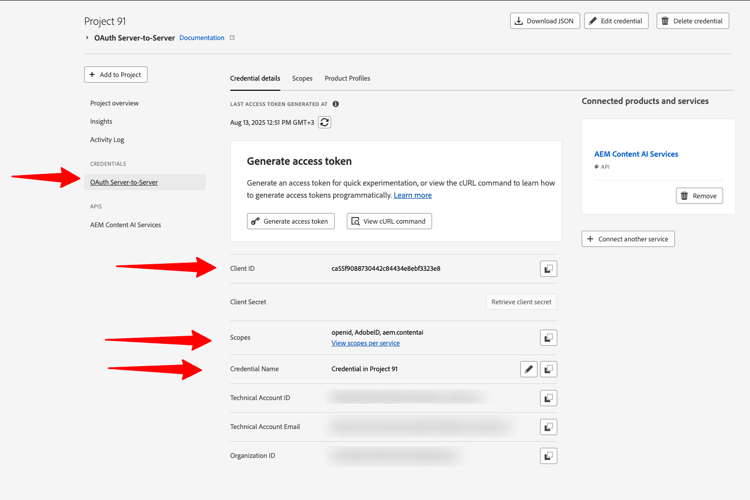
Generate an Access Token generate-token
-
In your ADC project, go to Credentials and select Generate access token.
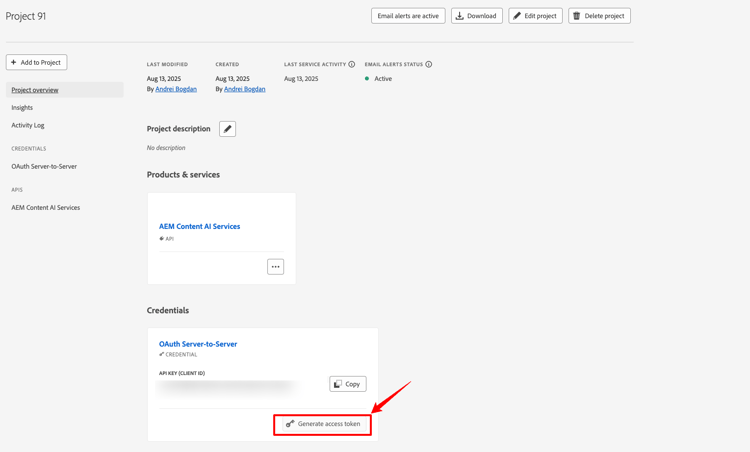
-
Include the token in the
Authorizationheader of every API request:code language-http Authorization: Bearer YOUR_ACCESS_TOKENnote warning WARNING Store the token securely. It expires and must be regenerated periodically.
API Key Authentication api-key-auth
-
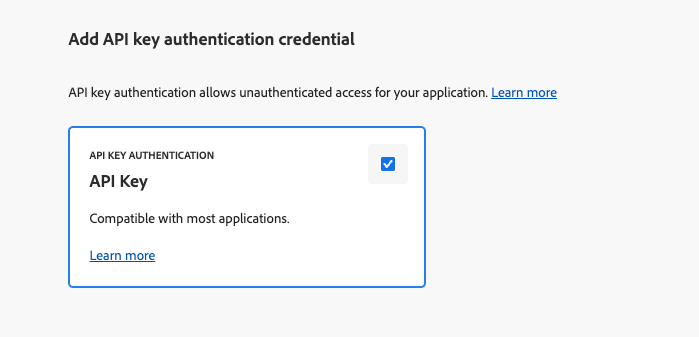
When adding the AEM Content AI Services API to your project, select API Key in the Select authentication type dialog.
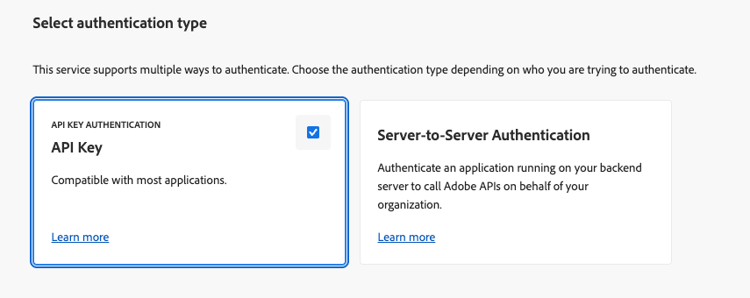
-
Confirm the API Key credential.
-
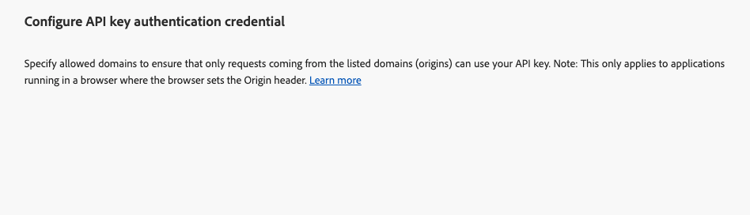
To restrict which origins can use the key, configure allowed domains.
-
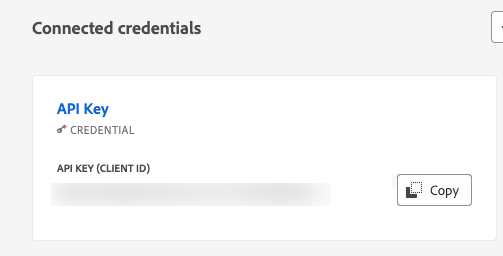
Your API Key (Client ID) appears under Connected credentials. Select Copy.
-
Include the key in every API request:
code language-http x-api-key: YOUR_API_KEYYour project is now ready. Use the key with every request to AEM Content AI Services.
Next Steps next-steps
- Control your Content Sources - Configure a content source in Cloud Manager and trigger acquisition.
- Content AI API reference - Use your access token or API key to query the indexed content.