[AEM Sites]{class="badge positive" title="Applies to AEM Sites)."}
Configuring AI Translation Integration ai-translation-integration
AI translation integration lets you use a large language model (LLM) as a translation service for content you author in Adobe Experience Manager. You connect AEM to your LLM provider (starting with Microsoft Azure OpenAI), reuse the same translation workflows as for other connectors, and optionally upload translation style guides so AEM can generate rules that keep tone, terminology, and brand language consistent across locales.
For background on translation projects, cloud configurations, and the Translation Integration Framework, see Translating Content for Multilingual Sites and Configuring the Translation Integration Framework.
How AI Translation Fits in AEM how-ai-translation-fits-in-aem
Large language models can translate full passages with attention to context, tone, and idioms rather than literal word-for-word substitution. When you configure AI translation integration, the LLM acts as a third-party translation service in the same way as other providers you connect through AEM. You supply your own license and credentials for the LLM service.
Initial support connects AEM to Azure OpenAI. Adobe plans to add support for additional providers in a later release.
You configure both the LLM connection and optional style guides in Translation Cloud Services, alongside your other translation configurations. You can use different translation services for different cloud configurations; for example, one configuration can use AI translation while another uses a traditional machine translation connector.
Configuring Translation Cloud Services configure-translation-cloud-services
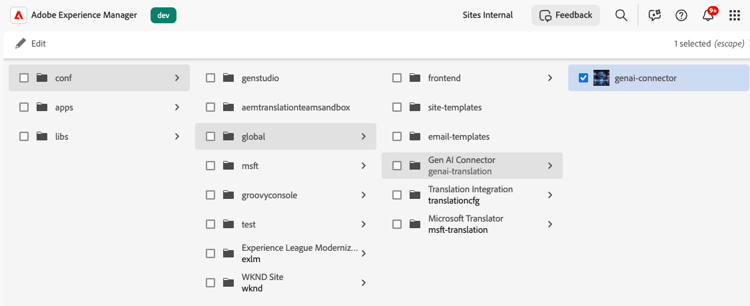
Set up AI translation in the same area where you manage other translation cloud configurations.
- In the global navigation menu, select Tools > Cloud Services > Translation Cloud Services.
- Open or create the configuration where you want to enable AI translation (including
/conf/globalif the capability should apply broadly).
Configuring the LLM Connection configure-the-llm-connection
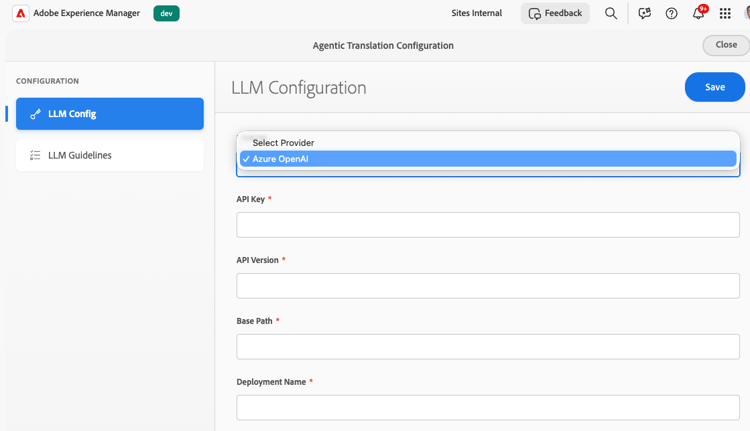
The Agentic Translation Configuration experience includes an LLM Config section where you connect your provider.
- Open the AI translation configuration for your Translation Cloud Services entry.
- Select LLM Config.
- Choose your provider (for example, Azure OpenAI).
- Enter the required credentials and endpoint details for your subscription (API Key, API Version, Base Path, Deployment Name, and any other fields your provider requires).
- Save the configuration.
Adding Translation Style Guides and Generated Rules add-translation-style-guides-and-generated-rules
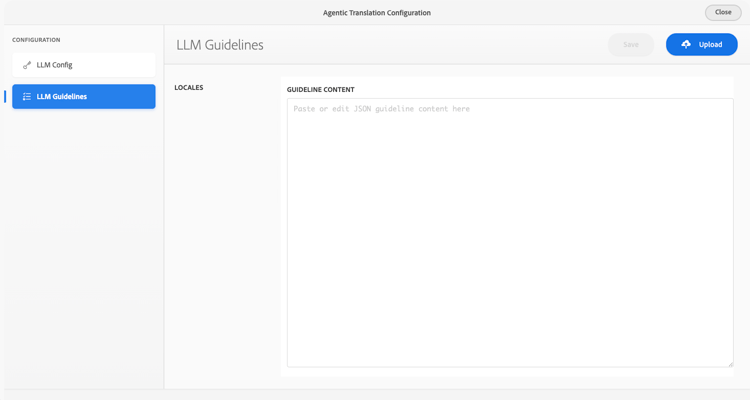
You can upload translation style guide documents (typically one per target language). AEM analyzes each guide and generates translation rules to align output with your brand and linguistic expectations.
- In Agentic Translation Configuration, select LLM Guidelines.
- Choose a locale and use Upload to add a style guide document for that language.
- While AEM processes a guide, a status indicator shows progress (processing, completed, or aborted).
- Review or edit the generated rules in the editor (for example, JSON that captures tone, terminology, and examples).
Setting the Default Translation Method in the Framework set-the-default-translation-method-in-the-framework
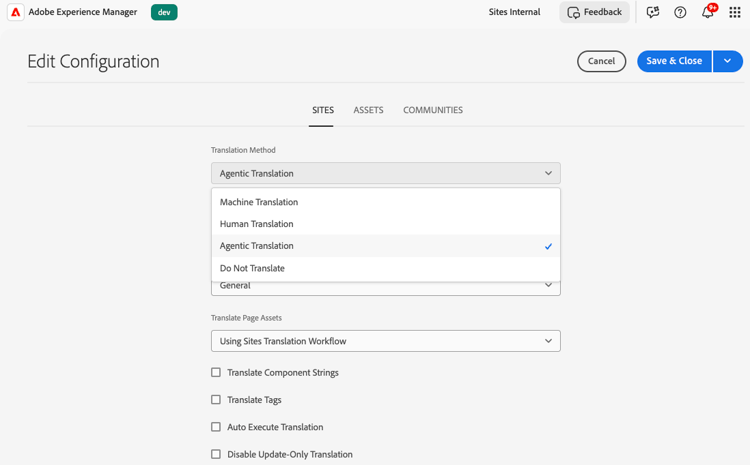
After the cloud configuration is saved, register agentic translation as the default behavior in your Translation Integration Framework configuration when you create translation projects. You can change the method per project if needed.
Running Translation Projects run-translation-projects
Once AI translation is configured and associated with your pages, you create and run translation projects the same way as with other translation providers. Content from pages, content fragments, and assets follows your translation rules and framework settings.