[AEM Sites]{class="badge positive" title="Applies to AEM Sites)."}
Defining Content Fragment Models defining-content-fragment-models
Content Fragment Models in Adobe Experience Manager (AEM) as a Cloud Service define the structure for the content of your Content Fragments. These fragments can then be used for page authoring, or as a foundation for your headless content.
This page covers how to define your content fragment model, using the dedicated editor. See Managing your Content Fragment Models for further tasks and options available once your fragments are created, including actions available from the Content Fragments Console, allowing the model on your folder and publishing your model.
- “This model has a custom UI Schema configured. The order of fields displayed in this UI may not match the UI Schema. To view the fields aligned with the UI Schema, you need to switch to the new Content Fragment Editor.”
Defining your Content Fragment Model defining-your-content-fragment-model
The Content Fragment Model effectively defines the structure of the resulting Content Fragments using a selection of Data Types. Using the model editor you can add instances of the data types, then configure them to create the required fields:
-
In the Content Fragment Console, select the panel for Content Fragment Models and navigate to the folder holding your Content Fragment model.
note NOTE You can also open a model directly after creating it. -
Open the required model for Edit; use either one of the quick action links, or select the model and then the action from the toolbar.
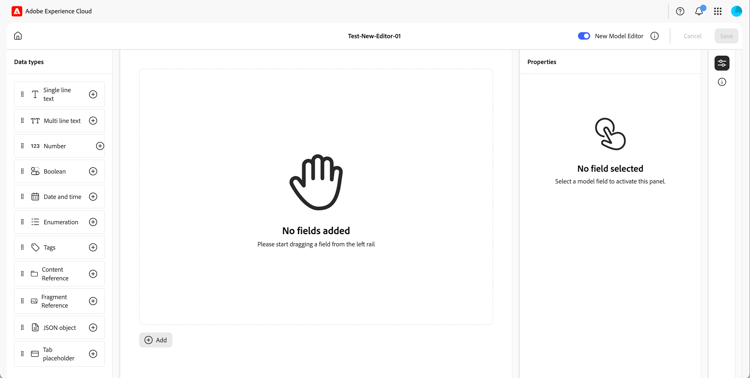
Once open the model editor shows:
-
top:
- Home icon
- option to toggle between the original and new editor
- Cancel
- Save
-
left: Data Types available for creating fields
-
middle: fields already defined together with the Add option
-
right: using the icons at the far right you can select between:
- Properties: define and view properties for the selected field
- Model details: show the Enabled status, Model Title, Tags, Description and Preview URL
-
-
To Add a Field
-
Either:
- Drag a data type from the left panel to the required location for a field in the middle panel.
- Select the + icon by a Data Type to add it to the bottom of the field list.
- Select Add in the middle panel and then the required data type from the resulting drop down list to add a field to the bottom of the list.
note NOTE Tab placeholder fields must always appear above existing fields. -
You can reposition a field using the formation of dots at the left of the field box:

-
Once a field has been added to the model (and is selected), the right panel shows the Properties that can be defined for that particular data type. Here you can define what is required for the specific
field.-
Many properties are self-explanatory, for additional details see Properties (Data Types).
-
Typing a Field Label auto-completes the Property Name - if empty, and it can be manually updated afterwards.
note caution CAUTION When manually updating the property Property Name for a data type, names must contain only A-Z, a-z, 0-9 and underscore “_” as special character. If models created in earlier versions of AEM contain illegal characters, remove or update those characters.
For example:
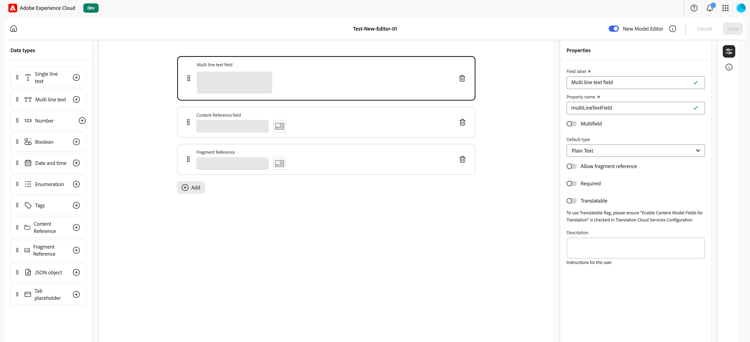
note NOTE When a field is defined as Required, the Label indicated in the middle pane is marked with an asterix (*). -
-
-
To Remove a Field
Select the trash-can icon for the appropriate field in the middle panel.

-
Add all required fields, and define the related properties, as required.
-
Select Save to persist the definition.
Data Types data-types
A selection of data types is available for defining your model:
-
Single line text
- Add a field for a single line of text; the maximum length can be defined
- The field can be configured to allow fragment authors to create new instances of the field
-
Multi line text
- A text area that can be Rich Text, Plain Text, or Markdown
- The field can be configured to allow fragment authors to create new instances of the field
note NOTE Whether the text area is Rich Text, Plain Text, or Markdown, is defined in the model by the property Default Type. This format cannot be changed from the Content Fragment editor, but only from the Model. -
Number
- Add a numerical field
- The field can be configured to allow fragment authors to create new instances of the field
-
Boolean
- Add a boolean checkbox
-
Date and time
- Add a date and/or time field
-
Enumeration
- Add a set of Checkbox, Radio Button, or Dropdown fields
- You can specify the options available to the fragment author
- Add a set of Checkbox, Radio Button, or Dropdown fields
-
Tags
- Allows fragment authors to access and select areas of tags
-
Fragment Reference
-
References other Content Fragments; can be used to create nested content
-
The data type can be configured to allow fragment authors to:
- Edit the referenced fragment directly.
- Create a new Content Fragment, based on the appropriate model
- Create new instances of the field
-
The reference specifies the path to the referenced resource; for example
/content/dam/path/to/resource
-
-
Content Reference
- References other content, of any type; can be used to create nested content
- If an image is referenced, you can opt to show a thumbnail
- The field can be configured to allow fragment authors to create new instances of the field
- The reference specifies the path to the referenced resource; for example
/content/dam/path/to/resource
-
Composite
-
The Composite data type can be used to create nested content
-
The Composite data type enables Content Fragments to store hierarchical, structured data
- This is achieved by allowing fields to contain nested sub-fields
- The sub-fields are structured
- The sub-fields are structured according to Content Fragment Models
- The sub-field are restricted to the Content Fragment Models that you specify when defining the sub-field
-
This feature provides a way to model complex data structures within a single fragment, similar to nested objects in JSON or embedded documents in NoSQL databases
note warning WARNING The Composite data type can be used: - in the Touch UI (original) Content Fragment Model Editor
- in the new Content Fragment Editor
The new Content Fragment Model Editor and the Touch UI (original) Content Fragment Editor will block access to the Composite Data Type and any dependent fields. For Composite fields in the new Content Fragment Model Editor you will see the message: Please register renderer for “composite” type. -
-
JSON Object
-
Allows the Content Fragment author to enter JSON syntax into the corresponding elements of a fragment.
- To allow AEM to store direct JSON that you have copy/pasted from another service.
- The JSON is passed through, and output as JSON in GraphQL.
- Includes JSON syntax-highlighting, auto-complete, and error-highlighting in the Content Fragment editor.
-
-
Tab placeholder
-
Allows the introduction of tabs for use when editing the Content Fragment content.
- These are shown as dividers in the model editor, separating sections of the list of content data types. Each instance represents the start of a new tab.
- In the fragment editor each instance appears as a tab.
note NOTE This data type is purely used for formatting, it is ignored by the AEM GraphQL schema. Tab placeholder fields must always appear above existing fields.
-
Properties (Data Types) properties
Many properties are self-explanatory, for certain properties additional details are below:
-
Property Name
When manually updating this property for a data type, names must contain only A-Z, a-z, 0-9 and underscore “_” as special character.
note caution CAUTION If models created in earlier versions of AEM contain illegal characters, remove or update those characters. -
Render As
The various options for realizing/rendering the field in a fragment. Often this allows you to define whether the author will see a single instance of the field, or will be allowed to create multiple instances. When Multiple Field is used you can define the minimum and maximum number of items - see Validation for further details.
-
Field Label
Entering a Field Label autogenerates a Property Name, which can then be manually updated if necessary. -
Validation
Basic validation is available by mechanisms such as the Required property. Some data types have addition validation fields. See Validation for further details. -
For the data type Multi line text it is possible to define the Default Type as either:
- Rich Text
- Markdown
- Plain Text
If not specified, the default value Rich Text is used for this field.
Changing the Default Type in a Content Fragment model will only take effect on an existing, related, Content Fragment after that fragment is opened in the editor and saved.
-
Unique
Content (for the specific field) must be unique across all Content Fragments created from the current model.This is used to ensure that content authors cannot repeat content already added in another fragment of the same model.
For example, a Single line text field called
Countryin the Content Fragment Model cannot have the valueJapanin two dependent Content Fragments. A warning is issued when the second instance is attempted.note NOTE Uniqueness is ensured per language root. note NOTE Variations can have the same unique value as variations of the same fragment, but not the same value as used in any variation of other fragments. -
See Content Reference for more details about that specific data type and its properties.
-
See Fragment Reference for more details about that specific data type and its properties.
-
Translatable
Checking the Translatable checkbox on a field in the Content Fragment Model editor will:
- Ensure the field’s property name is added to the translation configuration, context
/content/dam/<sites-configuration>, if not already present. - For GraphQL: set a
<translatable>property on the Content Fragment field toyes, to allow GraphQL query filter for JSON output with only translatable content.
- Ensure the field’s property name is added to the translation configuration, context
Validation validation
Various data types now include the possibility to define validation requirements for when content is entered in the resulting fragment:
-
Single line text
- Compare against a predefined regex.
-
Number
- Check for specific values.
-
Content Reference
- Test for specific types of content.
- Only assets of specified file size or smaller can be referenced.
- Only images within a predefined range of width and/or height (in pixels) can be referenced.
-
Fragment Reference
- Test for a specific Content Fragment model.
-
Min Number of Items / Max Number of Items
Fields that have been defined as a Multiple Field (set with Render As) have the options:
- Min Number of Items
- Max Number of Items
These are validated in the Content Fragment Editor.
Nested Content nested-content
Content Fragments can form nested content, using any of the following data types:
-
- Provides a simple reference to other content; of any type.
- Provided by the Content Reference data type
- Can be configured for one or multiple references (in the resulting fragment).
-
-
References other fragments, dependent on the models specified.
-
The referenced fragments are distinct and separate from the referencing fragment.
-
Provided by the Fragment Reference data type.
-
Allows you to include/retrieve structured data.
note NOTE This method is of particular interest when you are using Headless Content Delivery using Content Fragments with GraphQL. -
Can be configured for one or multiple references (in the resulting fragment).
-
Suitable when modular, reusable content is required.
-
-
Composite data type:
- References other fragments, dependent on the models specified.
- The referenced fragments are fully embedded in, and integral to, the referencing fragment. They have a true parent-child relationship.
- The Composite Data Type allows you to define a group of fields as an inline, repeatable structure inside a parent fragment instead of pointing to a separate fragment reference.
- The composite fields are edited in the same editor session as the parent fragment.
- Allows you to include/retrieve structured data.
- Suitable for multi-value composite fields where modular reuse is not the primary goal.
- Enables the use of flatter, easier-to-manage content structures, and can also help improve system and API performance.
-
Content References
This prevents the user from adding a reference to the current fragment, and may lead to an empty Fragment Reference picker dialog. -
Fragment References in GraphQL
If you create a deep query that returns multiple Content Fragments referenced by each other, it returns null on the first occurrence.
Content Reference content-reference
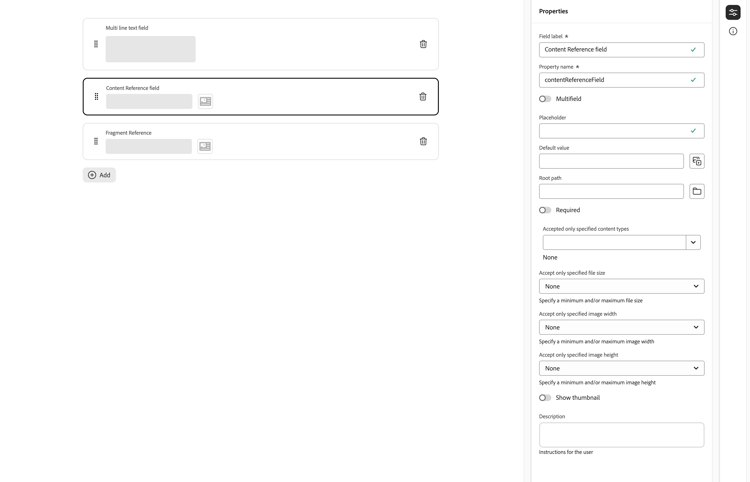
The Content Reference data type allows you to render content from another source; for example, image, page or Experience Fragment.
In addition to standard properties you can specify:
-
The Root Path, which specifies, or represents, where to store any referenced content
note NOTE This is mandatory if you want to directly upload and reference images in this field when using the Content Fragment editor. See Reference Images for further details. -
The content types that can be referenced
note NOTE These must include Image if you want to directly upload and reference images in this field when using the Content Fragment editor. See Reference Images for further details. -
Limitations for file sizes
-
If an image is referenced:
- Show Thumbnail
- Image restraints of height and width
Fragment Reference fragment-reference
The Fragment Reference data type can reference one, or more, Content Fragments. This feature is of particular interest when retrieving content for use in your app, as it allows you to retrieve structured data with multiple layers.
For example:
- A model defining details for an employee; including:
- A reference to the model that defines the employer (company)
type EmployeeModel {
    name: String
    firstName: String
    company: CompanyModel
}

type CompanyModel {
    name: String
    street: String
    city: String
}
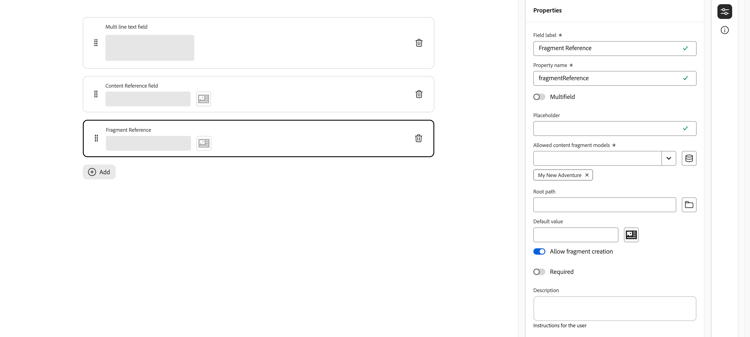
In addition to standard properties you can define:
-
Render As:
-
Multiple Field - the fragment author can create multiple, individual, references
-
Fragment Reference - allows the fragment author to select a single reference to a fragment
-
-
Model Type
Multiple models can be selected. When adding references to a Content Fragment, any referenced fragments must have been created using these models. -
Root Path
This specifies, or represents, a root path for any fragments referenced. -
Allow Fragment Creation
This allows the fragment author to create a fragment based on the appropriate model.
Composite Data composite-data
The Composite data type enables Content Fragments to store hierarchical, structured data by allowing fields to contain nested sub-fields. The children (sub-fields) are themselves structured content, defined by user-specified Content Fragment Models and fully embedded in the parent fragment.
The Composite data type provides a way to model complex data structures within a single fragment, similar to nested objects in JSON or embedded documents in NoSQL databases.
A Composite field has the following properties and characteristics:
-
Specify one or more Content Fragment Models
- When defining a Composite field in a Content Fragment Model you must define which models can be used for the composite items.
- Multiple models can be selected, so that the author can choose which model to use when actually adding an item.
-
Authoring
- Composite items are edited within the same editor session as their parent fragment, without opening a separate Content Fragment.
-
Step-and-repeat as a multi-field
- A multi-value composite supports add, remove, and reorder of items.
-
Multi-model composite
- A single composite field can accept items from multiple allowed models.
- The author picks which model to use when adding a new item.
-
Variations
- Top-level variations apply to composite trees: a variation may have a different number of composite items, or different content per item, than the master.
- Selection is at the top-level only; nested content reflects the chosen variation.
-
Search
- Text within composite items is searchable. Matching content returns the parent Content Fragment in search results.
-
Native delivery
- GraphQL and OpenAPI return composite content as nested data in the parent payload, without resolving a separate Content Fragment asset.
-
Clean reference semantics
-
You can model content that belongs to its parent and is not reused.
note NOTE Reserve fragment references for content that is genuinely reusable. The two are complementary, not substitutes.
-
In addition to standard properties you can define:
-
Render As
Specify either:
- Multiple Field supports add/remove/reorder with min/max constraints
- Composite Field holds at most one item
-
Min/Max Number of items
For multi-value composites, set min and max bounds for the number of items
-
Type
Specify one or more Content Fragment Models. Fields from these models will appear as composite items. Multiple models can be selected, the author then chooses which model when adding an item.
- in the Touch UI (original) Content Fragment Model Editor
- in the new Content Fragment Editor
Comparison of Nested Content comparison-of-nested-content
There are several methods of creating, and maintaining, nested content.
Benefits of Composite benefits-of-composite
The Composite data type offers several benefits when modeling data:
-
Easier management of content structures.
- Because composite data types are embedded directly within a Content Fragment, there is no need to manage separate folders or storage structures for composite content, as is required with referenced fragments.
- This results in flatter, less cluttered content structures that simplify governance and make composite content easier to discover.
-
Simplified authoring with native support for multi-value composite fields.
- Items in multi-value composites can be created and edited within the same editor session as the parent fragment.
- Composites can reduce reference and fragment-metadata overhead.
-
Improved content management and delivery performance.
- Simpler content structures with fewer fragment references reduce the overhead of reference resolution during authoring, publishing, and delivery operations.
- Simpler content structures also decrease the size and complexity of JSON payloads, helping improve API efficiency and overall client-side performance.
When to use Composite when-to-use-composite
Use of the Composite data type should be carefully considered, as your use-case can determine which sort of nested content is the best solution for you.
-
Recommended when you:
- Build page-like or card list-like content where the children are not reused elsewhere.
- Are experiencing reference-graph performance issues, either at delivery or at publication.
- Have authors complaining about tab-switching workflows for nested content.
- Need multi-field step-and-repeat groups that currently require custom data types or external tooling.
-
Be cautious when:
- Your content is genuinely reusable across fragments. Fragment references remain the right answer for shared content; composite is for inlined content.
- You only use the (original) Touch UI Editor. Composite is supported in the new Content Fragment Editor, but the original Touch UI Editor will block editing of composite fields.
Limitations of Composite limitations-of-composite
The list below consolidates the current limitations of the Composite data type:
-
Authoring surface
- Touch UI Fragment Editor (original editor)
- Composite fields are not supported.
- New (Headless) Content Fragment Model Editor
- The Composite type is not yet supported. Model authoring uses the original Touch UI Model Editor.
For Composite fields you will see the message: Please register renderer for “composite” type.
- The Composite type is not yet supported. Model authoring uses the original Touch UI Model Editor.
- Touch UI Fragment Editor (original editor)
-
Cross-feature support
-
MSM (Multi Site Manager)
-
Inheritance can only be broken for top-level fields.
- Inheritance for an entire composite field can be broken.
- Breaking inheritance for individual fields within composite items is not supported.
-
-
Launches
- Content Fragments containing composite fields are not supported in Launches, whether selected directly or included through fragment references. Such actions are not accepted and will fail.
-
Core Components and the Sling Model exporter
- Page rendering via Core Components and the Sling Model exporter (
.model.json) does not yet support composite fields.
- Page rendering via Core Components and the Sling Model exporter (
-
Visual Content Fragments (Content Fragments with HTML templates)
- Visual Content Fragments (Content Fragments with HTML templates) do not currently support composite fields.
-