Adobe-Managed API Integrations in Adobe Admin Console adobe-managed-api-integrations-in-adobe-admin-console
Adobe provisions a small number of Service Integrations into your IMS organization as part of AEM as a Cloud Service and related Adobe Experience Cloud capabilities. These integrations appear in the Adobe Admin Console alongside integrations you create yourself. Adobe services own and operate them on your behalf.
As a System Administrator or Product Administrator for your IMS organization, you can review what each integration does, which Adobe feature depends on it, and whether it remains enabled. You can disable any Adobe-managed Service Integration at any time and restore it later if needed.
Overview overview
Use this article to:
- Identify Adobe-managed integrations that have access to your AEM environments.
- Understand the purpose of each integration and the Adobe feature it supports.
- Disable or restore integrations from the Admin Console when your organization requires it.
Adobe applies the following principles for every Service Integration listed here:
- Named transparently — Each integration uses a human-readable name that describes its purpose.
- Documented — Each integration is described here with the feature it supports.
- Least privilege — Each integration receives only the product profile, role, or permission required for its function, not broad administrator rights.
- Customer-controllable — Each integration is visible in your Admin Console, and your administrators can disable or restore it.
Where to Find These Integrations where-to-find-these-integrations
- Sign in to the Adobe Admin Console with a System Administrator or Product Administrator account for your IMS organization.
- To view all API credentials, go to Users > API Credentials. To inspect integrations that hold a specific permission, go to Products > the Adobe product named in the catalog > the relevant product profile.
- Look for Service Integrations whose name begins with
Adobeor that match a name in the catalog below.
Catalog of Adobe Managed Integrations catalog-of-adobe-managed-integrations
The following table lists Service Integrations that Adobe provisions for AEM as a Cloud Service customers.
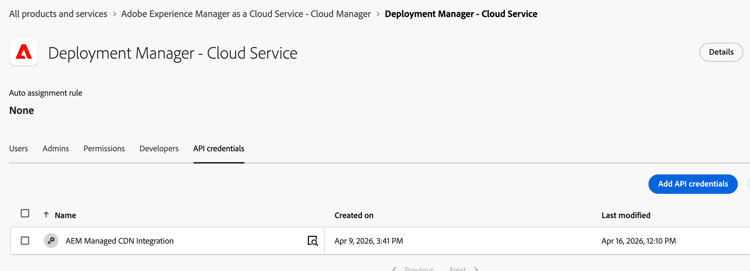
The following screenshot is an example of the AEM Managed CDN Integration mentioned in the table above.
Impact of Disabling an Integration impact-of-disabling-an-integration
You can disable an Adobe-managed Service Integration at any time. When you do, the Adobe feature that depends on that integration stops working for your organization until you restore it. Review the following table before you disable an integration.
- LLM Optimizer users will no longer be able to update AEM as a Cloud Service Managed CDN agentic-traffic routing rules for your domains. Any subsequent attempt by an LLMO Admin to enable, change, or revoke agentic routing will fail authorization at the CDN layer.
- Routing of AI/agent crawlers (ChatGPT, Perplexity, Claude, etc.) to LLM Optimizer-optimized origins cannot be (re)configured until the integration is reinstated.
- Already-applied agentic routing rules remain in effect at the edge but cannot be modified or removed without re-enabling the integration (or coordinating manually with Adobe Customer Support).
- Your AEM as a Cloud Service author, publish, and preview environments continue to serve traffic normally.
- Standard (non-agentic) CDN delivery of your already-deployed sites continues unchanged.
- Cloud Manager pipelines and deployments continue to work for your human operators with Deployment Manager rights.
- Any LLM Optimizer features that do not depend on edge routing continue to function.
How to Disable an Integration how-to-disable-an-integration
Who can perform this task: An IMS organization System Administrator, or the Product Administrator for the Adobe product whose profile, role, or permission grants access to the Service Integration (see Permissions granted in the catalog row).
The steps are the same for every Service Integration in this article. Only the navigation path in the Admin Console changes based on the product profile for that integration.
- Sign in to the Adobe Admin Console.
- Identify the Adobe product and the product profile, role, or permission for the Service Integration. Both are listed in the catalog row.
- Go to Products > the Adobe product > the product profile.
- Open the API Credentials or Users tab for that profile.
- Locate the Service Integration using the exact name from the catalog row.
- Remove the Service Integration from the product profile. The integration is disabled for your organization. The next time the Adobe service acts on your behalf, authorization is denied.
Example — AEM Managed CDN Integration: Go to Products > Adobe Experience Manager as a Cloud Service > Cloud Manager > Deployment Manager, locate AEM Managed CDN Integration, and remove it from the product profile.
How to Restore an Integration how-to-restore-an-integration
If you previously disabled an integration and want to enable it again:
- Sign in to the Adobe Admin Console as a System or Product Administrator.
- Navigate to the same product and product profile identified for the Service Integration in the catalog above — this is the profile from which the Service Integration was removed when it was disabled.
- Select Add user or Add API, then search for the Service Integration by the exact name listed in the catalog.
- Add the Service Integration back to the product profile. The integration resumes on its next scheduled or user-initiated run.
Example — AEM Managed CDN Integration: Go to Cloud Manager > Deployment Manager and add AEM Managed CDN Integration again using Add user or Add API.