Optimize at Edge
This page provides a detailed overview on how to deliver optimizations at the CDN edge without any authoring changes. It covers the onboarding process, the available optimization opportunities and how to auto-optimize at edge.
What is Optimize at Edge?
Optimize at Edge is an edge-based deployment capability in Adobe Brand Visibility that serves AI friendly changes to LLM user agents. In the current context, “Edge” means that the optimization is applied at the CDN layer. Because it delivers optimizations at the CDN layer, no authoring changes in the Content Management System (CMS) are required so your origin CMS remains unchanged. This separation lets you improve LLM visibility without altering your existing publishing workflows. It targets only agentic traffic and does not impact either human users or SEO bots. When Adobe Brand Visibility detects opportunities to optimize a page, users can deploy fixes directly at the CDN edge.
Optimize at Edge is a faster, leaner alternative to traditional fixes that demand complex engineering efforts. As mentioned, once you complete a one-time setup, no platform changes or long development cycles are required to apply the changes. You can publish improvements in minutes without requiring developer engagement. It is a no-code way to optimize your website for AI agents.
Optimize at Edge is designed for business users in marketing, SEO, content and digital strategy teams. It can enable business users to complete the full journey in Adobe Brand Visibility: identifying opportunities, understanding suggestions, and easily deploying the fixes. With Optimize at Edge, users can preview the changes, deploy them quickly at the CDN edge and validate that the optimizations are live. Performance can be tracked in the Adobe Brand Visibility ecosystem.
Key benefits
- AI-only delivery: Serves optimized HTML only to AI agents with no impact on either human visitors or SEO bots.
- Faster cycles: Publish changes in minutes not weeks. No platform changes or long engineering cycles required.
- Reversible: Supported with a one-click rollback capability that can revert the page in minutes.
- No performance impact: Edge based optimizations and caching keep the site latency unaffected.
- CDN and CMS-agnostic: Works with any CDN configuration and front-end setup regardless of the Content Management System.
Which opportunities are supported with Optimize at Edge?
Opportunities that can improve the agentic web experience are supported with Optimize at Edge. Learn more about each opportunity both in the Opportunities Dashboard page and the opportunities section in the current page.
Onboarding
Start the onboarding process in your Adobe Brand Visibility account:
-
Go to Brands Management.

-
Click the CDN label and complete the configuration.
-
For AEM Cloud Service managed Fastly customers, the routing setup is self-serve and can be completed directly in the Adobe Brand Visibility UI. For customers using other CDN providers, your IT/CDN team needs to complete the required setup and prerequisites. You can also refer to the example CDN guides provided below for additional guidance.
abv-at-edge@adobe.com.Requirements for your IT/CDN team:
- Add
*AdobeEdgeOptimize/1.0*user-agent to the Allowlist in your site’s robots.txt file or bot-traffic management rules. - Ensure that pages are not blocked at the domain or CDN level.
- Add Optimize at Edge routing rules in the CDN.
- If your CDN has WAF or Bot Manager rules, allowlist the
*AdobeEdgeOptimize/1.0*user agent. If additional verification is required, configure thex-edgeoptimize-fetcher-keyheader. Each BYOCDN guide below includes the steps. - Confirm Optimize at Edge routing in the Adobe Brand Visibility interface.
The following diagram illustrates how requests flow through a BYOCDN setup with Optimize at Edge:
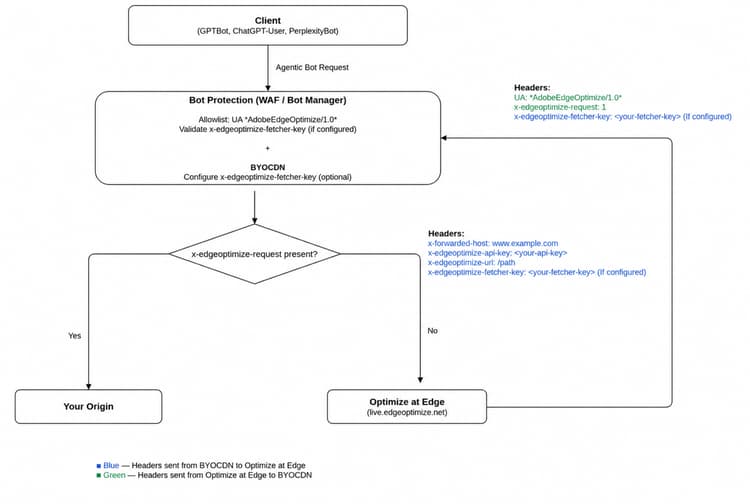
To guide the setup process, select your CDN provider below and follow the corresponding configuration guide. Keep in mind that these examples should be adapted to your actual live configuration. We recommend applying changes in the lower environments first.
CDN Configuration Guides
abv-at-edge@adobe.com for onboarding assistance. Once the setup configurations are complete, you can deploy suggestions for Optimize at Edge opportunities in Adobe Brand Visibility.Each CDN setup guide above includes detailed verification steps at the end to confirm that agentic traffic is being routed correctly and that human traffic remains unaffected.
Opportunities
Presented in the following table are opportunities that can improve the agentic web experience and are supported with Optimize at Edge.
Additional Tools
The AI Content Visibility Checker browser extension shows how much of your webpage content LLMs can access and what stays hidden. Designed as a free, standalone diagnostic tool, it requires no product license or setup.
With a single-click, you can evaluate any site’s machine readability. You can view a side-by-side comparison of what AI agents see versus what human users see, and estimate how much content could be recovered by using Adobe Brand Visibility. See the Can AI read your website? page for more information.
Opportunities detailed
In the sections that follow, you can view additional details for each opportunity that is supported with Optimize at Edge.
Recover Content Visibility
This opportunity flags pages where key content is hidden for AI agents due to client-side rendering. For each identified page, it shows you exactly which content is missing from the AI agent view, highlights visibility gaps, and enables you to directly apply changes to recover the hidden content. When you deploy this opportunity with Optimize at Edge, a pre-rendered, AI-optimized version of the page is served to LLM user agents so they can access the full context without executing Javascript.
This ensures the page is first fully visible to AI agents. Additional enhancements are applied on top of that pre-rendered HTML.
See Recover Content Visibility for a dashboard walkthrough, deployment steps, and frequently asked questions.
Enrich Product Detail Pages
This opportunity targets Adobe Commerce product detail pages where shoppers see full product context through interactive storefront experiences, but AI agents only receive a shallow HTML snapshot. The Catalog Agent compares your authoritative Commerce catalog to the agent-visible PDP, lists every meaningful gap (for example variants or specs that never appear in static HTML), and lets you deploy a bot-only edge response that restores parity for LLM crawlers without altering catalog records or human UI.
See Enrich Product Detail Pages for a dashboard walkthrough, deployment steps, and frequently asked questions.
Add LLM-Friendly Summaries
This opportunity identifies high-traffic pages that can benefit from concise summaries and structured key points so LLMs can quickly understand claims on the page. For each page, it detects where a summary is most needed and proposes AI-generated summaries (and key points when relevant) at the page or section level, grounded in existing content. When you deploy with Optimize at Edge, that content is inserted into the HTML that AI agents retrieve, improving how accurately your brand is represented in AI answers.
See Add LLM-friendly Summaries for more details about this opportunity.
Add Relevant FAQs
This opportunity flags high-traffic pages where additional Q&A content could better match user intent and prompts in AI-driven discovery. For each page, it proposes AI-generated FAQ blocks tied to your prompt set and content on the page. With Optimize at Edge, those FAQs are injected into the HTML, making your page more AI-friendly and increasing the likelihood that AI answers directly reflect your guidance.
See Add Relevant FAQs for a dashboard walkthrough, deployment steps, and frequently asked questions.
Simplify Complex Content
This opportunity finds pages with long, complex paragraphs that can reduce AI comprehension. For each page that exceeds the readability thresholds, it creates AI-generated content that is simpler and easier to scan while preserving the original meaning. When deployed at the edge, the simplified content delivered to agentic traffic helps LLMs interpret and summarize your content more faithfully.
See Simplify Complex Content for a dashboard walkthrough, deployment steps, and frequently asked questions.
Add Table of Contents
This opportunity detects pages that are hard for AI agents to navigate because headings and section structure are unclear or missing. For each affected page, it proposes a structured Table of Contents with anchor-linked entries aligned to the main sections. When you deploy with Optimize at Edge, that Table of Contents is injected into the HTML so models can more reliably map user queries to the right parts of the page and cite them.
See Add Table of Contents for a dashboard walkthrough, deployment steps, and Early Access guidance.
Add Multimedia Transcript Summaries
This opportunity targets pages where important information lives only inside video playback, without transcripts or text summaries that AI agents can read. For each page, it recommends AI-generated transcripts and short summaries of the key points from the media. With Optimize at Edge, those summaries are added to the HTML as machine-readable text so agents can use the same substance that human visitors get from watching the video.
See Add Multimedia Transcript Summaries for a dashboard walkthrough, deployment steps, and frequently asked questions.
Auto-Optimize at Edge
For each opportunity, you can preview, edit, deploy, view live, and roll back the optimizations at the edge.
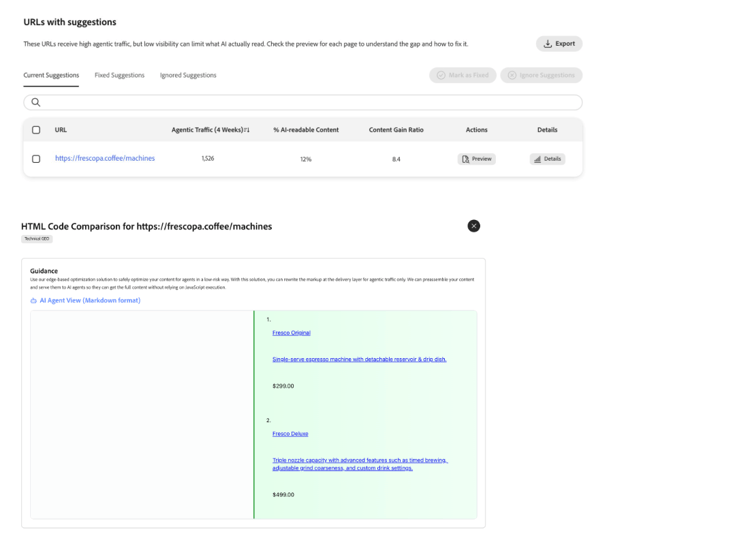
Preview
Preview lets you see the impact of a suggestion before it goes live. It surfaces a side-by-side difference between the current page and the AI-optimized version expected after applying the suggestion. This view uses the same Optimize at Edge logic that will power live traffic, but in an isolated preview mode. This does not impact live traffic as it is a read-only simulation for review.
Edit
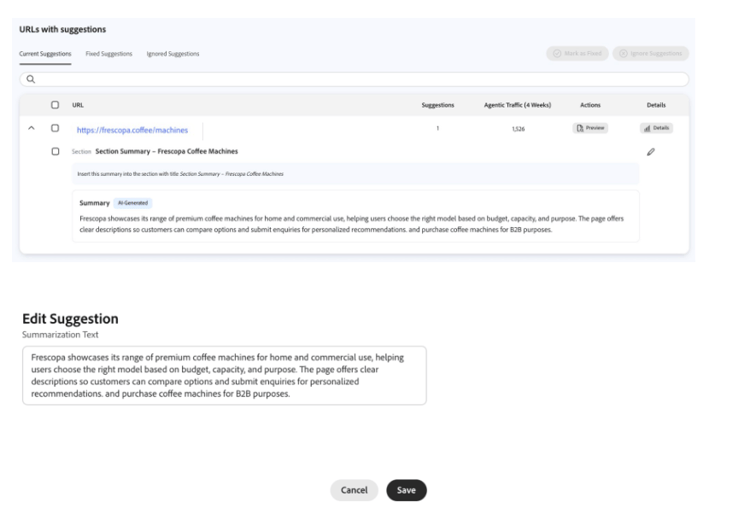
Edit allows you to refine or rewrite altogether the auto-generated suggestion before deploying it. Instead of accepting the suggestion, you maintain full control through the edit workflow. The view displays proposed changes in a structured editor, where you can modify the text to better match your original intent. The edited version will then be served to AI agents once deployed.
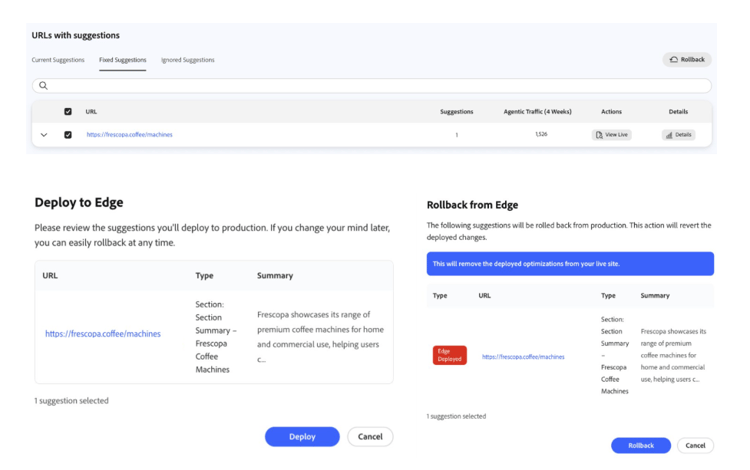
Deploy
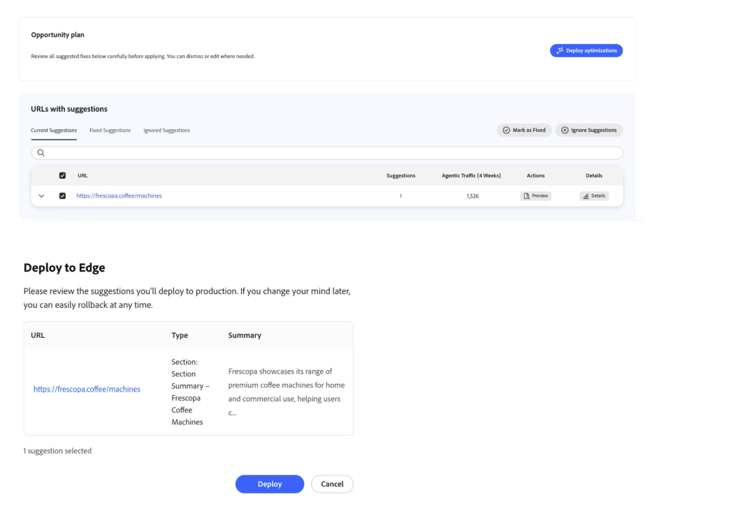
Deploy publishes the selected suggestions so the optimized experiences can be served from the edge to AI agents. If the CDN is fully routed, all pages in the domain usually go live with the new changes within minutes. If routing has been configured for select paths only, only the allowlisted pages go live with the optimizations.
View Live
View Live lets you verify that the optimization is live and behaving as expected for agentic traffic, a view that would otherwise be hard to access. You can view the live page under Fixed Suggestions, which renders the page as shown to AI agents.

Rollback
Rollback safely reverts a previously deployed optimization. The AI-only version of the page is typically returned to its previous state within minutes, making it safe to experiment with optimizations when needed.
Additional Resources
For additional details about the Optimize at Edge capability, see the following playlist Adobe Brand Visibility — Optimize at Edge.
Frequently Asked Questions
Q: Can Trial customers try out Optimize at Edge?
Yes, Trial customers can access one optimization opportunity and deploy it for up to 10 pages. By default, the opportunity is Recover Content Visibility, which enables AI agents to access the complete version of your page content.
Q. Which AI platforms do you target with Optimize at Edge?
Optimize at Edge delivers supported opportunities to ChatGPT, Perplexity, and Claude, covering the largest and most impactful share of LLM traffic. As the AI ecosystem evolves, we’ll continue to evaluate support for additional platforms where they deliver meaningful customer value.
Q. What happens if I’m not onboarded to Optimize at Edge yet?
If you click Deploy optimizations before completing the required setup, nothing will be applied to your site. Instead, a pop-up dialog prompts you to contact our team at abv-at-edge@adobe.com for onboarding assistance. Until onboarding is complete, you can still explore the detected opportunities and suggestions, but the one-click deployment workflow will remain inactive.
Q: What happens when the content is updated at source?
We serve the optimized version of your page from cache as long as the underlying source page has not changed. However, when the source does change for Recover Content Visibility, our system automatically refreshes so AI agents always receives the most up-to-date content. This is because we use low cache time to live (TTL) settings (by order of minutes) so that any content update on your site triggers a new optimization within that window. For content opportunities like Add LLM-Friendly Summaries, Adobe Brand Visibility monitors the source page for changes. If a change is detected, we pause the optimization and flag it for human review to prevent content drift between the agent-visible page and human-visible page. To detect updates, Adobe Brand Visibility relies on the Last-Modified HTTP response header of the source page. Each time an optimization is served for a page, this header is checked to determine whether the source content has changed since the suggestion was deployed. If the Last-Modified header is absent, the optimization is skipped, since there is no reliable signal to detect that the page has been updated.
Q: Do I need to purge my CDN cache to allow optimizations?
In general, no. Purging is only required if a cache policy at your CDN level is forcing stale content to be served, bypassing the Optimize at Edge service. In that case, once the suggestion is deployed, purge the CDN cache only for LLM traffic.
Q. Is Optimize at Edge only for sites using Adobe Edge Delivery Service (EDS)?
No. Optimize at Edge is CDN-agnostic and works with any front-end architecture, not just the ones deployed on Adobe’s EDS Stack.
Q. How is Optimize at Edge pre-rendering different from traditional server-side rendering (SSR)?
Both solve different problems and can work together. Traditional SSR renders server-side content but doesn’t include content loaded later in the browser. Optimize at Edge pre-rendering captures the page after JavaScript and client-side data has loaded, producing the fully assembled version at the CDN edge. SSR focuses on improving the human experience and Optimize at Edge improves the web experience for LLMs.
Q. Is Recover Content Visibility (that is, pre-rendering) cloaking? It sounds like a different version of the page is being served to AI agents.
No. Pre-rendering ensures AI agents can see the same content that human visitors and SEO bots already see. Many sites load meaningful content with JavaScript, which typical AI agents do not execute, so agents can miss large parts of the page. Pre-rendering produces a static snapshot that captures the full text so agents receive the same information as humans and search engines. It restores content parity for LLMs; it does not add or change factual content.
Q. What about other content opportunities such as Add LLM-Friendly Summaries, where new copy appears on the page served to agents? Is that cloaking?
No. Optimize at Edge does not introduce information that human users and SEO crawlers cannot access. The service reorganizes or summarizes content that already exists on the page so AI agents can interpret it more easily. When someone follows a link from an AI answer to your site, they can still find the same underlying information on the live page.
Q. What happens if I deploy optimizations for some URLs in my domain but not all?
Only the URLs you explicitly optimize are modified. For URLs with deployed opportunities, AI agents receive the optimized version. For URLs with no deployed opportunities, our service simply proxies the original page as-is without applying changes or storing it in our optimization cache layer. This ensures you can selectively deploy optimizations without affecting the rest of your site.