Akamai (BYOCDN)
This configuration routes agentic traffic (requests from AI bots and LLM user agents) to the Edge Optimize backend service (live.edgeoptimize.net). Human visitors and SEO bots continue to be served from your origin as usual. To test the configuration, after the setup is complete, look for the header x-edgeoptimize-request-id in the response.
Prerequisites
Before you set up the Akamai Property Manager rules, ensure you have:
- Access to Akamai Property Manager for your domain.
- An Edge Optimize API key retrieved from the Adobe Brand Visibility UI. For steps, see Retrieve your API keys.
- (Optional) To test staging routing, see Staging API key.
Setup options
There are two ways to configure Akamai for Optimize at Edge:
- Option 1: Guided setup in Adobe Brand Visibility (recommended) — Use Adobe Brand Visibility to deploy the routing configuration.
- Option 2: Manual setup — Configure the routing in Akamai Property Manager.
Option 1: Guided setup in Adobe Brand Visibility
Guided setup requires an Akamai EdgeGrid API client in your own Akamai account, with Property Manager (PAPI) — READ-WRITE access to the target property’s group and contract and permission to activate property versions on Akamai Staging and Production. Adobe Brand Visibility uses these credentials only for the setup and does not store them.
Prepare the Akamai EdgeGrid API client
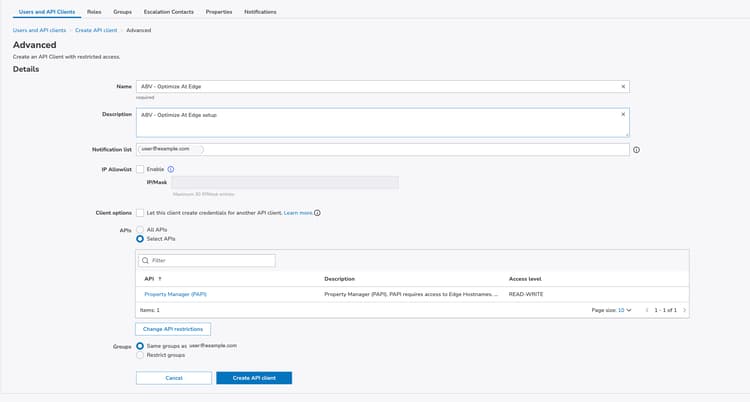
If you do not already have a suitable API client, create one in Akamai Control Center:
- Open Administration > Identity & access.
- On Users and API Clients, select Create API client.
- Select Myself, then Advanced. Limit the client to Property Manager (PAPI) — READ-WRITE, retain only the target group and contract, and confirm permission to activate on Staging and Production.
- Create the client, then immediately download or copy the credential file. You need the client secret, API host, access token, and client token. The client secret is shown only once.

Deploy the routing configuration
- Open CDN Configuration for the URL you want to configure.
- In Deploy Optimizations to AI Agents, select Enable if needed.
- Select Deploy routing in Akamai (Beta).
- Paste the EdgeGrid credential file, or enter the client secret, API host, access token, and client token individually, then connect.
- Select the Akamai property, review the proposed changes, and follow the guided steps to deploy. Obtain approval before activating the new property version.

Option 2: Manual setup
Use the following steps to configure the Akamai Property Manager rules manually.
Configuration
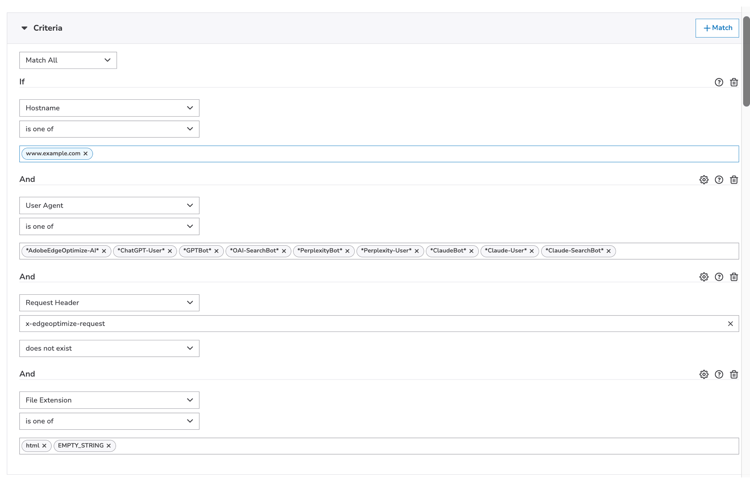
The following Akamai Property Manager rule routes agentic HTML page traffic to Edge Optimize. The configuration includes the following steps:
1. Set routing criteria (User-Agent and HTML traffic matching)
Set routing for the following user agents:
 *AdobeEdgeOptimize-AI*
 *ChatGPT-User*
 *GPTBot*
 *OAI-SearchBot*
 *PerplexityBot*
 *Perplexity-User*
 *ClaudeBot*
 *Claude-User*
 *Claude-SearchBot*
html and EMPTY_STRING for extensionless page URLs. If your site serves HTML from other URL patterns, or includes extensionless non-page routes such as API endpoints, refine the rule with additional path-based criteria.
2. Set Origin and SSL behavior
Set origin as live.edgeoptimize.net and Match SAN to *.edgeoptimize.net

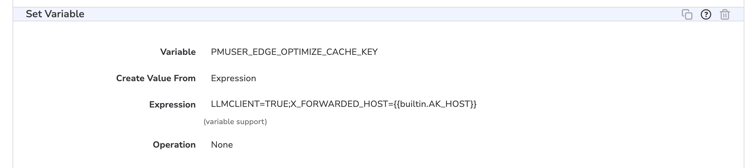
3. Set Cache Key Variable
Set the cache key variable PMUSER_EDGE_OPTIMIZE_CACHE_KEY to LLMCLIENT=TRUE;X_FORWARDED_HOST={{builtin.AK_HOST}}
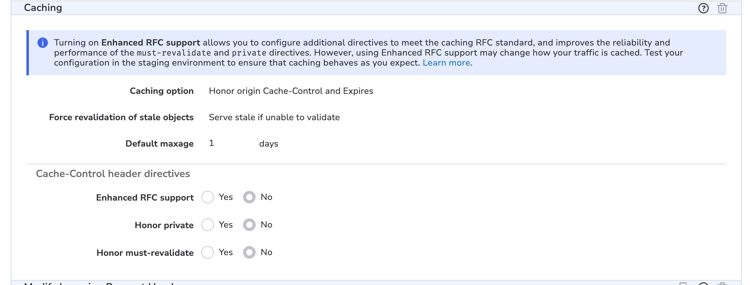
4. Caching Rules
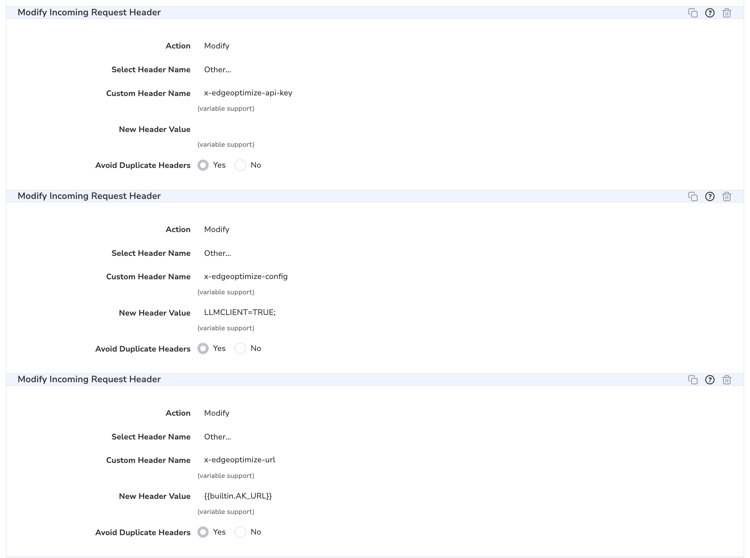
5. Modify Incoming Request Headers
Set the following incoming request headers:x-edgeoptimize-api-key to the API Key retrieved from Adobe Brand Visibilityx-edgeoptimize-config to LLMCLIENT=TRUE;x-edgeoptimize-url to {{builtin.AK_URL}}
Allow Optimize at Edge through firewall rules (optional)
If your CDN uses a WAF or Bot Manager:
-
Allowlist the
*AdobeEdgeOptimize/1.0*user agent in your WAF or Bot Manager so the Optimize at Edge service can fetch your origin content. -
If your firewall requires additional verification beyond user agent, generate a secret (for example,
openssl rand -hex 32) and:- Add
x-edgeoptimize-fetcher-keywith the secret in your routing rules alongside the otherx-edgeoptimize-*headers. - Add a WAF or Bot Manager rule to allow requests where
x-edgeoptimize-fetcher-keymatches the same secret.
- Add
-
Optimize at Edge forwards this header as-is — you own the full key lifecycle.

*AdobeEdgeOptimize/1.0* user agent and the x-edgeoptimize-fetcher-key header in Akamai Bot Manager.6. Modify Incoming Response Headers

7. Cache ID Modification

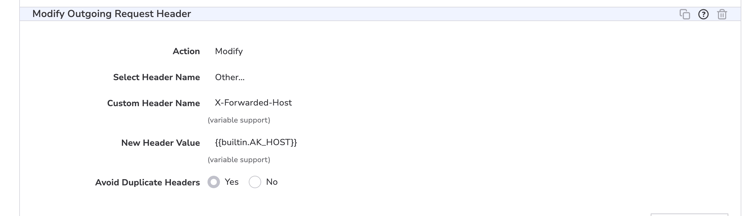
8. Modify Outgoing Request Headers
Set x-forwarded-host header to {{builtin.AK_HOST}}
9. Site Failover
The Site Failover configuration has two parts: the failover behavior (configured inside the main optimize-at-edge routing rule) and a separate failover test header rule.
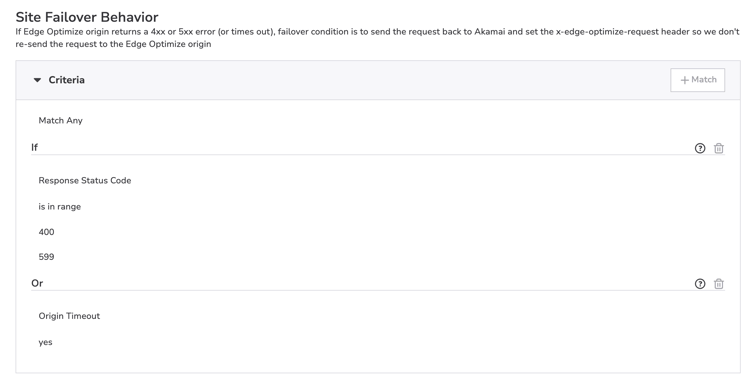
9a. Site Failover Behavior (inside the main optimize-at-edge routing rule)
Inside the main Optimize at Edge routing rule, create a child rule named Site Failover Behavior. Set it to Match Any and add these criteria:
- Response Status Code is in the range
400through599. - Origin Timeout is
Yes.
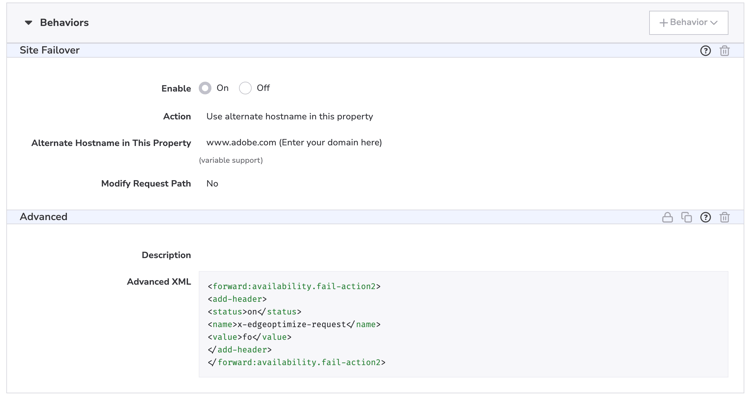
Add the Site Failover behavior and the Advanced XML snippet to that child rule.
Add the request header x-edgeoptimize-request with value fo through Advanced XML:
<forward:availability.fail-action2>
<add-header>
<status>on</status>
<name>x-edgeoptimize-request</name>
<value>fo</value>
</add-header>
</forward:availability.fail-action2>
9b. Failover Test Header rule (sibling rule)
| code language-none |
|---|
|
If the request header x-edgeoptimize-request value is fo, then set the outgoing response header x-edgeoptimize-fo to true.
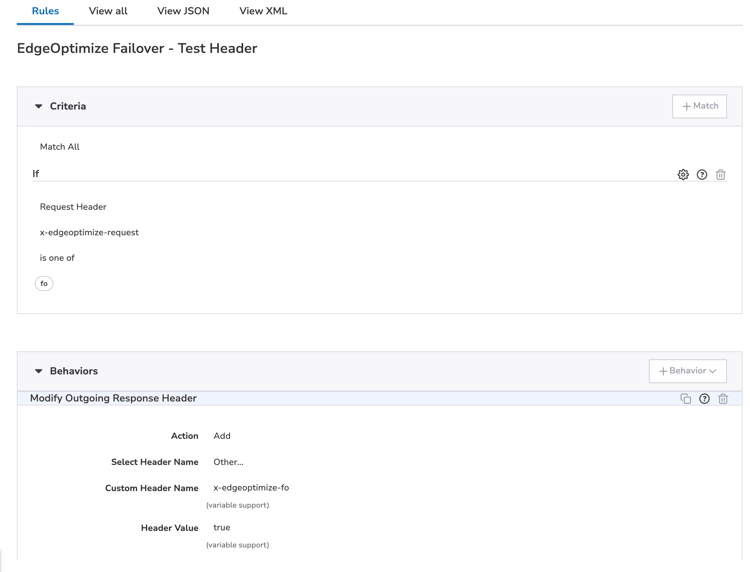
Site Failover ensures that if Edge Optimize returns a 4XX or 5XX error, the request is automatically routed back to your default origin so the end-user still receives a response.
2XX4XX or 5XXVerify the setup
After completing the setup, verify that bot traffic is being routed to Edge Optimize and that human traffic remains unaffected.
1. Test bot traffic (should be optimized)
Simulate an AI bot request using an agentic user-agent:
curl -svo /dev/null https://www.example.com/page.html \
  --header "user-agent: chatgpt-user"
A successful response includes the x-edgeoptimize-request-id header, confirming that the request was routed through Edge Optimize:
< HTTP/2 200
< x-edgeoptimize-request-id: 50fce12d-0519-4fc6-af78-d928785c1b85
2. Test human traffic (should NOT be affected)
Simulate a regular human browser request:
curl -svo /dev/null https://www.example.com/page.html \
  --header "user-agent: Mozilla/5.0 (Macintosh; Intel Mac OS X 10_15_7) AppleWebKit/537.36"
The response should not contain the x-edgeoptimize-request-id header. The page content and response time should remain identical to before enabling Optimize at Edge.
3. How to differentiate between the two scenarios
x-edgeoptimize-request-idx-edgeoptimize-fotrue)The status of the traffic routing can also be checked in the Adobe Brand Visibility UI. Navigate to Customer configuration and select the CDN configuration tab.

To learn more about Optimize at Edge, including available opportunities, auto-optimization workflows, and FAQs, return to the Optimize at Edge overview.