[AEM Forms]{class="badge positive" title="Applies to AEM Forms)."}
Connect an Adaptive Form to Azure SQL Storage
Adaptive Forms in Adobe Experience Manager (AEM) can integrate with external databases to store or retrieve data.
This article outlines how to connect an Adaptive Form to an Azure SQL database using JDBC through AEM as a Cloud Service.
Advantages
Integrating Adaptive Forms with Azure SQL offers several benefits:
- Real-time data interaction: Enables live reading and writing of data between forms and the Azure database.
- Scalability: Azure SQL provides scalable database performance suitable for enterprise-level applications.
- Centralized data storage: Keeps form submissions and retrieved data securely stored in one central location.
- Security compliance: Leverages Azure’s built-in network, firewall, and encryption options to ensure secure communication.
- Cloud-native integration: Ideal for modern, cloud-first architectures using AEM as a Cloud Service.
Prerequisites
-
Create Azure SQL Database and ensure proxy connection is enabled.
note NOTE Navigate to: Azure Portal → SQL Server → Security → Networking → Connectivityto enable proxy connection.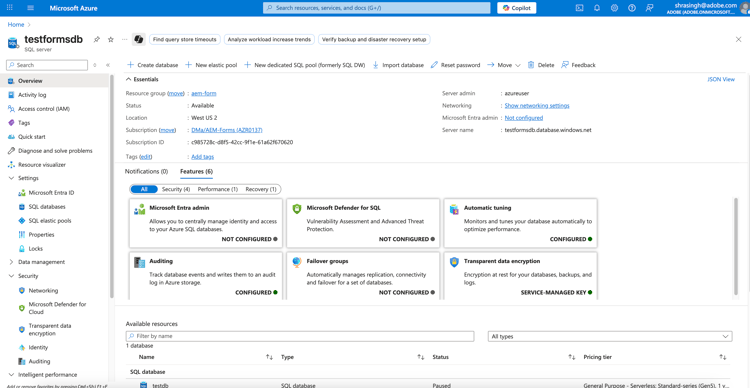
-
Enable Advanced networking configured using a dedicated egress IP for the created Azure database.
note NOTE After enabling dedicated egress IP. Go to Azure Portal → SQL Server → Security → Networking → Public Accessand add the egress IP to the firewall rules.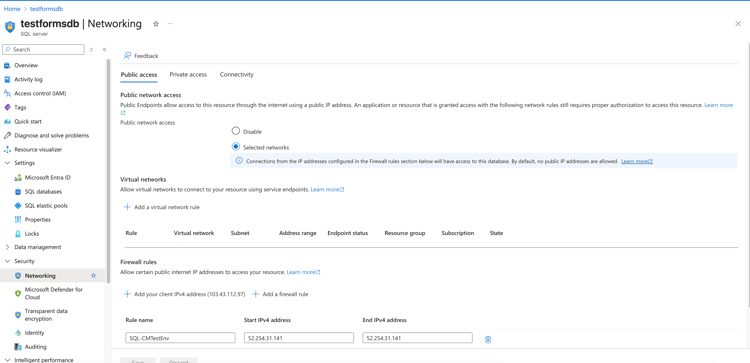
-
Set port forwarding in the cloud environment with:
-
portOrigin: Between
30000–30999 -
portDest:
1433(default port for Azure SQL)
For example:portOrigin: 30433 → portDest: 1433note NOTE You can contact Adobe Cloud Manager support to configure the port forwarding.
-
Steps to Connect Adaptive Forms to Azure SQL
Step1: Clone AEM as a Cloud Service Git repository
-
Open the command line and choose a directory to store your AEM as a Cloud Service repository, such as
/cloud-service-repository/. -
Run the below command to clone the repository:
code language-none git clone https://git.cloudmanager.adobe.com/<organization-name>/<app-id>/Where to find this information?
For step-by-step instructions on locating these details, refer to the Adobe Experience League article “Accessing Git”.
When the command completes successfully, you see a new folder created in your local directory. This folder is named after your application.
-
Open the repository folder in an editor.
Step2: Add Required JARs
Include the SQL driver dependency to the AEM project via the all package.:
Step 3: Add JDBC Configuration
-
Navigate to the following directory within your
<application folder>where the OSGi configuration for the JDBC pool should be placed:code language-bash cd ui.config/src/jcr_root/apps/<application folder>/osgiconfig/config/
Step 4: Create the Azure SQL Connection Configuration File
-
Create the file:
code language-bash com.day.commons.datasource.jdbcpool.JdbcPoolService~<application folder>-sql.cfg.json -
Add the below lines of code:
code language-json { "datasource.name": "azuredbshr", "jdbc.driver.class": "com.microsoft.sqlserver.jdbc.SQLServerDriver", "jdbc.username": "<azureuser>", "jdbc.connection.uri": "jdbc:sqlserver://$[env:AEM_PROXY_HOST;default=proxy.tunnel]:30433;database=testdb;user=<azureuser>;password=<azurepassword>;encrypt=true;trustServerCertificate=false;hostNameInCertificate=*.database.windows.net;loginTimeout=30;", "jdbc.password": "******", "jdbc.validation.query": "SELECT 1" }note NOTE Replace jdbc.usernamewith actual Azure username andjdbc.passwordwith the actual secure password.
Step 5: Commit and Push the Changes
Open the terminal and run the below commands:
git add .
git commit -m "<commit message>"
git push
Step 6: Deploy the Changes via Cloud Manager Pipeline
- Log in to AEM Cloud Manager.
- Navigate to your project and run the pipeline to deploy the changes.
Step 7: Create a Form Data Model (FDM)
Once the AEM and Azure setup is complete and the code changes are deployed:
- Go to AEM Author instance.
- Navigate to Tools > Forms > Data Integrations.
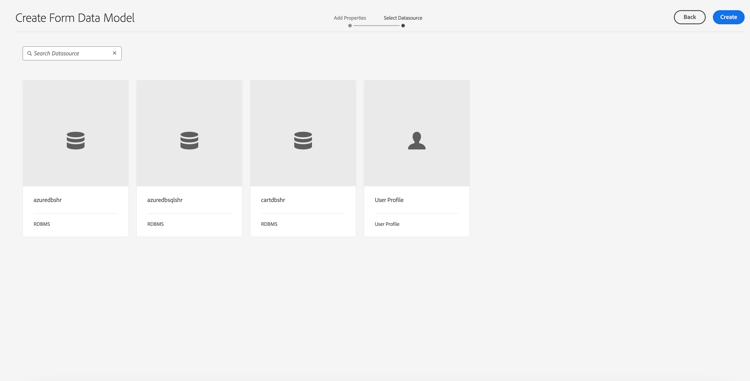
- Create new Form Data Model.
- In the Data Sources tab, select the created JDBC configuration.
- Click Create and verify the connection.
Step 8: Use the created FDM in an Adaptive Form
- Open an Adaptive Form in edit mode.
- Select the FDM created in the previous step as the data model.
- Use data bindings to connect form fields with the Azure SQL data source and configure submission action.
Best Practices
- Use secrets management to avoid hardcoding passwords in configuration files.
- Regularly rotate database credentials and update the config securely.
- Monitor JDBC connectivity logs for failures and latency.
- Follow Azure best practices for securing SQL databases and firewall configurations.
- Avoid using high-privilege database accounts for form access.
Related Articles
- Send email
- Submit to SharePoint Document Library
- Submit to SharePoint List
- Submit using Form Data Model
- Submit to Azure Blob Storage
- Submit to REST endpoint
- Submit to OneDrive
- Invoke an AEM Workflow
- Submit to Power Automate
- Submit to Workfront Fusion
- Connect Adaptive Form to Salesforce application
- Connect an Adaptive Form to Microsoft® Dynamics
- Connect an Adaptive Form to Adobe Marketo Engage
- Create custom submit action