[AEM Forms]{class="badge positive" title="Applies to AEM Forms)."}
Connect an Adaptive Form to Microsoft® SharePoint List connect-af-sharepoint-list
This video is applicable only for Core Components. For UE/Foundation Components, please refer to the article.
To use the Submit to SharePoint List Submit Action in an Adaptive Form:
- Create a SharePoint List Configuration: It connects AEM Forms to your Microsoft® Sharepoint List Storage.
- Use the Submit using Form Data Model (FDM) in an Adaptive Form: It connects your Adaptive Form to configured Microsoft® SharePoint.
1. Create a SharePoint List Configuration
To connect AEM Forms to your Microsoft® Sharepoint List:
-
Go to Tools > Cloud Services > Microsoft® SharePoint.
-
Select a Configuration Container. The configuration is stored in the selected Configuration Container.
-
Click Create > SharePoint List from the drop-down list. The SharePoint configuration wizard appears.
-
Specify the Title, Client ID, Client Secret and OAuth URL. For information on how to retrieve Client ID, Client Secret, Tenant ID for OAuth URL, see Microsoft® Documentation.
-
You can retrieve the
Client IDandClient Secretof your app from the Microsoft® Azure portal. -
In the Microsoft® Azure portal, add the Redirect URI as
https://[author-instance]/libs/cq/sharepointlist/content/configurations/wizard.html. Replace[author-instance]with the URL of your Author instance. -
Add the API permissions
offline_accessandSites.Manage.Allin the Microsoft® Graph tab to provide read/write permissions. AddAllSites.Managepermission in the Sharepoint tab to interact remotely with SharePoint data. -
Use OAuth URL:
https://login.microsoftonline.com/tenant-id/oauth2/v2.0/authorize. Replace<tenant-id>with thetenant-idof your app from the Microsoft® Azure portal.note NOTE The client secret field is mandatory or optional depends upon your Azure Active Directory application configuration. If your application is configured to use a client secret, it is mandatory to provide the client secret.
-
-
Click Connect. On a successful connection, the
Connection Successfulmessage appears. -
Select SharePoint Site and SharePoint List from the drop-down list.
-
Select Create to create the cloud configuration for the Microsoft® SharePointList.
Certificate-based authentication certificate-based-authentication
Certificate-based authentication for the SharePoint List configuration is under the Early Adopter Program. You can write to aem-forms-ea@adobe.com from your official email id to join the early adopter program and request access to the capability.
In the SharePoint List configuration wizard:
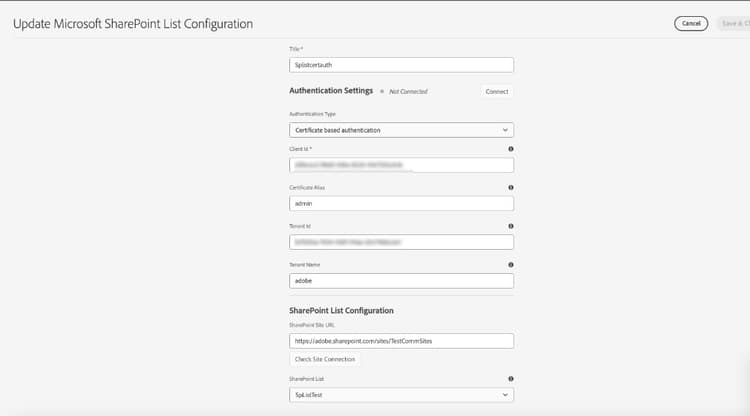
- Set Authentication Type to Certificate based authentication.
- Specify Title, Client ID, Certificate Alias, Tenant Id, and Tenant Name.
- Enter the SharePoint Site URL, verify the site connection if needed, and select the SharePoint List.
- Click Connect to verify the connection, then click Save & Close to save the configuration.
The below screenshot displays the SharePoint List configuration with Certificate based authentication:
To prepare the certificate for AEM and Microsoft Azure, perform the following steps in AEM, then register the public certificate in Microsoft Azure.
In AEM
- Go to Tools > Security > Users.
- Search for fd-cloudservice, select the user, and click Properties.
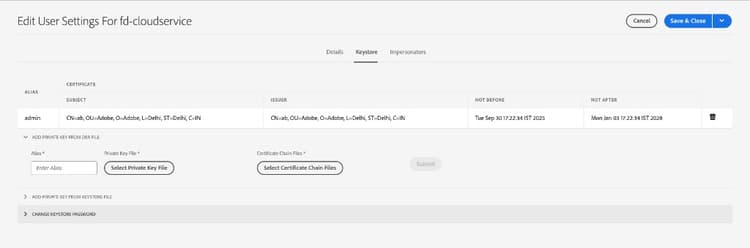
- Open the Keystore tab. If a keystore is not created yet, click Create Keystore and complete the prompts to set the keystore password.
- Add the private key to the keystore: expand Add Private Key From Keystore File and upload your .jks file.
- Enter an Alias that matches the Certificate Alias in the SharePoint List configuration, submit the key material, then click Save & Close.
The screenshot displays the keystore after the certificate is added. The Alias must match the Certificate Alias in the SharePoint List cloud configuration:
In Microsoft Azure
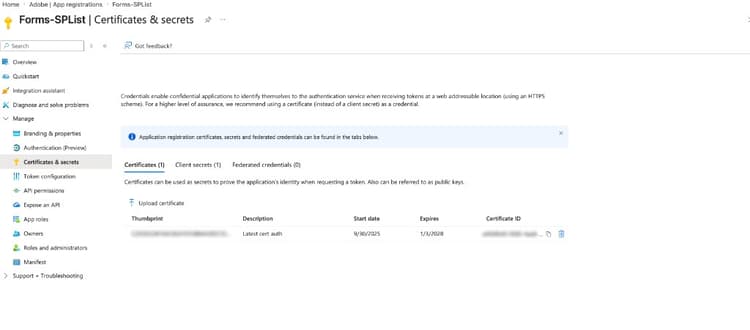
- Open your application registration and go to Certificates & secrets > Certificates.
- Select Upload certificate and upload the certificate file (public key) that Azure must trust for the application.
The screenshot displays the Certificates tab in the Azure portal, where you upload the certificate for the app registration:
2. Use the Submit using Form Data Model (FDM) in an Adaptive Form use-submit-using-fdm
You can use the created SharePoint List configuration in an Adaptive Form, to save data or generated Document of Record in a SharePoint List. Perform the following steps to use a SharePoint List in an Adaptive Form as:
When you submit the form, the data is saved in the specified Microsoft® Sharepoint List Storage.
- image column
- metadata column
- person column
- external data column
Related Articles
- Send email
- Submit to SharePoint Document Library
- Submit to SharePoint List
- Submit using Form Data Model
- Submit to Azure Blob Storage
- Submit to REST endpoint
- Submit to OneDrive
- Invoke an AEM Workflow
- Submit to Power Automate
- Submit to Workfront Fusion
- Connect Adaptive Form to Salesforce application
- Connect an Adaptive Form to Microsoft® Dynamics
- Connect an Adaptive Form to Adobe Marketo Engage
- Create custom submit action