[AEM Forms]{class="badge positive" title="Applies to AEM Forms)."}
Form builder getting started guide creating-an-adaptive-form
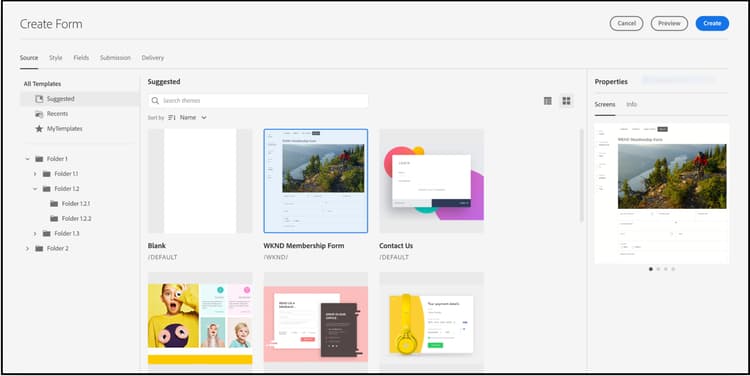
AEM Forms’ form builder lets you create forms that are engaging, responsive, dynamic, and adaptive. Whether you’re a form creator building professional forms or need to quickly make responsive forms, AEM Forms provides a user-friendly wizard. The wizard has quick tab navigation to easily select pre-configured templates, styling, fields, and submission options.
Before you start, learn about the type of Forms components available to you:
-
Adaptive Forms Core Components: These are standardized data capture components. These components provide customization capabilities, reduced development time, and lower maintenance costs for your digital enrollment experiences. A developer can easily customize and style these components. You can visit https://aemcomponents.dev/ to view available core components in action Adobe recommends using these modern and extensible components to develop Adaptive Forms.
-
Adaptive Forms Foundation Components: These are classic (old) data capture components. You can continue to use these to edit your existing foundation components based Adaptive Form. If you are creating new forms, Adobe recommends using Adaptive Forms Core Components to create an Adaptive Forms.
You require the following to create an Adaptive Form:
-
An Adaptive Form template: A template provides a basic structure and defines appearance (layouts and styles) of an Adaptive Form. It has pre-formatted components containing certain properties and content structure. It also provides the options to define a theme and a submit action. The theme defines the look and feel and submit action defines the action to take on submission of an Adaptive Form. For example, sending the collected data to a data source. The cloud service provides an OOTB template, named blank:
- The
blanktemplate is included with every fresh AEM Forms as a Cloud Service program. - You can install the reference package, via Package Manager, to add the
blanktemplate to your AEM Forms as a Cloud Service program. - You can also create an Adaptive Forms template (Core Components) from scratch.
- The
-
An Adaptive Form theme: A theme contains styling details for the components and panels. Styles include properties such as background colors, state colors, transparency, alignment, and size. When you apply a theme, the specified style reflects on the corresponding components. The
Canvastemplate is included with every fresh AEM Forms as a Cloud Service program. -
Permissions: Add your users to forms-users group. The members of the forms-users group have permissions to create an Adaptive Form. For detailed list of forms-specific user groups, see Groups and permissions.
Create an adaptive form create-an-adaptive-form-core-components
-
Log in to your Experience Manager Forms Author instance. It can be a Cloud instance or a local development instance.
-
Enter your credentials on the Experience Manager login page. After you are logged in, in the upper-left corner, select Adobe Experience Manager > Forms > Forms & Documents.
-
Select Create > Adaptive Forms. The Wizard opens. In the Source tab, select a template:

When you select a template, a theme and submit action specified in the template are auto-selected, and the Create button is enabled. You can go to the Style or Submission tabs to select a different theme or submit action. If the selected template does not specify a theme, the create button remains disabled. You can go to the Styles tab to manually select a theme.
note NOTE If you do not have, Adaptive Forms (Core Component) template on your environment, Enable Adaptive Forms Core Components for your environment. On enabling the Core Components for your environment, the Adaptive Forms (Core Component) template is added to your environment. -
In the Style tab, select a theme:
-
When the selected template specifies a theme, the theme is auto selected in the wizard. You can also choose a different theme from the Style tab.
-
If the selected template does not specify a theme, you can use the Style tab to choose a theme. The Create button is enabled only after a theme is selected.
-
-
(Optional) In the Data Tab, select a data model:
-
Form data model: A Form Data Model(FDM) lets you integrate entities and services from disparate data sources to an Adaptive Form. Choose Form Data Model (FDM) if the Adaptive Form that you are creating involves fetching and write data from and to multiple data source.
-
JSON Schema: JSON schema Our Core-Components-based Adaptive Form allows for seamless integration with your organization’s back-end system by providing the ability to associate a JSON schema, which represents the structure of the data being produced or consumed. This association enables authors to dynamically add content to the Adaptive Form using the elements of the schema. The elements of the schema are easily accessible in the Data Model Objects tab of the Content browser during the authoring process, and all fields are automatically added to any created Adaptive Form.
By default all fields of the associated JSON schema are automatically selected and converted into corresponding Adaptive Form components, streamlining the authoring process. The wizard offers the added convenience of allowing you to selectively choose which fields should be included in the Adaptive Form through the use of checkboxes.
-
-
In the Submission tab, select a submit action:
-
When you select a template, the submit action specified in the template is auto-selected. You can select a different submit action from the Submission tab. The ** Submission** tab displays all the available submit actions.
-
When the selected template does not specify a submit action, you can use the Submission tab to select a submit action
-
-
(Optional) In the Delivery tab, you can specify a publishing or unpublishing date for an Adaptive Form.
-
Select Create. A dialog to specify title, name, and location to save the Adaptive Form appears:
- Title Specifies the display name of the form. The title helps you identify the form in the Experience Manager Forms user interface.
- Name: Specifies the name of the form. A node with the specified name is created in the repository. As you start typing a title, value for the name field is automatically generated. You can change the suggested value. The name field can include only alphanumeric characters, hyphens, and underscores. All the invalid inputs are replaced with a hyphen.
- Path: Specifies the location at which the Adaptive Form is to be saved. You can save the Adaptive Form directly at
/content/dam/formsanddocumentsor create a folder such as/content/dam/formsanddocuments/adaptiveformsto save an Adaptive Form. Ensure that you create the folder before using it in the path. The Path field does not create a folder automatically.
-
Select Create. An Adaptive Form is created and opens in the Adaptive Forms editor. The editor displays the contents available in the template. Based on the type of Adaptive Form, the form elements present in the associated JSON schema or Form Data Model (FDM) are displayed in the Data Model Objects tab of the Content Browser in the sidebar.
Now, you can drag-and-drop the Adaptive Forms Core Components or schema elements to build your Adaptive Form.
Edit form model properties of an adaptive form edit-form-model-core-components-based-adaptive-forms
-
Select the Adaptive Form and select

-
Go to the Form Model tab and choose a form model. If the Adaptive Form is without a form model, you have the freedom to choose either a JSON schema or a form data model (FDM). On the other hand, if the Adaptive Form is already based on a form model, you have the option to switch to another form model of the same type. For instance, if the form is using a JSON schema, you can easily switch to another JSON schema, and similarly if the form is using a Form Data Model (FDM), you can switch to another Form Data Model (FDM).
-
Select Save to save the properties.
You require the following to create an Adaptive Form:
-
Permissions: Add your users to forms-users to provide them permissions to create an Adaptive Form. For detailed list of forms-specific user groups, see Groups and permissions.
-
An Adaptive Form theme: A theme contains styling details for the components and panels. Styles include properties such as background colors, state colors, transparency, alignment, and size. When you apply a theme, the specified style reflects on the corresponding components. You can create a theme or import an existing theme. You can also deploy the latest archetype for some sample themes.
-
An Adaptive Form template: A template provides a basic structure and defines appearance (layouts and styles) of an Adaptive Form. It has pre-formatted components containing certain properties and content structure. It also provides the options to define a theme and a submit action. The theme defines the look and feel and submit action defines the action to take on submission of an Adaptive Form. For example, sending the collected data to a data source. The cloud service supports two types of templates:
-
Editable template: You can create a or import an existing editable template. You can also deploy the latest archetype to get some sample editable templates.
-
Static template: These are legacy templates and are recommended only for customers migrating from Adobe Managed Services (AMS) and on-premise AEM Forms installations (AEM 6.5 Forms or earlier). These let you continue to use your existing investment in static templates. When you create an Adaptive Form, use an Editable template.
-
Create an adaptive form create-an-adaptive-form-foundation-components
-
Access Experience Manager Forms Author instance. It can be a Cloud instance or a local development instance.
-
Enter your credentials on the Experience Manager login page.
After you are logged in, in the upper-left corner, select Adobe Experience Manager > Forms > Forms & Documents.
-
Select Create > Adaptive Forms. The Wizard opens.
-
In the Source tab, select a template:
-
When you select an Editable template, a theme and submit action specified in the template are auto-selected, and the Create button is enabled. You can go to the Style or Submission tabs to select a different theme or submit action. If the selected Editable template does not specify a theme, the create button remains disabled. You can go to the Styles tab to manually select a theme.
note NOTE You can also create Document of Record template using an Adaptive Forms editor. For more information, see Document of Record Support in Adaptive Form Editor. -
When you select a static template, the data, style, submission, delivery, and preview options are not available. When you are create a Adaptive Form, it is recommended to use an Editable template.
-
-
In the Style tab, select a theme:
- When the selected template specifies a theme, the theme is auto selected in the wizard. You can also choose a different theme from the Style tab.
- If the selected template does not specify a theme, you can use the Style tab to choose a theme. The Create button is enabled only after a theme is selected.
-
(Optional) In the Data tab, select a data model:
-
Form data model: A Form Data Model (FDM) lets you integrate entities and services from disparate data sources to an Adaptive Form. Choose Form Data Model (FDM) if the Adaptive Form that you are creating involves fetching and write data from and to multiple data source.
-
JSON Schema: JSON schema represents the structure in which data is produced or consumed by the back-end system in your organization. You can associate the schema to an Adaptive Form and use its elements to add dynamic content to the Adaptive Form. The elements of the schema are available for use in the Data Model Objects tab of the Content browser when authoring Adaptive Forms and all the fields are also added to created Adaptive Form.
By default, all the fields of the data model are selected. When you create the Adaptive Form, all the selected data model fields are converted to corresponding Adaptive Form components. The wizard provides you checkboxes to select only those fields which should be included in the Adaptive Form.
JSON schema or Form Data Model (FDM) are displayed in the Data Model Objects tab of the Content Browser in the sidebar. You can also drag-drop these elements to build your Adaptive Form.
-
Edit form model properties of an adaptive form edit-form-model-foundation-components
You can change the form model for an Adaptive Form (JSON-based or Form Data Model (FDM)). You cannot change from one form model to another.
-
Select the Adaptive Form and select the Properties icon.
-
Open the Form Model tab and do one the following.
- If the Adaptive Form is without a form model, you can choose another form model and accordingly select XML or JSON schema, or form data model (FDM).
- If the Adaptive Form is based on a form model, you can choose another XML or JSON schema, or Form Data Model (FDM) for the same form model.
-
Select Save to save the properties.
You can also modify the form model properties from the Adaptive Form builder or Adaptive Form template builder.
-
Select the Adaptive Form container (Root) component.
-
Click

-
Select the Data Model tab and do one the following:
- If the Adaptive Form is without a form model, you can choose a form model and accordingly select XML or JSON schema, or form data model (FDM).
- If the Adaptive Form is based on a form model, you cannot change the form model. You can choose another XML or JSON schema, or Form Data Model (FDM) for the same form model as applicable.
-
Select


| note |
|---|
| NOTE |
| You can also save an Adaptive Form as a template. For more information, see Create a template using an Adaptive Form. |