[AEM Forms]{class="badge positive" title="Applies to AEM Forms)."}
Customize the auto-generated Document of Record template
This article applies to both Core Components and Foundation Components based Adaptive Forms.
When you auto-generate a Document of Record (DoR) for an Adaptive Form, AEM Forms creates a default template based on the form structure. You can customize this auto-generated template to match your organization’s branding and layout requirements.
The customization workflow involves three steps:
- Download the auto-generated DoR template from Forms Manager.
- Modify the template using Adobe Forms Designer.
- Re-upload the customized template to AEM Forms and configure it as a custom template.
Prerequisites prerequisites
Before you start, ensure you have the following:
- Access to AEM Forms Manager with permissions to download and upload templates.
- Adobe Forms Designer installed on your local machine.
- An Adaptive Form with Generate Document of Record enabled.
Step 1: Download the auto-generated DoR template download-auto-generated-dor-template
To download the auto-generated DoR template (XDP file) for your Adaptive Form:
- Log in to your AEM Forms author instance.
- Navigate to Forms > Forms and Documents.
- Select the Adaptive Form for which you want to download the DoR template.
- Open the properties of the selected Adaptive Form.
- In the properties panel, select the Download Document of Record option to download the auto-generated DoR template (XDP file).
- Save the downloaded XDP file to your local machine.
Step 2: Customize the template using Adobe Forms Designer customize-template-using-designer
Open the downloaded XDP template in Adobe Forms Designer and modify it to suit your organization’s needs.
-
Open the downloaded XDP file in Adobe Forms Designer.
-
Customize the template as required. Examples of customizations include:
- Multiple master pages: Add additional master pages to define different layouts for specific pages of the Document of Record. For example, use a distinct first page with a company letterhead and subsequent pages with a simpler layout.
- Font colors and font families: Change the font color, size, and family to align with your corporate brand guidelines.
- Custom elements: Add elements such as company logos, headers, footers, and disclaimer text to establish a consistent brand identity.
- Page layout and styling: Adjust margins, spacing, and the overall page structure to improve readability.
- Field styling and positioning: Modify the appearance and position of form fields to match your preferred layout.
-
Save the customized XDP template.
Step 3: Re-upload the customized template to AEM reupload-customized-template
After you customize the template, upload it to AEM Forms and configure the Adaptive Form to use it.
-
Upload the customized XDP template to your AEM Forms instance:
- Navigate to Forms > Forms and Documents.
- Select Create > File Upload and upload the customized XDP file.
Then configure the form to use the custom template. The steps differ depending on whether your form is based on Core Components or Foundation Components.
For Adaptive Forms based on Core Components:
-
Open the Adaptive Form in the editor for which you want to apply the custom template.
-
In the content tree, select the Guide Container (root panel).
-
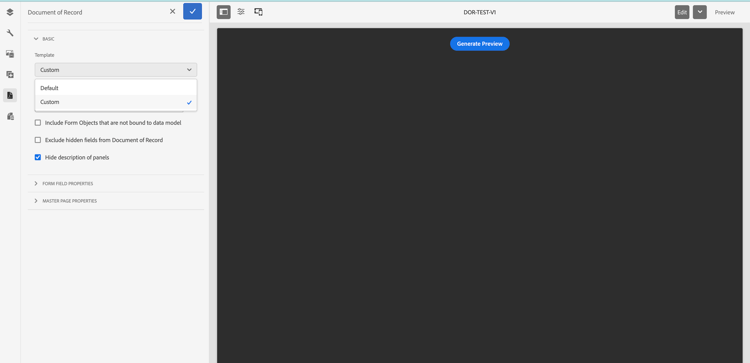
Open Properties and click the Document of Record (DoR) icon to open Document of Record properties.
-
In the Basic tab, open the Template dropdown and select Custom.
-
Browse and select the uploaded customized XDP template.
-
Select the checkmark to save.
For Adaptive Forms based on Foundation Components:
-
Open the Adaptive Form in the editor for which you want to apply the custom template.
-
Select the root panel (form container).
-
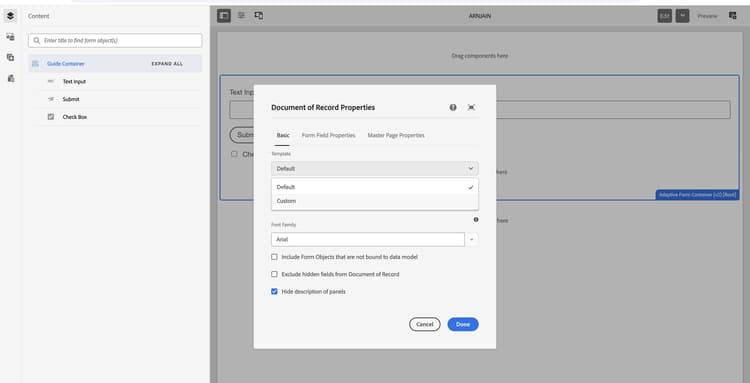
Open Document of Record Properties (from the properties panel or the DoR tab).
-
In the Basic tab, open the Template dropdown and select Custom.
-
Browse and select the uploaded customized XDP template.
-
Select Done to save.
The Adaptive Form now uses the customized template when generating the Document of Record.
Verify the customized template verify-customized-template
To confirm that the customized template is applied correctly:
- Submit a test entry for the Adaptive Form.
- Generate the Document of Record.
- Verify that the generated PDF reflects your customizations, including logos, fonts, layout changes, and other branding elements.