[AEM Assets]{class="badge positive" title="Applies to AEM Assets)."}
360/VR Video vr-video
360° videos record a view in every direction at the same time. They are shot using an omnidirectional camera or a collection of cameras. During playback, on a flat display, the user has control of the viewing angle; playback on mobile devices usually applies their built-in gyroscopic controls.
Dynamic Media includes native support for the delivery of 360 video assets. By default, no additional configuration is necessary for viewing or playback. You deliver 360 Video using standard video extensions such as .mp4, .mkv, and .mov. The most common codec is H.264.
You can use the 360/VR Video viewer to render equirectangular video. The result is an immersive viewing experience of a room, property, location, landscape, medical procedure, and similar content.
Spatial audio is not currently supported; if audio is mixed in stereo, the balance (L/R) does not change as the user changes the camera viewing angle.
See Using Dynamic Media 360 Videos and Custom Video thumbnail with AEM Assets.
See also Managing Viewer Presets.
360 Video examples video-in-action
Select Space Station 360 to open a browser window and watch a 360° video. To change the viewing angle during video playback, move the pointer to a new location.
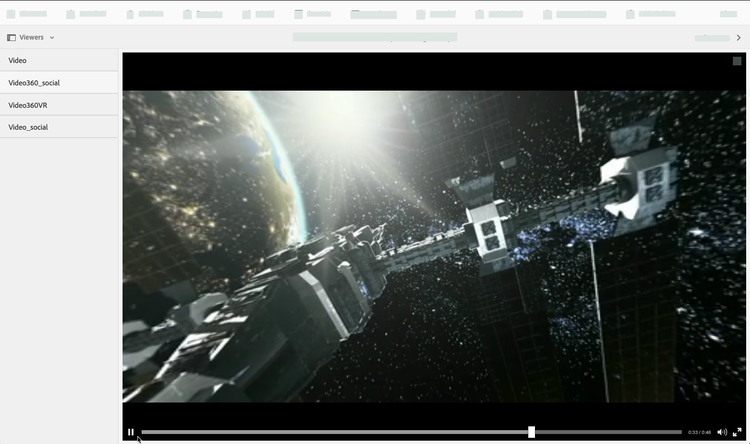
Video frame from Space Station 360
360/VR Video and Adobe Premiere Pro vr-video-and-adobe-premiere-pro
You can use Adobe Premiere Pro to view and edit 360/VR footage. For example, you can add logos, text, and equirectangular effects.
See Edit 360/VR video.
Upload assets for use with the 360 Video viewer uploading-assets-for-use-with-the-video-viewer
360 video assets that are uploaded into Experience Manager are labeled as Multimedia on an Asset page, similar to normal video assets.
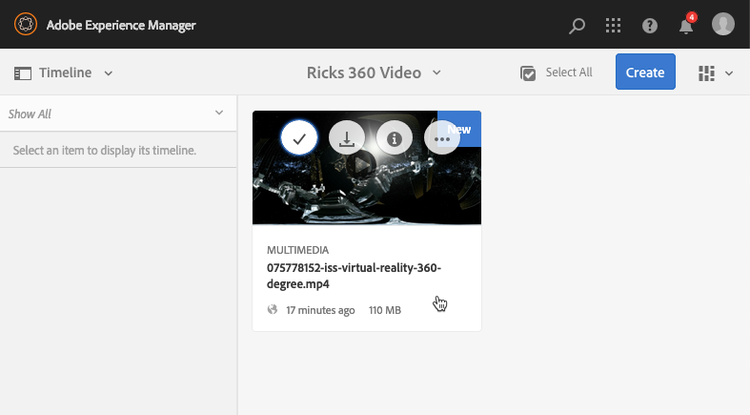
An uploaded 360-video asset seen in the Card view. The asset is labeled as Multimedia.
Upload assets for use with the 360 Video viewer:
-
Create a folder that is dedicated to your 360-video assets.
-
Apply an adaptive video profile to the folder.
Rendering 360-video content requires higher source video resolution and encoded renditions than standard non-360 video content.
You can use the standard Adaptive Video Profile that is included with Dynamic Media. However, it results in perceptibly lower 360-video quality than non-360 video encoded with the same settings and rendered with a non-360 video viewer. Therefore, if high-quality 360 video is required, do the following:
-
Ideally, your original 360-video content has either one of the following resolutions:
- 1080p - 1920 x 1080, known as Full HD or FHD resolution or
- 2160p - 3840 x 2160, known as 4k, UHD, or Ultra HD resolution. This large display resolution is most often found on premium television sets and computer monitors. The 2160p resolution is referred to as “4k” because the width is approximately 4000 pixels. Specifically, it offers four times the pixels of 1080p.
-
Create a custom Adaptive Video Profile with higher-quality renditions. For example, you can create an Adaptive Video Profile that contains the following three settings:
- Width=auto; Height=720; Bit rate=2500 kbps
- Width=auto; Height=1080; Bit rate=5000 kbps
- Width=auto; Height=1440; Bit rate=6600 kbps
-
Process 360-video content in a folder that is dedicated exclusively to 360 video assets.
This approach increases the network and CPU usage of the device.
-
Preview 360 Video previewing-video
You can use Preview to see how your 360 Video appears to users. You can also verify that it is functioning correctly.
See also Editing Viewer Presets.
When you are satisfied with the 360 Video, you can publish it.
See Embedding the Video or Image Viewer on a Web Page.
See Linking URLs to your web application. The URL-based method of linking is not possible if your interactive content has links with relative URLs, such as links to Experience Manager Sites pages.
See Adding Dynamic Media Assets to pages.
To preview 360 Videos:
-
In Assets, navigate to an existing 360 Video that you have created. To open it in preview mode, select the 360 Video asset.
To preview the video, select the 360-video asset.
-
On the preview page, near the upper-left corner of the page, select the drop-down list, then select Viewers.
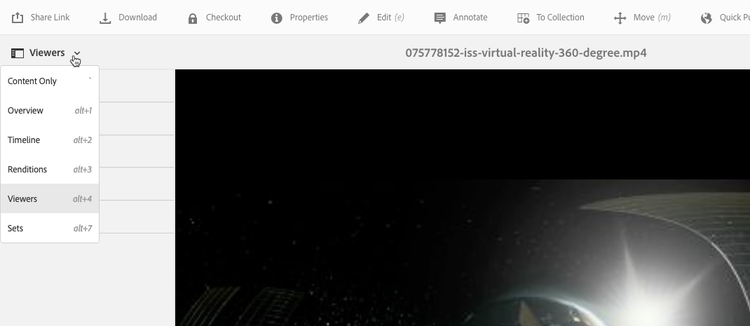
From the Viewers list, select Video360_social, then do one of the following:
- To alter the viewing angle of the static scene, move the pointer across the video.
- To begin playback, select the video’s Play button. To alter your viewing angle as the video plays, move the pointer across the video.
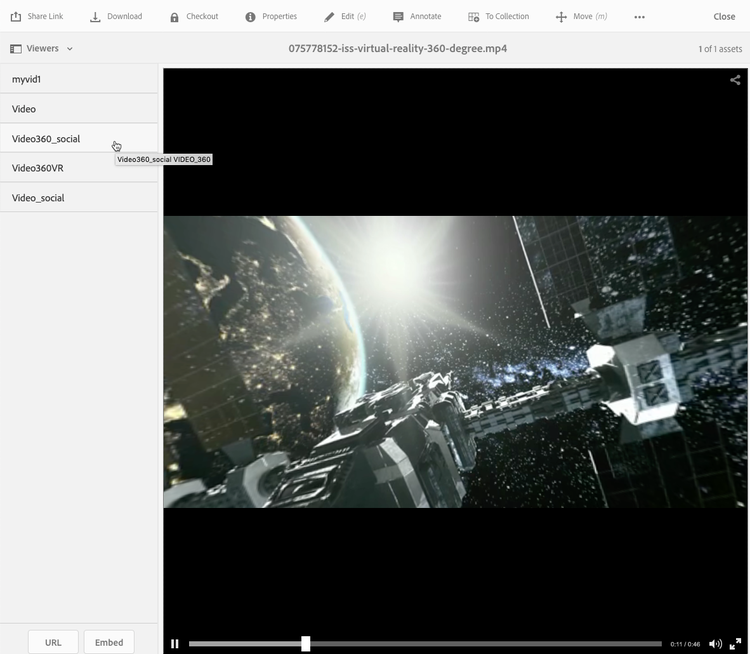
-
From the Viewers list, select Video360VR.
Virtual Reality (VR) video is immersive video content that users access using virtual reality headsets. As with ordinary videos, you create VR videos at the beginning when a video is being recorded or captured using 360° video cameras.
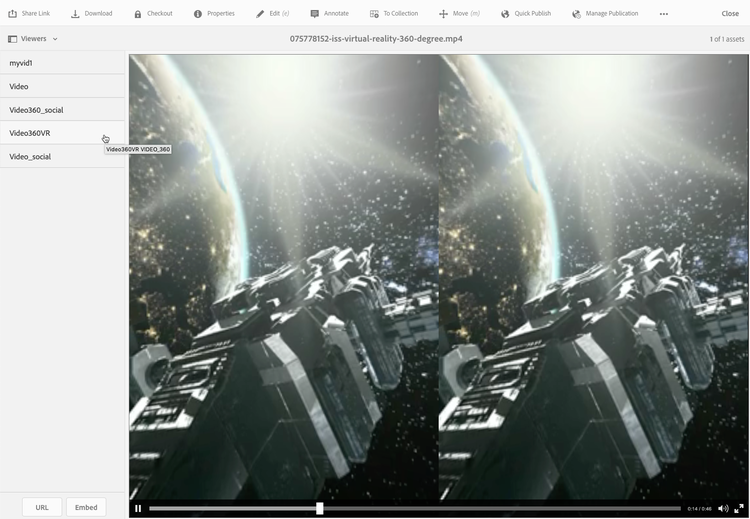
A 360 VR video screenshot. -
Near the upper right of the preview page, select Close.
Publishing 360 Video publishing-video
To use 360 Video, you must publish it. Publishing a 360 Video activates the URL and Embed Code. It also publishes the 360 Video to the Dynamic Media cloud which is integrated with a CDN for scalable and performant delivery.
See Publishing Dynamic Media Assets for details on how to publish 360 Video.
See also Embedding the Video or Image Viewer on a Web Page.
See also Linking URLs to your web application. The URL-based method of linking is not possible if your interactive content has links with relative URLs, including links to Experience Manager Sites pages.
See also Adding Dynamic Media Assets to pages.