Experience Modernization Agent Overview experience-modernization-agent
The Experience Modernization Agent is Adobe’s AI development agent for Edge Delivery Services and is part of the Brand Experience Agent. It gives you a ready-to-use development environment in your browser, with nothing to install.
You can begin by migrating a site’s content and design, then keep working with the agent to integrate third-party systems, redesign the site, refactor its blocks, or extend how it works. Developers can build integrations and complex behavior, while designers and marketers refine the site’s appearance by prompting rather than writing CSS or JavaScript. The knowledge you need depends on the work.
To see a first result on your own pages, try Auto mode. It’s the best way to evaluate Adobe Experience Manager with your own website’s content and design. Give it your site’s URL; it migrates a set of pages and emails you when it finishes.
Move Your Site to Edge Delivery Services benefits
Use the agent to move web properties onto Edge Delivery Services from other CMSes, from Experience Manager sites built with Java components, or from static sites.
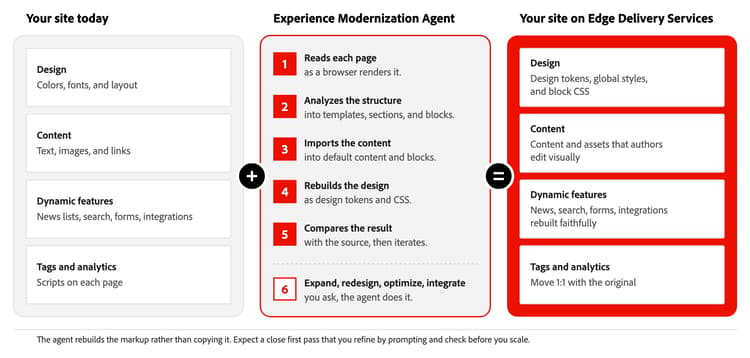
The diagram above traces the migration from your source site to a site your team can keep evolving on Edge Delivery Services. The left panel shows the source site’s design, content, and dynamic features as visitors see them, plus its tags and analytics. By default, the agent uses the rendered pages from your current site as the source for the migration, unless you instruct the agent to perform a redesign, possibly providing design files such as Figma designs.
The right panel shows the intended result: the complete site carried over, with its dynamic features rebuilt and its analytics, tag manager, and consent settings back in place. The migration’s objective is to help your team to make full use of what Edge Delivery Services offers:
- Rapid development: A standard and lean web development setup that is familiar to developers and their agents, making them most efficient.
- Agentic visual authoring: Authors assemble pages from branded blocks in Experience Workspace or the Universal Editor, and can also prompt content changes.
- Fast, crawlable pages: The platform serves fast, semantic HTML to help improve search and AI visibility. See Keeping It 100.
- Room to grow: The platform runs some of the largest multi-market, multi-language sites, with complex integrations.
To reach that objective, the agent automates much of following steps:
- Read each page. Page import works from what the browser renders. If a source requires sign-in, configure Protected Site Authentication. For bot protection, arrange authorized access with the site’s administrator: they can allowlist the agent’s backend addresses, or you can use an accessible staging or origin host with the same content. If only page discovery is blocked, provide the URLs directly. See Source Sites with Bot Protection.
- Analyze the structure. The site catalog inventories pages and groups them into templates, sections, and blocks, with screenshots. Review the groupings, set the scope, choose the target design and content model, and decide what to migrate first.
- Import the content. For each template, the agent analyzes a sample page and maps it to default content and reusable blocks. It imports the sample as an editable page and generates import scripts that apply the mapping to other pages in that template.
- Rebuild the design. The agent extracts CSS design tokens for colors, fonts, and spacing, then writes the global styles and block CSS that use them. It rebuilds the markup rather than cloning source code and its technical debt.
- Compare, refine, and validate. The agent compares the rebuilt page with its source and iterates on your prompts. Refine the mapping and design, then validate each sample before scaling with the generated scripts. Corrections to a reusable block or import script apply across pages in that template. The production migration guide covers batches, checks, release, and handover.
- Expand, redesign, optimize, and integrate. After migration, prompt the agent to rebuild dynamic features or add integrations. Auto mode can carry over supported analytics, tag manager, and consent settings; see What Page Import Can Read and Carry Over. For a few pages to show stakeholders, follow Create a Customer Demo. If you want Adobe engineers to operate the agent with your team, see Delivery by Agentic Outcome Engineers.
What Page Import Can Read and Carry Over limitations
Use only websites and designs that you are authorized to migrate. The selected workflow must be able to reach and read the source. If the site uses bot protection, arrange access with its administrator. See source sites with bot protection.
- The agent reads each source over the internet from its hosted environment. Pages that require sign-in or a secret header can be migrated when the source accepts one of the methods in Protected Site Authentication. That section also says what to ask the site’s administrator for when a source can’t be reached this way.
- The agent loads each source page in a browser and reads it once it has rendered. That includes content that scripts insert and content that the page contains but CSS hides, such as a closed accordion panel. Content that appears only after a visitor clicks or types isn’t in the page at that moment, so it isn’t captured. Check such pages in the screenshots, and add the missing content after import or ask for a way to capture it.
- The agent targets Edge Delivery Services, including sites that use Experience Manager authoring. It does not convert a project to HTL-based publishing or an API-only/SPA delivery stack.
- Page import copies what the source page shows: its content and its design. It can’t see how the source’s servers produced that page. Content inheritance, reuse through content fragments, personalization rules, search, form processing, and other business logic run there, so import copies their output on that page, not the logic. The agent also rebuilds the markup rather than copying it, so the source’s scripts, such as analytics and experimentation tags, don’t come along. Auto mode’s Include integrations option carries over supported analytics, tag manager, and consent settings. Decide how each of the others works on the new site; the agent can then build the blocks and code for it. See What Remains Project Work, and for forms, Form Submissions.
- The agent’s visual critique compares how the result looks with the source. Looking the same doesn’t show that authors can edit the page, that interactions work, or that it is accessible and fast on real devices, so check those before you sign off.
How Your Site Is Built and Updated project-foundations
The result is a standard project that you own: HTML, CSS, and JavaScript in your Git repository, following the conventions of the AEM boilerplate and the Block Collection, with content stored separately for authors to edit. Developers can continue in the console, in their own editor, or with other AI tools.
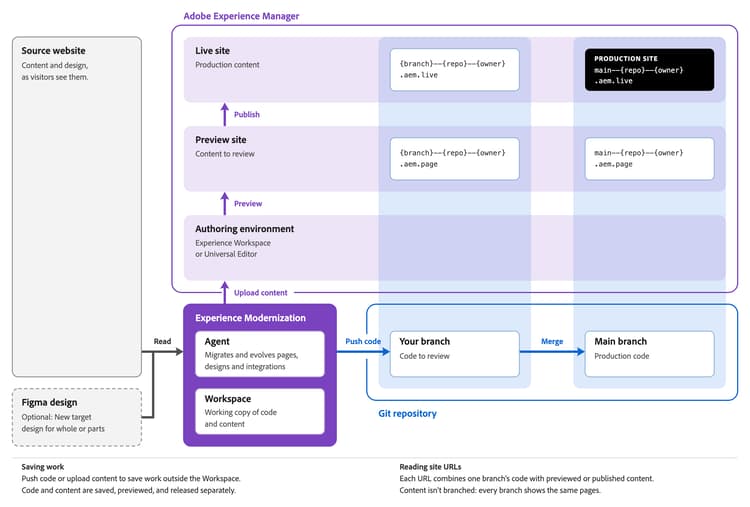
The source website supplies the content and design. You can add a Figma design as a new target for the whole site or part of it. The agent reads these sources without changing them, and builds the result in its console workspace.
Git stores the site’s styles, scripts, and blocks. Your branch holds code to review; main holds production code. The authoring environment stores the content. Edge Delivery Services combines that content with code from the branch shown by each preview or live URL.
Pages are made of sections, default content, and blocks, and the content carries no styling, so the agent can give it a new design by changing only the code. For how the platform works, see the Edge Delivery Services overview and Markup, Sections, Blocks, and Auto Blocking. For how the agent structures imported content, and how you steer it, see Shape the Content Structure.
New sites start from the AEM boilerplate. For a commerce storefront, start from the commerce boilerplate instead, because its commerce blocks are hard to add to a project later; see Start from a Repository.
Work Safely in an Independent Workspace independent-workspace
The agent doesn’t change your Git repository or your content destination directly. It works in a console workspace: your own working copy of the project, hosted by Adobe and not shared with other users. The workspace holds a checkout of one branch of your Git repository, and copies of the content pages that you imported, opened, or pulled.
Everything that the agent does happens there first. You can ask for a sweeping redesign, check it in the console preview, and discard what you don’t want, while your repository, the authors’ pages, and the live site stay unchanged. Work leaves the workspace only when you send it, in two separate operations:
- Push code sends the changed files that you select to your Git repository, as a commit on the current branch or as a new pull request.
- Upload content sends the pages that you select to Experience Workspace or the author instance, where they replace the saved versions of those pages.
Agent permissions let the agent do the same for you. See Control over Changes.
The independence works in both directions: changes that others push or upload don’t reach your workspace until you pull them. See Sync Menu and Work as a Team.
Where Content Is Stored and How Authors Edit It content-storage
The agent asks where the migrated content should be stored. Which repository holds the content and which editor authors use are related but separate questions. The source CMS doesn’t decide the destination. With either option, authors get a visual editor and Edge Delivery Services delivers the pages.
Document-Based Storage with Experience Workspace document-based
Content is stored as documents in the document-based content repository. “Document-based” describes storage only, not the authoring experience. Authors edit pages visually in Experience Workspace, the visual authoring UI for Edge Delivery Services, which also offers an AI assistant, collaboration, and Experience Manager Assets integration. Experience Workspace is off by default and is turned on per site or organization in the project’s configuration. When you transfer an Auto mode site to a document-based destination with Make it yours, the transfer turns it on for that site.
Experience Manager Authoring with the Universal Editor jcr-persistence
Content is stored in the Java Content Repository (JCR) of an Experience Manager as a Cloud Service author instance, a setup previously called Crosswalk. Authors edit pages with the Universal Editor, Adobe’s visual editor for content on the author instance, and Edge Delivery Services still delivers the pages. HTL and Java don’t render them, as they do on Experience Manager sites built with components. Template repositories for this setup, such as aem-block-collection-xwalk, still carry xwalk in their names.
These docs use Experience Manager authoring for this storage option, and author instance for the Experience Manager as a Cloud Service environment where that content is stored and edited.
Adobe’s Recommendation recommendation
For any new implementation, Adobe strongly recommends document-based storage with Experience Workspace over Experience Manager authoring with the Universal Editor. This includes large websites with thousands of pages.
Document-based authoring used to mean writing pages in Microsoft Word or Google Docs, stored on SharePoint or Google Drive, which remain supported content sources, or in Document Authoring, a document-style editor. None of them offered visual page editing, so teams that needed it often chose Experience Manager authoring. Experience Workspace replaces Document Authoring and gives document-based content a visual editor. A site that uses Document Authoring can turn Experience Workspace on, and its existing content works there without a migration. That leaves little reason for a brand to avoid document-based storage. When you read an article about document-based authoring, check when it was written.
Experience Manager authoring remains fully supported. Choose it when a specific requirement depends on content staying in the JCR. For headless content, delivered through APIs rather than as web pages, the Universal Editor remains the recommended editor.
How Changes Go Live code-content-lifecycle
In the diagram, blue columns show code branches and purple rows show content states. Pushing code never saves content, and uploading content never changes code.
- Code: Edge Delivery Services fetches your code from GitHub through the AEM Code Sync app, or from another Git host through Cloud Manager (Bring Your Own Git). Each branch gets its own URLs, and a change pushed to a branch shows on that branch’s preview and live URLs at the same time. Code has no separate publish step: after review, merging into
mainupdates the code of the production site immediately, so check a branch on its own URLs before you merge it. - Content: Authors first preview a page, which copies the saved content to the preview site on
*.aem.page. They then publish it, which makes it live on*.aem.live. Authors do both from the authoring UI or from the AEM Sidekick browser extension.
Preview URLs follow the pattern https://{branch}--{repo}--{owner}.aem.page and show previewed content. Live URLs follow the same pattern on aem.live and show published content. {owner} is the GitHub organization or user that owns the repository, and {repo} is the repository name. Content isn’t branched: every branch shows the same pages, each with its own code. The live URL of main is the production site, which your own domain serves after the cutover.
Keep Developing the Site creation-migration
The migration isn’t the end of the agent’s work. Your team can apply a new brand design from Figma, build new pages from existing blocks, or track down a bug. It can also audit performance, accessibility, and SEO, then fix what the audit finds. See Restyle Sites, Guided Redesign, and Create, Update, and Refactor Blocks. If your site already runs on Edge Delivery Services, connect it and start here without a migration.
Blocks can call APIs for search, commerce, personalization, maps, video, or your own services, as on any other website. Spreadsheets publish as JSON and a query index lists the site’s pages, so blocks can also build listings and filters from your own content. Business logic stays in the services that own it. Specify and test each integration, and the agent can write its block code once you have decided how it should work. See Build a Dynamic Block and Connect Services and Applications.
The agent’s built-in workflows focus on Edge Delivery Services, but its work isn’t limited to them. Point it to another system’s documentation and work out the integration with it, as described in Work Beyond Edge Delivery Services. The capability reference groups the built-in workflows and optional add-ons in one place; you describe the task, and the agent chooses the workflow.
The conventions that you keep in AGENTS.md and related files stay with the repository, so later conversations start with what your team has agreed. See Project Instructions and Memory. To prepare documentation for authors, developers, and administrators, use Generate Project Documentation.
Who Can Use the Agent who-can-use-ema
You work with the agent in plain language: describe what you want and check the result in the preview. Auto mode needs no step-by-step prompting. To explore the console on a sample project instead, use demo mode.
Working on the site itself takes a little more. The agent’s changes are code in a Git repository: you check them in the preview, push them to a branch, and open a pull request that a developer reviews. Some knowledge of HTML, and the willingness to learn these Git and GitHub basics, are enough to take part. The agent is a tool for tech-savvy people in any role, in marketing and design as much as in development.
A designer or marketer who knows the brand can refine the layout, typography, and spacing of a block directly, instead of describing the change to a developer and waiting for it. They can decide which blocks authors get and how each one looks, and check the result at every screen size; see Make Visual Changes. Content specialists check that the content structure is easy for authors to edit; see Shape the Content Structure. Developers build complex behavior and integrations, debug, and review changes before production. Technical leads scope the migration, choose the content destination, and decide when the site is ready to release.
The agent doesn’t limit requests by role. Your permissions in Git and in the content destination decide what you can change outside your workspace.
Broader Contribution, Same Production Control production-control
The Experience Modernization Agent widens who can contribute to a site, not who approves what goes live. Developers stay in control of every line of code that reaches production.
That control sits in your Git provider, not in the console, so it holds however a change is made. Protect main with branch protection that requires a pull request approved by a developer, and don’t let other contributors bypass it. Contributors then push their work with Create new PR, and a developer checks the result on the preview URLs that the pull request lists before merging it. If a contributor turns on Allow LLM to use my git credentials, the agent pushes with that contributor’s access, so the same protection applies to it. Publishing content is controlled separately, by the site’s publish role. For the setup, see Control over Changes.
Security and Data Handling security
The agent works without receiving the credentials that you configure, each user works in a separate environment, and you decide when changes reach your Git repository and your content destination. For access and isolation, credentials, what the AI model processes, the control over each step, and where work is stored, see Security and Data Handling.
For your organization’s architecture, security, and process review, use Evaluate and Approve the Experience Modernization Agent. That guide also introduces the team behind the agent. Support requests from the console reach the people who build it, who follow up with you.
Next Steps next-steps
For short answers to common questions, such as access, Auto mode, transfers, protected source sites, and recovery, see the Experience Modernization Agent FAQ. When something doesn’t work as you expect, see Troubleshooting or Request Support.
To learn what changed in recent versions of the console, see the Experience Modernization Agent release notes.