Development Agent overview development-agent-overview
As part of the Brand Experience Agent, the Development Agent helps traditional AEM Java-stack developers and administrators create, debug, deploy, and optimize code more efficiently.
It supports the following jobs, which are accessible through the AI Assistant’s conversational interface.
- Cloud Manager Job: read-only operations, including listing of programs and environments, and pipeline status
- Pipeline Troubleshooting Job: debug failed pipelines
- Quiet Hours and Update Free Periods Management Job: view, create, and edit Quiet Hours and Update Free Periods
- Replication Troubleshooting Job (Beta): debug replication-related issues such as blocked queues.
- IDE Agent Skills for local development scenarios such as generating AEM components.
- Local MCP servers for local development, debugging AEM and Dispatcher issues.
- Remote MCP servers for accessing APIs and AEM agents.
You can email Development Agent-specific feedback to aem-devagent@adobe.com.
Cloud Manager Job cloud-manager-job
Find information about your AEM programs and environments, including:
- listing programs and environments
- listing environment variables
- finding the names of pipelines and current execution status and step details
- retrieving links to logs that can be downloaded
Sample Prompts sample-cm-job-prompts
Quiet Hours and Update Free Periods Management Job control-updates-job
View, create, and edit Quiet Hours and Update Free Periods directly through the AEM AI Assistant.
The primary benefit is fewer scheduling errors. The assistant guides you through requests and flags limits, such as the three-period cap, the mandatory one-week gap, and planned maintenance exclusion windows.
Instead of discovering a constraint after a failed configuration, business owners and deployment leads are guided to a valid schedule in the same conversation. This protects critical business windows from automatic maintenance updates while reducing back-and-forth and misconfiguration.
Sample prompts sample-updates-prompts
Pipeline troubleshooting job cloud-manager-pipeline-troubleshooting
This job can retrieve pipeline statuses and help you troubleshoot failing build steps by suggesting fixes, saving time when debugging AEM as a Cloud Service deployments to development, stage, and production environments. It examines build logs and related code to recommend a fix that you can apply manually.
To learn how to use the Development Agent to troubleshoot pipeline failures, follow a tutorial.
Access the Development Agent through Cloud Manager how-to-access-the-agent
You access the Development Agent through the AI Assistant found in user interfaces including Cloud Manager or Experience Hub.
-
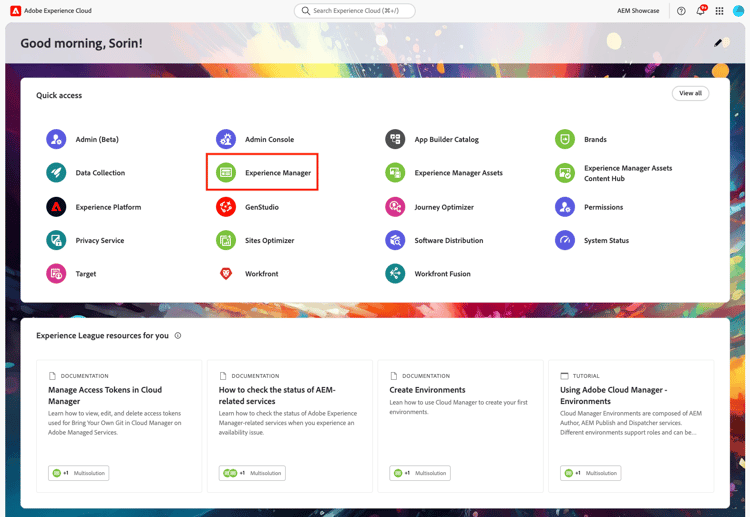
To get started, click Adobe Experience Cloud to open its home page.
-
In the left rail, under the Services heading, click Cloud Manager.
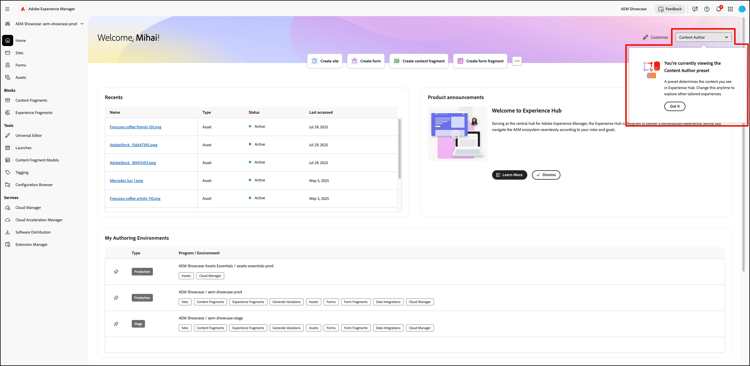
note important IMPORTANT The widgets, tools, and artifacts shown depend on the user persona, entitlements, and AEM deployment type (AEM as a Cloud Service or Managed Services 6.5/6.5 LTS). -
In the left rail, under Program, click

-
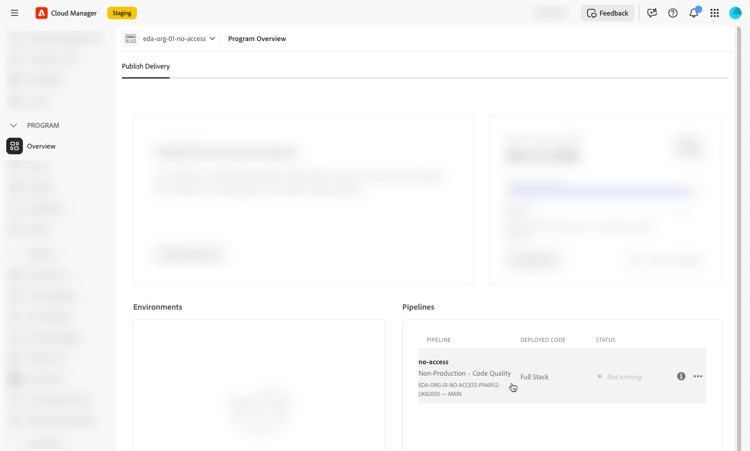
On the Program Overview page, in the Pipelines card, click a pipeline.
-
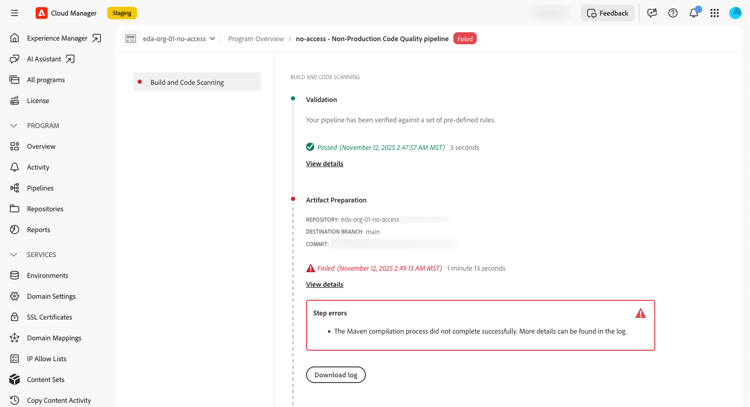
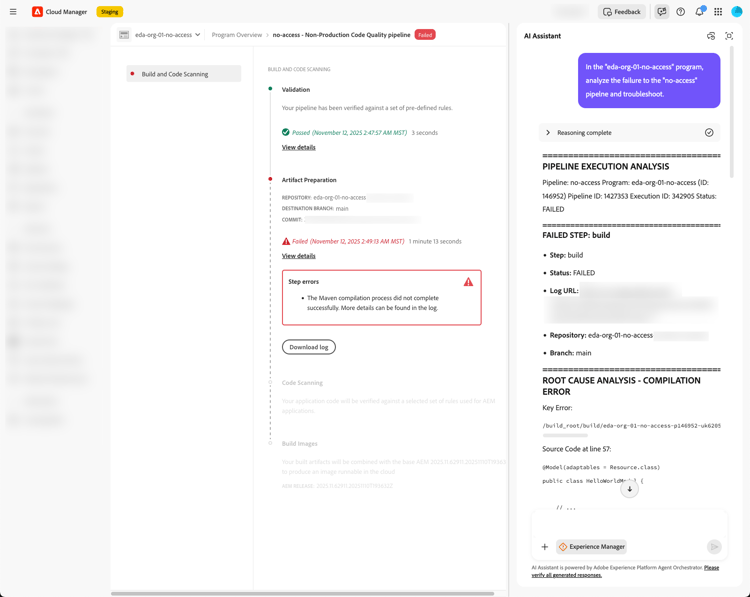
In the Build and Code Scanning page, note the failed pipeline.
-
Near the upper-right corner of the AEM user interface (either from Cloud Manager pages or the author instance of the AEM environments), click the AI Assistant icon.
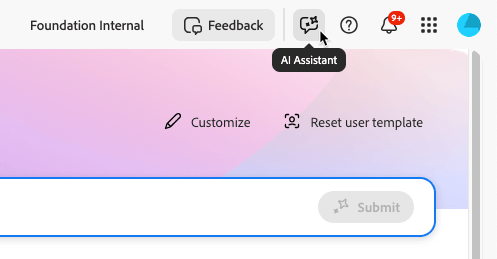
See also AI Assistant in AEM.
-
In the AI Assistant panel text box near the bottom, type your question or prompt, then press
Enteror click.
For example:
In the “eda-org-01-no-access” program, analyze the failure to the “no-access” pipeline and troubleshoot.The prompt results in the following response.
Troubleshoot directly from a failed pipeline execution troubleshoot-with-ai-button
When a pipeline execution fails, Cloud Manager also surfaces a Troubleshoot with AI button directly on the pipeline execution page. This method is the fastest way to start a troubleshooting session because the failed execution is automatically passed as context to the AI Assistant — no manual prompt entry is required.
-
In Cloud Manager, open the failed pipeline execution. The status banner displays Failed and the Troubleshoot with AI button appears near the upper-right corner of the page.

-
Click Troubleshoot with AI.
The AI Assistant panel opens on the right side of the screen. The assistant references the failed pipeline execution and begins its analysis, identifying the failing step and suggesting a fix you can apply manually.
-
Review the response and, if needed, continue the conversation in the AI Assistant text box to ask follow-up questions or request more detail.
Troubleshoot from the Experience Home failed pipelines widget troubleshoot-from-experience-home-widget
Experience Home includes a Failed Pipelines widget that gives you an at-a-glance view of pipeline failures across your programs without requiring you to navigate into Cloud Manager first. Each row in the widget represents a failed pipeline and shows the pipeline name, last run date and time, duration, and the step that failed. A Troubleshoot with AI button is available inline for each entry.

-
Open Experience Home, click on Experience Manager and scroll to the Failed Pipelines widget.
-
Locate the pipeline you want to investigate, then click Troubleshoot with AI in that row.
The AI Assistant panel opens with the failed pipeline execution pre-loaded as context. The assistant begins its analysis automatically, identifying the root cause and suggesting a fix.
-
Review the response and, if needed, continue the conversation in the AI Assistant text box to ask follow-up questions or request more detail.
Permissions permissions
The pipeline troubleshooting job requires either the Cloud Manager—Developer role or the Cloud Manager—Program Manager role.
Sample prompts sample-pipeline-prompts
Out-of-scope features out-of-scope-features
Pipeline troubleshooting operates on the Build & Unit Testing step and Code Scanning step in Full Stack Deployment and Code Quality pipelines. It also supports web tier config pipelines.
For other pipeline types and steps, debug failures by downloading and inspecting the logs. See Access and Download Logs for more information.
Replication troubleshooting job (Beta) replication-troubleshooting-job
Debug replication-related issues such as blocked queues.
Email aem-devagent@adobe.com for access to the beta program.