Forms Agentic Capabilities forms-agentic-capabilites
The Forms Agentic Capability of Adobe Experience Manager (AEM) as a Cloud Service is an AI-powered capability that collaborates with Coworker Chat to create forms for data collection through natural, conversational prompts. You describe the Adaptive Form or change you need, and the AI builds or updates it directly in your Experience Manager environment, then returns a link so you can review or continue customizing it. It helps you author, edit, and configure Adaptive Forms without needing hands-on support from a forms author or developer for routine changes, while keeping forms consistent with brand and compliance requirements.
This capability is part of Experience Production, which also covers Sites and Content Fragment use cases. It’s different from Forms Experience Builder, a separate AI tool built directly into the Adaptive Forms editor toolbar rather than accessed through Coworker Chat.
Some of the key benefits of the Forms Agentic Capability include:
-
Faster form authoring: Create an Adaptive Form from a natural-language prompt, brief, screenshot, or PDF. Import PDF and XDP files stored in AEM’s Digital Assets Management (DAM) repository.
-
Business rules and validation: Describe the conditions, calculations, or validation you need. Coworker creates or updates business rules that control the dynamic behavior of Adaptive Forms.
-
Reduced dependency on form authors/developers: Business users can create, edit, and configure forms conversationally without needing hands-on design or development support for routine changes.
-
Consistency across brand and compliance rules: Apply guidelines documents and organizational standards directly to forms, reducing drift between what’s built and what’s required.
-
Service calls and integrations: Call services from form rules and create or update REST API integrations. Choose where submitted data is sent, such as cloud storage, email, or supported backend systems like Adobe Experience Platform and Marketo.
-
Works across form types: One conversational interface for both Edge Delivery Services and Core Components forms, so you don’t need to know which stack a form is built on.
The rest of this article covers what you’ll need before you start, the available skills, sample prompts for each, and current limitations.
Prerequisites prerequisites-forms-agentic-capability
To use the Forms Agentic Capability, you must have:
-
A valid Experience Manager Forms license.
-
Experience Manager Forms onboarding complete on your Experience Manager as a Cloud Service environment. See Onboard to AEM Forms as a Cloud Service for details.
Skills skills-forms-agentic-capability
The Forms Agentic Capability provides the following key skills:
-
Natural language form creation
Create a new Adaptive Form from a plain-language description, an attached brief, an attached image or screenshot, or an attached PDF. See Common use cases and sample prompts for the complete list.
-
PDF and XDP import
Convert a PDF or XDP stored in AEM DAM into an Adaptive Form.
-
Form field and layout editing
Add, edit, remove, or reorder fields; create a field using an existing custom component; configure field properties such as placeholder text, validation formats, and file-type/size restrictions; change a field’s type (for example, converting a text field into a radio group); add knowledge-based fields (for example, country lists or industry codes); adjust column layout; and apply an attached guidelines document to an existing form.
-
Business logic and validation authoring
Describe show/hide conditions, calculations, validation, or event-driven actions in plain language. Add a business rule or change an existing one to control the dynamic behavior of an Adaptive Form, then review it in the rule editor for Core Components or rules for Edge Delivery Services. The skills can use existing custom functions created by developers, but do not create custom functions.
-
Call services from form rules
Call a configured Form Data Model (FDM) service or REST API integration from a form event. Use the response to fill form fields and set actions for a successful or failed call.
-
REST API integrations
Create an integration from API details or edit an existing integration’s endpoint, HTTP method, headers, and input or output mappings. See Common use cases and sample prompts for requirements and examples.
-
Form submission configuration
Configure where form data is sent on submit. Supported destinations include cloud storage (Azure Blob, OneDrive, SharePoint document library, SharePoint list), CRM/marketing platforms (Marketo), Adobe Experience Platform, generic web protocols (REST, OData, SOAP), email, or a custom submit action bundle for Core Components or Edge Delivery Services forms. The connector must already be configured in Experience Manager before the Form submission configuration skill can select and set it.
-
Form embedding
Place an existing or newly created form onto a designated Experience Manager Sites page. Supported on Edge Delivery Services pages only.
Personas personas-forms
Form authors and business users form-authors-business-users
The Forms Agentic Capability lets form authors and business users create and update Adaptive Forms conversationally, without depending on a designer or developer for routine changes.
Forms developers forms-developers
Forms developers can use the Forms Agentic Capability to accelerate routine build-out work, such as field configuration, layout, and business logic, freeing up time for complex or custom requirements.
Marketing operations marketing-operations
Marketing operations teams can quickly stand up campaign forms and configure submission destinations without waiting on a request queue.
Compliance and legal reviewers compliance-legal-reviewers
Compliance and legal reviewers can apply guidelines documents to forms to help enforce required disclosures, validation rules, and brand standards consistently.
HR and onboarding teams hr-onboarding-teams
HR and onboarding teams can create employee onboarding and internal request forms directly from a description or existing template.
Sales and financial services teams sales-financial-services-teams
Sales and financial services teams can create and update application-style forms, such as loan or account applications, without manual form-building.
Customer support teams customer-support-teams
Customer support teams can create and maintain contact and service-request forms to keep intake processes current.
IT and Forms administrators it-forms-administrators
IT and Forms administrators can configure and maintain submission integrations, such as SharePoint, Adobe Experience Platform, or webhook destinations, that other personas rely on when setting up form submissions.
How to access access
You can access the Forms Agentic Capability via the Coworker Chat.
Before you start before-you-start-forms
When you ask the Forms Agentic Capability to create a new form, it asks for a few details up front:
- AEM author URL: the author instance where the form should be created.
- Form type: Edge Delivery Services or Core Components. If you’re not sure which applies to you, see Adaptive Forms Core Components vs Edge Delivery Services Forms vs Foundation Components.
- Form fields: describe the fields you need in plain language. For a full list of available field types, see Adaptive Form Block components and their properties for Edge Delivery Services, or Form builder: Create forms with core components for Core Components.
The agentic capability automatically discovers the templates and themes available on your instance and selects one for you. You don’t need to name one. For background on how templates and themes work, see How to get reference themes and templates for AEM Forms? for Core Components, or Customize theme and styles for Edge Delivery Services for AEM Forms for Edge Delivery Services.
To import a PDF or XDP, provide its /content/dam/... asset path, the new form’s name, and its destination folder. Edge Delivery Services imports also need your Forms project’s GitHub repository URL. Core Components imports use templates and themes from the author instance.
To update an existing form, provide its URL or path and the AEM author URL. Create the fields a rule needs before asking to add it.
FDM services must already be configured. For a new REST API integration, have the API details ready.
Common use cases and sample prompts use-cases-prompts
Natural language form creation
The Forms Agentic Capability can generate a new Adaptive Form from a plain-language description, an attached brief, an attached image or screenshot, or an attached PDF.
When both Edge Delivery Services and Core Components forms are available in your environment, the agentic capability asks which type of form to create before generating it.
Sample prompts:
- Create from a plain-language description: Create an employee onboarding adaptive form.
- Create from a described form type: Create a
<form type>adaptive form. - Create from an attached brief: Create a form using the attached brief.
- Create from an attached image or screenshot: Create a form as per the attached image.
- Create from an attached PDF: Create a form from this attached PDF.
PDF and XDP import
Import a PDF or XDP from AEM DAM by giving its asset path in chat. Choose Core Components or Edge Delivery Services for the new form.
Sample prompts:
- Convert the PDF at
/content/dam/formsanddocuments/application.pdfinto a Core Components Adaptive Form named Application. - Import the XDP at
/content/dam/formsanddocuments/application.xdpinto an Adaptive Form.
Form field and layout editing
The Forms Agentic Capability can add, edit, or remove fields, configure field-level properties, add knowledge-based fields, and adjust the layout of an existing form. If you don’t specify where a new field should go, it’s appended to the end of the form, and the agentic capability asks whether you’d like it moved to a specific panel or position.
Sample prompts:
-
Add a field: Add Middle Name field below First Name field.
-
Use an existing custom component: Create a
<field>field using the<component>component. -
Remove a field: Remove the Fax Number field.
-
Rename a field: Rename the Comments field to Additional Notes.
-
Mark fields required: Mark all fields in
<panel>as required. -
Configure field properties: Add a text input field for Company Name with placeholder “Enter your company name.” Configure the Phone Number field with format (XXX) XXX-XXXX and validation.
-
Change a field’s type: Change the
<field>field into a radio group. -
Configure file upload restrictions: Add a file upload field for Resume with PDF and DOC restrictions, max 5MB.
-
Add a smart/knowledge-based field: populate a field’s options from built-in knowledge instead of listing every value yourself.
- Add a dropdown for departure airports with all major international airports.
- Add a complete list of US states with abbreviations.
- Add a field for industry classification with NAICS codes.
-
Update layout: Put First Name and Last Name fields in a 2 column layout, 50/50.
-
Apply an attached guidelines document: Update this form to match the attached guidelines document.
Business logic and validation authoring
Describe the conditions, calculations, or validation you want. Coworker creates the rules for you to review in the form’s rule editor.
To change an existing rule, name its field and describe the new behavior. Other rules on that field stay unchanged. Coworker asks for clarification if a field or value is ambiguous. Refresh the form editor after an edit to see the saved rule.
Sample prompts:
- Show the Company field only when Employee Type is Contractor.
- Make the Email field required and validate it as an email address.
- Hide the Shipping Address section when Same as Billing Address is checked.
- Calculate Total as Quantity multiplied by Unit Price.
- Change the rule on Company so it is shown when Employee Type is Contractor or Partner.
Call services from form rules
Call a service when someone clicks a button or changes a field value. Rules can also call services on initialization or after submission succeeds or fails. Configure the form’s submit action separately to choose where completed form data is sent.
Use an existing FDM service or REST API integration. FDM services can connect to REST, SOAP, OData, or database-backed systems. For a non-REST service, configure the data source and create the FDM before asking Coworker to add the rule. To create a REST API integration, provide the API details described below.
Name the service operation and the event that should call it. For each required input, specify the form field or value to send, including any calculation. Identify the response values that should fill form fields. Say what to do when the call succeeds or fails, including any conditions for those actions. See Invoke Service in the rule editor for details about mappings and handlers.
Coworker asks you to clarify missing required inputs or choose between matching operations. If the operation writes or deletes data, name it explicitly or confirm the proposed operation before Coworker adds the rule.
Sample prompts:
- When Lookup is clicked, call the customer lookup service with Customer ID as input. On success, populate Customer Name and Email from the response. On failure, clear those fields and show an error message.
- When Product Code changes, use the configured product REST API integration to look up that code and populate Product Name and Unit Price from the response.
- When Check Stock is clicked, call the inventory lookup service in our FDM with Product Code as input. Populate Available Quantity from the response.
- Change the Lookup button’s existing rule to use the customer directory service instead, keeping the other actions unchanged.
- Update the Lookup button’s rule to clear Customer Name and show an error message if the service call fails.
REST API integrations
Create a REST API integration from API documentation, a cURL command, an OpenAPI or Swagger specification, or a sample response. Provide the endpoint URL, HTTP method, and the inputs and outputs the rule needs. If a specification lists several operations, name the one to use. Coworker asks for any missing details.
New integrations created through Coworker run in the browser. The API must work without authentication and allow cross-origin resource sharing (CORS) from the form’s host. Keep passwords, tokens, and API keys out of chat. Configure authenticated APIs using the API Integration configuration in the rule editor.
You can change an existing integration’s URL, HTTP method, content type, or input and output mappings, including query parameters, headers, path parameters, and request-body values. Specify whether the response is an array. Coworker preserves existing authentication settings. Use the rule editor to change authentication, encryption, the integration’s name, or whether calls run in the browser or on the server.
Sample prompts:
- Create a REST API integration from the attached OpenAPI specification for the
<operation>operation. - Create an integration using this cURL command and sample JSON response.
- Add an optional lang query parameter to
<integration name>with a default value of en. - Change the endpoint URL of
<integration name>to<API URL>.
Form submission configuration
The Forms Agentic Capability can configure where a form’s data is sent on submit, provided the connector is already configured in Experience Manager. If no connector is configured for the requested destination, it tells you so and gives you the manual setup steps instead of failing silently. See Submit Actions Supported by Adaptive Forms for how to set up each connector. If a destination requires additional details, such as an endpoint URL or email recipient, it asks for them before applying the configuration. For a REST endpoint, form data is submitted as a JSON payload via POST.
A form supports a single active submit action at a time: configuring a new one replaces the current one rather than adding to it. To send data to multiple destinations, use a custom submit action bundle that sends data to each destination.
Sample prompts:
- Configure the form to send data to a REST endpoint.
- Submit to Azure Blob.
- Submit to SharePoint doc library.
- Submit to Adobe Experience Platform.
- Send email on submit.
- Use my custom submit action.
Form embedding
The Forms Agentic Capability can place an existing or newly created form onto a designated Experience Manager Sites page. This is supported on Edge Delivery Services pages only.
Sample prompts:
- Embed this form on the homepage of our site.
- Embed this form on
<page path>.
Next best action suggestions
After creating a form, the Forms Agentic Capability typically suggests relevant follow-up actions, such as adding business logic, configuring a submit action, embedding the form on a page, or cleaning up an earlier interim form. You can act on a suggestion directly instead of composing a new prompt from scratch. Routine edits to an existing form, such as adding a field or adjusting layout, are usually confirmed directly, without an additional set of suggestions.
Sample prompts:
- Add a rule to show the Company field only when Employee Type is Contractor.
- Configure this form to submit to a REST endpoint.
- Embed this form on the homepage of our site.
- Delete the earlier incomplete form.
Results forms-agentic-capability-results
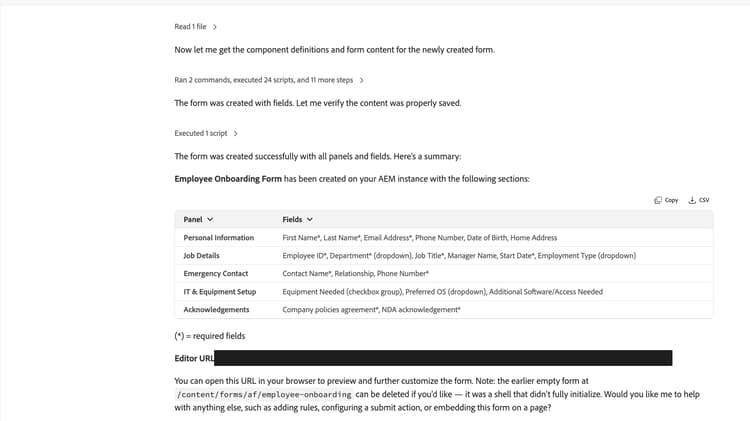
When you ask the Forms Agentic Capability to create a new form, it returns:
- A summary table of the panels and fields it created, with required fields marked with an asterisk (*).
- An Editor URL you can open to preview the form or continue customizing it in the form editor.
- A set of suggested next steps, such as adding rules, configuring a submit action, or embedding the form. See the Next best action suggestions examples under Common use cases and sample prompts above.
When you ask it to edit an existing form, it applies the requested changes directly to that form and confirms what changed. The confirmation experience is consistent across all use cases, including creation, editing, business logic, submission configuration, and embedding.
Prompting best practices prompting-best-practices-forms
Keep these tips in mind when prompting the Forms Agentic Capability:
-
Complete one operation per prompt instead of chaining multiple operations together. For example, ask to add a field in one prompt, then configure its validation in a follow-up prompt, rather than combining both requests into a single prompt.
-
Build forms incrementally. Start with a basic version of the form, then add validation, layout changes, and business logic in separate follow-up prompts. For example: create the form with its core fields first, then in a follow-up prompt add required-field validation, then in another add a conditional show/hide rule.
-
Reference fields and panels by their exact label, and specify position when it matters. For example, “Rename the Comments field to Additional Notes” rather than “rename that field near the bottom,” and “Add Middle Name below First Name” rather than just “Add a Middle Name field.” See the Form field and layout editing use case under Common use cases and sample prompts for what happens if you skip the position.
Limitations limitations-forms-agentic-capability
-
Converting an existing flat form into a wizard, accordion, or tabbed structure adds a new, empty structure alongside the existing content instead of migrating existing fields into it. Manual migration is required after generation. As a workaround, use the wizard layout in the Adaptive Forms editor to change the layout directly, or use Forms Experience Builder inside the Adaptive Forms editor to change the layout to a wizard using natural language.
-
Embedding a form onto a page is supported for Edge Delivery Services pages only. Core Components pages are not supported for embedding, even though form creation and editing work across both. As a workaround, manually add a Core Components-based form to a Sites page using the embed component.
-
Fields that live inside a referenced Form Fragment are not recognized for renaming, business logic rules, layout or styling changes, or field-count queries. As a workaround, make these changes manually in the Forms editor. See Adaptive Form Fragments (Core Components) or Form Fragments (Edge Delivery Services).
-
Form theme (brand color, font, logo) can only be set at creation time. There is currently no supported way to change the theme after a form is created. As a workaround, apply a different theme, or edit the current one, directly in the Forms editor. See themes for Core Components or theme and style customization for Edge Delivery Services.
-
The “add another instance” action for repeatable fields or panels may not behave reliably in the preview.
-
Checkbox field creation may occasionally fail to set the checked/unchecked values correctly. As a workaround, manually configure the default checked/unchecked value in the properties panel of the Checkbox component in the Adaptive Forms editor.
-
Coworker cannot delete rules and can edit only one field’s rule at a time. To delete a rule, use the rule editor.
FAQ faq-forms-agentic-capability
Is the Forms Agentic Capability available now?
Yes. It’s part of the Experience Production capability, available through Coworker Chat.
Can I import existing documents?
Yes. Attach a brief, image, screenshot, or PDF to chat, or provide the asset path to a PDF or XDP in AEM DAM. See Common use cases and sample prompts for sample prompts.
Will applying a guidelines document remove fields I already added?
Yes, it can. A guidelines document is treated as the form’s complete specification rather than an incremental change, so fields or content it doesn’t cover may be removed.
Can I send form data to more than one destination?
Not with a single submit action. A form supports one active submit action at a time. Use a custom submit action bundle to send data to multiple destinations.
Does this work for both Edge Delivery Services and Core Components forms?
Yes, for creation, editing, business logic, and submission configuration. Embedding a form onto a page is Edge Delivery Services only.
With the skills, sample prompts, and limitations above, you have what you need to start creating and updating forms conversationally through Coworker Chat.