[AEM Forms]{class="badge positive" title="Applies to AEM Forms)."}
Integrating API in Rule Editor
Integrating API in Rule Editor is under Early Adopter Program. You can write to aem-forms-ea@adobe.com from your official email id to join the early adopter program and request access to the capability.
The Visual Rule Editor in Adaptive Forms supports direct API integration without creating a Form Data Model. You can connect to an API endpoint by either entering the API URL (in JSON format) or importing the configuration through a cURL command. Once integrated, the Invoke Service action can be used to call the API.
Form fields can be mapped directly to the input parameters defined in the API configuration. Similarly, output parameters can be mapped to form fields using the event payload option for the corresponding API response.
Additionally, the Visual Rule Editor lets you define success and failure handlers when invoking a service. Success handlers specify the actions to be executed after a successful API call, while failure handlers define how the form should respond when an error occurs.
Comparison: API Integration Methods
API Integration Configuration
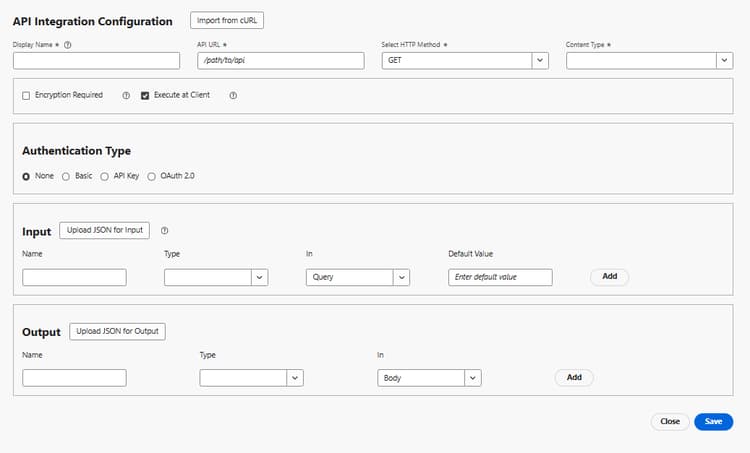
The screenshot below displays the API integration configuration window:
Key Configuration Options
API Integration Configuration
- Import from cURL: Configure your API integration by pasting a ready-made cURL command instead of manually entering details such as API URL, HTTP method, headers, and parameters.
- Display Name: Custom name for the API service.
- API URL: Endpoint of the API service.
- Select HTTP Method: The HTTP request method used to call the API.
- Content Type: Defines the request and response format.
- Encryption Required: (Optional) Ensures sensitive data is encrypted during transmission.
- Execute at Client: When enabled, the API call is made from the client (browser) instead of the server.
Authentication Type
- Options: None, Basic, API Key, OAuth 2.0.
Input Parameters
-
Upload JSON for Input: Upload a sample JSON file to auto-populate input mappings.
- Name: Input parameter name required by the API.
- Type: Data type of the input (String, Number, Boolean, etc.).
- In: Location of the parameter (Query, Header, or Body).
- Default Value: Pre-filled value if not provided by the user.
- Add: Option to add additional input parameters.
Output Parameters
-
Upload JSON for Output: Upload a sample API response to auto-generate mappings.
- Name: Output parameter name from the API response.
- Type: Expected data type of the output parameter (String, Number, etc.).
- In: Defines where the mapped value is expected.
- Add/Delete: Add new mappings or remove existing ones.
Use Case: Populating Country Fields in a Visa Application Form
Scenario: A government agency provides an online Visa Application Form with the following fields:
- Full Name (Text)
- Date of Birth (Date)
- Country of Citizenship (Drop-down)
- Passport Number (Text)
- Country of Passport Issuance (Drop-down)
- Destination Country (Drop-down)
- Intended Date of Arrival (Date)
Instead of maintaining a static list of countries, the form dynamically fetches country information (continent, capital, ISO Alpha codes, etc.) using the getcountryname API:
https://secure.geonames.org/countryInfoJSON?username=aemforms
This ensures applicants always see an up-to-date and accurate list of countries while filling out the form.
Implementation Using API Integration in the Rule Editor
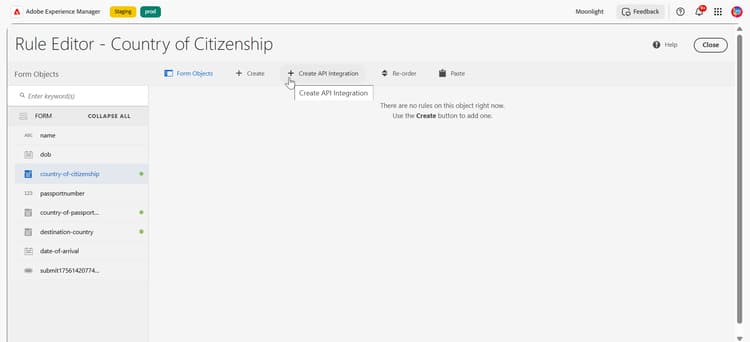
You can integrate an API without creating a Form Data Model by clicking the Create API Integration button in the Rule Editor.
An API service named getcountryname is configured under API Integration Configuration in the Rule Editor:
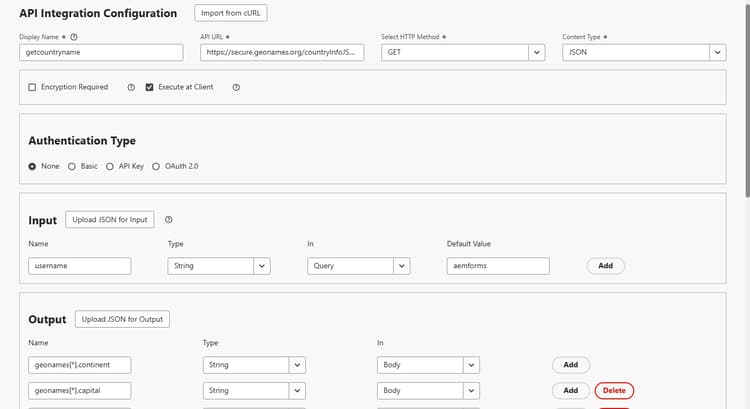
- API Endpoint URL →
https://secure.geonames.org/countryInfoJSON?username=aemforms - HTTP Method → GET
- Content Type → JSON
- Input →
usernamepassed as a query parameter (aemforms). - Output → Response fields such as
continent,capital,countrynames,isoAlpha3, andlanguagesare mapped to form fields.
In the Visa Application Form, the three drop-down fields, Country of Citizenship, Country of Passport Issuance, and Destination Country, are bound to the Invoke Service action.
When the form loads, Invoke Service fetches the list of countries from the API. The response is then mapped to automatically populate the drop-down options.
For example, when the user opens Country of Citizenship, the list of countries is displayed dynamically from the API response.
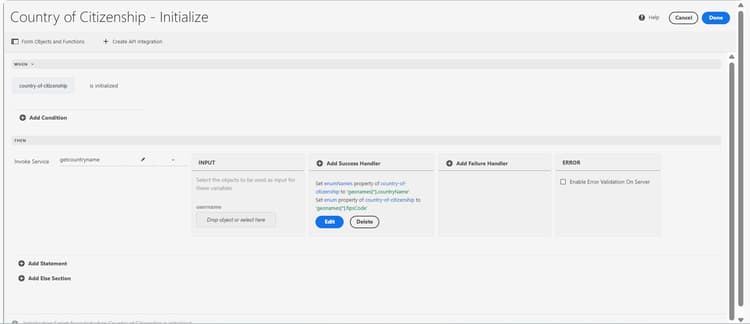
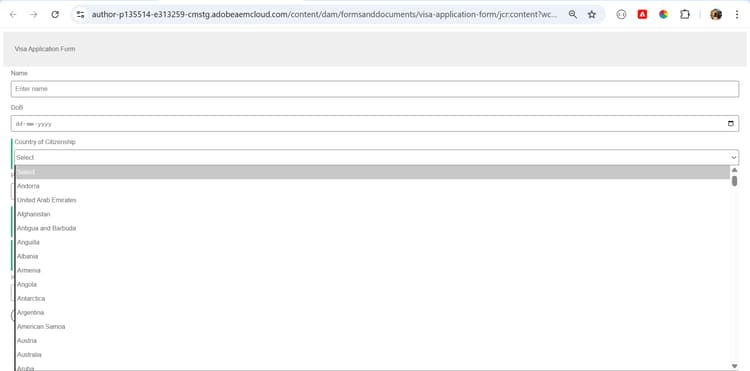
Similarly, Country of Passport Issuance and Destination Country use the same API call, ensuring consistent and up-to-date data across all three fields.
Implementing Retry Mechanism for API Failures
When an API request fails, it’s often useful to retry the request before reporting an error to the user. You can implement a polling and retry mechanism by writing custom code in the function.js file.
The following example demonstrates how to handle API failures with up to two retry attempts and exponential backoff between retries:
/**
 * Handles request retries with up to 2 retry attempts
 * @param {function} requestFn - The request function to execute
 * @return {Promise} A promise that resolves with the response or rejects after all retries
 */
function retryHandler(requestFn) {
    const MAX_RETRIES = 2;

    /**
     * Attempts the request with retry metadata
     * @param {number} retryCount - Current retry attempt count
     * @return {Promise} The request promise
     */
    function attemptRequest(retryCount = 0) {
        // Include retry metadata if this is a retry
        const requestOptions = retryCount > 0 ? {
            headers: {
                'X-Retry': 'true',
                'X-Retry-Count': retryCount.toString(),
                'X-Retry-Time': new Date().toISOString()
            },
            body: {
                retry: true,
                retryCount: retryCount,
                timestamp: Date.now()
            }
        } : undefined;

        return requestFn(requestOptions)
            .then(function(response) {
                if (response && response.status >= 400) {
                    console.warn('Request failed with status ' + response.status);
                    throw new Error('Request failed with status ' + response.status);
                }
                return response;
            })
            .catch(function(error) {
                console.warn('Request attempt ' + (retryCount + 1) + ' failed:', error.message);

                // Retry if max attempts not reached
                if (retryCount < MAX_RETRIES) {
                    console.log('Retrying request, attempt ' + (retryCount + 2) + ' of ' + (MAX_RETRIES + 1));

                    // Exponential backoff delay: 1s, 2s, 4s...
                    const delay = Math.pow(2, retryCount) * 1000;

                    return new Promise(function(resolve) {
                        setTimeout(resolve, delay);
                    }).then(function() {
                        return attemptRequest(retryCount + 1);
                    });
                } else {
                    // All retries exhausted
                    console.error('All retry attempts failed. Final error:', error.message);
                    throw new Error('Request failed after ' + (MAX_RETRIES + 1) + ' attempts: ' + error.message);
                }
            });
    }

    // Start the first attempt
    return attemptRequest(0);
}
In the above code, the retryHandler function manages API requests with automatic retries in case of failure. It takes a request function (requestFn) and attempts the request up to two times, adding metadata for each retry.
Frequently Asked Questions
-
Do I need to create a Form Data Model to integrate an API in Adaptive Forms?
No. With the Visual Rule Editor, you can directly integrate APIs using the Create API Integration option without creating a Form Data Model. This approach is best suited for lightweight or form-specific use cases. -
Can I secure API calls made from the Rule Editor?
Yes. The API Integration Configuration provides authentication options such as Basic, API Key, and OAuth 2.0. You can also enable Encryption Required to ensure sensitive data is securely transmitted.