Adobe Marketing Agent for Microsoft 365 Copilot
The Adobe Marketing Agent for Microsoft 365 Copilot is an AI-powered tool that connects Adobe Experience Platform directly to Microsoft 365 Copilot. With this agent, you can ask natural-language questions within Microsoft 365 applications such as Teams, Word, Powerpoint, and Excel to instantly retrieve marketing insights from Experience Platform without interrupting your workflow. The same agent is available across these apps, and your chat history with the Adobe Marketing Agent carries over—so you can start research in Copilot in Teams, for example, and continue the conversation in Word or Powerpoint while you draft a campaign brief or review a presentation.
With the Adobe Marketing Agent for Microsoft 365 Copilot, marketing managers, analytics and insights teams, and business stakeholders can:
- Make faster, data-driven marketing decisions.
- Reduce time spent switching between tools.
- Simplify access to audience and journey insights across teams.
How the agent works
The Adobe Marketing Agent for Microsoft 365 Copilot provides an integrated experience between Experience Platform and Microsoft 365 applications:
- Adobe Marketing Agent appears as an agent in Microsoft 365 Copilot, including in Teams, Word, Powerpoint, and Excel.
- Sign in with your Adobe account and select the data environment (sandbox, data view) that you would like to use.
Data access and permissions
The answers you receive reflect the data and access level tied to your Adobe identity—what you can query and see is the same as what you are entitled to in Experience Platform and its associated solutions. The Adobe Marketing Agent inherits those permissions and does not require a separate permissions setup for the Microsoft 365 integration. For underlying Experience Platform AI Assistant capabilities and other Adobe AI agents, permission requirements are unchanged from using those features in Experience Platform.
The agent connects your Microsoft 365 instance to Experience Platform and its associated applications (Real-Time CDP, Adobe Journey Optimizer, and Customer Journey Analytics). With this integration, you can then use the Experience Platform AI Assistant and agents to retrieve relevant insights directly to your Microsoft 365 instance. The answers returned in your Microsoft 365 instance are presented as conversational and natural language texts, tables, and data visualizations. Additionally, support for follow-up questions and investigations is available within the same Copilot chat.
Key use cases and example scenarios
Prerequisites
Before you can use the Adobe Marketing Agent for Microsoft 365 Copilot, you must first ensure that you have the following:
- Microsoft 365 with Microsoft Teams or Microsoft Copilot Chat.
- Experience Platform and at least one of: Real-Time CDP, Adobe Journey Optimizer, and/or Customer Journey Analytics.
- Entitlement to the Experience Platform Agent Orchestrator and agents.
- Access to your organization’s Adobe Experience Cloud account (sign-in and product entitlements) for the solutions and data you use. If you do not have Adobe access, contact your Adobe administrator.
Enable the agent for your organization enable-the-agent-for-your-organization
End users can use the Adobe Marketing Agent only after it is made available in your Microsoft 365 tenant. Work with your Microsoft 365 Copilot administrator (or equivalent admin for Copilot agents in your organization) to enable access and assign the agent as your organization requires.
Typical outcomes after admin setup include:
- You can open Agent Store in Teams, find Adobe Marketing Agent in your list of agents, and choose Add to attach it to your Copilot agents.
- Alternatively, your Copilot administrator can publish the agent to everyone in your organization or to specific groups so users do not need to add it individually.
For administrator steps and policy options in the Microsoft 365 admin center, see Manage agents for Microsoft 365 Copilot in the Microsoft documentation.
Get started
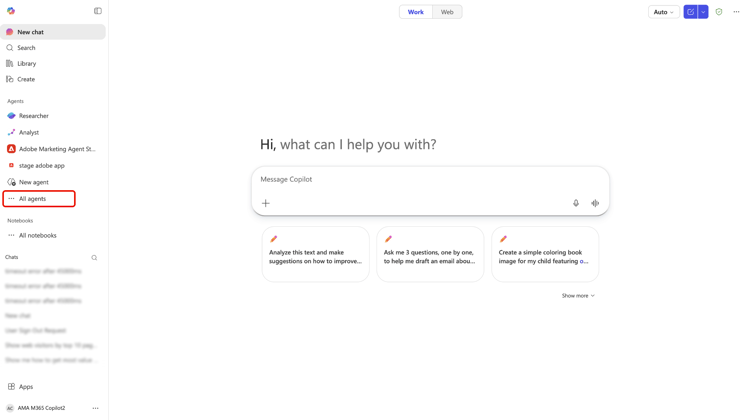
After your organization has enabled the agent (see Enable the agent for your organization), navigate to Microsoft 365 Copilot in the application of your choice and use the left-navigation to select All Agents.
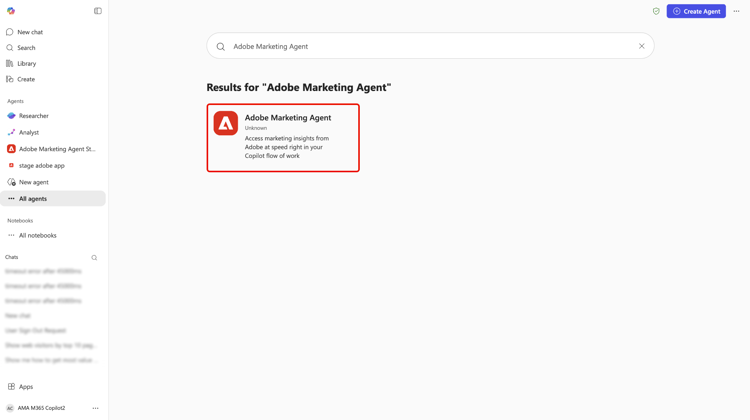
Locate the card for Adobe Marketing Agent or use the search bar to manually look for the agent. Once you have the agent, select the card.
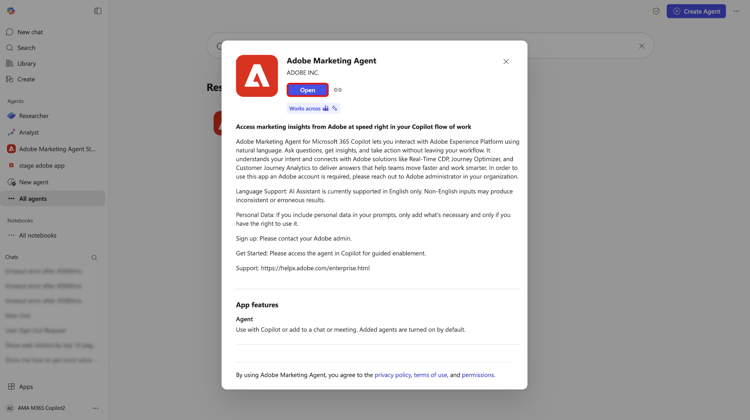
Use the pop-up window to learn more about the agent. When you are ready, select Add.
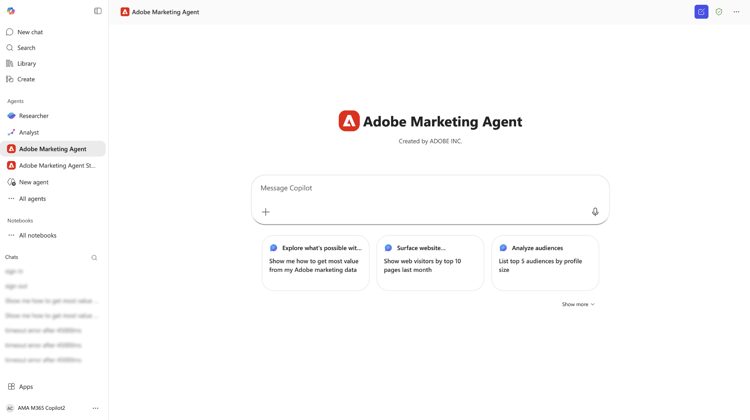
The Microsoft 365 Copilot dashboard updates with the Adobe Marketing Agent branding now on the main page.
Sign in and set your context
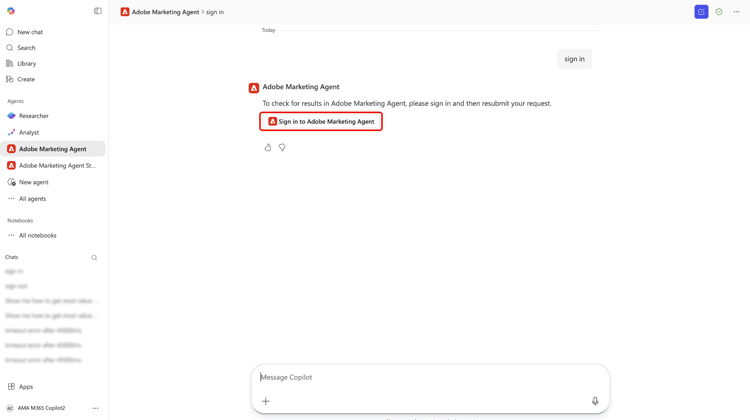
Next, prompt the agent to sign in and follow the ensuing steps required to authenticate your account. During this step, you will need to copy a numerical code that the agent returns and then sign in to your Adobe organization. If you cannot complete sign-in or you lack access to Adobe solutions for your organization, contact your Adobe administrator.
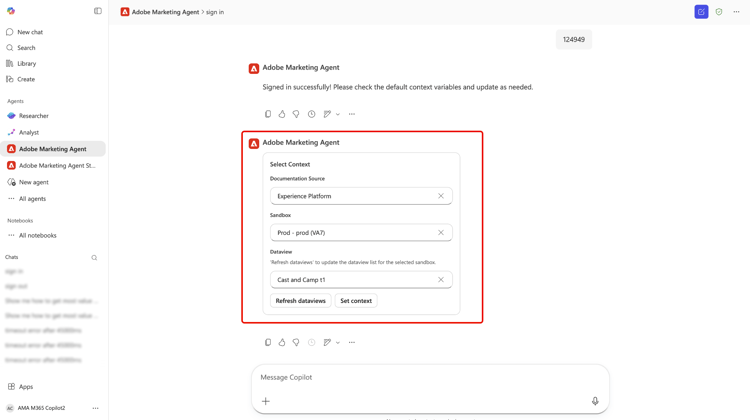
When successful, use the context setter to establish the documentation source, sandbox, and data view that you will use for your queries.
Use the agent to retrieve operational insights
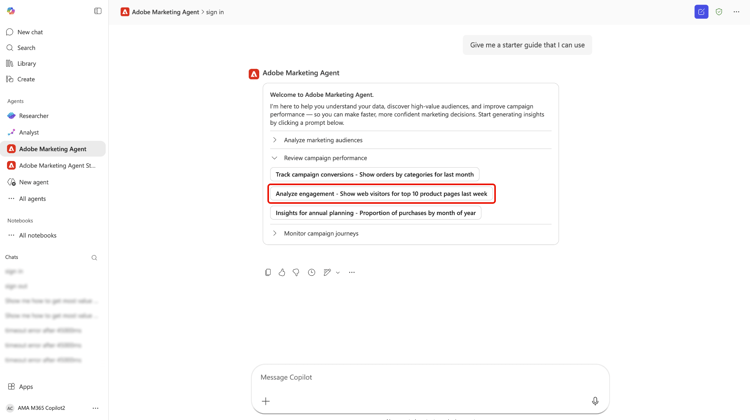
Once you are signed in, you can use the prompts provided in the main page to get started. You can also take advantage of a starter prompt that can branch out to analyzing marketing audiences, reviewing campaign performance, and monitoring campaign journeys. For example, select Review campaign performance and then select Analyze engagement - Show web visitors for top 10 products last week.
Allow for a few moments for the agent to calculate and then the agent responds with a visualized representation of your data. You can use the bar chart presented or you can select View data to view the data in tables.
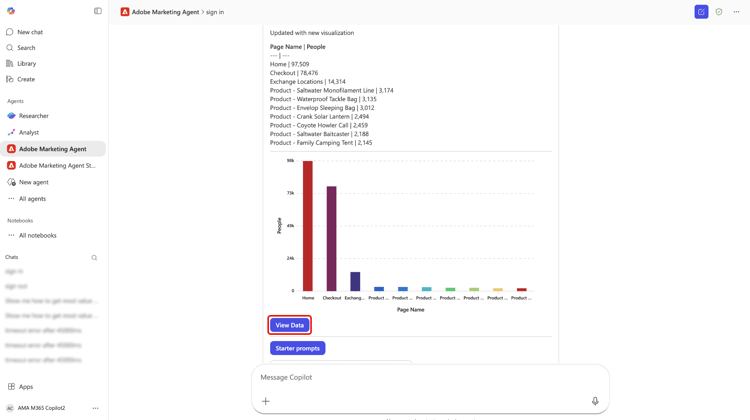
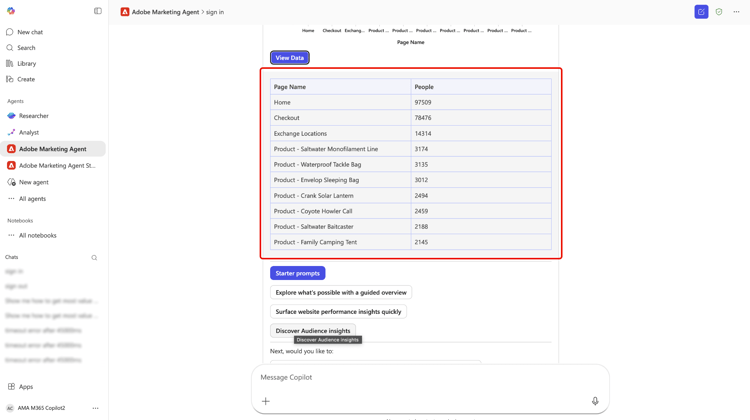
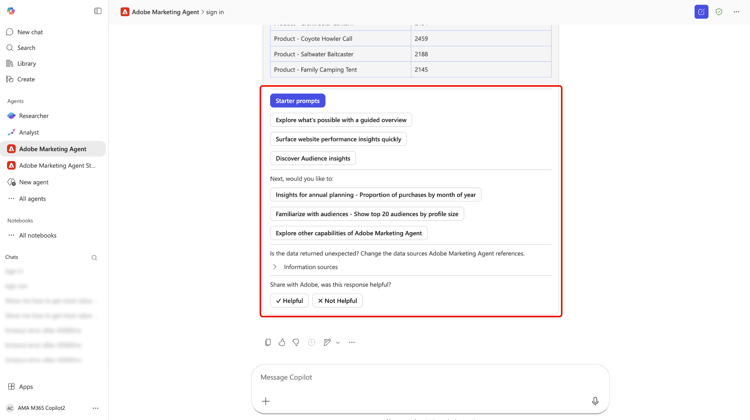
You can further investigate by selecting follow-up questions that the agent recommends. Alternatively, you can pivot and try different starter prompts, verify the information sources that the agent referenced, or provide feedback using the feedback mechanism.
For more information on the AI Assistant UI features, read the guide on using the AI Assistant.
Security, Privacy, and Responsible AI
Data handling and governance
The Adobe Marketing Agent relies on the same controls and governance that apply to Experience Platform and Microsoft 365. Your organization retains ownership and control of its data. Insights returned through the agent are scoped to each user’s Adobe permissions and data entitlements; no additional permission model is introduced for the Microsoft 365 surface beyond what already applies in Experience Platform and related Adobe AI agents.
Responsible AI use
The agent is intended to return read‑only insights and does not modify your customer data in Experience Platform. You should review any generated summaries and analyses before you use them to make business decisions.
Supported languages and scope
The initial release is available as an English‑language experience. Capabilities are limited to read‑only insights; the agent does not create or update marketing assets or configurations.
Appendix
Read the following for additional information on the Adobe Marketing Agent for Microsoft 365 Copilot.
Adobe Marketing Agent Microsoft 365 Copilot admin steps
To set up agents from an external provider (third-party developers or the Microsoft Commercial Marketplace), you must first ensure your tenant settings allow external apps and then manage them through the Integrated Apps or Agents section of the admin center.
Enable external agents in tenant settings
Before you can deploy external agents, your organization’s policy must allow them.
- Log in to the Microsoft 365 admin center.
- Go to Agents > Settings > User access.
- Under Allowed agent types, ensure Allow apps and agents built by external publishers is selected.
Acquire and approve the agent
Typically, you can find external agents in the Microsoft Commercial Marketplace.
- From the Marketplace: Find the agent you want and select Get it now. This will often redirect you back to your admin center’s Integrated Apps page.
- Review Permissions: In the Integrated Apps list, select the external agent.
- Review the Data & tools and Security & compliance tabs to see what data the external provider will access.
- Select Approve or Activate to move it into your organization’s inventory.
Deploy to certain users
Once approved, you can control exactly who sees the agent in their Copilot sidebar.
- In the Microsoft 365 admin center, navigate to Agents > All agents.
- Select the external agent from the list.
- Select Deploy (or Edit Assignment).
- Choose Specific users/groups and search for the individuals or Entra ID groups who should have it.
- Select Finish deployment. This “pushes” the agent to those users so it appears automatically in their Copilot interface.
Manage updates
External providers frequently update their agents. In order to manage these updates, follow the best practices below:
- Check the Agent Registry periodically.
- If an update requires new permissions, the agent may show a status of Pending Update.
- You must manually Approve Updates before the new version is rolled out to your assigned users.