Validate your Experience Platform data with Coworker
Adobe CX Enterprise Coworker includes the Data Validation skill, which checks the data quality of your Experience Platform datasets. Use it to run statistical and semantic validations on datasets, analyze dataset fields, and identify data quality issues, all through a single Coworker Chat conversation.
Data engineers, data admins, and implementation engineers use it for rapid quality checks, without SQL queries or complex schema hierarchies.
Use this skill to:
- Validate key identity and event fields after a new implementation or an implementation update.
- Investigate a suspected mapping issue by inspecting a field’s top values and invalid values.
- Run ongoing data stewardship checks on critical datasets to catch regressions early.
Before you begin
To validate your data with Coworker, you need:
- The name or ID of the dataset you want to validate.
- (Optional) The name of a specific field to validate, if you don’t want the skill to select fields automatically.
Start a validation session
-
Sign in to Coworker.
-
Select New Chat.
-
In the text field, prompt the agent to validate a field or a dataset. For example:
Prompt
Validate dataset “Electronics Sample 1000”
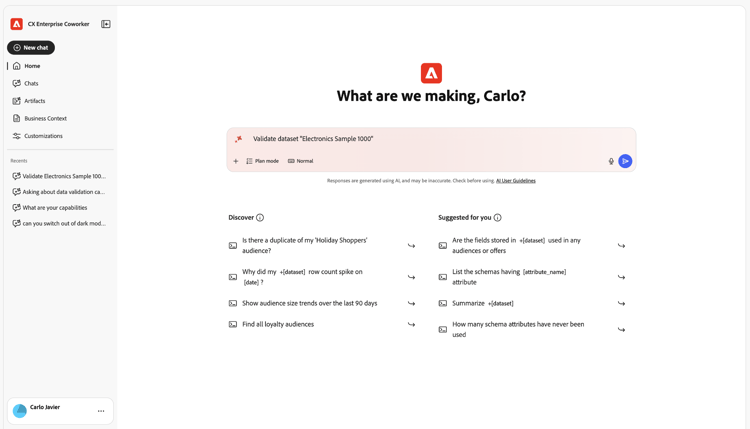
note tip TIP Prepend your dataset name with the word “dataset” so the skill can identify it correctly. For example, use “Validate the dataset Electronics Sample 1000” instead of “Validate Electronics Sample 1000.” Your request is routed to the Data Validation skill, which analyzes a sample of your dataset and returns results in the same conversation.
Choose what to validate
You can validate a single field or an entire dataset.
Validate a specific field in a dataset. This option provides:
- Null count and distinct value count.
- Top distinct values and their frequencies.
- AI-assisted semantic validation that flags values which don’t match the field’s expected format, based on the field’s metadata and its actual values.
Example prompts:
- Validate the email field in the Customers_2024 dataset.
- Validate field status for the dataset customer_events_2024.
- Validate field person.address.city for Customer Data dataset.
Validate up to five fields in a dataset at once. You can specify the fields yourself, or let the skill analyze the dataset and automatically select the most relevant fields. This option returns the same information as field validation, across every field you validate.
Example prompts:
- Validate Customer Data 2024 dataset.
- Validate fields email, phone for Customers_2024.
- Summarize firstName, lastName, birthDate for Customer Data.
Review the results
For each validated field, results appear as a row in a table with the following columns:
Below the results, Coworker adds a Next Steps list suggesting follow-up prompts, such as validating another field or re-running the dataset.
When you validate a single field, Coworker also returns a chart:
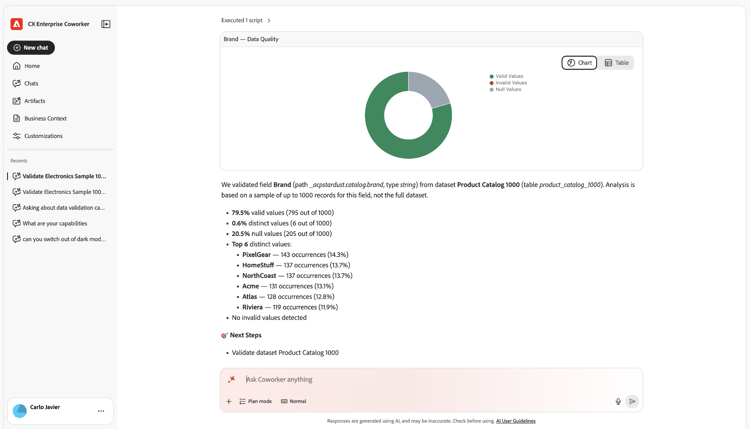
Select Chart or Table to switch between views of the same results.
When you validate a dataset, results appear in a table with one row per field. Fields you name yourself appear as you specified them:
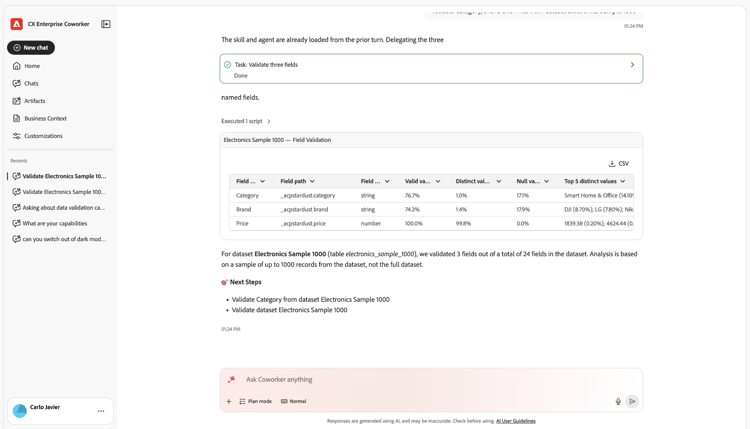
Fields the skill selects automatically appear the same way:

Select CSV to download the full results table.
Checks performed by data validation
The skill performs the following types of checks on each field and dataset:
-
Completeness checks: null and missing counts and percentages.
-
Distribution checks: top distinct values and their distributions, and high cardinality detection.
-
Semantic checks against the schema: uses the XDM field name, type, and description to infer what a valid value looks like, then flags anomalies.
-
Datatype-aware checks, where applicable:
- Email: format and domain plausibility.
- Phone: format readiness, for example E.164.
- Dates and timestamps: basic format checks, for example ISO-8601.
These checks combine deterministic statistics with LLM-assisted semantic validation to detect values that look wrong even when they technically match the schema.
Limitations
Before you validate your data, keep the following limitations in mind. These constraints balance performance with functionality and set expectations for the analysis and insights you can expect.
- Sampling only: the skill validates a sample of the dataset (typically the most recent 1,000 rows), not the entire dataset. Full-dataset scans aren’t available.
- Field count limit: when you validate a dataset, the skill analyzes up to five fields per request. You can specify these fields, or let the skill select them automatically.
- Probabilistic semantics: detection of invalid values relies in part on LLM-based inference, which can occasionally miss subtle errors or flag borderline values.
- Read-only: the skill doesn’t change your data or its schema. It highlights potential issues but doesn’t perform automated fixes.
If your validation needs are more exhaustive or require complex business logic, supplement these results with additional tools such as Query Service or Data Prep validations.
Related information
- Validate Adobe Analytics to Customer Journey Analytics data when upgrading
- Validate Customer Journey Analytics data with the Data Validation skill in Coworker
- Validate your data (AI Assistant)
- Trust Your Customer Journey Analytics Reporting: Data Validation Skill in Adobe CX Enterprise Coworker (video)