Validate your data in AI Assistant
You can use AI Assistant to validate the data quality of your Adobe Experience Platform datasets. Powered by Agent Orchestrator, the data validation capability can perform statistical and semantic validations on datasets, analyze dataset fields, identify data quality issues, and return natural language summaries with actionable insights. Data engineers, analysts, and data stewards can use this capability through AI Assistant to execute rapid data quality assessments without writing SQL queries or navigating complex schema hierarchies.
With Agent Orchestrator-powered data validation in AI Assistant, you can:
- Fill the essential gaps in both the onboarding process and the day-to-day diagnostics.
- Reduce manual QA on your datasets.
- Accelerate time-to-value for your customers.
Read this documentation to learn how you can validate your data in AI Assistant.
Use cases
UI guide
Use AI Assistant in Adobe CX Enterprise to validate your data. AI Assistant is the conversational interface, while Agent Orchestrator coordinates the validation workflow behind the scenes. The following steps follow the main screens you will see.
Start validation
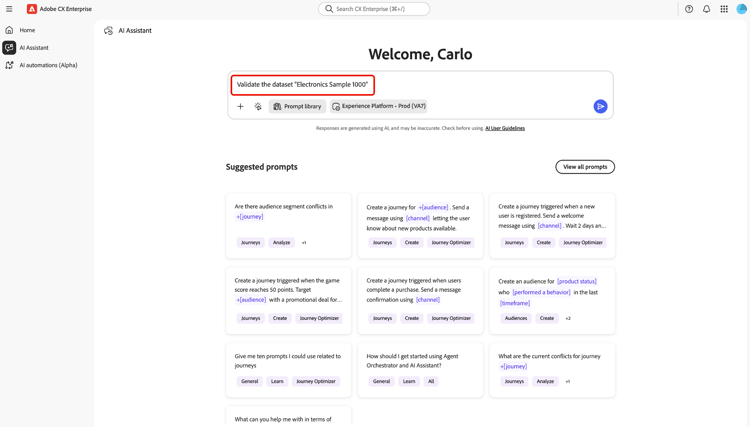
In the left navigation, select AI Assistant. Next, use the environment selector and choose the Experience Platform organization or sandbox where your dataset lives (for example, Experience Platform - Prod). In the prompt field, type a validation request (for example, ask to validate a dataset by name). Select Send to submit the prompt.
Read the dataset summary and field table
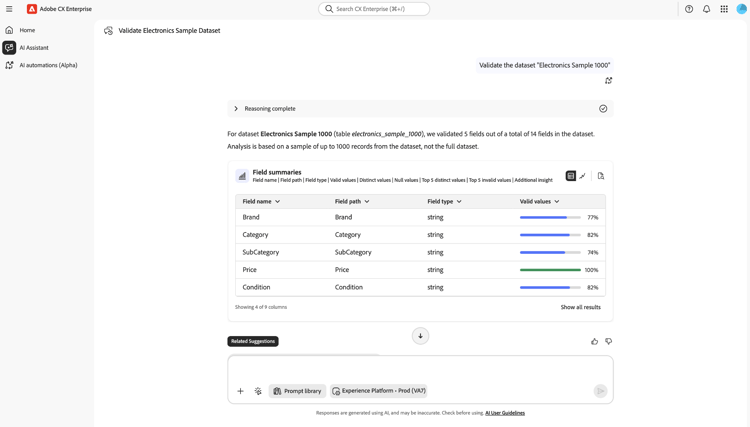
Allow a brief moment for Agent Orchestrator to complete the run (Reasoning complete). When the run is complete, read the summary for the dataset name, how many fields were validated, and the sample size (typically up to about 1,000 rows).
Use the Field summaries to review each field’s path, type, and Valid values (including the validity indicator). Additionally, you can use the table, chart, or document icons on the card to change how results are displayed, if available.
Select Show all results when you need additional columns or rows beyond the first view.
Work in split view
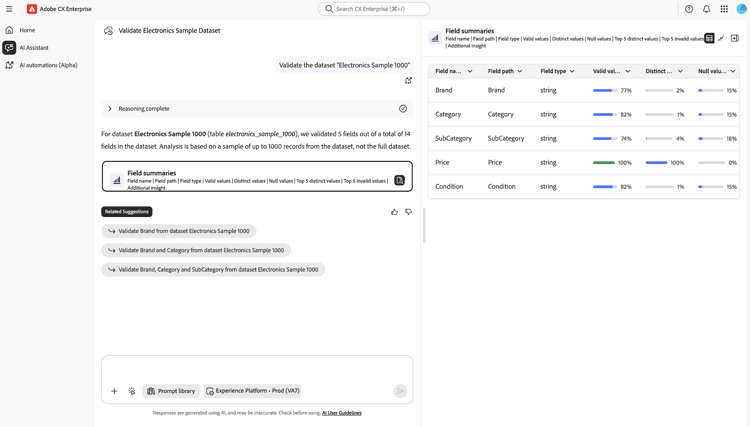
In expanded view, use the split layout: detailed statistics and narrative on one side and the chart on the other.
- On the narrative side, review validity, distinct values, null rates, top distinct values, and any invalid-value messages.
- On the visualization side, use the chart for a quick read of valid versus invalid values in the sample.
Use Related suggestions or the prompt field at the bottom to validate another field, re-run the dataset, or continue the conversation.
Use a related suggestion for a follow-up
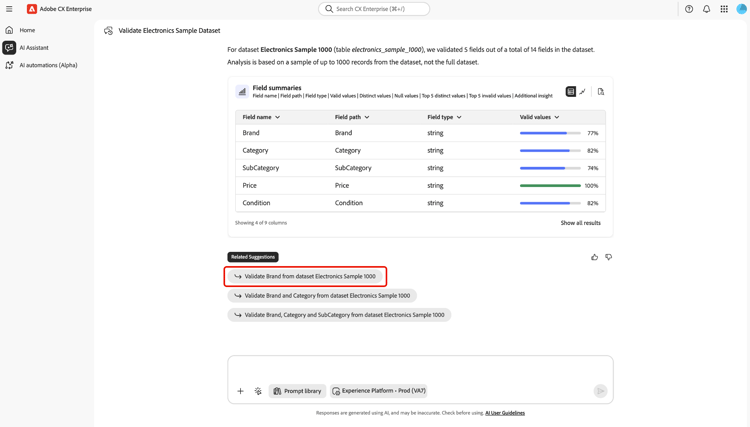
After a response, find Related suggestions below the conversation. Select a suggestion (for example, validate a specific field on the same dataset) to load it into the prompt field. Adjust the text if needed, confirm the environment, then select Send to run the follow-up.
Validate at the field level
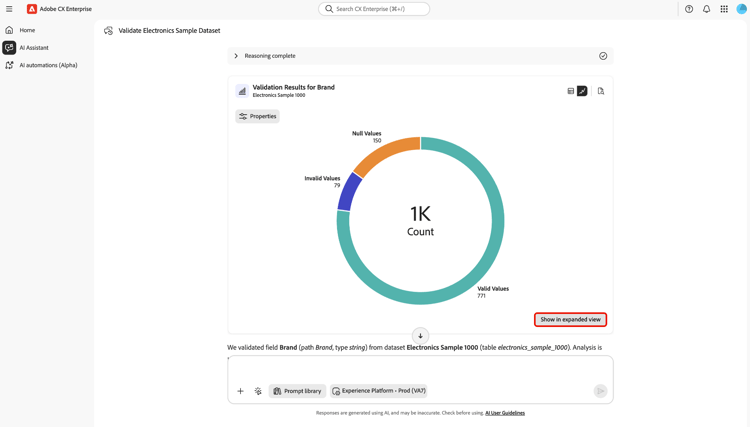
Open a field-level Validation results card (for example, after validating a single field). Use the view controls to switch to Chart (or another view) when you want a visual summary instead of a table. During this step, you can optionally select Properties to see more about the field.
Select Show in expanded view to open a larger, more detailed view of that field’s validation.
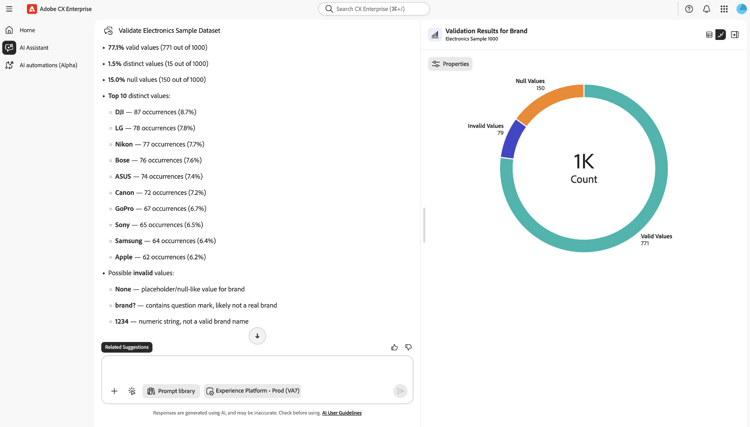
Through the expanded view, you can view an itemized list of the entire field, based on a sample of up to 1000 records for the given field. You can use this capability to retrieve information on your valid, distinct, and null values.
How validation works
When you initiate a validation in AI Assistant, Agent Orchestrator analyzes a representative sample of your dataset, typically the most recent ~1,000 rows, rather than processing the entire dataset history. The process is strictly read-only, ensuring that your data, schemas, and mappings remain unchanged. Validation results are consistent regardless of how your data enters Experience Platform, whether through sources, streaming, file uploads, Data Prep, or other ingestion methods. Results serve as indicative checks to help you quickly identify data quality patterns or potential issues, enabling you to take further action (such as exploring with Query Service) if needed. This Agent Orchestrator-powered approach allows for rapid assessments without disrupting data ingestion or impacting production workloads.
Validation results
For every validated field, AI Assistant displays results generated by the validation workflow, including:
Basic statistics
- Total row count used for the sample
- nullCount (and optionally % null)
- uniqueCount (where available)
- Top unique values (for example, top 10) and their frequencies
Semantic validation
- List of suspected invalid values
- For each invalid value, an explanation (for example, “not a valid email format”, “timestamp outside expected range”)
Natural language summary
- A short narrative summary of field quality
- Suggested next actions, such as “review mapping for field X”, “consider dropping field Y due to high null rate”, or “tighten validation for email format”.
nullCount = 9,532 (95.3%)uniqueCount = 3"True" (255), "False" (243)"abc@, reason: "not a valid email address"Validation types
There are two main validation types that you can perform with the AI Assistant:
- Field validation: Validate a specific field in a dataset.
- Dataset validation: Validate up to five (5) fields in a dataset.
Use field validation in AI Assistant to validate a specific field in a given dataset. This validation skill provides the following:
- Null count and unique value count.
- Top unique values and their corresponding frequencies.
- AI-assisted semantic validation (the ability to detect invalid values based on the available metadata and the actual values of the data).
Example prompts for field validation include:
- Validate the email field in the Customers_2024 dataset.
- Validate field status for the dataset customer_events_2024.
- Validate field person.address.city for Customer Data dataset.
Use dataset validation in AI Assistant to validate entire datasets, summarizing overall quality and key issues. While you can provide these fields explicitly, Agent Orchestrator can also analyze the dataset and automatically determine the most relevant fields. This skill provides the same type of information as field validation, but across several targeted fields. You can validate up to five fields in a given dataset.
Example prompts for dataset validation include:
- Validate Customer Data 2024 dataset.
- Validate fields email, phone for Customers_2024.
- Summarize firstName, lastName, birthDate for Customer Data.
- Summarize dataset 693012a4b8c98b09cea350bc.
Checks performed by data validation
The following types of validation are performed for each field and dataset:
-
Completeness checks: null/missing counts and percentages.
-
Distribution checks: top unique values and their distributions, high‑cardinality detection.
-
Semantic checks vs schema: uses the XDM field name, type, and description to infer what “valid” looks like, then flags anomalies.
-
Datatype‑aware checks (where applicable):
- Email: format and domain plausibility
- Phone: format readiness (for example, E.164)
- Dates/timestamps: basic format sanity (for example, ISO‑8601)
-
Identity‑related checks (future / extended): uniqueness of candidate identity fields or composite keys.
These checks combine deterministic statistics with LLM‑assisted semantic validation to detect values that “look wrong” even when they technically match the schema.
Limitations
Before validating your data, it’s important to be aware of a few key limitations. These constraints are intended to balance performance with functionality, and will help set expectations for the types of analysis and insights you can expect.
- Sampling only: Validation operates on a sample of the dataset (typically the last ~1,000 rows) rather than processing the entire dataset. Full-dataset scans are not available.
- Field count limit: When validating a dataset, the agent analyzes up to five fields per request. You can specify these fields, or allow the agent to select them automatically.
- Probabilistic semantics: Detection of invalid values relies in part on LLM-based inference, which may occasionally miss subtle errors or flag borderline values.
- Read-only operation: The agent does not make any changes to your data or its schema. It provides insights and highlights potential issues, but does not perform automated fixes.
If your validation needs are more exhaustive or require applying complex business logic, consider supplementing the results shown in AI Assistant with additional tools such as Query Service or Data Prep validations.