Deploy to AEM as a Cloud Service with confidence
Deployment confidence comes from knowing your environment is healthy before you push. This walkthrough shows how to check AEM environment status, review pipeline history, and trigger deployments from an AI client using the AEM Cloud Manager MCP Server, so teams can move fast without losing visibility.
Each step shows one representative prompt and an example AI response. A More prompts to try section follows for additional exploration in the same session.
Before you begin
Navigate to your project directory first, then add the Cloud Manager MCP Server using the CLI:
| code language-bash |
|---|
|
Or add it manually to .mcp.json in your project root:
| code language-json |
|---|
|
Restart Claude Code. The Cloud Manager tools are available in your next session.
Full setup: Claude Code MCP documentation
Add the Cloud Manager MCP Server to ~/.cursor/mcp.json (global) or .cursor/mcp.json in your project root:
| code language-json |
|---|
|
Open Settings > MCP, select Connect next to the server, and sign in with your Adobe ID.
Full setup: Cursor MCP documentation
Add the Cloud Manager MCP Server to .vscode/mcp.json in your project root:
| code language-json |
|---|
|
Note: VS Code uses "servers" as the top-level key, not "mcpServers".
Open the GitHub Copilot Chat panel, switch to Agent mode, and select Connect next to the server. MCP tools are only available in Agent mode.
Full setup: VS Code MCP servers documentation
Using another MCP-compatible environment? Connect to the Cloud Manager MCP Server using this endpoint:
| code language-none |
|---|
|
Full setup instructions for all supported clients: Connect to your AI client
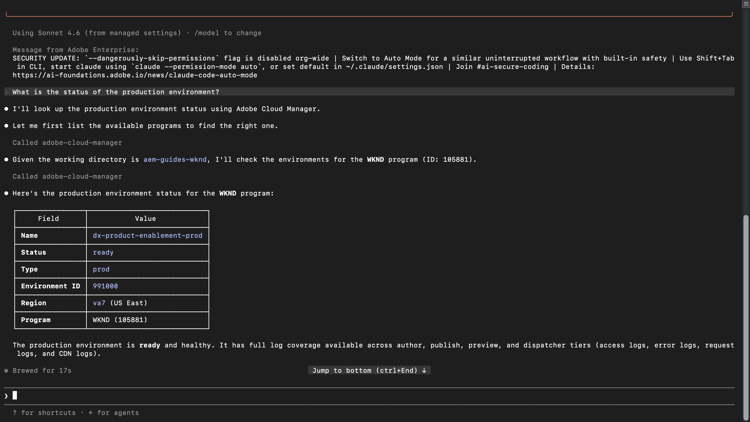
Step 1: Check environment status
Before kicking off a release, confirm your environments are healthy and nothing is actively running.
What is the status of the production environment?
Select to zoom.
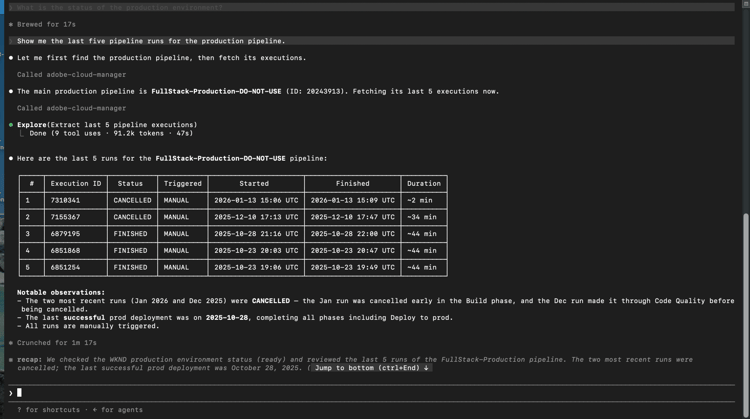
Step 2: Review pipeline runs
Review recent pipeline history to understand deployment patterns and catch failures before they block your next release.
Show me the last five pipeline runs for the production pipeline.
Select to zoom.
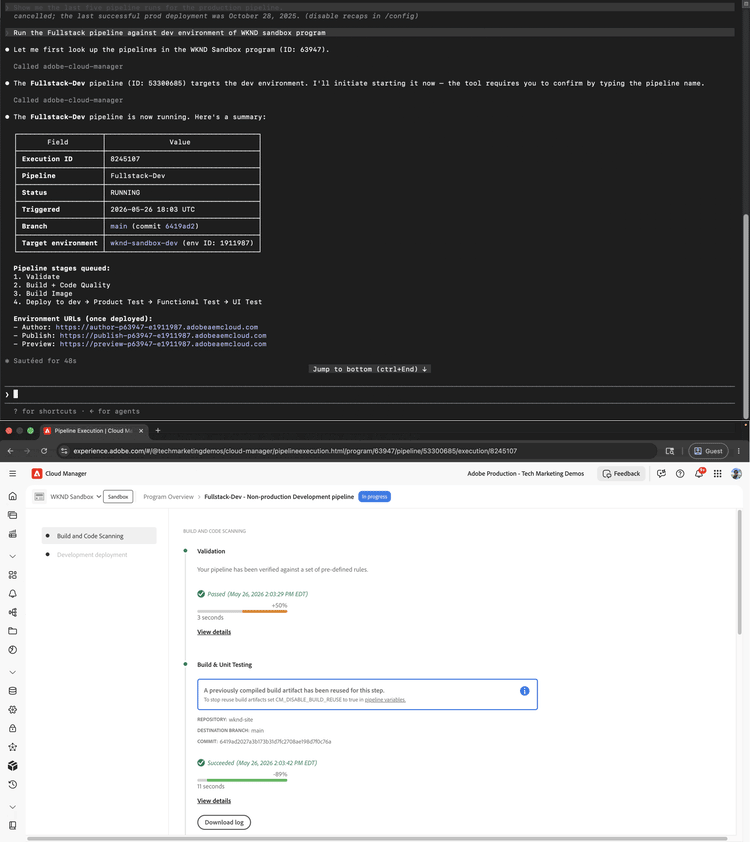
Step 3: Trigger a pipeline
Kick off a pipeline run directly from your AI client. The server confirms the target environment and asks for approval before starting.
Run the Fullstack pipeline against dev environment of WKND sandbox program.
Select to zoom.
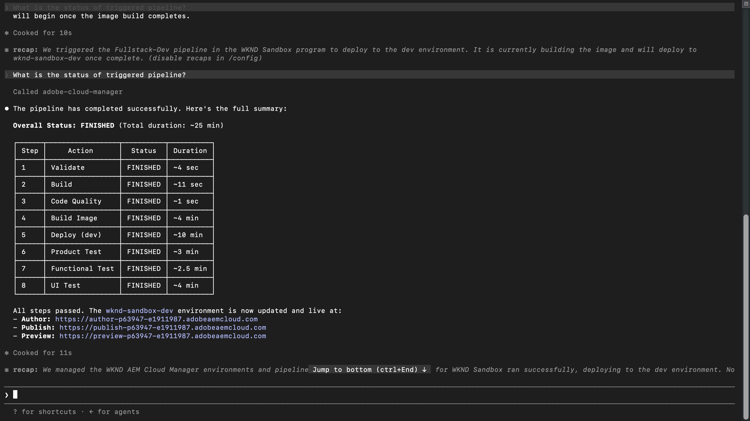
Step 4: Check pipeline status
After triggering a run, ask your AI client for a status update without switching to the Cloud Manager interface.
What is the status of the triggered pipeline?
Select to zoom.
What you accomplished
You used the AEM Cloud Manager MCP Server to check environment health, review pipeline history, trigger a deployment, and verify its status, without opening the Cloud Manager interface. By combining environment visibility and deployment control in a single AI session, development and operations teams can respond to issues faster and keep their workflow inside the tools they already use.
More you can accomplish
The Cloud Manager MCP Server handles far more than what the walkthrough above covers. Expand a scenario below to see prompts you can try in the same session.
Deployments often fail for reasons that were visible before the pipeline ran. These prompts help you confirm environment health, check for conflicting runs, and verify version alignment across environments before you commit to a release.
Prompts
| code language-none |
|---|
|
| code language-none |
|---|
|
| code language-none |
|---|
|
| code language-none |
|---|
|
An accidental trigger or a stalled approval gate can cascade into a blocked pipeline or an unwanted deploy. These prompts let you cancel or advance a running pipeline without switching to the Cloud Manager interface.
Prompts
| code language-none |
|---|
|
| code language-none |
|---|
|
Knowing when things last succeeded, how long pipelines run, and whether patterns are changing helps you plan releases and catch slow degradation before it becomes an incident. Use these prompts to pull that history on demand.
Prompts
| code language-none |
|---|
|
| code language-none |
|---|
|
| code language-none |
|---|
|
When a pipeline fails, the fastest path to resolution is understanding exactly where it broke and why. These prompts surface failure details, change history, and quality gate issues so your team can diagnose and fix without manually digging through logs.
Prompts
| code language-none |
|---|
|
| code language-none |
|---|
|
| code language-none |
|---|
|
| code language-none |
|---|
|