Notification skills notification-skills
Use Notification Skills in Adobe CX Enterprise Coworker to review notifications, identify action items, and manage notification preferences through conversation. Work with the notifications you already receive in the notifications panel across your Adobe CX Enterprise applications.
Summarize notifications, find specific items, and group repeated notifications into distinct issues. Open a notification in its application, mark it as read or unread, or set a reminder.
Before you begin before-you-begin
Before you begin, make sure you have:
- Access to Adobe CX Enterprise Coworker.
- Access to one or more Adobe CX Enterprise applications that send you notifications.
- A connected Slack workspace for your organization, if you want to receive notifications in Slack.
Review and act on notifications review-and-act
Start with a summary, then refine your request and act on a specific notification.
-
Open Coworker Chat. For instructions, see Get started with Coworker Chat.
-
Enter a request in the Ask Coworker anything box, then select Send. For example:
“What needs my attention today?”
-
Review the notifications that require action and those provided for awareness.

-
Enter a follow-up question to narrow the results. For example:
“From those notifications, are there any failures in Experience Platform I should know about?”

-
Ask for details about a notification, or open it in its application to investigate.
-
Ask to mark a notification as read or set a reminder. For example:
“Remind me tomorrow about the high-priority incoming event rate alert.”

Continue the conversation without repeating context from earlier requests. If your request could apply to multiple notifications, applications, or settings, answer the clarifying question before proceeding.
You receive a confirmation request before a change that extends beyond your request.
Supported use cases supported-use-cases
Use Notification Skills to review notifications sent to you, act on them, and manage how you receive them.
Identify action items identify-action-items
Ask which notifications require your attention across your Adobe CX Enterprise applications.
Example prompts:
- “What needs my attention today?”
- “Catch me up.”
- “Anything pending for me?”
Summarize notifications summarize-notifications
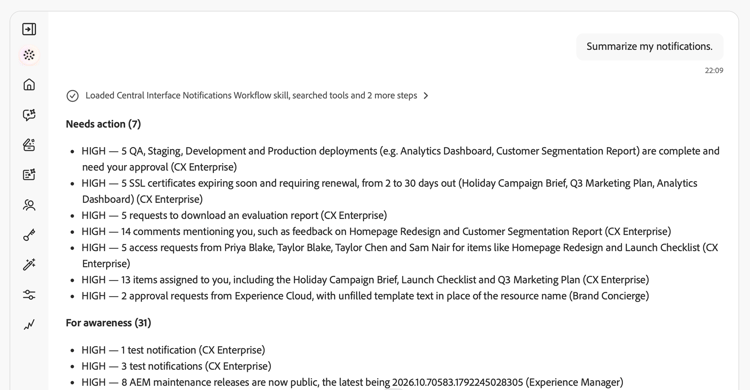
Request a summary for a time period or an application. Review action items separately from notifications provided for awareness. Repeated notifications are grouped into distinct issues rather than listed individually.
Example prompts:
- “Summarize my notifications from the past week.”
- “Give me an overview of my notifications from the last day.”
- “Summarize my Adobe Journey Optimizer notifications.”
Find specific notifications find-specific-notifications
Filter notifications by criteria such as unread status, approval requests, failures, errors, or product releases.
Example prompts:
- “Show me only unread notifications.”
- “Show me my approval requests.”
- “Are there any critical failure alerts I should know about?”
- “Show me release notifications for Experience Platform.”
Review notification details review-notification-details
Ask for the full details of a notification as it was sent. If multiple notifications match your request, specify which one you mean.
Example prompts:
- “Tell me more about the journey notification.”
- “What does this alert mean for me?”
Act on notifications act-on-notifications
Open a notification in its application, mark notifications as read or unread, or set a reminder. Choose a reminder for five minutes, 15 minutes, one hour, or tomorrow.
Example prompts:
- “Mark that notification as read.”
- “Mark that notification as unread.”
- “Remind me about this notification in an hour.”
- “Mark all my notifications as read.”
Manage notification preferences manage-notification-preferences
Ask about your current settings before changing how you receive notifications. Specify the application or notification category you want to update.
Example prompts:
- “What are my notification settings for Adobe Journey Optimizer?”
- “Disable Slack notifications for Experience Platform.”
- “Switch my daily digest to weekly.”
- “Mute release update notifications.”
- “Only send Adobe Journey Optimizer notifications by email.”
If Coworker Chat asks for scheduling details, specify the day, time, and time zone for your weekly digest.

More help on this topic more-help
Use these guides to get started with Coworker Chat or investigate Experience Platform alert activity.