Get started with Coworker Chat ui-guide
Coworker Chat lets you work with your Adobe CX Enterprise data and tools by asking for what you need in plain language. Use this page to open Coworker Chat, send your first message, and set it up the way you work.
Availability
Coworker Chat is available as an immersive experience, a full-page workspace, and as an in-product experience in some CX Enterprise applications.
The following table shows where each experience is available.
Sign in to Coworker sign-in
Sign in to Coworker using your Adobe credentials.
-
Sign in to CX Enterprise using your Adobe ID.
After signing in, you can open Coworker from the CX Enterprise application menu or by using a direct link:
-
From within CX Enterprise, click the application selector menu

-
To use a direct link, go to https://experience.adobe.com/#/coworker.
-
-
To start a chat, click New chat in the navigation rail.
Learn the basics of Coworker Chat
Specify your Coworker preferences preferences
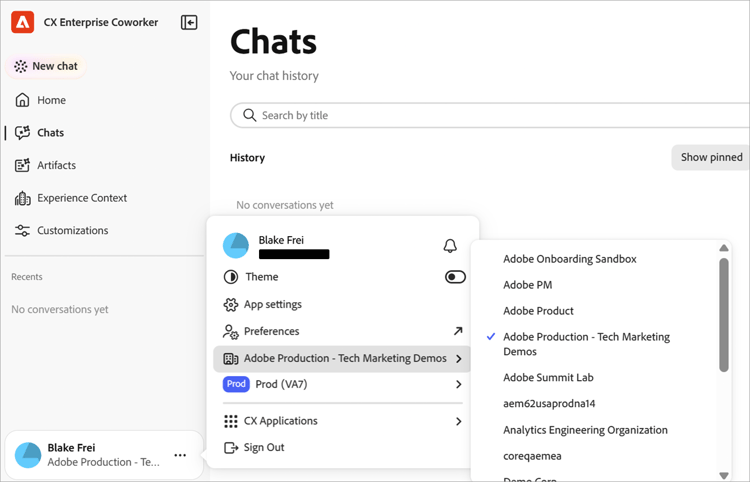
At the bottom left of the interface, you can specify options and preferences that determine which data, skills, and connected tools a chat conversation can reach.
Get familiar with Coworker features interface-features
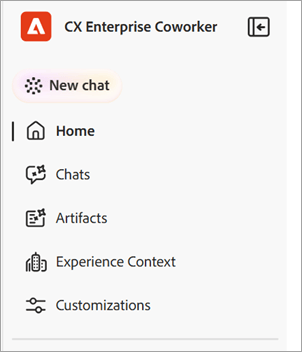
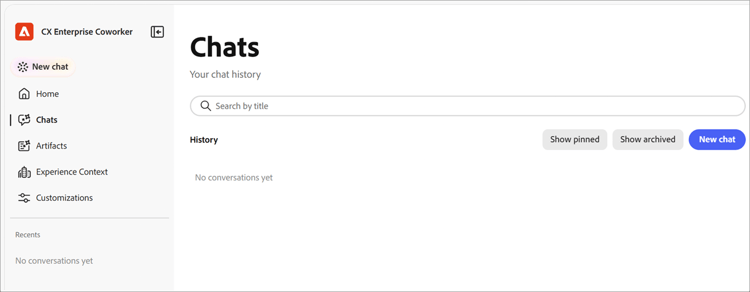
Coworker has two main areas: the navigation rail on the left and the chat window that fills the rest of the screen. To collapse the navigation rail so that it shows only icons, click the collapse icon next to the product name.
-
Navigation rail:
-
Chat window (shown here with the Chats page open):
From the navigation rail, the following features let you chat with Coworker and return to recent work:
Ask Coworker anything message
On the Coworker home page, you can type your question or select a suggested prompt, based on what Coworker Chat can do in your sandbox.
To ask Coworker a question:
-
Do one of the following:
- Select a prompt under Suggested for you. Coworker Chat adds it to the input box, where you can edit it.
- Enter your own request in the Ask Coworker anything box.
-
(Optional) Add context, choose how Coworker Chat responds, or dictate your message. See Add context and choose a response style.
-
Click Send.
To point Coworker Chat at a specific object in your sandbox, type + in the input box and Click a schema, journey, dataset, or other object. This is called an entity mention. It tells Coworker Chat exactly which object you mean.
Add context and choose a response style input-options
The toolbar below the input box controls what you attach, how Coworker Chat approaches the task, and how much of its work you see.
Attach a file or object
Attach a file or object when Coworker Chat needs more information to do the work.
-
Click + in the input box.
-
Click one of the following:
- Attach file: Upload a file for Coworker Chat to read and reference.
- Add data or object: Reference an object in your sandbox, such as a dataset or schema, so Coworker Chat works against your live data.
Review a plan before Coworker Chat acts plan-mode
Use Plan mode for complex tasks or tasks that change data. When Plan mode is on, Coworker Chat proposes a plan and waits for your approval before it carries it out. When Plan mode is off, Coworker Chat starts the work right away.
- Click Plan mode in the input toolbar to turn it on.
- Send your message.
- Review the plan and approve it to continue.
Choose a transcript view
The transcript view controls how much of Coworker Chat’s reasoning and tool activity appears in the conversation.
-
In the input toolbar, click the transcript view control. It shows the current view, such as Normal.
-
Click a view:
table 0-row-2 1-row-2 2-row-2 3-row-2 View What you see Normal A summary of key thinking steps and tool activity. Focus Mostly the answer. Coworker Chat hides most intermediate steps. Verbose Every thinking step, skill load, file read, and query.
Review a response
Coworker Chat shows its work as it goes, then returns an answer. A response can include its reasoning, a record of the tools it used, artifacts, and a summary.
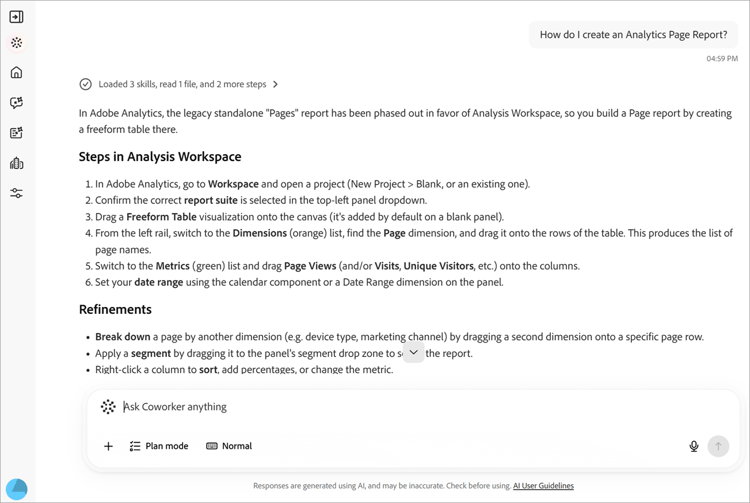
When a response is long, click the arrow that appears over the response to jump to the end. Coworker Chat displays the following notice below the input box: “Responses are generated using AI, and may be inaccurate. Check before using.” Review responses before you act on them.
Follow the activity
While Coworker Chat works, you can follow and verify what it does. In the Normal view, a one-line summary of its activity appears above the answer, for example “Loaded 3 skills, read 1 file, and 2 more steps”. Click the summary to expand it, and expand any entry to see more detail. The entries include:
- Thought for: A collapsible block with Coworker Chat’s reasoning and how long it took.
- Loaded skill: The specialized capability Coworker Chat used for the task.
- Read file and Ran 1 query: The files Coworker Chat read and the queries it ran, with the time each took.
Work with artifacts
Coworker Chat shows results, such as a table of audiences, as artifact cards in the response. You can download a table artifact as a CSV file from its card. When a response includes more than one artifact, use Previous and Next to move between them.
Use the summary
Below the artifacts, Coworker Chat explains what the results mean, highlights notable findings, and suggests follow-up actions. Use these suggestions to continue the conversation.
Rate and copy a response
Each response includes controls that you can use to give feedback or reuse the content.
- Click Thumbs up or Thumbs down to rate the response. Your rating helps improve future answers.
- Click Copy, then choose Copy as Markdown to keep formatting or Copy as Plain Text to remove it.
Manage your chats
Your chat history keeps past conversations so you can return to them. Click Chats in the navigation rail to open it. Conversations are grouped by date, and each row shows the title and the number of turns.
On the Chats page, you can:
- Enter a name in Search by title to find a conversation.
- Click Show pinned to see only the conversations you starred.
- Click Show archived to see archived conversations.
- Click New chat to start a conversation.
To pin, rename, archive, or delete a conversation, click the row menu (…) on its row and choose an option.
Customize Coworker Chat
Customizations is where you control what Coworker Chat can do. Click Customizations in the navigation rail, then choose a tab: Skills, Integrations, Marketplaces, Plugins, or Memory.
Add and view skills
Skills are specialized capabilities that Coworker Chat uses automatically when they apply. You can also start a skill yourself by typing / in the chat. The Skills tab lists every installed skill.
-
On the Skills tab, click Add Skills to install skills from a new source.
-
Enter a name in Search to find a skill.
Use the view toggle to switch between grid and list layouts. -
Select a skill to see the plugin it belongs to, when Coworker Chat uses it, and the files it includes.
-
(Optional) Click View SKILL.md to read the full skill definition, or click Remove Source to uninstall the skill.
Connect a server server
Server a integration connects Coworker Chat to external tools and services, such as Adobe Journey Optimizer, Real-Time CDP, Target, and Workfront.
-
Navigate to Customizations > User > Integrations
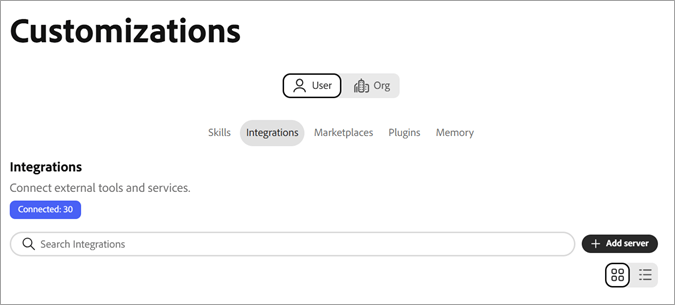
The Integrations tab lists your connected servers and the number of active connections. Each card shows the server name, its endpoint, and tags that describe what it provides.
-
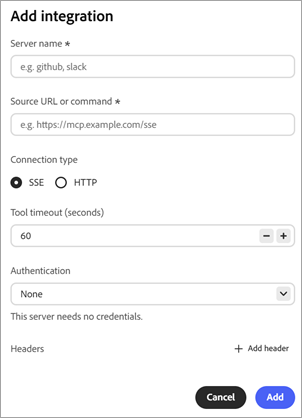
On Customizations, click Add server.
-
Complete the following fields and options:
- Server name (required): Enter a name that identifies the server in your list of integrations, for example
githuborslack. - Source URL or command (required): Enter the address that Coworker Chat connects to, for example
https://mcp.example.com/sse. - Connection type: Select the protocol that the server uses to communicate with Coworker Chat, either SSE (server-sent events) or HTTP. The default is SSE.
- Tool timeout (seconds): Set how long Coworker Chat waits for a tool on this server to respond before it stops the request. The default is 60 seconds.
- Authentication: Select how Coworker Chat proves its identity to the server. The default is None, which sends no credentials. Select another method if the server requires credentials.
- Headers: Click Add header to send extra HTTP headers, such as an API key, with every request to the server. This option is optional.
- Server name (required): Enter a name that identifies the server in your list of integrations, for example
-
Click Add.
Add a marketplace
A marketplace is a registry of plugins that you can browse and install from. On the Marketplaces tab, click Add Marketplace to register a new one. Use Search or filter by group to narrow the list. A marketplace with a Ready status is available to install from.
Manage plugins
A plugin bundles skills and servers so that you can install and manage them together. The Plugins tab shows your installed plugins.
- Click Browse Marketplaces to find new plugins.
- Filter by marketplace to see where each plugin came from.
- Click Uninstall to remove a plugin and everything it bundles.
Manage memory
Memory lets Coworker Chat remember your preferences across conversations, so responses stay relevant over time. Use the Memory tab to control what it keeps.
- Click Memory on the Customizations page.
- Turn on Enable memory. Turn it off to stop Coworker Chat from remembering across sessions.
- Under Stored preferences, review what Coworker Chat saved. You can edit, delete, or inspect each entry, and filter entries by category.
- Use Saved memories history to see a timeline of changes to your memories.