Journey analysis overview
Use Adobe CX Enterprise Coworker Chat to find where customers drop out of the journey to conversion, and why, across channels, devices, and segments. Describe the journey in plain language, and Coworker Chat builds the funnel, shows the drop-off at each step, and helps you investigate the cause.
Journey analysis is one of several analysis domains in Coworker Chat. To see all domains, see Start analyzing in Coworker Chat in Analyze data with Coworker Chat.
Best for: Analyst, Business user
Prerequisites
To use the use cases on this page, you need:
- Coworker Chat connected to your Customer Journey Analytics data views or Adobe Analytics report suites. See Get started analyzing data with Coworker Chat.
- View access to the data views or report suites that you want to analyze. Coworker Chat inherits your permissions from Customer Journey Analytics or Adobe Analytics.
Use cases
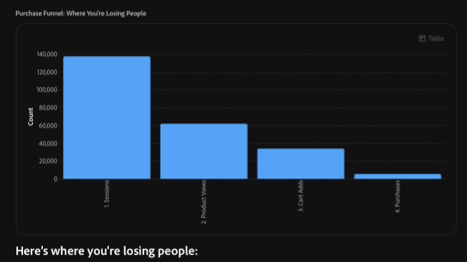
Answers natural-language questions about your data views or report suites, builds funnels and other visualizations, and finds where customers drop off. You can open any visualization in Analysis Workspace for further analysis.
Sample prompt: “Show me page views for the last 30 days”
For more information, see Get started analyzing data with Coworker Chat.
Builds a funnel from a plain-language question, ranks the biggest leaks, and suggests next steps.
Best for: Business user
Sample prompts:
- “Where are we losing people on the way to purchase?”
- “Walk me through the checkout funnel”
For more information, see Skills and limitations.
Investigates where customers drop out and evaluates what contributed to the change.
Sample prompts:
- “Why did conversions drop last week?”
- “Where did customers drop out after the site change?”
Rules out causes one at a time to isolate the channel, device, or segment behind the problem.
Sample prompts:
- “Is cart abandonment worse on mobile or desktop?”
- “Which channels leak the most between cart and purchase?”
Shows, step by step, whether the changes you shipped moved the funnel.
Best for: Business user
Sample prompts:
- “Compare checkout conversion this quarter to last”
- “How did my funnel change after the redesign?”
Example: Find where customers drop off
For a full example conversation, from the first question to a recommendation, see Example: Find where customers drop off in Get started analyzing data with Coworker Chat.
Skills used
Coworker uses the following skills for the use cases described in this article. For a list of all analytics skills, including the permissions they require and what they don’t cover, see Skills and limitations in Analyze data with Coworker Chat.
cja, aaFind where customers drop off
Compare journeys across periods
cja-root-cause-analysis, aa-root-cause-analysisIsolate the cause of a drop-off
Tips for better results
- Name the journey steps that you want to analyze, such as product page, cart, checkout, and purchase.
- Name the dimensions, metrics, and date range you want analyzed, and reference components by their exact name.
- Ask for a funnel or fallout visualization if that’s what you want to see.
- Specify the segments, channels, or devices that you want included, excluded, or compared.
- Mention any hypothesis you already have, such as a recent site change, so Coworker Chat can validate or rule it out.
- Ask for recommended next steps if you want Coworker Chat to suggest follow-up questions.
- Open any visualization in Analysis Workspace when you want more manual control. See Open a visualization in Analysis Workspace.
Next steps
- For an overview of data analysis with Coworker Chat, including the other analysis domains and best practices, see Analyze data with Coworker Chat.
- To set up Coworker Chat and walk through a working example, see Get started analyzing data with Coworker Chat.