Access control for Coworker access-control
Use Adobe CX Enterprise Coworker access control to manage who can use Coworker and which capabilities they can use.
How access is determined how-access-is-determined
Coworker access is controlled by an organization-wide setting and optional user or group overrides. The organization-wide setting enables or disables Coworker access for users in your organization. Access is enabled for everyone by default.
Add Coworker administrators add-coworker-admins
A Coworker administrator is a user assigned the Product Admin role for Adobe Experience Platform in Adobe Admin Console.
Use this video to learn how to add Coworker admins.
Manage user access manage-user-access
-
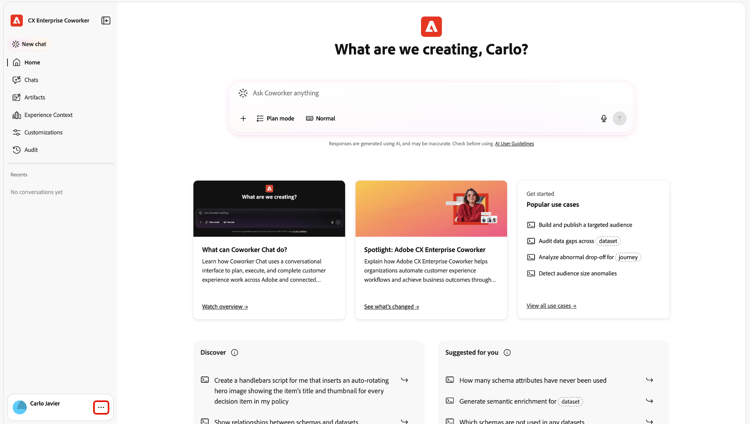
Open the Coworker experience. For instructions, see Sign in to Coworker.
-
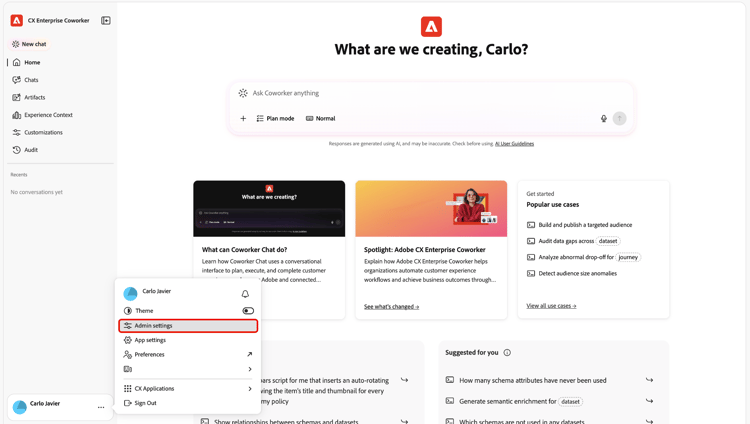
Open the profile menu and select Admin settings.
-
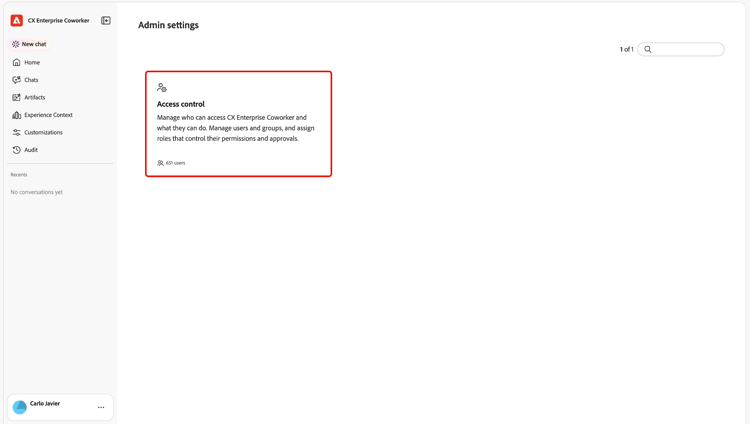
Select Access control.
Use this video to learn how to manage Coworker users.
embed https://video.tv.adobe.com/v/3507151?learn=on video-transcript https://video.tv.adobe.com/vc/3507151/eng.json -
In Coworker, use Users to manage access for individuals, or User groups to manage Coworker access for groups of users. A user group setting applies to its members.
Coworker user groups are separate from Adobe Admin Console groups. Syncing user groups from Adobe Admin Console to Coworker is coming soon.
The Users list includes users in your organization. Coworker access is enabled for these users by default.
- Enabled: The user or user group is active.
- Disabled: The user or user group is inactive.
When access for everyone is disabled, turn on Allow overrides and select Add override to add users or groups who should still have access.
Permissions in Coworker-compatible CX Enterprise applications permissions-in-compatible-applications
Coworker-compatible CX Enterprise applications continue to enforce their own permissions.
Coworker respects permissions in compatible applications. For example, if you cannot access a dataset in Adobe Experience Platform, Coworker cannot retrieve or act on that dataset for you.
Get help with access get-help-with-access
If you do not see Access control, contact your Adobe administrator or Adobe representative. They can confirm whether the feature is enabled for your organization and whether you have access to its settings.
If you are denied access, ask your administrator to review the organization-wide default and any user or group settings. For a Coworker-compatible CX Enterprise application, ask them to check the permissions managed separately for that application.
More help on this topic more-help
Use these resources for more information about Coworker and administration.