Create an audience create-audience
In Audience Library, you can use attribute rules to create an audience, build individual rules, and combine rules into a composite audience for sharing across CX Enterprise applications.
Composite audiences composite-audiences
The following graphic represents two rules in a composite audience.
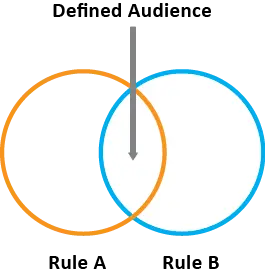
Each circle represents a rule that defines audience membership. Visitors that qualify as members in both audience rules overlap to become the composite, defined audience.
Build the audience rules build-audience-rules
Use the following steps to create an audience and define its rules in Audience Library.
-
Click CX Enterprise apps (

-
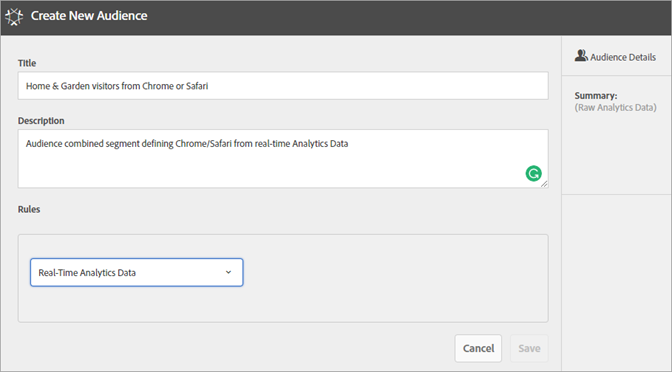
On the Audiences page, click New.

-
On the Create New Audience page, complete the Title and Description fields.
-
Under Rules, select a reference report suite, then an attribute source:
-
Real-Time Analytics Data: (or Raw data) This is attribute data derived from Real-Time Analytics image requests. It includes eVars and events. You must select a report suite when using this attribute source, and define the dimension or event to include. This report suite selection provides the variable structure used by the report suite.
note NOTE Due to caching, deleted report suites in Analytics require 12 hours before the deletion is shown in CX Enterprise. -
CX Enterprise: attribute data derived from CX Enterprise sources. For example, this can be data from audience segments you create in Analytics, or data from Audience Manager.
-
-
Define audience rules, then click Save.
Composite audience example example-composite-audience
The following example shows how to create the rules for a composite audience. This audience is composed of:
-
Home & Garden section derived from page data, or raw analytics data.
-
Chrome and Safari users derived from an Adobe Analytics segment published to CX Enterprise.
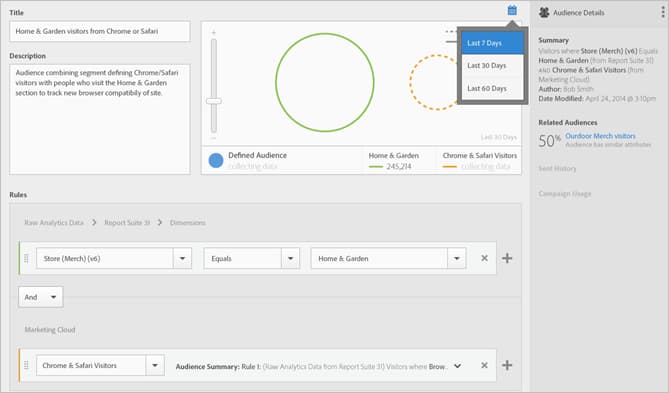
Under Rules, define the Home & Garden attribute selections:
- Attribute Source: Raw Analytics Data
- Report Suite: Report Suite 31
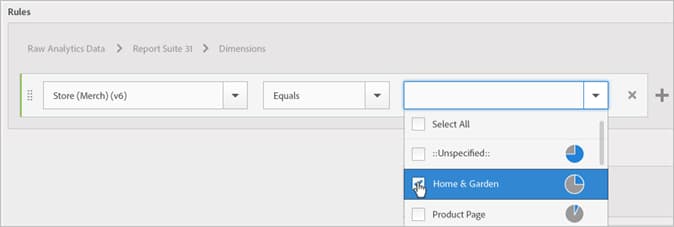
- Dimension = Store (Merch) (v6) > Equals > Home & Garden
The Chrome & Safari Visitors is an audience segment shared from Analytics:
- Attribute Source: CX Enterprise
- Dimension: Chrome & Safari Visitors
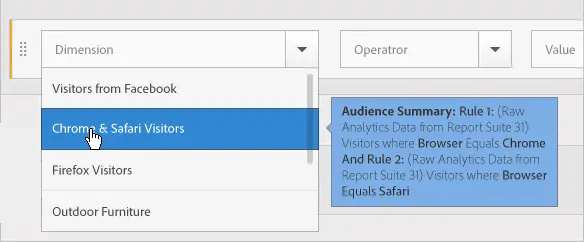
For comparison, you might add an OR rule to see all visitors to a site section, such as Patio & Furniture.
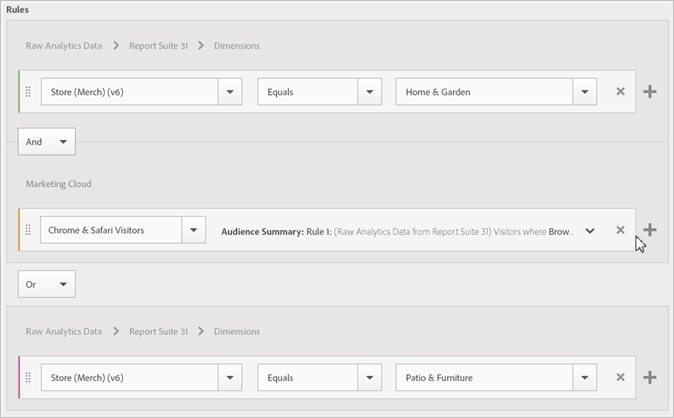
The resulting rule is a defined audience comprising Chrome & Safari users who visited Home & Garden. The Patio & Furniture segment provides additional insight into all visitors visiting that site section.
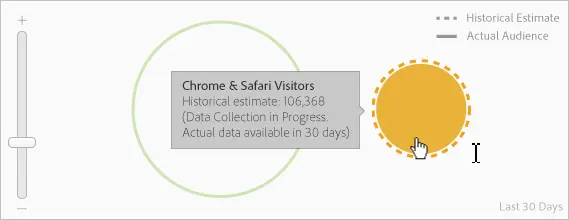
- Historical Estimate: (Dotted circle) Represents rules created based on Analytics data.
- Actual Audience: (Solid circle) Any rule created that has 30 days of data from Audience Manager. When the Audience Manager data reaches 30 days, the line becomes solid and represents actual numbers.
After the data collection completes for the specified period, the circles combine to show a defined audience.
After the audience is saved, it is available for other CX Enterprise applications. For example, you can include a shared audience in an Adobe Target activity.