Get started using CX Enterprise get-started
Sign in to Adobe CX Enterprise to launch your applications, then use the unified header to manage your profile, check notifications, and find help, all from one place.
Before you begin before-you-begin
You need an Adobe ID that has been provisioned for your organization’s CX Enterprise products. If you can’t sign in or don’t see the applications you expect, contact your CX Enterprise administrator.
Sign in to CX Enterprise sign-in
Sign in and verify that you are in the right organization.
-
Navigate to Adobe CX Enterprise.
-
Type your Adobe email address, then click Continue.
-
Click an account.
-
Type your password.
-
Verify that you are in the right organization.
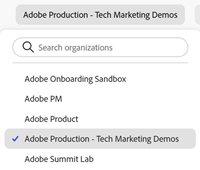
Verify your organization
The organization is displayed in the interface header.
If your organization uses Federated IDs, CX Enterprise allows you to sign in with your organization’s single sign-on without being required to enter your email address and password. Add
#/sso:@domainto the CX Enterprise URL (https://experience.adobe.com) to accomplish this task.For example, for an organization with Federated IDs and the domain
example.com, set your URL link tohttps://experience.adobe.com/#/sso:@example.com. You can also go directly to a specific application by bookmarking this URL, appended with the application path. (For example, for Adobe Analytics,https://experience.adobe.com/#/sso:@example.com/analytics.)Note: The administrator of your organization may restrict access to Adobe products by IP addresses. If so, you may receive an error after logging into CX Enterprise or switching to an organization with this enabled. More information is available in Limit product access by IP addresses.
Access CX Enterprise applications applications
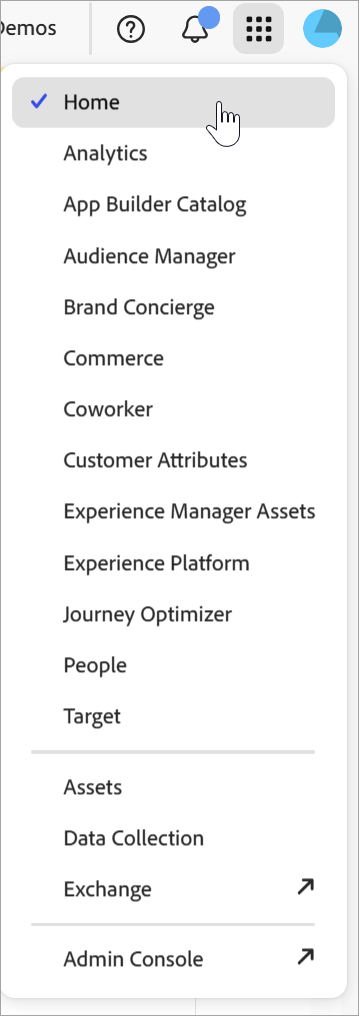
After signing in to CX Enterprise, you can quickly access all your applications, services, and organizations from the unified header.
To access CX Enterprise applications and services provisioned for you within your organization, go the application selector

Manage your user profile profile
In the Profile menu, you can:
- Specify a dark theme (not all applications support this theme)
- Manage CX Enterprise Preferences
- Select or search for an Organization
- View Legal Notices
- Sign out
- Configure account preferences, notifications, and subscriptions
View in-product notifications and announcements notifications
Click the bell icon to view notifications and announcements. Announcements can be relevant and actionable updates, including product releases, maintenance notices, shared items, and approval requests.
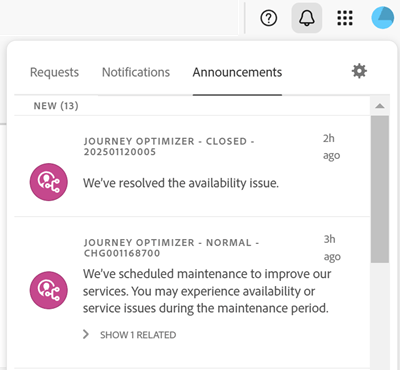
To manage notifications and alerts, see Account preferences and notifications.
Get help and support help
Access learning and help using the Help center (

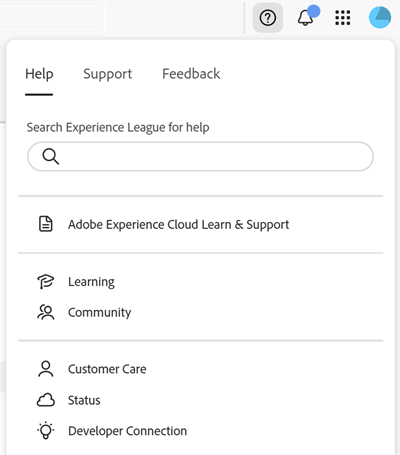
The Help menu also gives you access to:
- Support: Create a support ticket or contact Support using Twitter.
- Feedback: Share feedback about your CX Enterprise experience. Your feedback is used to improve Adobe’s products and services.
- Status: Navigate to
https://status.adobe.com/experience_cloudand check product operational status and Manage Subscriptions. - Developer Connection: Navigation to
adobe.ioand find developer documentation.