Tutorial prerequisites
This page lists the prerequisites and setup steps for Adobe Commerce as a Cloud Service tutorials, such as the ratings extension tutorial and the shipping method extension tutorial.
General prerequisites
The following tools are required for both extension and storefront development in this tutorial.
-
Node.js (version
22.x.x) and npm (9.0.0or higher): Verify your installation using the following command:code language-bash node --version npm --version -
Install Git - Verify your installation:
code language-bash git --version -
Bash shell
- macOS/Linux: No installation required
- Windows: Use Git Bash or Windows Subsystem for Linux (WSL)
-
Download an AI-assisted IDE, such as Cursor (recommended). Other IDEs, such as Claude Code, Gemini CLI, or Copilot, are also supported but could require modifications to the prompts and other steps in the tutorial.
Adobe Commerce as a Cloud Service prerequisites
-
Install the Adobe I/O CLI
code language-bash npm install -g @adobe/aio-cli -
Install the Adobe I/O CLI Commerce, Adobe I/O CLI Runtime, and App Builder CLI plugins:
code language-bash aio plugins:install https://github.com/adobe-commerce/aio-cli-plugin-commerce @adobe/aio-cli-plugin-app-dev @adobe/aio-cli-plugin-runtime
After installing the Adobe I/O CLI and the required plugins, set up your extensibility workspace. Adobe recommends using the automated setup for the most efficient experience.
- Automated setup (Recommended) — Run a single command to configure your workspace automatically.
- Manual setup — Follow step-by-step instructions to configure each component individually.
Automated setup (Recommended) automated-setup
The app-setup command automates the workspace setup process, including creating an Adobe Developer Console project, adding the required APIs, configuring the Adobe I/O CLI, cloning the starter kit, connecting your local workspace, and installing the extensibility AI tools.
The app-setup command guides you through the following steps:
- Selecting or creating an Adobe Developer Console project with the required APIs
- Configuring the Adobe I/O CLI with your organization, project, and workspace
- Cloning the appropriate starter kit and setting up the project
- Configuring the environment and connecting the local workspace to the remote workspace
- Installing the Commerce extensibility tools and coding agent skills
Run the following command and follow the interactive prompts:
aio commerce extensibility app-setup
After the command completes, navigate to your project directory and restart your coding agent to load the new MCP tools and skills. If your tutorial requires a storefront, rerun the command and select the AEM Boilerplate Commerce starter kit.
The following example installation shows the interactive prompts and output for the checkout starter kit.
| code language-shell-session |
|---|
|
Manual setup manual-setup
The following sections describe how to manually set up each component of your extensibility workspace. Follow these steps if you prefer manual configuration, or if you encounter issues with the automated setup.
Adobe Developer Console prerequisites
Set up a project in the Adobe Developer Console with the required APIs and credentials.
- Navigate to the Adobe Developer Console.
- Log in using your email and password.
Create a new project
To host your extension, create an App Builder project in the Adobe Developer Console.
-
Navigate to Adobe Developer Console.
-
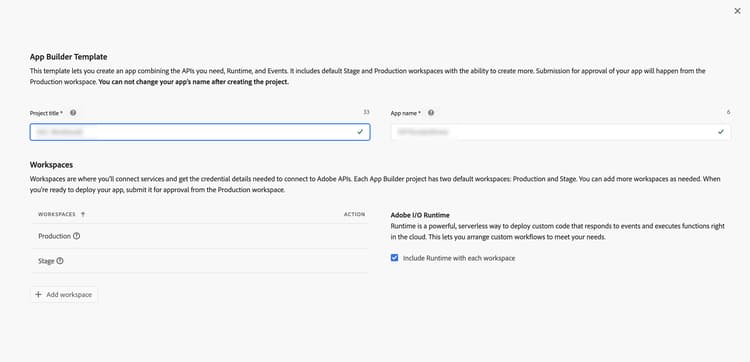
Click Create project from a template.
-
Select the App Builder template.
-
Enter a Project Title and App Name.
-
Ensure the Include Runtime checkbox is marked.
-
Click Save.
Add APIs to the workspace
Add the required APIs to your Stage workspace for event management and Commerce integration.
-
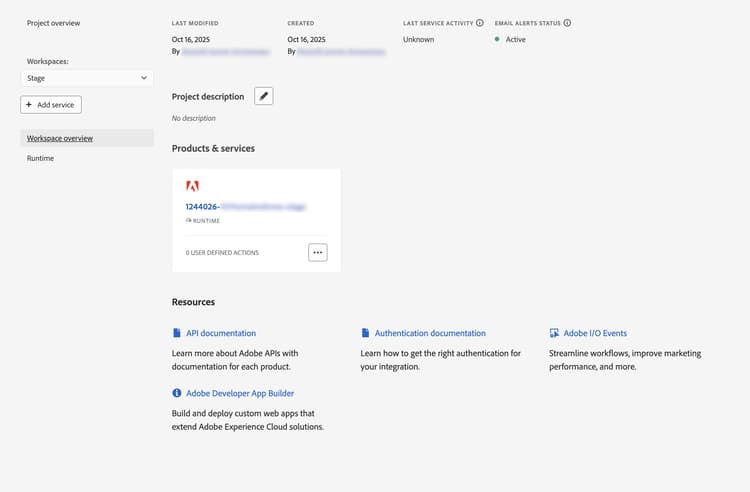
Click the Stage workspace and then repeat the following steps for each API.
-
Click Add Service and select API.
-
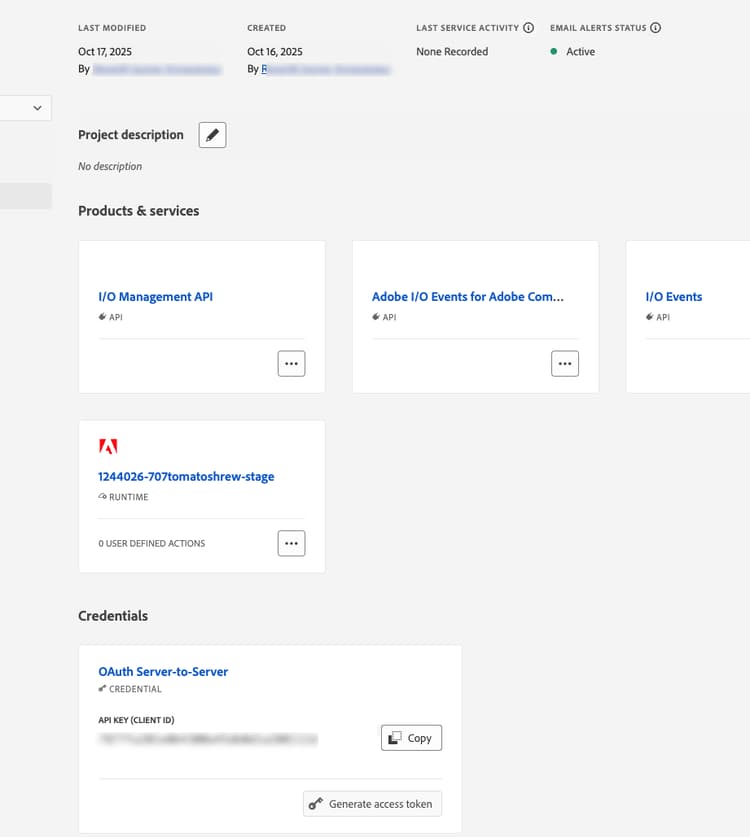
Select one of the following APIs. Repeat this process for each API listed below:
-
Adobe Services filter:
- I/O Management API
- I/O Events API
-
Experience Cloud filter:
- Adobe I/O Events for Adobe Commerce API
-
-
Click Next.
-
Click Save configured API.
-
Repeat the previous steps until you add all APIs to the workspace.
Configure the Adobe I/O CLI
Connect the Adobe I/O CLI to your organization, project, and workspace.
-
Clear any existing configuration:
code language-bash aio config clear -
Log in using the Adobe I/O CLI:
code language-bash aio auth login -f -
Select your organization, project, and workspace using each of the following commands:
code language-bash aio console org selectcode language-bash aio console project selectcode language-bash aio console workspace select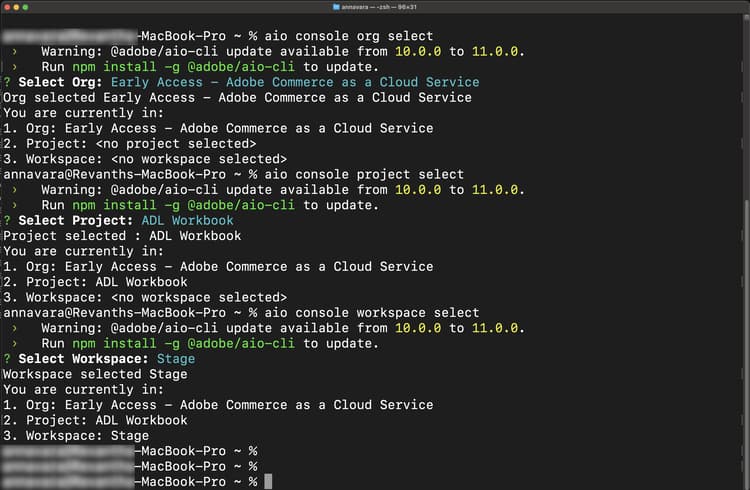
Clone the starter kits
Clone one of the following Commerce starter kit repositories for the extension you are building and prepare your project:
Integration starter kit:
git clone https://github.com/adobe/commerce-integration-starter-kit.git extension
cd extension
Checkout starter kit:
git clone https://github.com/adobe/commerce-checkout-starter-kit.git extension
cd extension
Create an .env file
Create your environment configuration file:
| code language-bash |
|---|
|
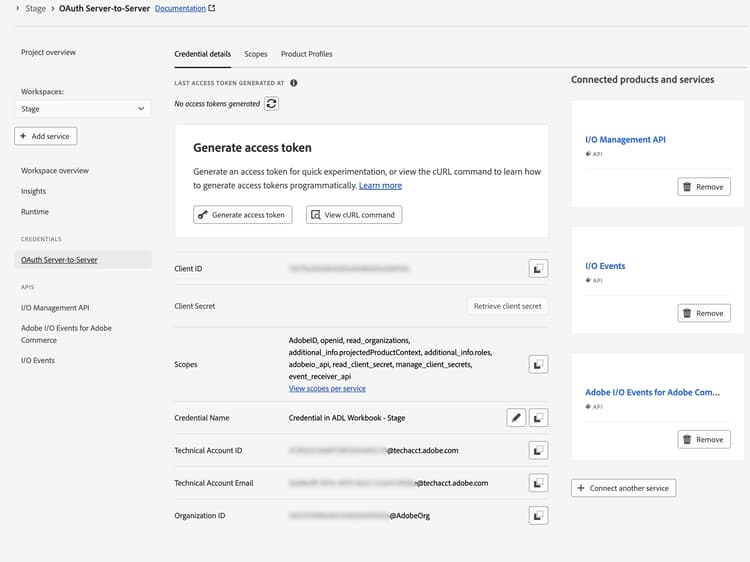
Open the .env file in a text editor and add the following OAuth credentials:
| code language-bash |
|---|
|
Copy these values from the Credential details page in Developer Console by clicking the OAuth Server-to-Server tab on your workspace.
Add the Commerce configuration
Add the following Commerce instance details to your .env file:
| code language-bash |
|---|
|
To find these values:
- Navigate to Commerce Cloud Service instances.
- Click the information icon next to your instance.
- Copy the REST endpoint as
COMMERCE_BASE_URL. - Copy the GraphQL endpoint as
COMMERCE_GRAPHQL_ENDPOINT.
Set the event prefix
Set a temporary value for the event prefix:
| code language-bash |
|---|
|
Download the workspace configuration
To download the workspace configuration file, run the following command:
| code language-bash |
|---|
|
Copy the workspace configuration file to the scripts directory:
| code language-bash |
|---|
|
Connect the local workspace to the remote workspace
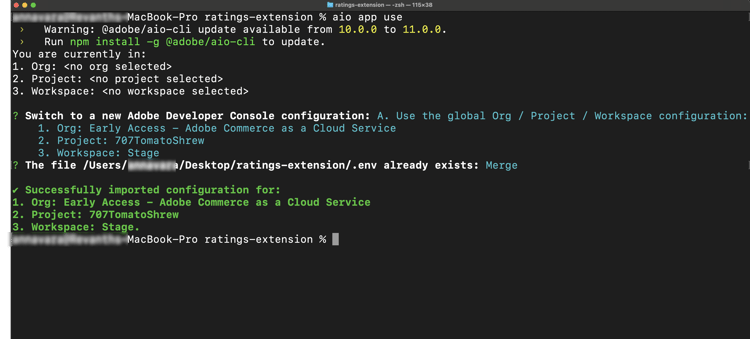
Link your local project to the remote workspace:
| code language-bash |
|---|
|
Connect local workspace to remote workspace
Link your local project to the remote workspace. From the project root (the extension folder), run:
| code language-bash |
|---|
|
When prompted, choose the option that uses the organization, project, and workspace you selected when configuring the Adobe I/O CLI. This writes the workspace configuration into your app so that deploy and local development use that workspace.
Install the extensibility AI tools
This process creates the MCP configuration (.<agent>/mcp.json), the skills directory (.<agent>/skills/), and adds AGENTS.md to the project root. You are prompted to choose a starter kit, coding agent, and package manager.
-
Set up the AI-assisted development tools in the
extensionfolder using the following commands:code language-bash cd extensioncode language-bash aio commerce extensibility tools-setup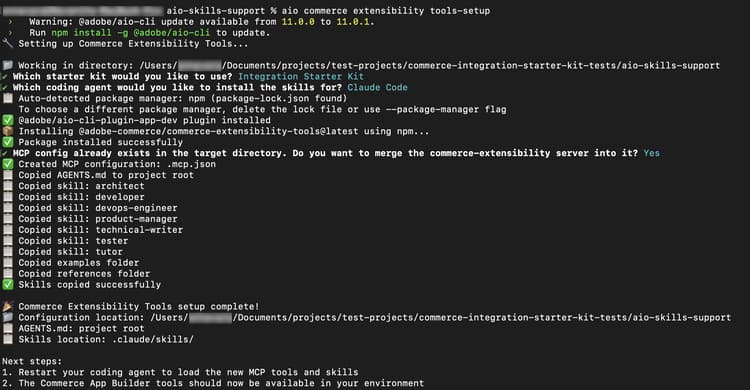
-
After the setup completes, restart your coding agent to allow it to load the new MCP tools and skills. The Commerce App Builder tools are now available in your environment.
note NOTE If you see a warning that no skills were found for the starter kit, something went wrong—often because the setup was run in a folder other than where the starter kit was cloned. Run aio commerce extensibility tools-setupfrom theextensionfolder (the starter kit project root) and select the appropriate starter kit when prompted.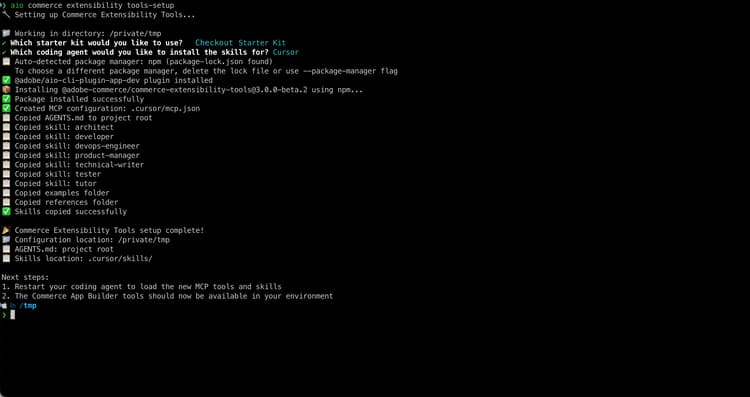
Storefront manual setup
This section describes how to configure your storefront manually for the Ratings extension tutorial and other storefront tutorials.
To configure your storefront automatically, run the app-setup command described in the Automated setup section and select the AEM Boilerplate Commerce starter kit.
Prerequisites
The following items are required to complete the storefront section of the Ratings extension tutorial and display product ratings in your store.
-
Google Chrome - Required for testing the storefront
-
A storefront project connected to your Commerce instance. If you do not have a storefront project, follow the steps in Create a storefront, including the Link repo to commerce data section.
Clone the storefront repository
Open your terminal and clone the repository:
git clone https://github.com/hlxsites/aem-boilerplate-commerce.git storefront
cd storefront
Install the dependencies
Install the project dependencies:
npm install
Install the storefront AI tools
Set up the AI-assisted development tools in the storefront folder.
Run the following command from the root of your boilerplate project. The command installs the @adobe-commerce/commerce-extensibility-tools package as a dev dependency, copies the skill files into your agent’s skills directory, and configures MCP (Model Context Protocol) so your agent can access Commerce documentation search tools.
aio commerce extensibility tools-setup
The command walks you through two prompts:
-
Select a starter kit — Choose AEM Boilerplate Commerce.
-
Select your coding agent — Choose your agent from the list of supported agents.