Shipping method extension tutorial
This tutorial guides you through building a shipping method extension for Adobe Commerce as a Cloud Service using Adobe App Builder, the checkout starter kit, and AI-assisted development tools.
The extension adds a configurable shipping method at checkout where the rates come from an external mock shipping rates service. Merchants configure the service URL, API key, and warehouse (ship-from) address in the Admin UI, and at checkout the extension requests rates from that service and displays the returned options to the customer.
Before you begin, complete the prerequisites.
Verify prerequisites tutorial-verify-prerequisites
Verify that the following prerequisites are installed:
# Check Node.js version (should be 22.x.x)
node --version

# Check npm version (should be 9.0.0 or higher)
npm --version

# Check Git installation
git --version

# Check Bash shell installation
bash --version
If any of the preceding commands do not return the expected results, refer to the prerequisites for guidance.
Create the mock shipping rates API
After completing the prerequisites, create the mock shipping rates API, so you have the service URL and API key ready when you configure the extension in the Commerce Admin. The extension calls an external shipping rates API. For this tutorial you use a mock API allowing you to run the flow without a real carrier account. You will create the mock API using Pipedream (free account required). The mock API uses a request/response contract that is similar to typical real shipping rates APIs, so connecting this extension to a real provider later should be straightforward.
To create the mock API, download the mock rates API specification file, open it, and add the .md file to your project (for example docs/mock-rates-api-spec.md).
Time: It should take about 5–10 minutes to create the mock API.
Create a workflow and HTTP trigger
-
Go to pipedream.com and sign up or log in.
-
Click New workflow (or Add workflow).
-
For the trigger, select HTTP / Webhook.
-
In the trigger configuration, set HTTP Response to Return a custom response from your workflow. This allows the Code step to send the mock JSON response.
-
Pipedream displays a unique HTTP endpoint URL, such as
https://123456.m.pipedream.net. -
Copy this URL and use it as the Service URL when configuring the extension in the Commerce Admin.
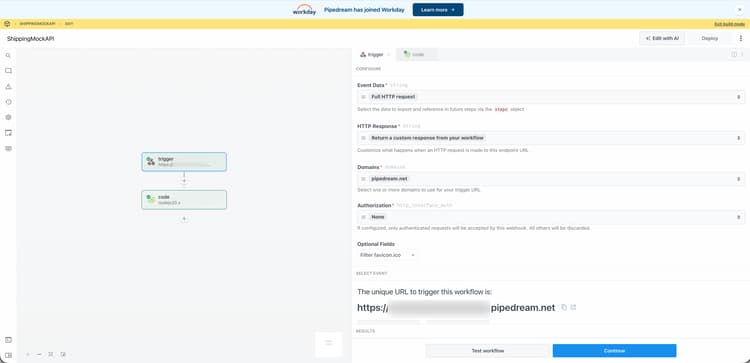
You do not need to configure Authorization on the trigger; the mock API validates the API-Key header in the Code step.
Add the Code step
-
Click the + icon to add a step.
-
Choose Run Node.js code (Code step).
-
Replace the default code with the following JavaScript.
code language-javascript export default defineComponent({ async run({ steps, $ }) { const event = steps.trigger.event; const body = event.body ?? {}; const headers = event.headers ?? {}; const apiKey = headers["api-key"] ?? body.api_key ?? ""; if (!apiKey || String(apiKey).trim() === "") { await $.respond({ immediate: true, status: 401, headers: { "Content-Type": "application/json" }, body: { error: "Missing or invalid API-Key header" }, }); return; } const shipment = body.shipment; if (!shipment || typeof shipment !== "object") { await $.respond({ immediate: true, status: 400, headers: { "Content-Type": "application/json" }, body: { error: "Missing or invalid shipment" }, }); return; } const rates = [ { service_code: "mock_standard", service_name: "Mock Standard", carrier_friendly_name: "Mock Carrier", shipping_amount: { amount: 5.99 }, shipment_cost: 5.99, cost: 5.99, }, { service_code: "mock_express", service_name: "Mock Express", carrier_friendly_name: "Mock Carrier", shipping_amount: { amount: 12.99 }, shipment_cost: 12.99, cost: 12.99, }, ]; await $.respond({ immediate: true, status: 200, headers: { "Content-Type": "application/json" }, body: { rates }, }); }, }); -
Click Deploy.
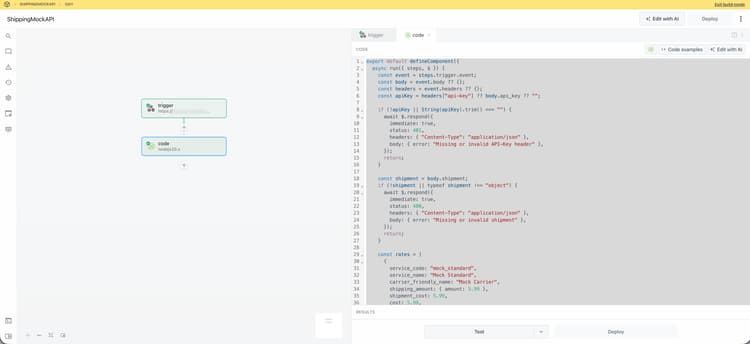
The mock returns two rate options (Mock Standard and Mock Express) for any valid request that includes a non-empty API-Key header and a shipment object. You will configure the API Key in the Commerce Admin later in this tutorial. You will also specify the Pipedream workflow URL on the same configuration screen, so make note of it.
Extension development
This section guides you through developing a shipping method extension for Adobe Commerce as a Cloud Service using the checkout starter kit and AI-assisted development tools.
-
Navigate to the MCP settings in your coding agent. For example, in Cursor, go to Cursor > Settings > Cursor Settings > Tools & MCP. Verify that the
commerce-extensibilitytoolset is enabled without errors. If you see errors, toggle the toolset off and on.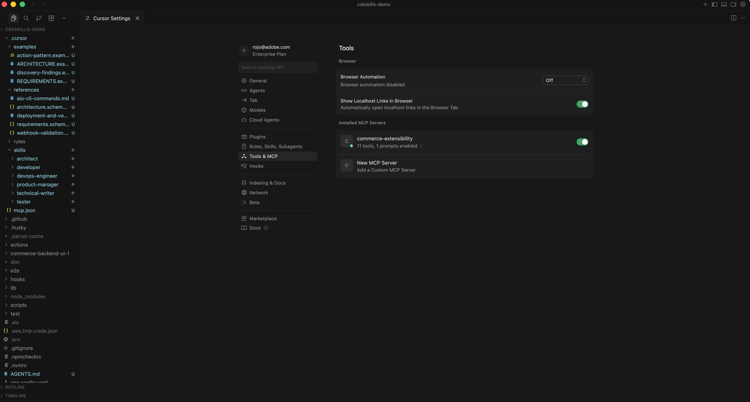
note NOTE When working with AI-assisted development tools, expect natural variations in the code and responses generated by the agent. If you encounter any issues with your code, you can always ask the agent to help you debug it. -
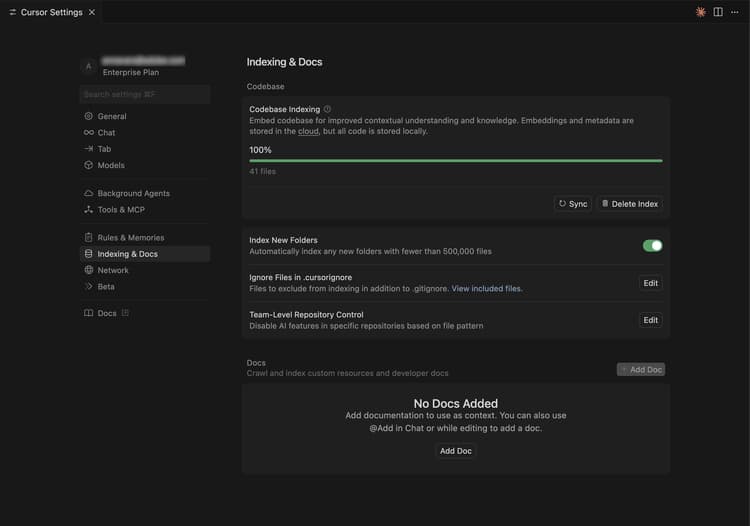
If you have any documentation added to Cursor’s context, disable it. Navigate to Cursor > Settings > Cursor Settings > Indexing & Docs and delete any documentation listed.
-
Give the agent access to the mock rates API specification, so it can implement the client correctly. If you have not already done so, download the mock rates API specification file, open it, and add the
.mdfile to your project (for exampledocs/mock-rates-api-spec.md), then reference that file in your prompt. -
Generate the shipping method extension:
- From the agent’s chat window, select Plan mode, if available. This prevents the agent from proceeding without a plan.
- Enter the following prompt:
code language-shell-session Build an Adobe Commerce extension that adds a shipping method at checkout. The rates come from an external mock shipping rates service: the merchant configures the service's URL and API key in Admin, and at checkout the extension asks that service for rates and shows the returned options to the customer. External service (mock shipping rates API): - The service endpoint URL is configurable by the merchant (for example https://123456.m.pipedream.net). - The API is specified in ./docs/mock-rates-api-spec.md. The merchant must be able to configure the following in the Adobe Commerce Admin UI. Use the Adobe Commerce Admin UI SDK (or equivalent App Builder extensibility options for the Admin) to add a configuration screen where the merchant can set: - The service URL (where the extension sends rate requests). - An API key the service expects (any non-empty value for the mock). The API key is sensitive data: it must be stored securely and must never appear in logs, error messages, or in the UI in full (e.g. mask in the UI). - The warehouse (ship-from) address: name, phone, street, city, state, postal code, country. This is the origin used when requesting rates.note NOTE If the agent requests to search the documentation, allow it. 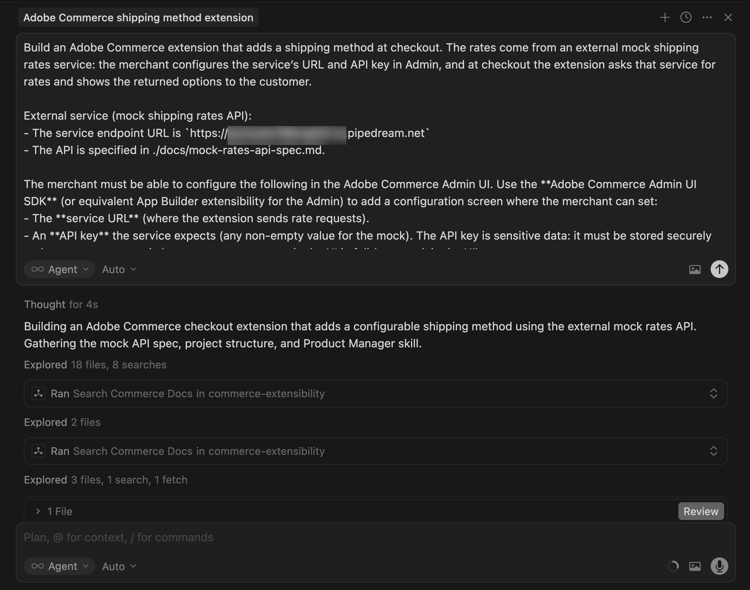
-
Answer the agent’s questions precisely to help it generate the best code. If the agent asks which kit or template to use, direct it to the checkout starter kit with the shipping domain and Admin UI SDK extension so that both the shipping webhook and the merchant configuration screen are implemented.
The agent may create a
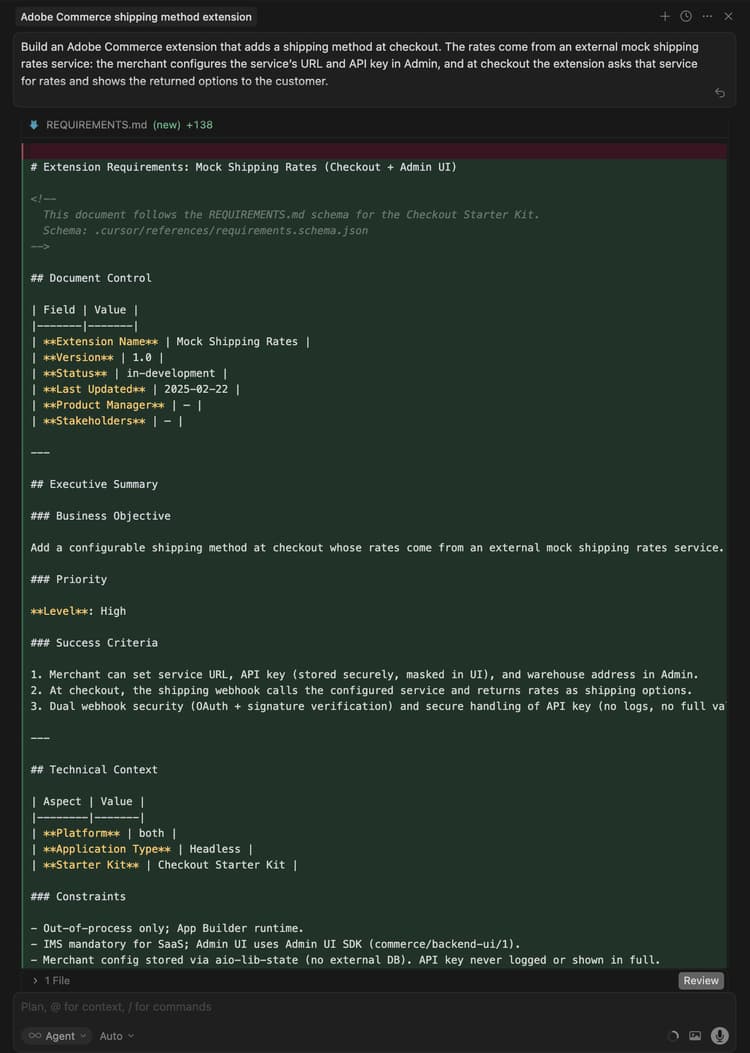
requirements.md(or equivalent) file that serves as the source of truth for the implementation. -
Review the
requirements.md(or equivalent) file and verify the plan. If everything looks correct, instruct the agent to move to architecture planning (or Phase 2). Confirm that:- A shipping-methods action (or equivalent) handles the Commerce webhook and calls the external rates API.
- A shipping-config (or equivalent) action supports GET (read config, API key masked) and SET (save service URL, API key, warehouse address), with config stored securely, for example in Runtime State.
- The Admin UI includes a Mock Shipping (or similar) tab with fields for Service URL, API key (password/masked), and warehouse address.
-
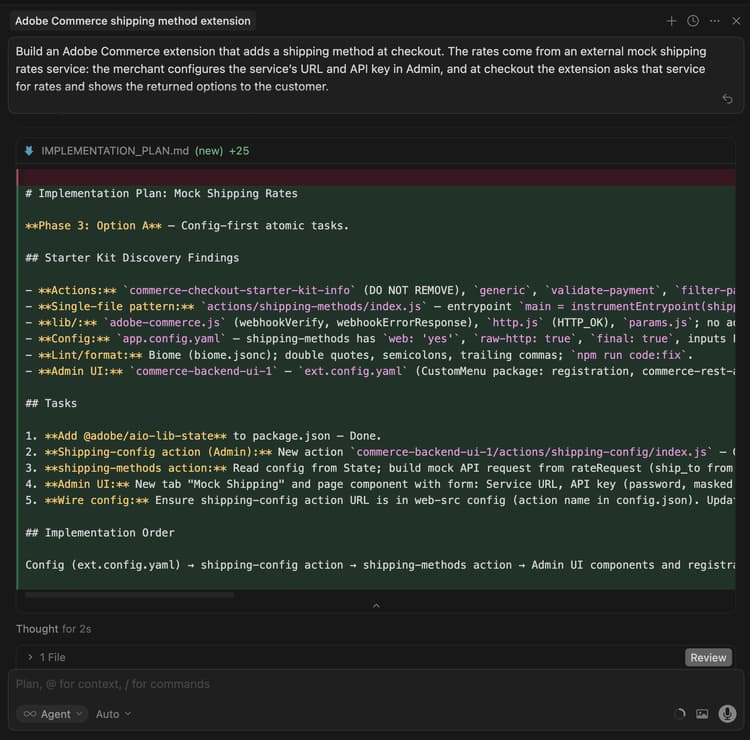
Review the architecture plan when the agent provides it.
-
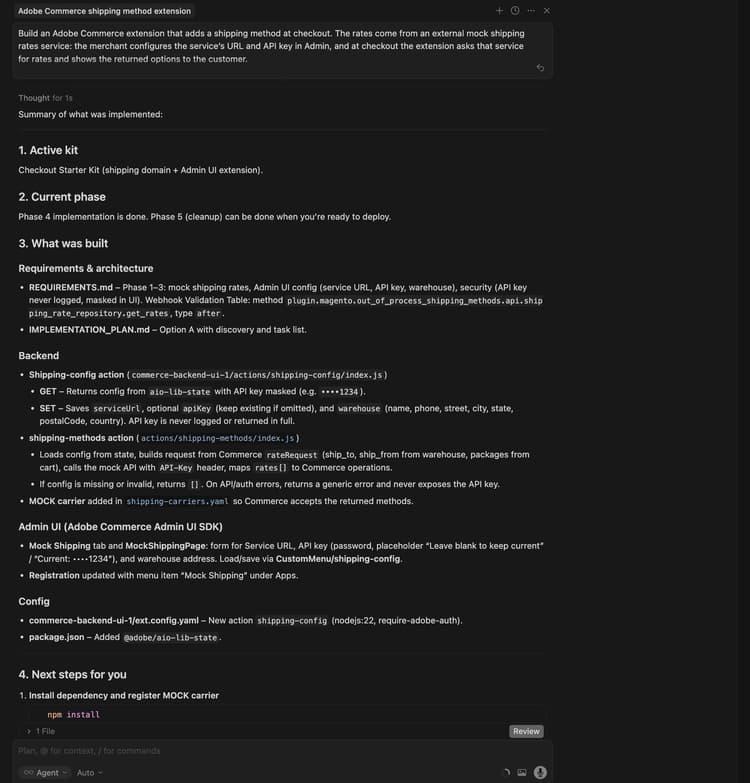
Instruct the agent to proceed with code generation. The agent should add a mock carrier to the shipping carriers configuration allowing Commerce to accept the returned methods, and use the webhook method
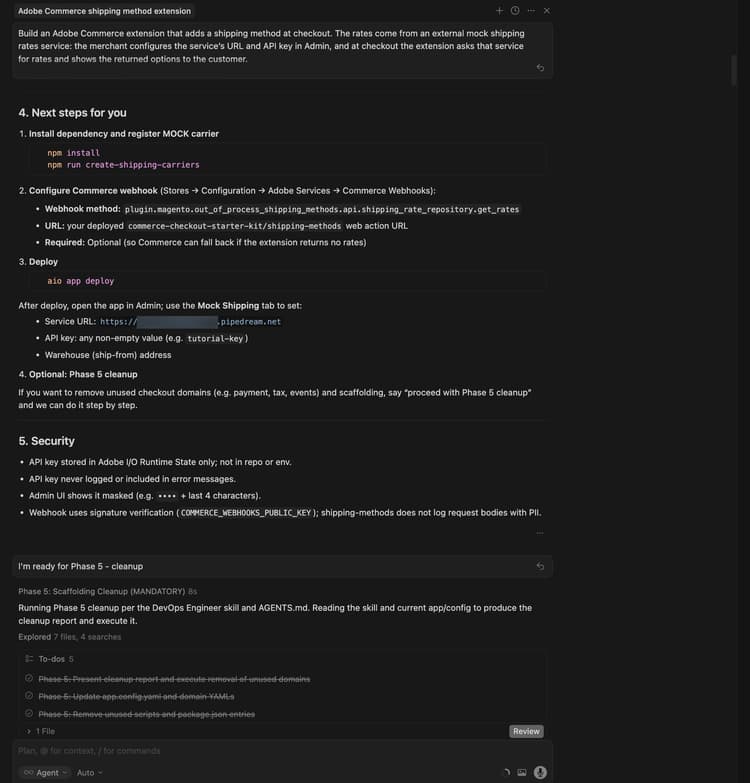
plugin.magento.out_of_process_shipping_methods.api.shipping_rate_repository.get_rates(webhook type after, required Optional).The agent generates the necessary code and provides a detailed summary with your next steps (including installing dependencies, registering the mock carrier, configuring the Commerce webhook, and deploying).
Cleanup before deploy
Before deploying, remove code that the application does not need. The checkout starter kit may include unused domains (for example payment, tax, or events) and scaffolding. Have the agent remove them and keep only the shipping and Admin UI parts by using a prompt such as:
Proceed with Phase 5 cleanup.
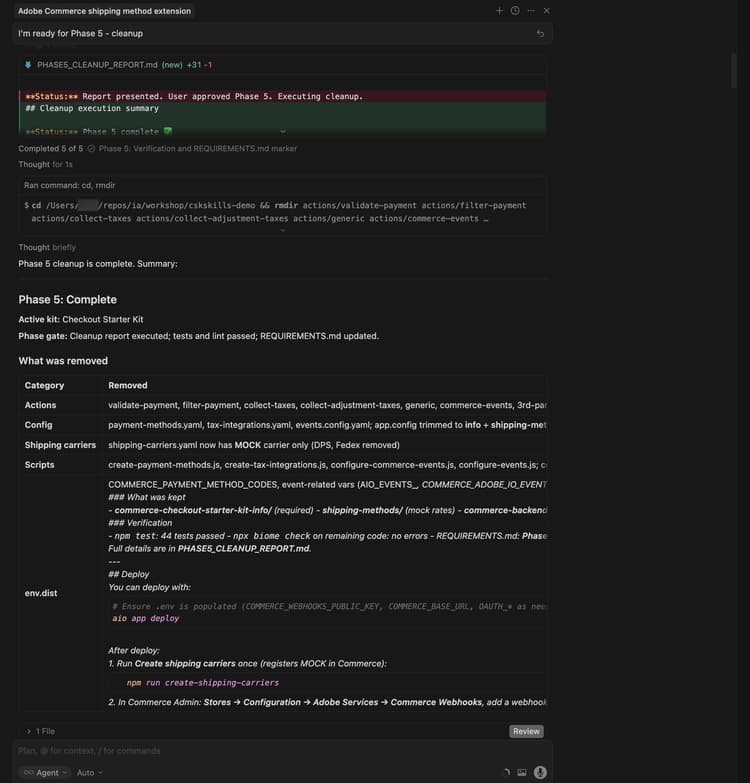
The agent produces a cleanup report, removes unused actions, config, and scripts, and updates the project. Complete this step before you deploy.
Deploy the extension
-
After verifying the generated code, deploy the extension using the following prompt:
code language-shell-session Deploy the app.The agent performs a pre-deployment readiness assessment (for example checking
.envforCOMMERCE_WEBHOOKS_PUBLIC_KEY,COMMERCE_BASE_URL, and OAuth/IMS variables if the Admin UI or Commerce API is used).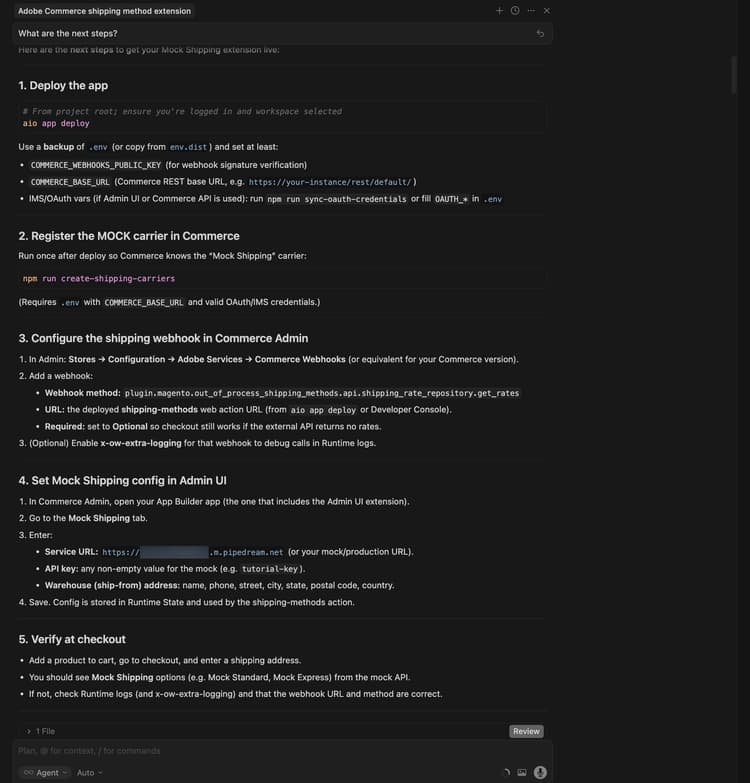
-
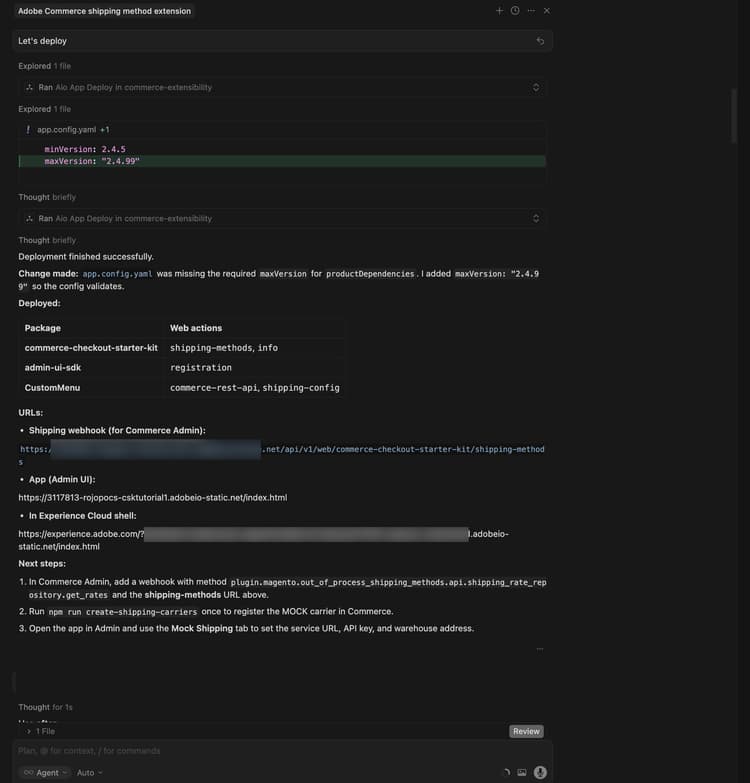
When you are confident with the assessment results, instruct the agent to proceed with deployment. The agent uses the MCP toolkit to verify, build, and deploy automatically.
Post deployment
After deployment, complete the following steps to register the mock carrier, configure the webhook and Admin UI, and verify the extension at checkout.
-
Register the mock carrier in Commerce (run once after deploy):
code language-bash npm run create-shipping-carriersEnsure your
.envhasCOMMERCE_BASE_URLand a valid OAuth/IMS credentials, so the script can register the carrier. -
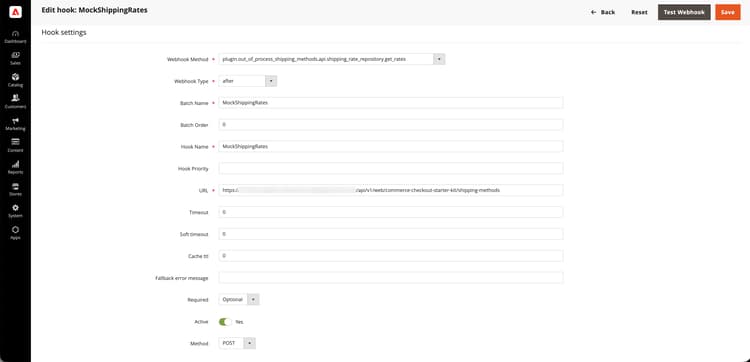
Configure the shipping webhook in Commerce Admin:
-
Go to Stores > Settings > Configuration > Adobe Services > Commerce Webhooks.
-
Add a webhook:
- Webhook method:
plugin.magento.out_of_process_shipping_methods.api.shipping_rate_repository.get_rates - Webhook type: after
- URL: the deployed shipping-methods web action URL (from the deploy output or the Adobe Developer Console).
- Required: Optional - This allows checkout to still work if the external API returns no rates.
- Webhook method:
-
-
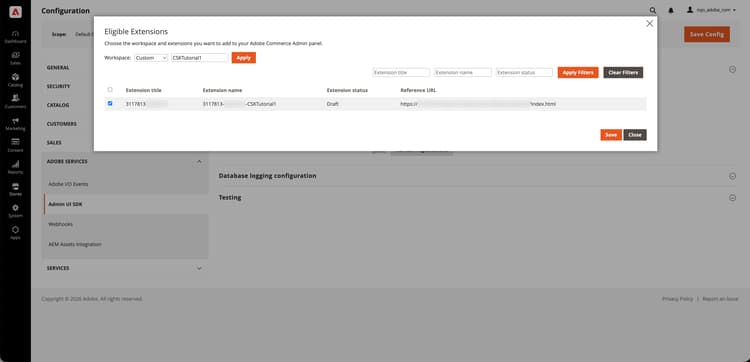
Configure the Admin UI SDK extension:
- In Commerce Admin, go to Stores > Settings > Configuration.
- Open Adobe Services > Admin UI SDK.
- Set Enable Admin UI SDK to Yes and click Save Config if it is not already enabled.
- Click Configure extensions, choose the workspace your app is deployed to, then click Apply. You can also select the Custom option and enter the workspace name.
- Select your App Builder app in the list and save. If the app does not appear, click Refresh registrations and try again.
-
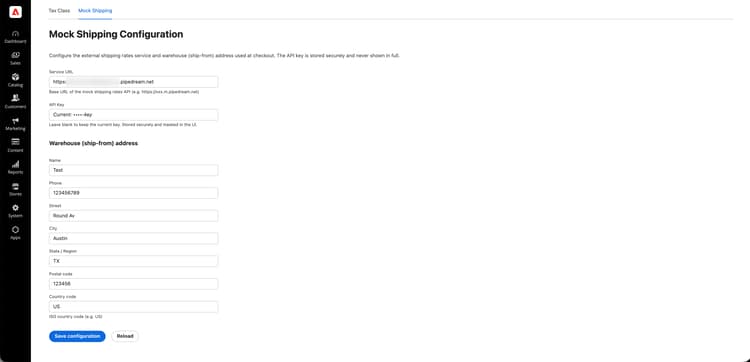
Configure the Mock Shipping method in the Adobe Commerce Admin UI:
-
Open Apps and select your app.
-
Open the Mock Shipping tab (or equivalent).
-
Enter the following details:
- Service URL: the Pipedream workflow URL you copied (for example
https://123456.m.pipedream.net). - API key: any non-empty value for the mock, for example
tutorial-key. - Warehouse (ship-from) address: name, phone, street, city, state, postal code, country.
- Service URL: the Pipedream workflow URL you copied (for example
-
Click Save. The configuration is stored in the Runtime State and is used by the shipping-methods action.
-
-
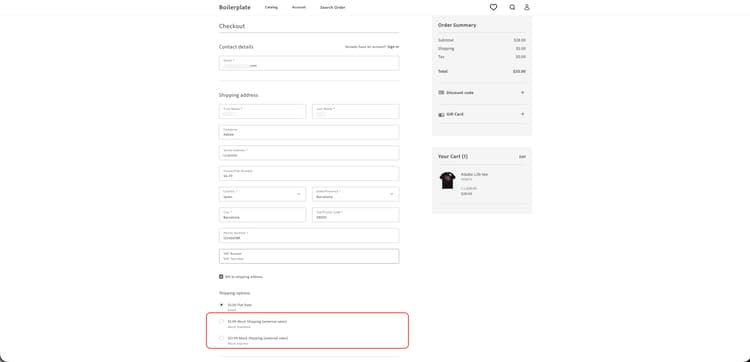
Verify at checkout: Add a product to the cart, go to checkout, and enter a shipping address. You should see the mock shipping options, for example Mock Standard and Mock Express.
Troubleshooting
-
Config not saving in the Admin UI: If you see “Response is not valid ‘message/http’” or values not updating after saving, check the runtime activation logs for the config action, using a command similar to the following:
code language-bash aio app logs --action CustomMenu/shipping-config --limit 20Common causes include the gateway expecting a specific response format (for example a string body and
Content-Type: application/json) or the state library requiring string values—ensure the action stores config as a string and parses it when reading, and that the shipping-methods action uses the same parsing. Review the agent chat or logs for the exact cause and fix. -
“The response must contain at least one operation” (in webhook logs): Commerce requires the shipping webhook to return at least one operation. Ask the agent to ensure the shipping-methods action never returns an empty operations array (for example by returning a fallback rate when the external API returns no rates).
-
No shipping rates at checkout: Confirm the webhook URL and method are correct, the mock carrier is registered (
npm run create-shipping-carriers), and the Mock Shipping config is set in the Admin UI. Check runtime logs for the shipping-methods action for API or validation errors, ensure the action returns at least one operation, so Commerce does not show “The response must contain at least one operation.”
Tutorial recap
Here is a summary of the topics covered in this tutorial:
- Prerequisites and setup: Verifying tools and creating the mock shipping rates API.
- Agent-driven development: Using the commerce-extensibility toolset to generate requirements, an implementation plan, and code for the shipping webhook and Admin UI.
- Phase 5 cleanup: Removing unused checkout starter kit domains and scaffolding before deploying.
- Deployment: Pre-deployment assessment and MCP toolkit deploy.
- Post-deployment configuration: Registering the mock carrier, configuring the Commerce webhook, enabling the Admin UI SDK extension, and setting Mock Shipping (service URL, API key, warehouse) in the Admin UI.
- Verification: Confirming mock shipping options appear at checkout.
Next steps
For further experimentation with this tutorial, consider the following:
- Automate post-deploy setup with a hook that registers the mock carrier in Commerce and configures the shipping webhook after each deployment.
- Point the extension at a real shipping rates API by changing the Service URL and API key in the Admin UI.
- Extend the Admin UI to show carrier status or test connectivity to the rates service.