Add files to products
Adobe Commerce as a Cloud Service supports a “File” product attribute input type that allows merchants to attach files—such as PDFs, manuals, certificates, and data sheets directly to products. Files are stored in Amazon S3 media storage and can be accessed through the storefront using GraphQL or through integrations using the REST API.
There are three ways to upload files to product file attributes:
- Admin UI - Upload files manually on the product edit page.
- REST API - Upload files through the REST API using S3 presigned URLs.
- Product import - Import files in bulk by providing external URLs in CSV.
Prerequisites
Before uploading files, you must create a file attribute and assign it to an attribute set.
-
Create a file attribute - Set Catalog Input Type for Store Owner to File.
-
Assign the attribute to an attribute set - Drag the new file attribute into the desired group.
-
Configure allowed file types and size in the Product File Attributes configuration.
Upload files through the Admin
After you create a file attribute and assign it to an attribute set, you can upload files directly from the product edit page.
-
On the Admin sidebar, go to Catalog > Products.
-
Open the product you want to edit.
-
Locate the file attribute field and click Upload to select a file.
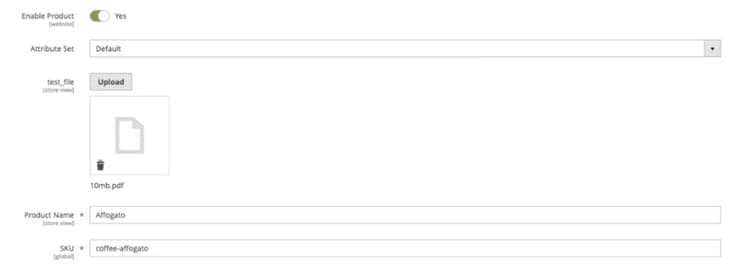
- Click Save.
To replace a file, delete the existing file and upload a new one. The uploaded file is stored in Amazon S3 media storage.
Upload through the REST API
Use the S3 presigned URL flow to upload files programmatically through the REST API. This process works the same way for product file attributes as it does for other media types such as category images and customer attribute files.
The process has four steps:
- Call
POST V1/media/initiate-uploadwith the file name and themedia_resource_typefor product file attributes. - Use the returned presigned URL to
PUTthe file directly to Amazon S3. - Call
POST V1/media/finish-uploadto confirm the upload. - Assign the returned key to the product’s file attribute through
PUT /V1/products/{sku}, passing the key as the custom attribute value.
Upload through product import
You can attach files to products in bulk using the import API or the Admin import UI. Product file attributes support import from external URLs only, which follows the same approach as Method 2 for product image import. Commerce downloads the file from the provided URL and saves it to S3 media storage.
Provide the URL in a dedicated column
Use the attribute code as the CSV column header and the full URL as the value. For example, if the attribute code is file_upload, the CSV would look like this:
sku,name,file_upload
ADB112,"My Product",https://example.com/files/manual.pdf
Provide the URL in additional_attributes
Alternatively, include the file attribute in the additional_attributes column:
sku,name,additional_attributes
ADB112,"My Product",file_upload=https://example.com/files/manual.pdf
In both cases, the URL must be publicly accessible, and the file extension and size must comply with the configured limitations.
Retrieve files through GraphQL
In Adobe Commerce as a Cloud Service, the Catalog Service GraphQL endpoint serves product data. File attributes appear in the attributes field on ProductView, with the value containing the full public URL to the file:
{
  products(skus: ["ADB112"]) {
    sku
    name
    attributes(roles: []) {
      name
      label
      value
    }
  }
}
The response includes the file attribute with its public URL:
{
  "data": {
    "products": [
      {
        "sku": "ADB112",
        "name": "Example product",
        "attributes": [
          {
            "name": "file",
            "label": "FILE",
            "value": "https://<host>/media/catalog/product_file/manual.pdf",
          }
        ]
      }
    ]
  }
}
Magento-Website-Code and Magento-Store-View-Code headers. For more information, see the Catalog Service products query.Retrieve files through the REST API
When retrieving a product through the REST API (GET /V1/products/{sku}), file attributes appear in the custom_attributes array with the filename as the value:
{
  "custom_attributes": [
    {
      "attribute_code": "file_upload",
      "value": "manual_7aa0b2d63f6d3dbf.pdf"
    }
  ]
}