Commerce Services Connector
Some Adobe Commerce and Magento Open Source features are powered by Commerce Services and deployed as SaaS (software as a service). To use these services, you must connect your Commerce instance using production and sandbox API keys, and specify the data space in the configuration. You only need to configure the connection one time for each instance.
Only the Commerce license owner can generate these API keys. If you are not the license owner, request the keys from the person or team that owns the Commerce license for your store.
Available services availableservices
The following lists the Commerce features you can access through the Commerce Services Connector:
Architecture
At a high level, the Commerce Services Connector is made up of the following core elements:
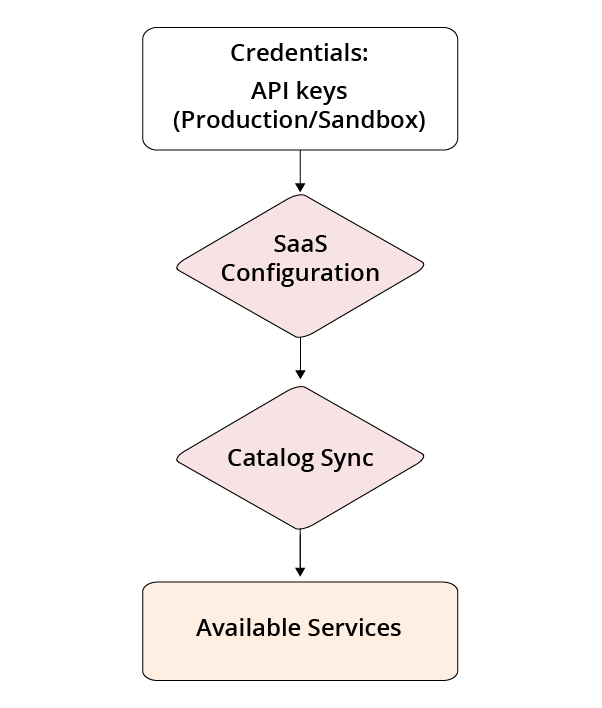
The following sections discuss each of these elements in more detail.
Credentials apikey
The production and sandbox API keys are generated from the Commerce account of the license owner. The Commerce account is identified by a unique Commerce ID (MageID). The license owner for the merchant’s organization can generate API keys for services like Product Recommendations or Live Search, as long as the account is in good standing.
The keys can be shared on a “need-to-know” basis with the systems integrator or development team that manages projects and environments on behalf of the license holder. Developers who have been granted Shared Access by the license owner cannot generate the keys on the license owner’s behalf even if the merchant’s organization is present in the Switch Accounts dropdown on their account.
Additionally, solution integrators are entitled to use Commerce Services. If you are a solution integrator, the signer of the Commerce partner contract should generate the API keys.
The key identifiers Production and Sandbox refer to SaaS data space environments where Commerce Services store data (not to your Adobe Commerce environments). You can use the same set of API keys across your local, development, staging, and production Adobe Commerce environments—what matters is that you paste the correct key pair for the data space you configure.
The license owner is typically the Primary Contact on the Adobe Commerce account and is not always the same as the Project Owner of the Adobe Commerce on cloud infrastructure project.
Generate the production and sandbox API keys genapikey
-
Log in to your Commerce account at https://account.magento.com.
-
Under the Magento tab, select API Portal on the sidebar.
-
From the Environment menu, select Production or Sandbox.
-
Enter a name in the API Keys section, and click Add New to open the dialog to download the new key.

note warning WARNING You can copy or download the private key only once. Store it securely. -
Click Download to save the private key, then close the dialog.
-
Repeat the above steps for each environment (production and sandbox).
The API Keys section now displays your API (Public) keys. You need all four keys (both the production and sandbox keys, Public+Private) when you select or create a SaaS project in any of the environments or installations associated with the license.
SaaS configuration saasenv
Commerce instances must be configured with a SaaS project and a SaaS data space so that Commerce Services can send data to the right location. A SaaS project groups all SaaS data spaces. The SaaS data spaces are used to collect and store data that enables Commerce Services to work. Some of this data may be exported from the Commerce instance and some may be collected from shopper behavior on the storefront. That data is then persisted to secure cloud storage.
For Product Recommendations and Live Search, the SaaS data space contains catalog and behavioral data. You can point a Commerce instance to a SaaS data space by selecting it in the Commerce configuration.
If you cannot find Live Search configuration fields in the Admin, verify that you entered the correct API key pair for the data space you selected (production data spaces use production keys; testing data spaces use sandbox keys). If you configure incorrect keys, SaaS services such as Live Search are not available in that Adobe Commerce environment.
Delete an API key delapikey
Before deleting an API key, generate and securely store a replacement key. Update all integrations to use the new key, and confirm that dependent services are working as expected.
If you don’t see Live Search configuration fields in the Admin Panel, confirm you entered the correct SaaS API key for that environment. Use the production SaaS key for the production data space and the staging key for the staging data space. If the wrong key is configured, SaaS services (including Live Search) won’t be available in your Adobe Commerce environment.
On the API key to remove, click Delete. When prompted, confirm the operation to permanently remove the key.
SaaS data space provisioning
All Adobe Commerce merchants can access one production data space and two testing data spaces per SaaS project.
You can use the testing data spaces in non-production environments, but avoid using the same data space in multiple environments at the same time. If you want to move a testing data space to a different environment, perform a data cleanup before selecting and configuring it in the new environment.
For Adobe Commerce Cloud Pro projects with multiple staging environments, you can request additional testing data spaces for each staging environment by submitting a Support request. However, if you only have one staging environment and require additional testing data spaces, you have the following options:
-
Contact the Customer Success team or your appointed Customer Success Manager to request an additional staging environment.
-
Submit a Support request to request the additional testing data space and indicate the business justification for the extra data space. This request is subject to approval.
Magento Open Source customers using Adobe Payment Services may also request an additional data space. Contact the Payments team for prior approval of the additional data spaces before submitting a Support request to request the testing data space.
Customers who own multiple Cloud projects or on-premises (live/production) installations can also request additional production and testing data spaces for each project or instance by submitting a Support request.
Select or create a SaaS project createsaasenv
To select or create a SaaS project, request the Commerce API keys from the Commerce license owner for your store:
-
On the Admin sidebar, go to System > Services > Commerce Services Connector.
If you do not see the Commerce Services Connector section, install the Commerce modules for your desired Commerce service and make sure that the
magento/module-services-idpackage is installed. -
In the Sandbox API Keys and Production API Keys sections, paste your key values.
- Private keys must include
-----BEGIN PRIVATE KEY-----at the beginning of the key and-----END PRIVATE KEY-----at the end of the key. - If you do not have a copy of the actual keys, ask the license owner for them, then plug the values into the configuration.
Do not paste key values copied from a database backup or snapshot. When the configuration is saved, an additional layer of encryption is applied and the keys will not work.
- Private keys must include
-
Click Save.
Any SaaS projects that are associated with your keys appear in the Project field in the SaaS Identifier section.
-
If no SaaS projects exist, click Create Project. Then in the Project field, enter a name for your SaaS project.
To avoid confusion, do not use a specific Commerce Service as the name for your project (for example, Live Search, Product Recommendations, or Data Connection). Unless your license has been provisioned for multiple SaaS projects, you can use the same SaaS project for multiple services.
-
Select the Data Space to use for the current configuration of your Commerce store.
If you have separate instances to integrate with Commerce Services, submit a Support ticket to request a new SaaS project for each additional instance. After Support creates the SaaS project, configure the Commerce Services Connector for the instance using the same API keys and select the new SaaS project and data space.
note warning WARNING If you generate new keys in the API Portal, immediately update the API keys in the Admin configuration. If the Admin is still using old keys, your SaaS extensions stop working and data collection is interrupted.
To change the names of your SaaS project or data space, click Rename next to either one. Changing the name does not affect your service because the name is only a label to help you identify and differentiate between projects and data spaces.
IMS Organization (optional) organizationid
To connect your Adobe Commerce instance to the Adobe Experience Platform, sign in to your Adobe account using your Adobe ID. After you sign in, the IMS organization associated with your Adobe account is displayed in this section.
SaaS data export
When your Commerce instance successfully connects to Commerce Services, the SaaS data export process exports Commerce data from your Commerce server to Commerce SaaS Services so it can be synchronized to connected Commerce Services. In the Admin, you can check synchronization status using the Data Management dashboard. For details, see the SaaS Data Export Guide.