About preview and test about-preview-test
Once your delivery content is defined, you can use profiles and test profiles to preview and test it before sending the message. This step ensures accuracy and eliminates errors in both content and personalization settings.
Adobe Campaign Web user interface allows you to:
- Preview the message content and personalization
- Send proofs to specific recipients or subscribers for testing and validation
- Check the email rendering in popular desktop, mobile, and web-based clients
- Validate your content quality to assess readability, CTA effectiveness, subject line quality, and more
- Preview and test your landing pages
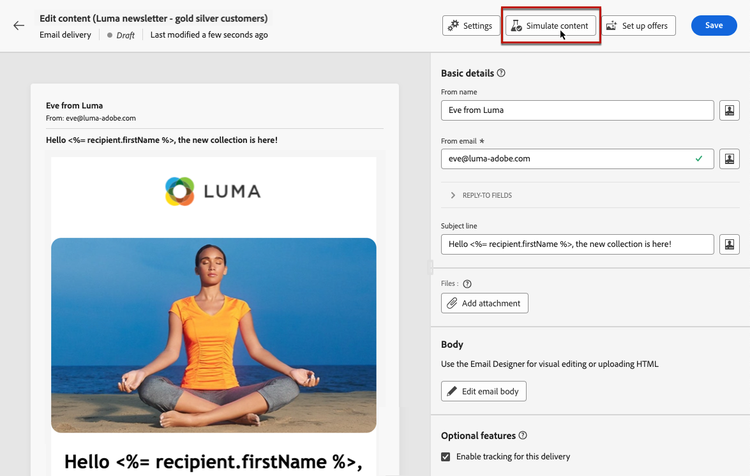
Perform these actions using the Simulate content button, which is accessible from the edit content screen of your delivery or from the Email Designer.
NOTE
Content simulation is also available from the delivery summary after clicking the Review and send button.
If you are targeting an audience uploaded from a file, refer to this section to learn how to preview and test your delivery.
recommendation-more-help
c39c2d00-ba9a-424b-adf9-66af58a0c34b