Create multilingual emails with Adobe Experience Manager aem-multilingual
The Adobe Experience Manager integration enables you to create multilingual email deliveries using Adobe Experience Manager language copies. This allows you to manage content variants in different languages and deliver personalized emails based on recipient language preferences.
Prerequisites prerequisites
Before creating a multilingual email delivery, ensure you have:
- Access to an Adobe Experience Manager instance configured for Adobe Campaign Web interface integration.
- Adobe Experience Manager content with language copies already created and approved. Learn more about Language Copy Wizard in Adobe Experience Manager documentation
- Email delivery template configured to receive Adobe Experience Manager content. Refer to the steps detailed in the Enable multilingual mode section.
Create your multilingual delivery
To create a multilingual email delivery, you first need to enable the multilingual option in your delivery settings. The system automatically detects available language copies and lets you choose which ones to add.
Enable multilingual mode enable-multilingual
Create a new delivery and enable the multilingual option in the advanced settings.
-
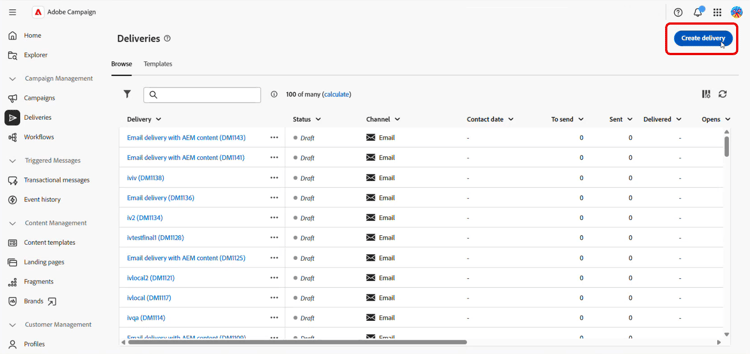
From the Deliveries menu, click Create delivery.
-
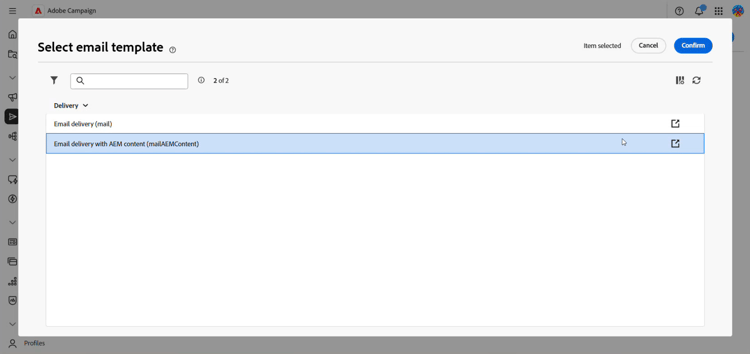
Select the Email delivery with AEM content template and click Create delivery.
-
Enter a label for the delivery and configure your audience. Learn more
-
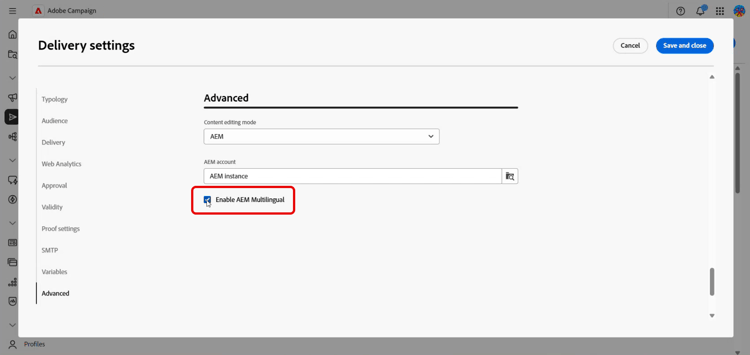
Access your delivery Settings, then navigate to the Advanced section.
-
Enable the Enable AEM multilingual option.
-
Make sure that:
- Content editing mode is set to AEM.
- The correct Adobe Experience Manager External account is selected.
-
Click Save and close.
Create content variants create-variants
Select your Adobe Experience Manager content and choose which language variants to include in the delivery.
-
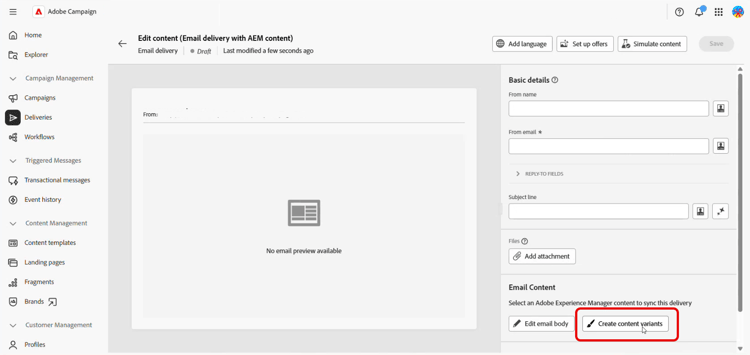
Click Edit content.
-
Select Create content variant.
-
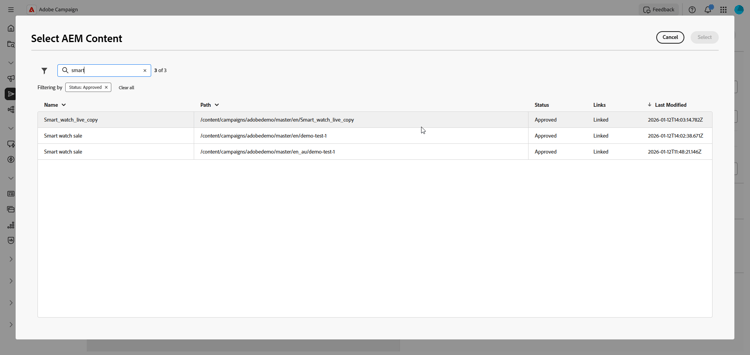
Select your Adobe Experience Manager content from the list.
-
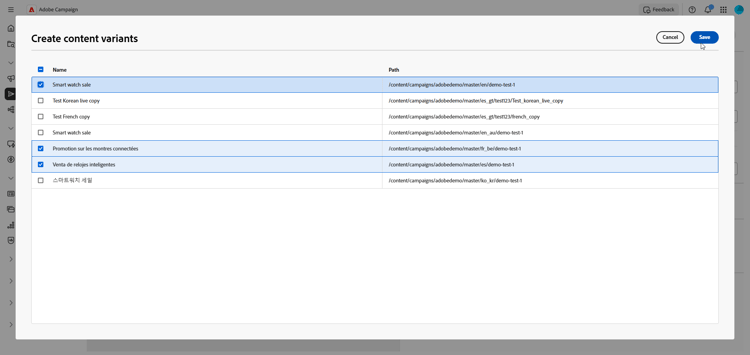
The system detects all language copies associated with the selected content (parent-child relationship), e.g. if your Adobe Experience Manager content has variants in French, German, and Italian, all variants are available for selection.
Select the language variants you want to include in your delivery.
-
Click Save.
-
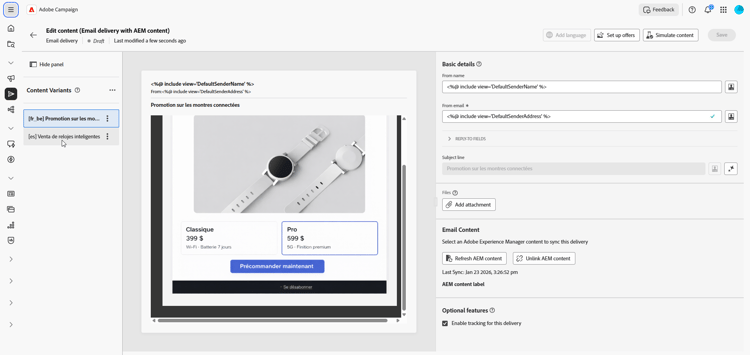
Review your language variants in the content editor. You can now manage each variant individually or proceed with sending the delivery.
Manage language variants manage-variants
After creating content variants, you can manage them directly in the delivery:
-
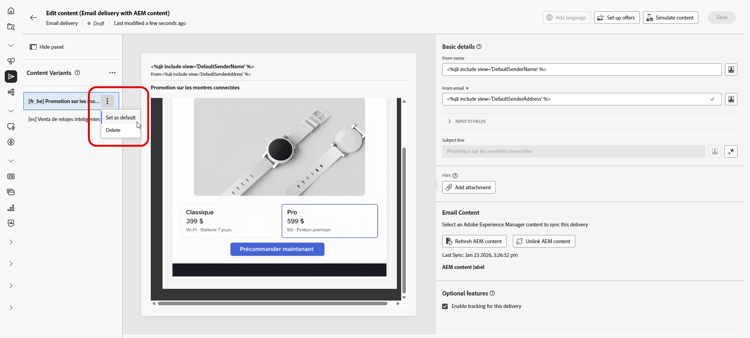
To set a default language, access the advanced menu for your chosen variant and select Set as default. The default language is used when a profile’s language preference is not set or does not match any available variant.
Click Delete to remove any variant from your delivery.
-
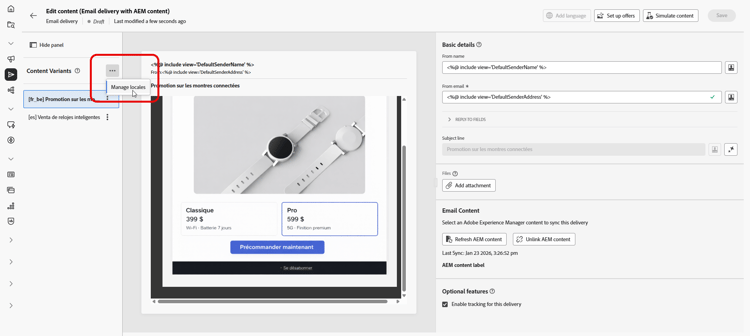
From the Content variants advanced menu, click Manage locales to add other Locales to your delivery.
-
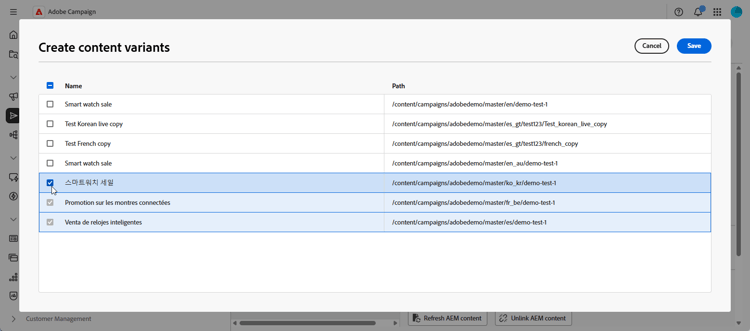
Select additional language copies to include more variants and click Save.
-
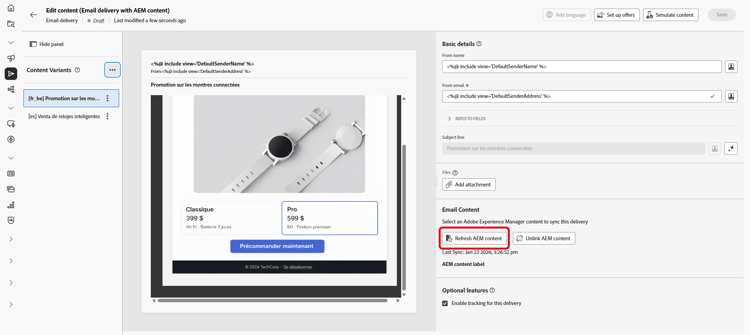
If content is updated in Adobe Experience Manager, click Refresh AEM content to synchronize all variants with the latest version.
-
Click Unlink AEM content if you want to edit content directly in Campaign or break the link with Adobe Experience Manager.
note caution CAUTION After unlinking, you cannot refresh content from Adobe Experience Manager or create new variants. The content becomes independent from Adobe Experience Manager.