Work with custom forms custom-forms
Custom forms are data entry interfaces that allow you to manage records in custom schemas directly from the Web User Interface. Each custom form corresponds to a specific custom schema and provides a list view to browse records and a detail view to create, edit, and delete records.
Custom forms are based on the schema’s form definition (screen definition), which configures which fields are displayed and how they are organized.
Create and pubish the custom schemas form-schema
You must first create and publish your custom schemas. For detailed instructions, refer to this section.
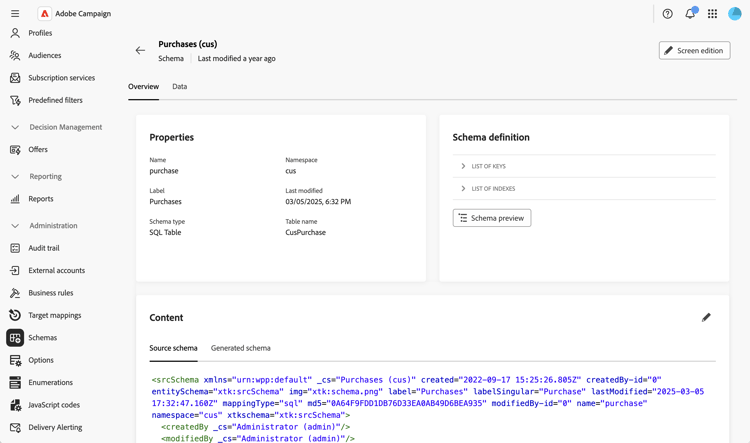
Here is the data model used for this example:
- A recipient makes several purchases
- A purchase is linked to a product
- A product is linked to a brand
For this use case, three schemas are created: the Purchases, Products and Brand schemas. Here is an example:
Configure the screen definition form-screen-schema
Define which fields are displayed and how they are organized. For detailed instructions, refer to this section.
Here is an example for the Brand schema where the Products custom list is added. The form then displays the list of products linked to the brand.
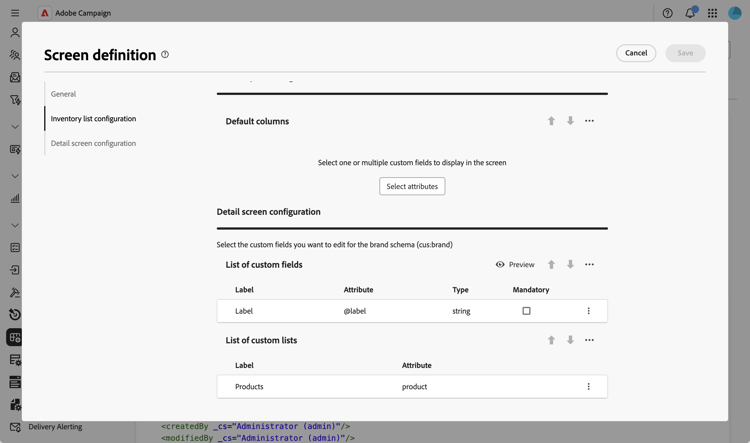
For the Products schema, we add the Purchases custom list. And for the Purchases schema, the Product and Recipient fields.
Create navigation entries form-screen-entries
Create folders in the Explorer to access your custom form. For detailed instructions, refer to this section.
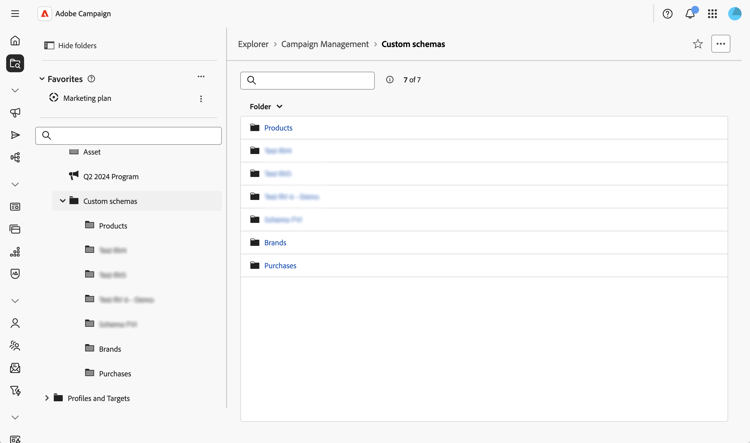
The list view displays all records for that schema. If the schema has a form definition configured, the list is editable and you can create, edit, and delete records.
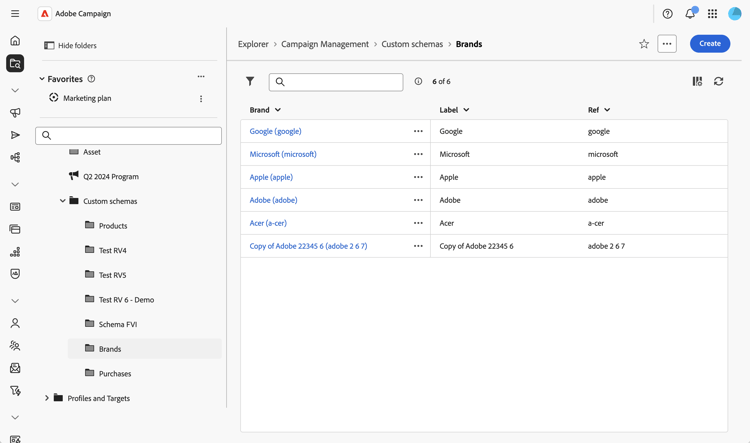
You can then:
- View and edit records: click on a record in the list view to open it in detail view and edit fields directly.
- Create new records: click the Create button and fill in the required fields. For linked fields, use the search icon to select from available related records.
- Delete records: select a record and use the delete action available in the record details or list view.
- View related data in tabs: access related records through dedicated tabs in the detail view (for example, view all products linked to a brand, or all purchases linked to a product).
- Apply filters: use the filter panel to refine the list view and find specific records based on any field in your schema.
- Customize list columns: configure which columns are displayed by default in list views through the screen definition.