Create and publish schemas create-publish
Create and manage schemas create-schemas
You can create new schemas, extend existing schemas, and access external databases.
Create or extend a schema create-new
To create or extend a schema:
-
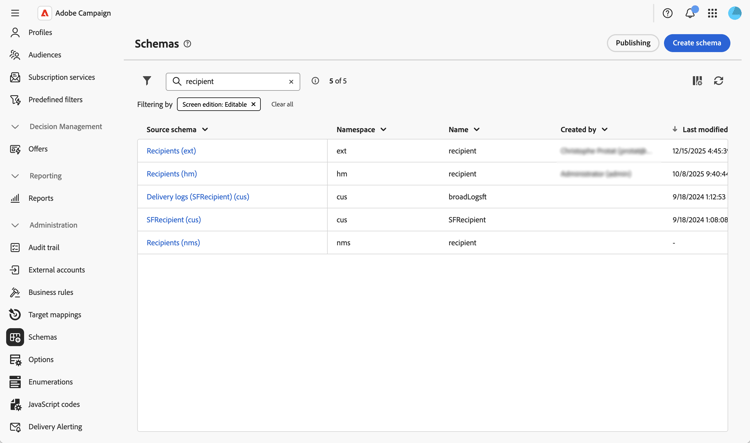
Navigate to Administration > Schemas.
-
Click Create schema.
-
Enter a namespace for your schema (for example,
cusfor custom schemas). -
Enter a unique name and label, and choose if you want to create a new schema or extend an existing one.
-
Click Create.
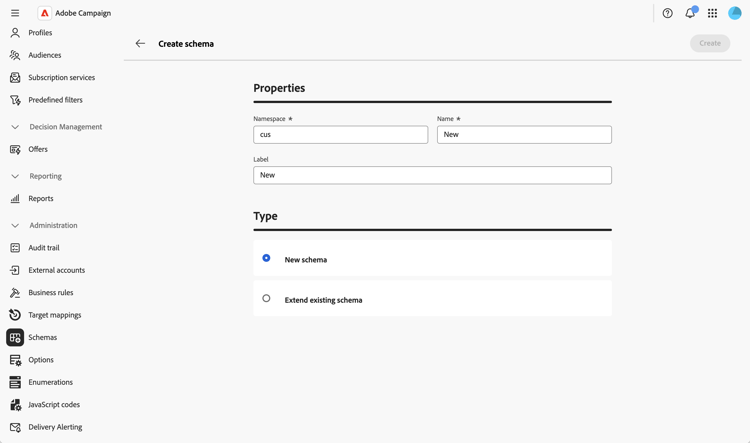
The schema is created and the generated schema structure is displayed.
By default, the schema is empty. You now need to add the fields you want to include in your schema using the schema editor:
-
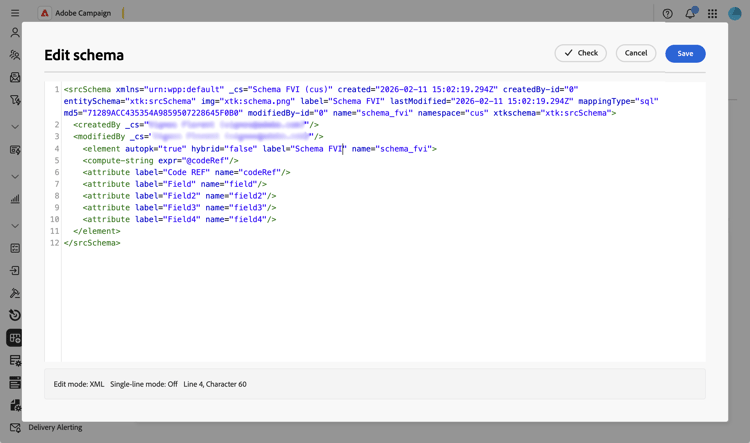
Click the pencil icon in the Content section of the schema details screen.
-
Add the needed elements. Here is an example of a custom schema structure:
-
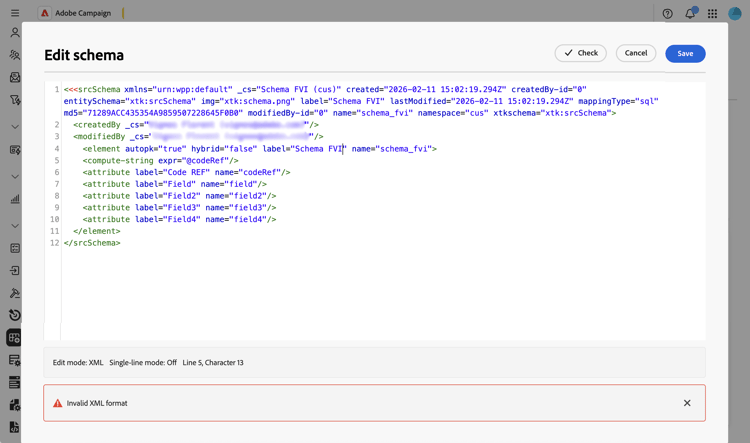
Click the Check button to verify the XML structure of your schema before saving. Identified errors are displayed at the bottom of the screen, for example “Invalid XML format”.
-
Fix any errors, then save your changes to generate the schema.
Define the screen edition define-attributes
After creating the schema, you need to define the screen edition.
For more information on the screen definition screen and how to access it, refer to the Access the screen definition section.
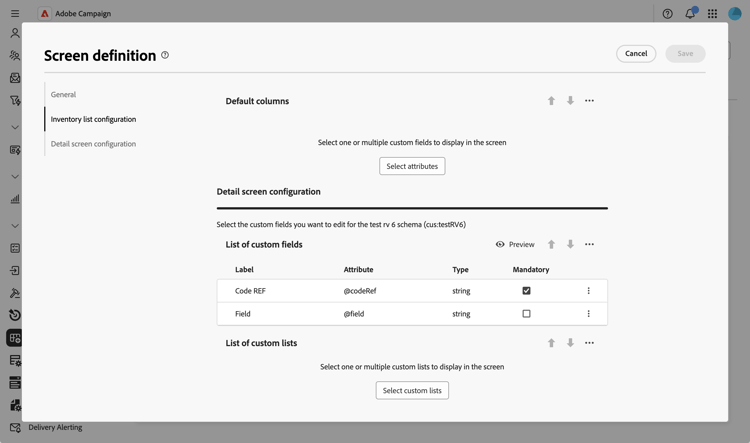
In our example, we simply add two custom fields:
-
Click the Screen edition button in the schema details view to access the screen definition.
-
Click the ellipsis icon above the List of custom fields table and choose Select attributes.
-
Select the custom fields you want to add and confirm.
Publish and synchronize schemas publish
After creating or modifying a schema, you need to publish it to synchronize the logical schema with the physical database structure.
Publish schema changes publish-changes
To publish your schema changes:
-
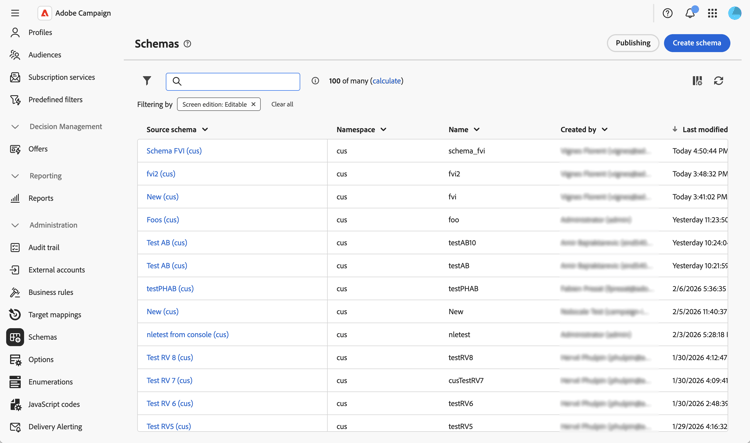
Navigate to Administration > Schemas to access the schema list.
-
Click Publishing and confirm.
-
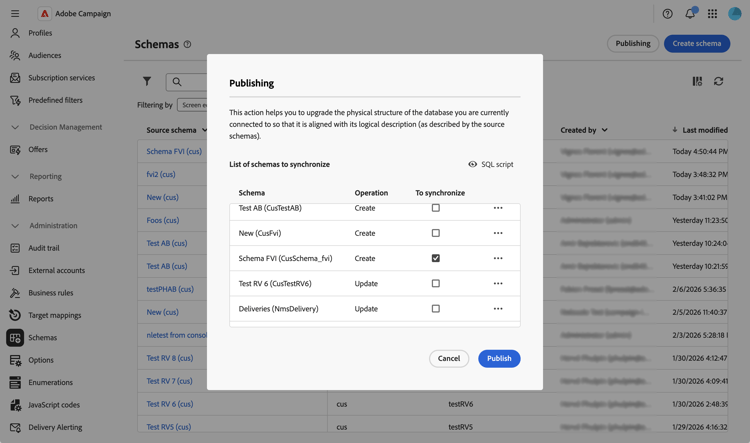
Select, in the list, the schema you want to synchronize.
-
Review the SQL script that will be executed to update the database structure.
-
Click Publish and confirm to proceed with the publication.
Create a navigation entry navigation
After publishing a custom schema, you can create a navigation entry in the Explorer to access your custom data:
- Navigate to the Explorer menu and select a folder where you want to place your custom schema.
- Click the ellipsis icon, and click Create new folder.
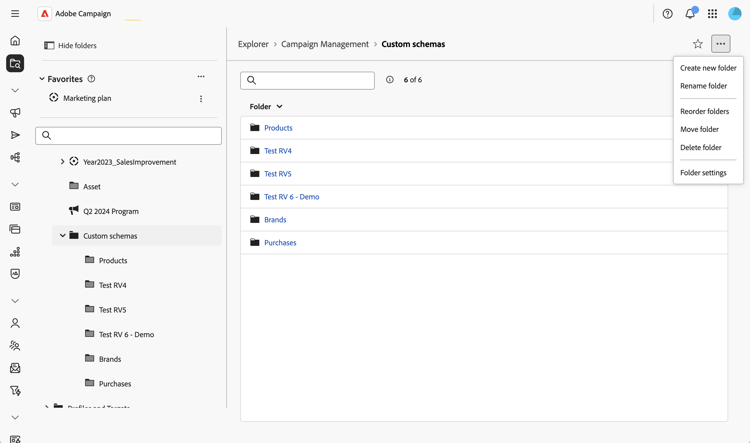
- Add a label and choose your schema in the Folder type field.
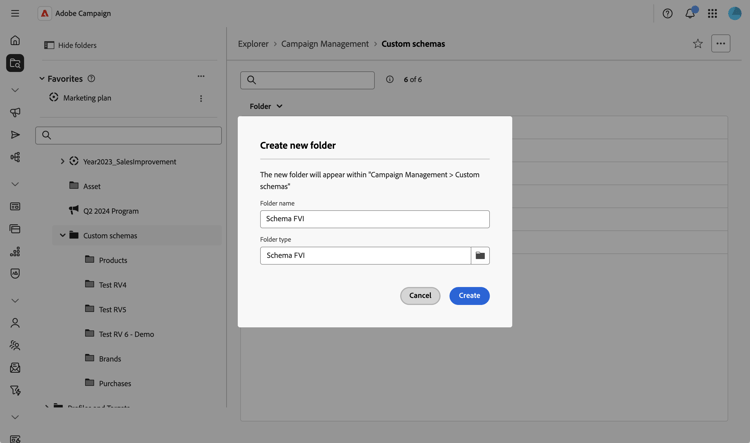
- The custom schema will now be accessible from the Explorer view.
From the new folder, you can:
- View the list of records in your custom schema.
- Create new records.
- Edit and delete existing records.
- Customize which columns are displayed by default in the list view.