Migrate to the Adobe Analytics 2.0 API analytics-2-migration
Adobe Analytics 1.4 APIs are reaching end-of-life. The Web Analytics connector that links your Campaign instance to Adobe Analytics relies on these APIs, so you need to upgrade to a build that uses the new Analytics 2.0 APIs to keep the integration running.
Are you impacted? are-you-impacted
You are impacted if your instance uses the Web Analytics external account for any of the following:
- Sending email campaign indicators and attributes to Adobe Analytics as metrics.
- Sending classification data to Adobe Analytics.
- The remarketing flow (identifying converted contacts after a campaign).
- A Web Analytics external account you plan to configure for the first time.
Not sure which of these apply to you? Check which of the technical workflows above are active on your instance, and review your Web Analytics external account configuration in Administration > Platform > External accounts (see Web Analytics external account).
How to migrate how-to-migrate
If you are on an Adobe-hosted instance, Adobe handles the SFTP provisioning, IP allow-listing, and key configuration for you as part of the upgrade — you only need to validate your use cases once the new build is live.
If you are on an on-premise or hybrid deployment, complete the following steps.
-
Upgrade your Campaign environment to a build that includes the Adobe Analytics 2.0 changes. You can confirm which build you are running from Help > About… (see how to check your Campaign version).
-
Review which of the use cases above apply to your instance, since the next step depends on it.
-
If you use the remarketing flow, the webAnalyticsFindConverted workflow needs a dedicated SFTP channel to exchange data with Adobe Analytics 2.0. Set this up as follows; otherwise, skip to the next step.
-
Provision an SFTP server for the instance using key-based authentication, following the same SFTP server best practices you’d apply to any other external SFTP integration. Adobe provides a sample SFTP setup script to help you get started.
-
Register that server’s connection details in Adobe Analytics by running the script delivered with the new build:
code language-none nlserver javascript -instance:<instance_name> -arg:host=<sftp_host_url>#user=<sftp_user> -file <path_to_the_file>/aaremarketingLocation.jsExample:
code language-none nlserver javascript -instance:test_mkt_stage2 -arg:host=test-mkt-stage1.campaign.adobe.com#user=test -file ./nl6/datakit/nms/eng/js/aaremarketingLocation.js -
Allow-list Adobe Analytics on your SFTP server, since remarketing exports are only ever initiated from a fixed set of Adobe IP ranges:
- Look up the current Adobe Analytics data collection IP addresses and add them to your SFTP server’s allow list. FTP-based Analytics exports (including data feeds) only originate from IPv4 addresses in the London, Oregon, and Singapore regions.
- Retrieve the Adobe Analytics public key and add it to the
authorized_keysfile on your SFTP server so Analytics can authenticate.
-
-
Enable the
FEATUREFLAG_USE_ANALYTICS_20_APIfeature flag on your instance by creating or setting thelongvalueof the option to1in xtkOption, under Administration > Platform > Options in the Campaign Explorer tree. This step is required regardless of which use case above applies to you. -
Validate the migration by exercising each use case that applies to your instance (send a test campaign, check that indicators land in Analytics, and confirm remarketing data if applicable) before decommissioning any old connectivity.
Setting up a new Web Analytics external account setting-up-a-new-web-analytics-external-account
The following applies whether your instance is Adobe-hosted or on-premise/hybrid.
If you are configuring the Web Analytics external account for the first time rather than migrating an existing one, follow the external account setup steps and the connector getting-started guide.
Because Analytics 2.0 introduces new classification handling, you also need to create a classification set in Adobe Analytics before your external account can pick up your report suite’s classification data. This is a new step: create it after configuring your Conversion variables and Success events, and before configuring the external account in Campaign.
To create your classification set:
-
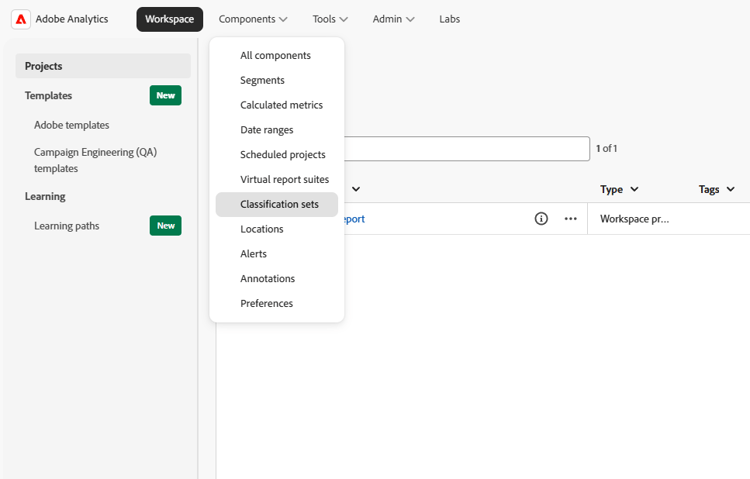
From the Adobe Analytics top menu bar, select Components > Classification sets, then click New.
-
In the Add New Classification Set dialog:
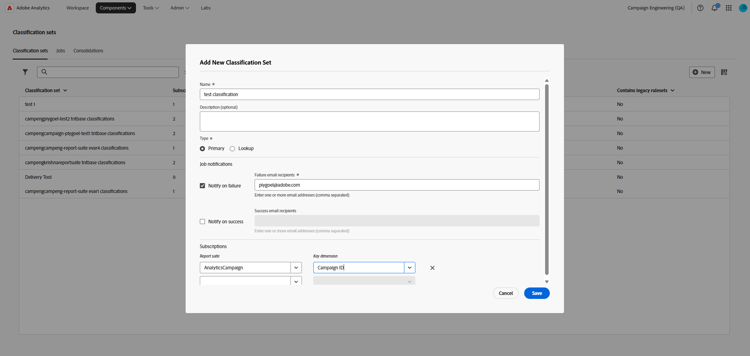
- Enter a Name for the classification set.
- Set the Type to Primary.
- In Job notifications, choose who should be notified on success or failure of the classification set jobs, and provide the corresponding email addresses.
- In Subscriptions, select your report suite and the conversion variable you created for the internal campaign name in the previous step.
-
Click Save.
This classification set will be automatically discovered by Campaign when you configure your external account in the next step. For more information on classification sets, refer to the Adobe Analytics documentation.
Need help? need-help
If you run into issues during the migration, contact Adobe Customer Care.