Working with TOC.md files toc-files
The TOC.md file determines the user guide content, structure, and appearance in the left navigation.
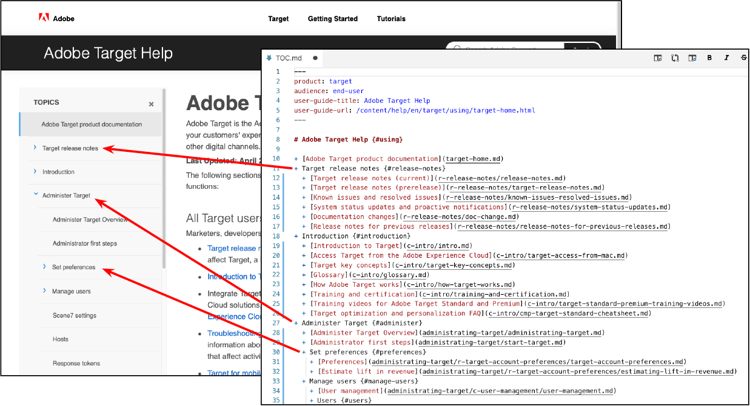
The TOC anchor IDs also play a major role in the article URL, which consists of the Git repo name, the article name, and the anchor IDs in the TOC.md file.

Editing the TOC.md
User guide structure
- Add appropriate metadata to the top of the TOC.md file. See the next section for metadata details.
- Add nested bullet items to create the guide structure, using section headings and child items. A child item can be either an article link or another section heading.
- For a file to be rendered, it must be included in the TOC.
Metadata in the TOC.md file
The TOC.md isn’t rendered as a web page, so its metadata doesn’t affect SEO (search-engine optimization). However, TOC metadata is useful in two ways:
- Add user-guide-description so ExL landing pages can pick it up when they reference the guide. user-guide-title isn’t necessary; the Head 1 title text is used instead (see next). You can also use breadcrumb-title in the TOC to specify a shorter breadcrumb title.
- Add metadata such as role: Admin or level: Beginner as the default for all articles in the guide, so you don’t need to specify it in each article. You can override the TOC metadata in an article if necessary. Example: role: Admin, Developer or level: Experienced.
For more information, see Metadata.
Head 1 title and anchor
Example: # Adobe Target Admin Guide {#admin}
The Head 1 text is used in the breadcrumb (unless you specify breadcrumb-title metadata). The guide anchor ID ({#admin} in the example above) is used in the URL of every article in the guide. For example, URLs in that guide would start like this:
https://experienceleague.adobe.com/docs/target/admin/
The rest of the URL derives from other anchors in the TOC as well as the file name. See User Guide Setup - How URLs are generated.
Section headings
Create an anchor ID for every section heading. A section heading cannot be a link. Section headings are part of the page URL, so keep them short. Changing an anchor ID changes the page URLs for all content in that section. Example:
+ Target release notes {#release-notes}
In this example, articles in the release notes section would start with this URL:
https://experienceleague.adobe.com/docs/target/admin/release-notes/
Links to articles
Use standard Markdown link syntax to link to articles. In a TOC, each link should be a bullet item in the appropriate location. Example:
+ [Getting started overview](introduction/getting-started.md)
Changing the right nav levels mini-toc
Use mini-toc-levels metadata to control how many levels of headings appear in the right nav. The default is 2; you can specify 1-6. Set this metadata in metadata.md, the TOC.md file, or any article. See Metadata.
Notes and tips
-
To render a file on
experienceleague.adobe.com, it must be in the TOC. To keep it out of the generated left nav anyway, usehidefromtocmetadata. See Hiding files. -
Use a consistent bullet style in the TOC.md file. Files were migrated with
+symbols, so either keep those or switch everything to another supported format, such as*or-. Don’t mix styles in the same file. -
At least one article in the TOC must be unhidden, or the TOC job fails.
-
Create short names for article titles. For example, you can shorten:
+ [Introduction to Adobe Target](c-intro/intro.md)to
+ [Introduction](c-intro/intro.md)