Report Builder settings
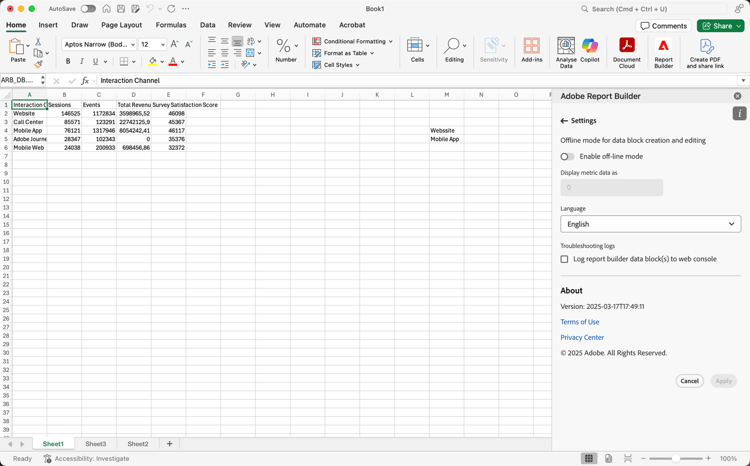
Use the Settings pane to configure application-level settings such as the language displayed by the UI or whether or not to work in off-line mode. The settings are applied immediately and they are set for all future sessions until they’re changed.
To change Report Builder settings
-
Select the Settings icon.
-
Make changes to enable of disable off-line mode, select a language, or enable troubleshooting.
-
Select Apply.
Off-line mode
When you create and edit a data block in off-line mode, data is not retrieved. Instead, simulation data is used so that you can quickly work without waiting for the request to run. When you are back online, select


To enable off-line mode
-
Select

-
Toggle Enable off-line mode on.
-
Enter a positive integer in the Display metric data as field.
-
Select Apply.
Language
You can choose the language for the Report Builder interface. All supported Customer Journey Analytics languages are available.
To select the language used in the Report Builder interface:
-
Select a language from the Language drop-down menu.
-
Select Apply.
Troubleshooting
The troubleshoot and help resolve support tickets, enable to log Report Builder requests. In the Report Builder panel:
- Select
- Select Log report builder request data block(s) to web console.
Requests are send to your web browser console. Refer to the documentation of your web browser how to open the console log as part of the web browser developer tools.