Manually import data to Power BI
- You have until August 12, 2026 to migrate your workbooks from the legacy Report Builder to the new Report Builder. See convert your legacy workbooks for detailed information.
- With the end of life of the Adobe Analytics 1.4 API’s, the legacy Report Builder add-in will no longer be available for download.
- After August 12, 2026, customers with workbooks requiring migration will need to contact customer support to obtain the orignial workbooks. These workbooks will need to be migrated as documented in convert your legacy workbooks.
If you want to import Analytics data manually through Power BI, follow these instructions.
-
In Power BI, click Get Data in the lower left screen.
-
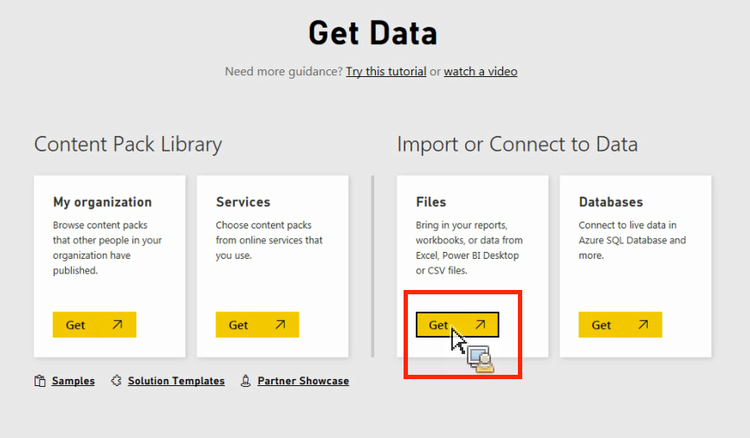
Under Import or Connect to Data > Files, click Get.
-
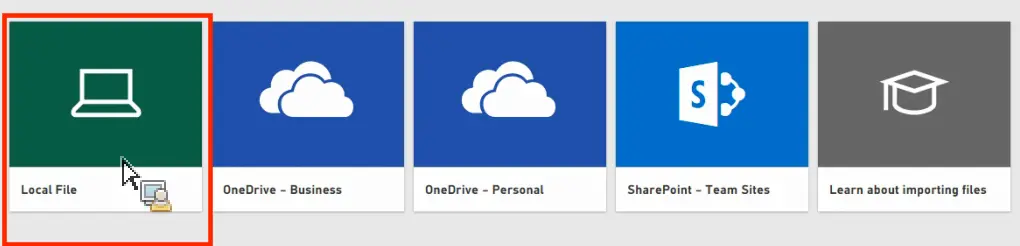
Click Local File.
-
Choose which file to upload and click Open.
-
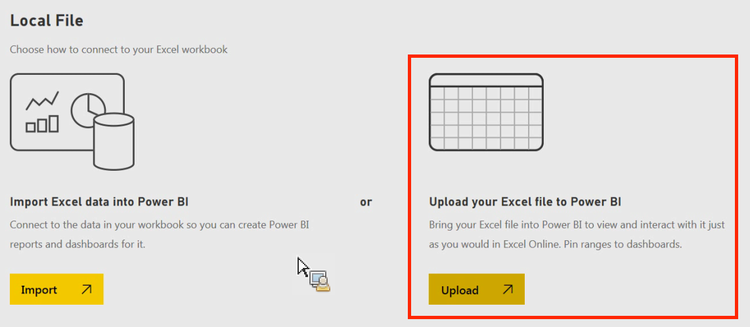
Click Upload under Upload your Excel file to Power BI.
-
The message “Your file has been uploaded” should appear.